How to Create a Scheduled Sync Task with AOMEI Backupper
AOMEI Backupper is able to run file sync automatically and periodically on a regular basis to secure your data. There are four sync ways available: basic sync, mirror sync, real-time sync, and two-way sync. For basic sync, mirror sync, and two-way sync, you can configure scheduled settings to automatically run file sync at a scheduled time.
AOMEI Backupper provides 7 schedule sync modes: Daily (By Interval), Daily, Weekly, Monthly (By Week), Monthly (By Week), and Event triggers to synchronize files/folders to other locations.
The usage scenarios of scheduled file synchronization include, but are not limited to, the following:
Personal file backup and synchronization: Individuals can use file plan synchronization to back up and synchronize their personal files, ensuring that files are synchronized and securely stored across multiple devices. This includes work documents, photos, music, videos, and other personal files.
Cross-team collaboration and sharing: File plan synchronization is a key tool for team collaboration. Team members can use file plan synchronization to share and collaborate on files, ensuring that everyone has access to the latest versions of files, promoting teamwork, and improving work efficiency.
Project management: File plan synchronization is valuable for project management. Team members can use file plan synchronization to share project files, update progress and documents, ensuring coordination and improving project management efficiency.
Create Scheduled Sync Task in Windows 10
Prerequisites for Schedule Sync
- Download and install AOMEI Backupper: Begin by downloading and installing AOMEI Backupper on the computer that you wish to sync.
- Determine the sync method: AOMEI Backupper offers various sync options, such as basic sync, mirror sync, real-time sync, and two-way sync.
- Choose the appropriate sync method based on your requirements.
- Verify sufficient free space on the target device: Ensure that the target device, such as an external hard drive or network storage, has enough free space to accommodate synced files.
Situation 1: No Sync Task is Created
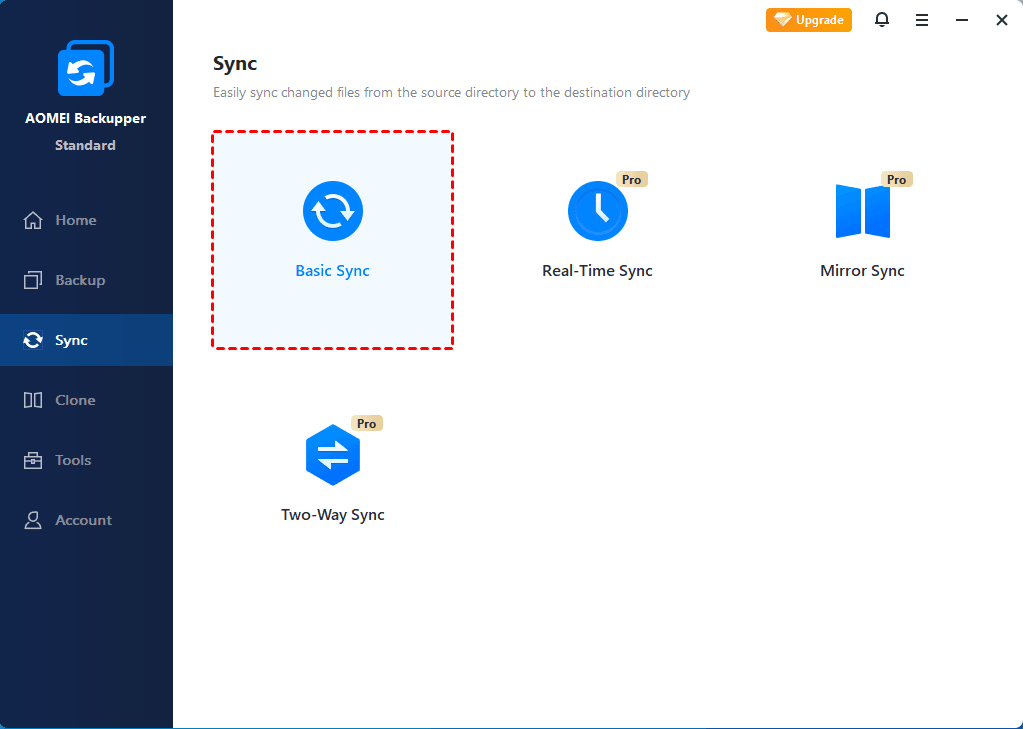
If you have not created any scheduled sync tasks, click "Sync" and select "Basic Sync", "Mirror Sync", or "Two-Way Sync". Then, you can click "Select Source" to select which folders you want to synchronize. Here is where you will also find the "Schedule" option.
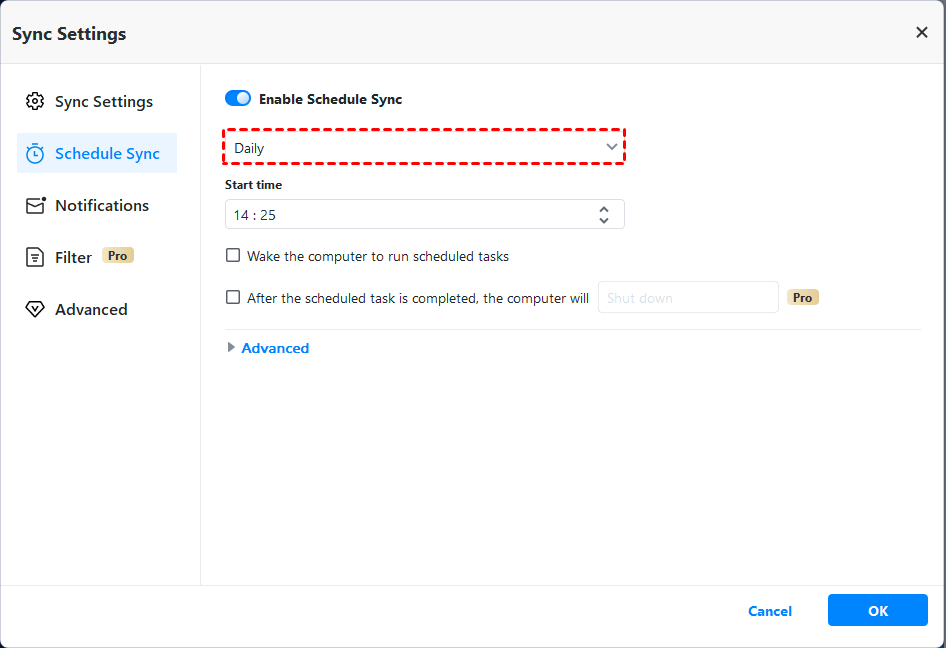
Please turn on "Enable Schedule Sync" and set a schedule mode and other schedule settings, and then click "OK" to save settings.
Situation 2: Task has been Created but not Enabled Schedule
If you have created a sync task but you have not enabled the "Schedule" feature, you can enable it by clicking the "Edit Sync" button under the 3-point button and then clicking the "Schedule" just like method 1 to make it a scheduled task.
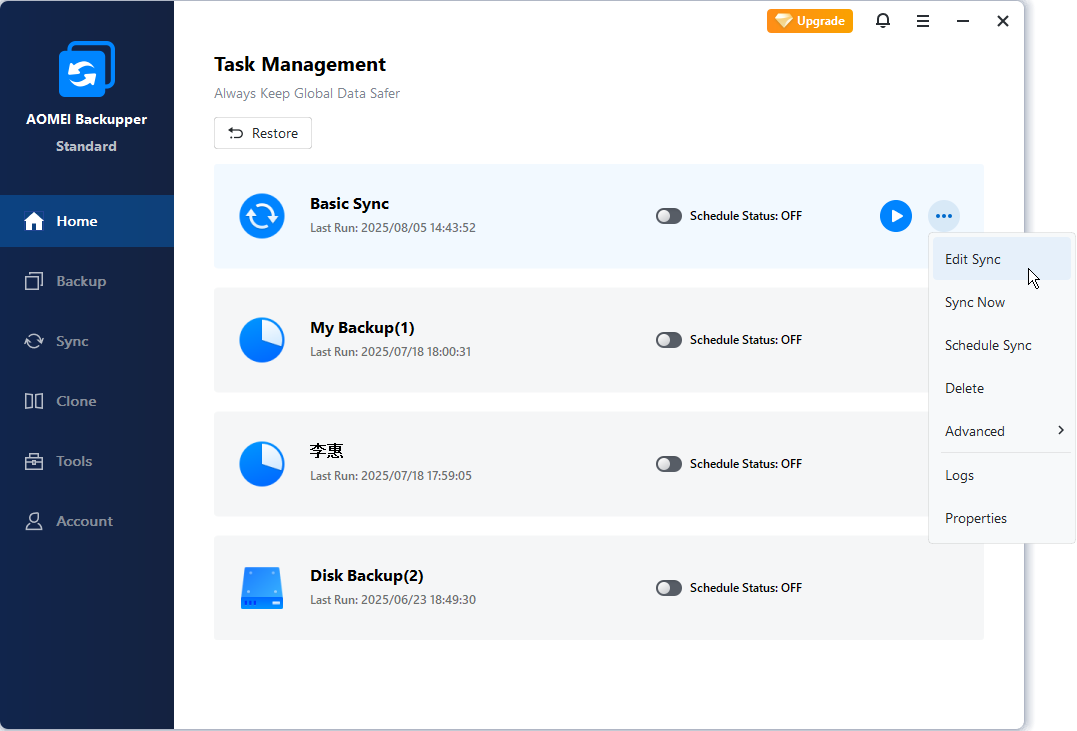
Tips: The schedule sync is only available in the basic sync, mirror sync, and two-way sync. Real-time sync can be considered a specially scheduled sync.
How to Enable or Disable Scheduled Sync
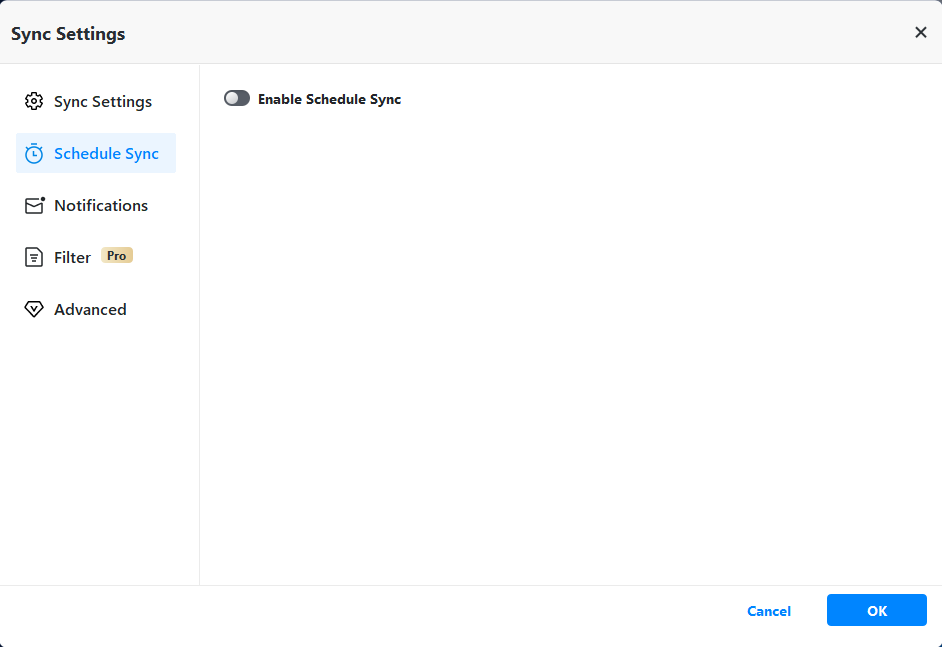
To enable or disable a scheduled sync, you can simply find the schedule sync settings as mentioned above and then activate or deactivate the button "Enable Schedule Sync". Once you activate the button under one backup sync, the scheduled sync is enabled. After you deactivate the button under a scheduled sync task, the sync task will not be scheduled.
Schedule Sync Modes
1. Daily (By Interval) Mode
Set intervals of 1, 2, 3, 4, or 6 hours within the selected time frame each day.
Set a start time and a finish time to perform the sync task.
2. Daily Mode
Set a future time point to perform the sync task once each day.
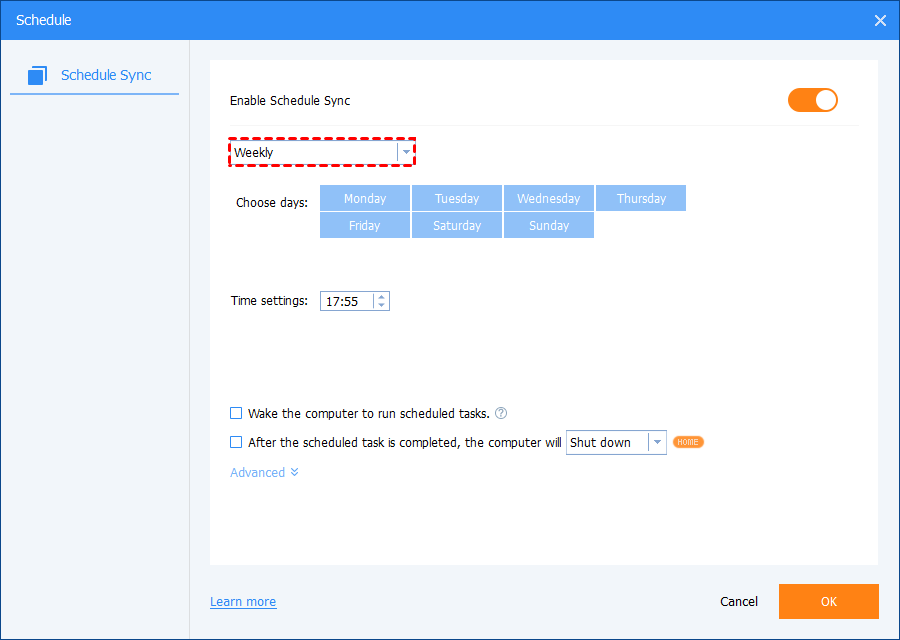
3. Weekly Mode
Choose a specific day(s) for the sync task from Monday to Sunday.
Set a time point, and the program will automatically perform the sync at this time on the chosen day(s) every week.
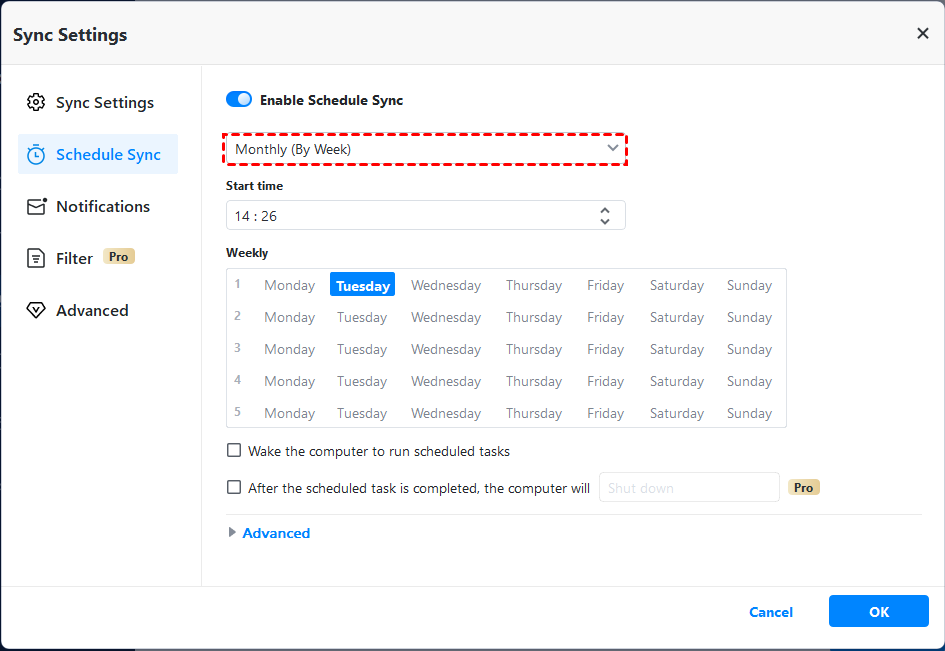
4. Monthly (By Week) Mode
Set a start time point. The program will automatically perform the sync at the given time point.
Specify one day each month to perform the sync task. For example, perform the sync on the third Tuesday of each month.
5. Monthly (By Date) Mode
Set a start time point. The program will automatically perform the sync at the given time point.
Choose the day(s) from the calendar to perform the sync task each month. Multiple days can also be selected on the calendar.
6. One-Time Mode
Set a future time point to perform the backup task only once.
For Daily (By Interval), Daily, Weekly, Monthly (By Week), Monthly (By Date), and One-Time Mode scheduled sync tasks, Backupper can currently wake up the computer to perform. You can tick the option "Wake the computer to run scheduled tasks" to configure it. In this way, the program will wake your computer from sleep or hibernate 2 minutes before running the scheduled sync. This feature is unavailable for Event Triggers scheduled sync tasks.
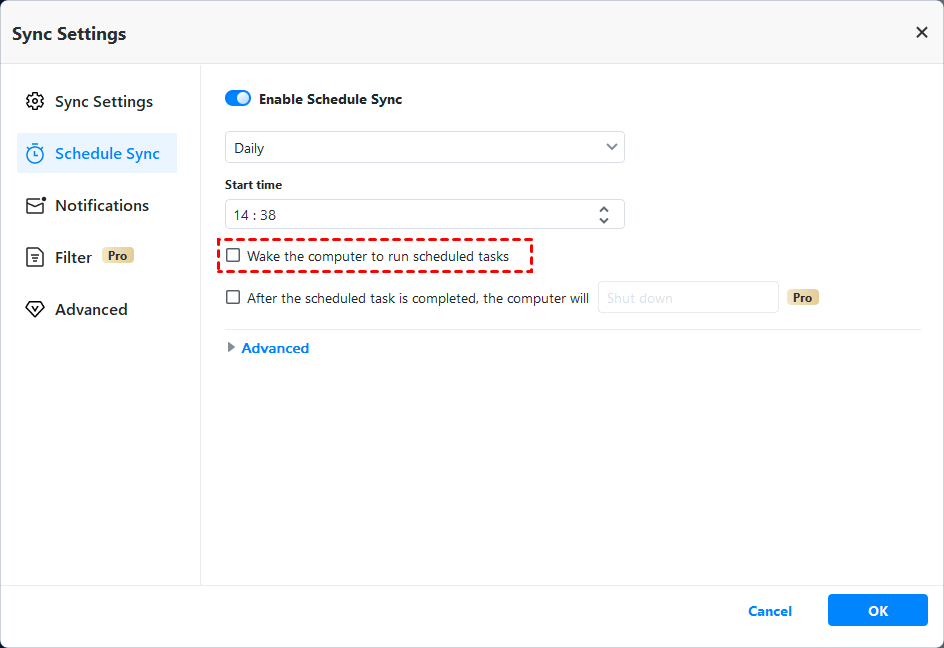
And, for Daily (By Interval), Daily, Weekly, Monthly (By Week), Monthly (By Date), and One-Time Mode scheduled sync tasks, Backupper currently can set up to Shut down/Restart/Hibernate/Sleep PC after the scheduled task is completed. In this way, the program will automatically perform Shut down/Restart/Hibernate/Sleep operations after the scheduled task is completed, and the countdown is 3 minutes. This feature is unavailable for Event Triggers schedule and Real-time Sync tasks.
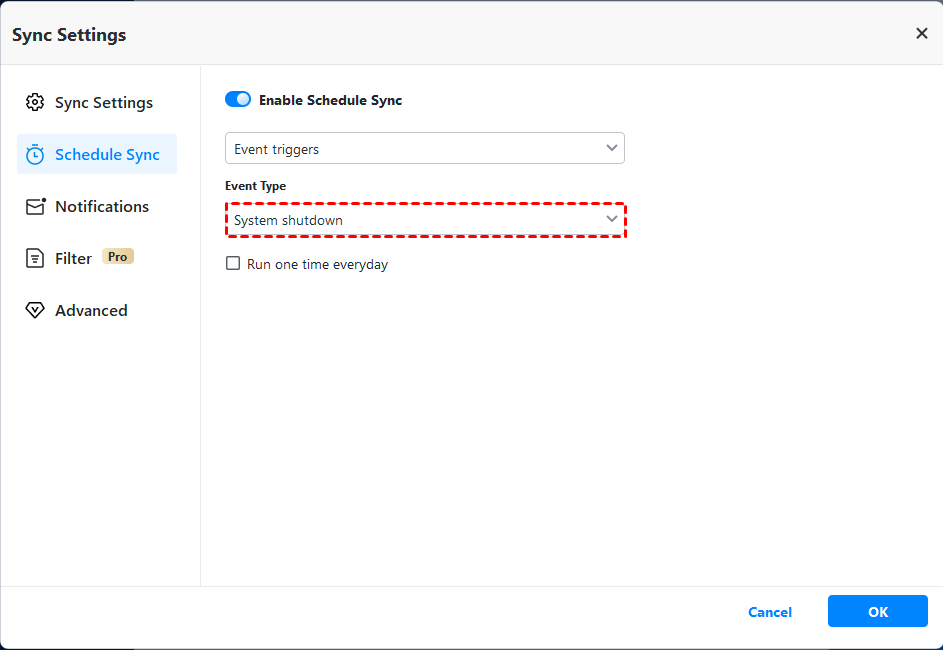
7. Event Triggers
There are five event trigger types offered by AOMEI Backupper: USB plug in, User logon, User logoff, System startup, and System Shutdown. Please note that the Event triggers mode is available in paid versions only, such as AOMEI Backupper Professional. Please upgrade to the professional version if necessary. For more detailed info about how "Event Triggers" works, please see Windows backup on logoff.
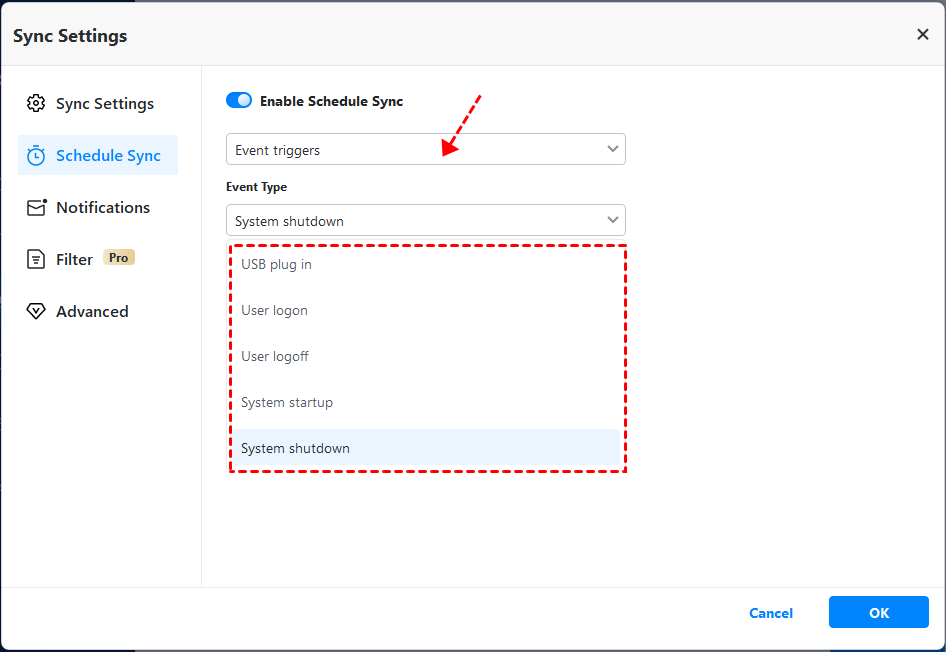
a. USB plug in: When the program detects that the source or target USB device of the sync task is plugged in, it will automatically sync the data from the USB device or sync to the USB device.
If "Run one time every day" is selected, then the sync task will run only once a day.
When you insert the USB device after USB tasks are created, it will pop up "USB Plugged in" window with information "AOMEI Backupper has detected a USB device plugged in and will run the following tasks associated with the USB device. Please confirm how you would like to proceed", you can select to run tasks immediately or delay 15/30/60 minutes to perform or skip tasks. And, you can check "Do not show this dialog again" so that the tasks can be performed immediately every time.
b. User logon: Set up to perform a sync task automatically when the user logs in. Once you log into any user account (administrator or standard), the sync task is performed immediately. If you log on as an administrator account, you will see a small AOMEI Backupper system tray icon, which shows the sync progress in the bottom right corner of the desktop. However, if it is a standard account, the sync task is performed in the background without the aforementioned system tray icon visible.
c. User logoff: Set up to perform a sync task automatically when the user logs off. Once you log off any user account (administrator or standard), the sync task is performed in the background immediately. If the sync task has not completed by the time you log on again, it still continues to run. If you log on as an administrator account, you will see a small AOMEI Backupper system tray icon showing the sync progress. If you shut down the PC before the sync task has completed, AOMEI Backupper will prevent the system from shutting down and then continue to complete the sync task first. After that, the system will shut down automatically.
d. System startup: Set up to perform a sync task automatically when a system startup occurs. Once the system has started, even though you have not yet logged on to reach the desktop, the sync task will run in the background immediately. If the sync task hasn't completed after you reach the desktop, it will still continue to run, and you will see a small AOMEI Backupper system tray icon showing the sync progress if you logged in via an administrator account. If you shut down the PC before the sync task is complete, AOMEI Backupper will prevent the system from shutting down and then continue to complete the sync task. After this, the system will shut down automatically. In addition, you can set a time to delay performing the sync task. For instance, you could set up a 5-minute delay, so the sync task starts to run 5 minutes after system startup.
e. System shutdown: Set up to perform a sync task automatically when the system shuts down. When you click “shut down", AOMEI Backupper will prevent the system from shutting down and perform the sync task first. Sync status information is displayed. Once the sync is complete, the system will shut down automatically. Please note that if a system update is running after clicking "shut down", the sync task will run after the system update has completed.
Advanced Schedule Settings
In the Schedule "Advanced" Settings, you can tick "Run the missing sync after starting computer next time" so a missed sync will run at the next system startup if the PC is shut down before the scheduled sync time point.
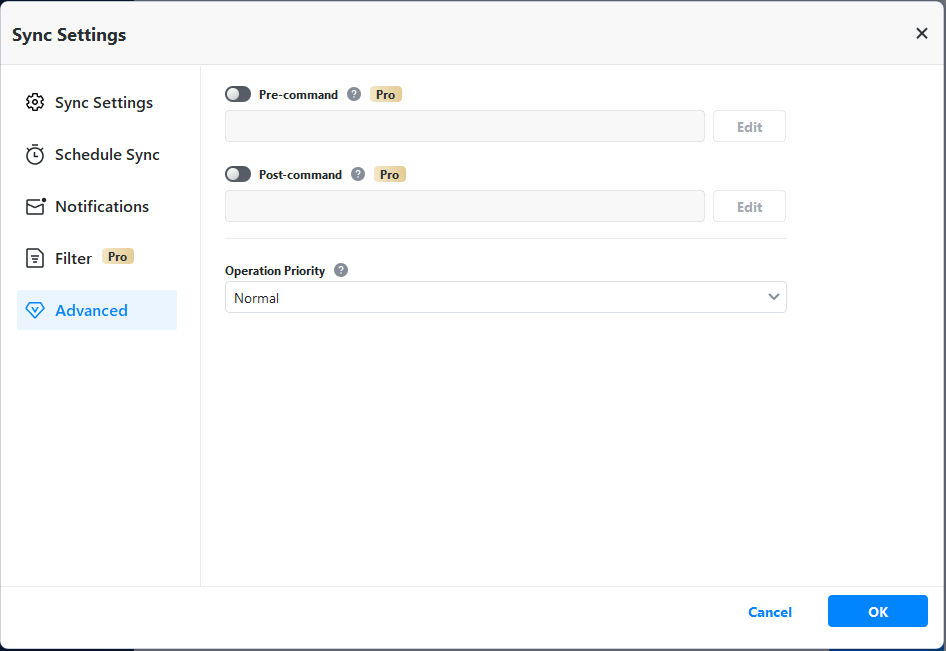
Also, you can directly specify Windows Task Scheduler to perform this scheduled sync task.
Notes:
-
After the sync process starts, you can click the icon in the lower-left corner to set to Shut down/Restart/Hibernate/Sleep PC after the sync is completed.
-
Basic sync is a kind of one-way sync. That’s to say, it can only sync from source to target.
-
File Sync supports VSS (Volume Shadow Copy Service); therefore, it can normally synchronize files that are being used or occupied by other programs. But you need to make sure that the "Volume Shadow Copy" service is enabled. And, if some files are in use by other programs exclusively, they will not be synchronized.
-
If there are some special system files or folders with special security attributes in source folders, they are not synchronized, and the program will prompt to skip them.
-
After synchronizing the file, any changes to target files and folders, such as deleting, adding, or renaming, will cause the target files or folders to be inconsistent with the source ones. This situation will not be beneficial for file management.
-
If the target path is located in a FAT/FAT32 partition, files larger than 4GB will not be synced to the target path because a single file larger than 4GB cannot be stored on a FAT/FAT32 partition.
Conclusion
File scheduled synchronization is applicable to both individual users and team collaborations, covering personal file backup, cross-team collaboration, project management, mobile office, remote work, and cross-platform work. It provides a convenient solution for file management and synchronization, improving work efficiency, streamlining workflows, and ensuring file consistency and reliability.
FAQs
Q: In the sync, why aren’t files deleted from the target path when they have been deleted from the source?
A: For common/schedule sync, Backupper currently doesn’t support deleting files from the destination when deleting from the source. You can try to use Real-time sync and check the "target files will be deleted when deleting the source files" option in the real-time sync settings.