Backup Options in AOMEI Backupper
You can find the "Options" button in the Backup page for the specific backup task, like compression level, splitting image, notifications settings, intelligent sector, VSS, etc. In the program's main "Menu"-->"Settings", it is possible to individually customize the global parameters, like automatically check the backup on completion, hide tray icon, and so on.
Settings for Current Backup Task
When creating a new backup task, you will see "Options" in the lower left corner of the interface.
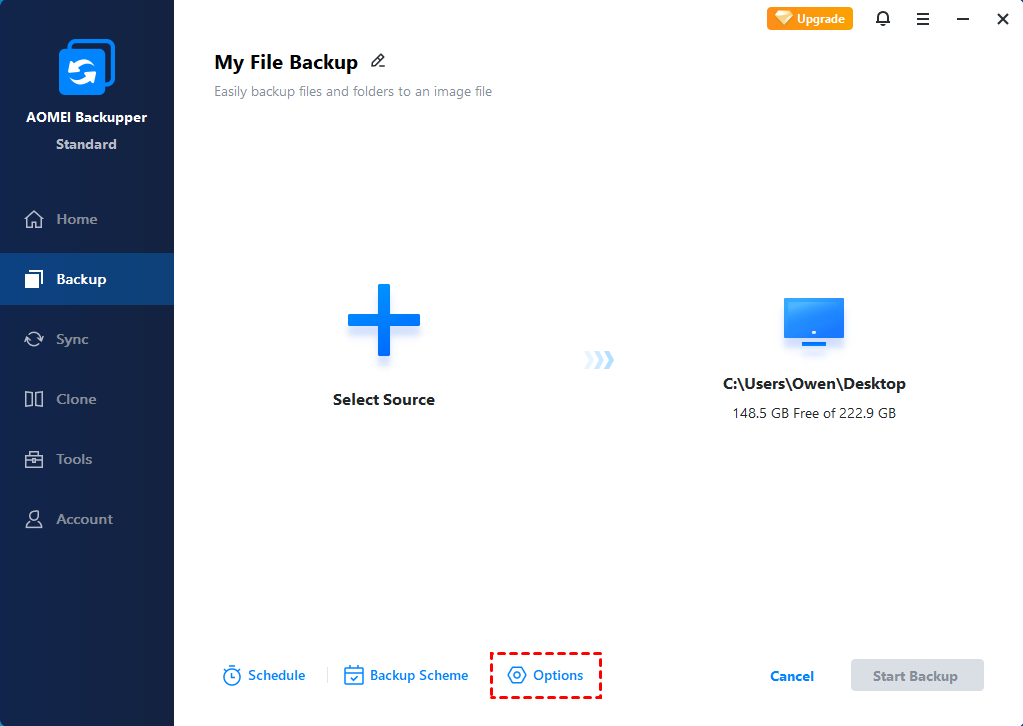
Click it and you will see "General", "Schedule", "Backup Scheme", "Notifications", and "Advanced" options
General
In this option, you can write a note for your task to help you distinguish it from other backup tasks.
And, an option "Automatically create a folder with the same name as the task in the target location" is ticked by default. It will create a folder with the task name under the target path to save backup image files. For example, if you create a backup task named System Backup, it will first create a "System Backup" folder under the target drive and then save backup images under the folder.
In addition, you can also enable encryption for this task.

Schedule
Set up a schedule to back up data automatically and periodically, allowing data security to be greatly enhanced.
For more details of the backup schedule, please check here for more details.
Backup Scheme
Set up a backup scheme to clean up old backup image files automatically and periodically.
For more details of the backup scheme, please check here for more details.
Notifications
In unattended operations, a notification can be emailed containing the result of each backup.
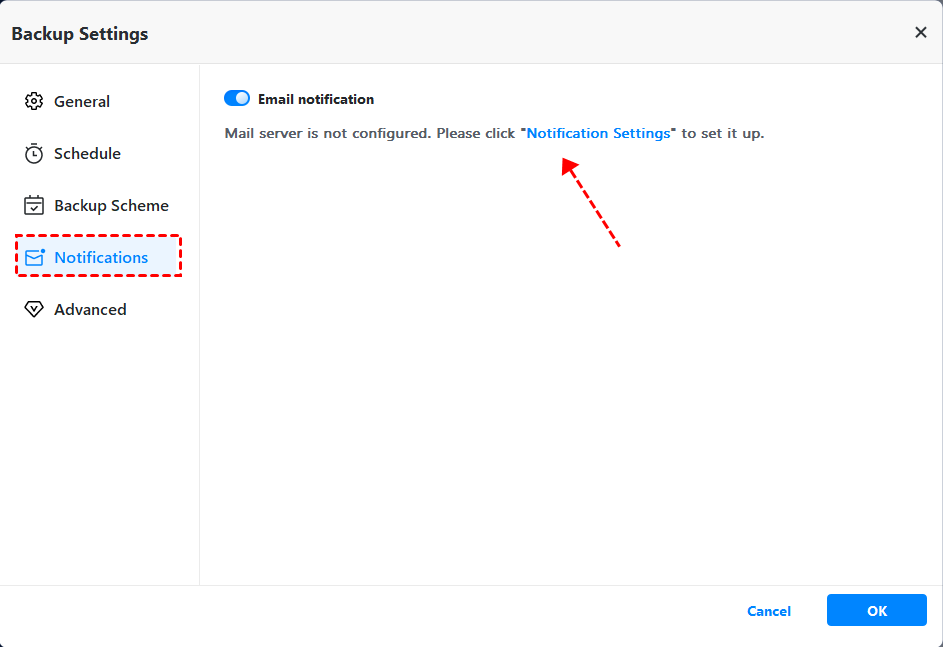
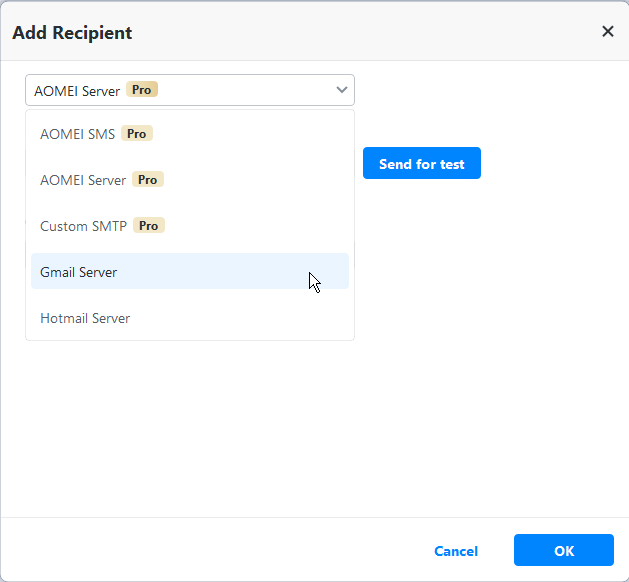
Notification Settings: You can choose the notification type you need from the following options.
1. The operation is completed successfully.
2. The operation fails.
3. User interaction is required.
Notification emails can be sent using HTML or text. All conditions for sending email notifications are selected in the Notification Settings by default. A report will be provided if the operation is completed or not. For verifying settings are correct, AOMEI Backupper has the option “Send for test” to send a test message to the configured email address or phone number.
To Enable Email notifications for a Backup Task
1. When creating a new backup task, you can enable email notification through "Options"---"Notifications".
2. You can enable email notification for an existing backup task in the Home screen by selecting "Edit Backup" and then clicking "Options" -> "Notifications".
Notes:
-
When you set email notification with the Custom SMTP selected, AOMEI Backupper requires SMTP authentication, and it does not support anonymous access.
-
When you set up email notification with Gmail server selected, sending the test email notification may fail. As far as we know, this is because Google has enhanced the security level of Gmail, so you need to turn on access for the less secure apps in Google settings first. After that, you can retry it.
-
AOMEI Backupper cannot configure multiple email addresses to receive the email notification. You can create an email group and add these email addresses to this group. After that, you can put the group email address as the recipient of notifications, so these email addresses within the group can also receive the email notifications.
Advanced
In the Advanced settings, you can set the command, compression, splitting mode, backup priority, backup mode, and backup service.
👉Command
In this option, you can set the pre-command and post-command.
Pre-command: Run the specified program or script before backup or synchronization.
Post-command: Run the specified program or script after backup or synchronization.
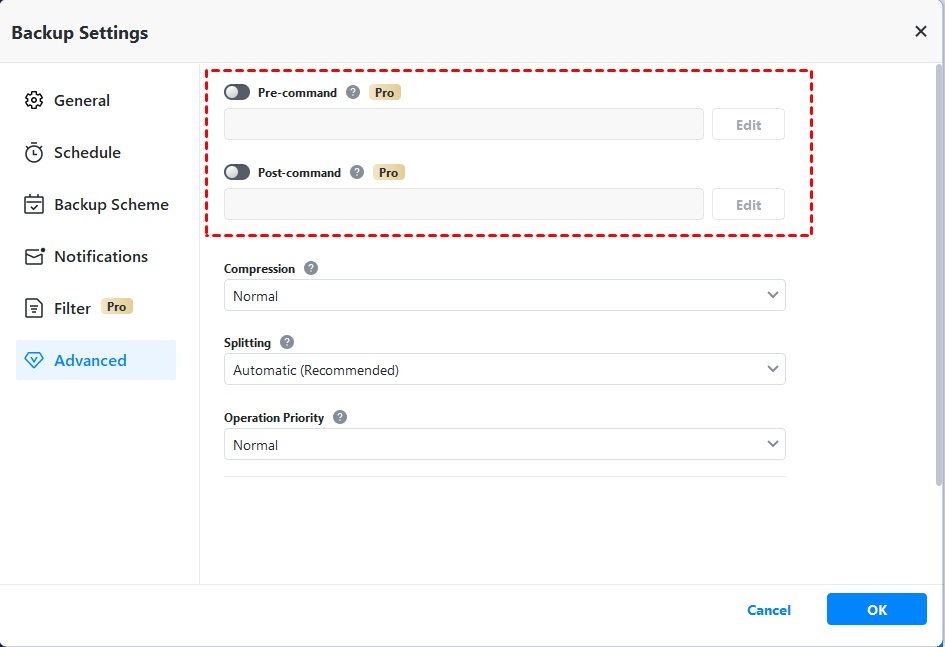
Configure user command:
- Command: Browse to load a script file or executable program file.
- Working directory: Type a folder path to save the result of the Pre-command or Post-command execution.
- Arguments: Set some arguments for the command if necessary.
- "Terminate the operation if the command fails to execute" and "Do not perform the operation until the command execution is complete" are selected by default.
- Click the "Test" button to verify the command.
- Click the "OK" button to save the command settings.
Notes:
1. Real-time sync doesn’t support Pre-command and Post-command.
2. Generally, the source path of the script file or executable program file will be filled into the Working directory by default after you add the script file or executable program file to the Command. You can change to another path manually.
👉 Compression
You can choose the compression level for your backup task. If you choose "High", then it will take a longer time to create the backup.
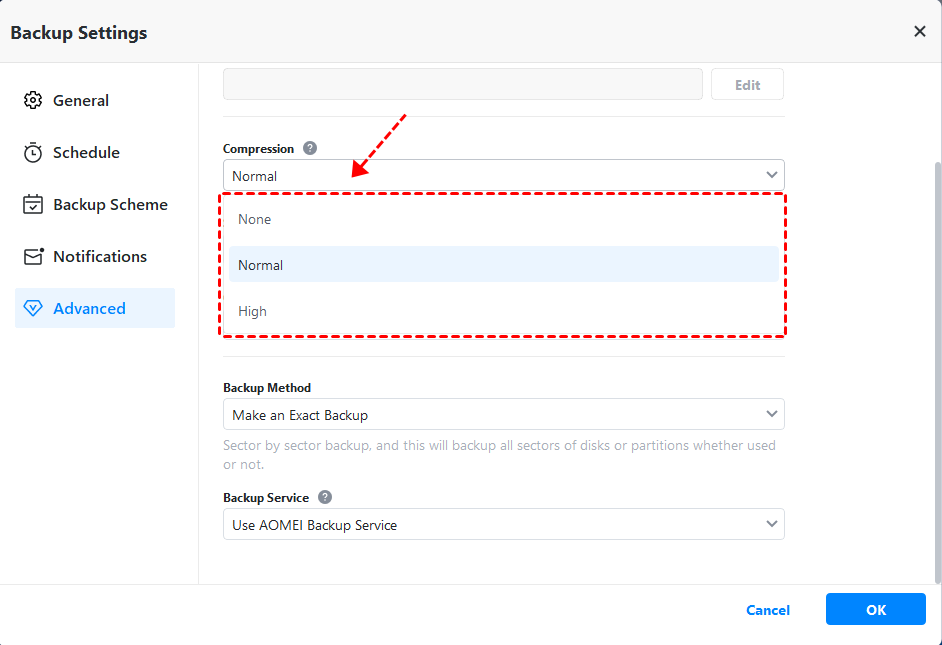
Tip: Some computer files (such as .jpg, .pdf, or .mp3) are already compressed. If the backup image file contains many such files, then the generated backup file may not significantly decrease in size even though the high compression level is selected.
👉 Splitting
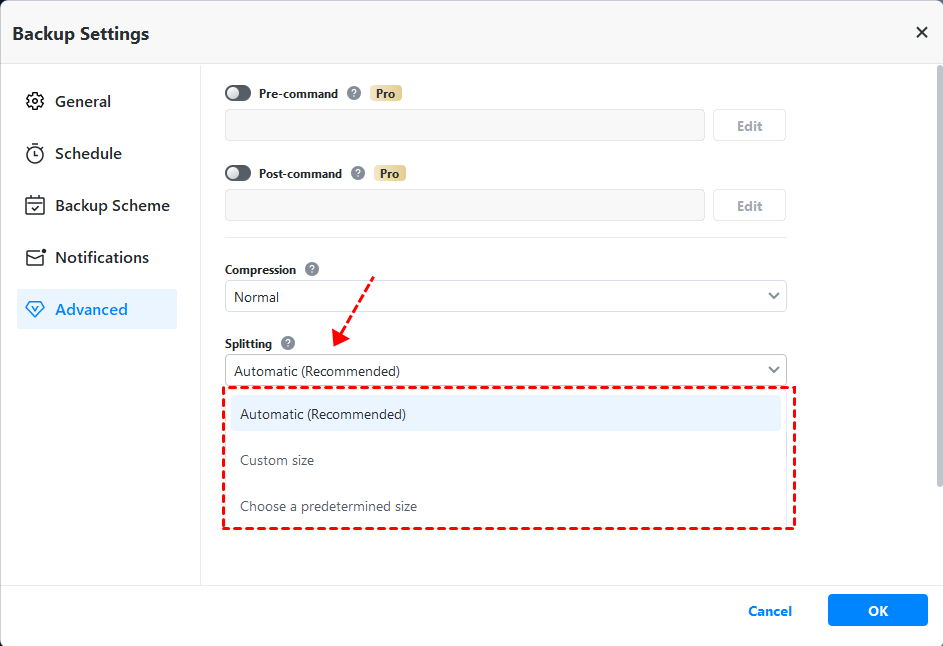
Backup files can be split into several smaller files to fit into different smaller storage media. Backupper can automatically create a backup file into multiple parts during the backup process. The options available are listed below.
- Automatic: The image split size depends on the file system of the destination storage medium. For example, FAT32 partitions (commonly used on USB sticks) can only save files up to 4GB (4096MB) in size.
- Customize size: Input the required file size value, and future backup images will be split into segments of this size. The minimum supported file size is 50MB.
- Choose a predetermined size: Choose the storage medium type in the drop-down menu. AOMEI Backupper will then split the image file to suit the selected medium.
👉 Operation Priority
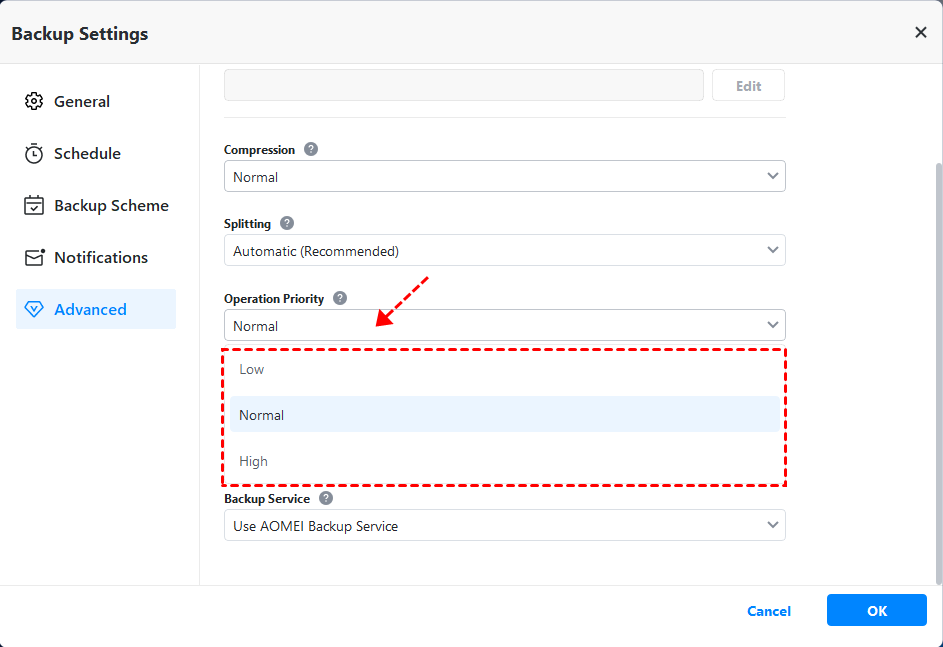
It is an option to configure the priority of the backup operation.
After the operation priority is configured, the execution time of the task will be affected. According to the needs of the task, the priority of the task execution can be adjusted up or down.
- High: The task operation process will have a higher priority than other processes on your computer and will be executed at a faster speed.
- Normal: The task operation process will have the same priority as other processes on your computer and will be executed at a normal speed.
- Low: The task operation process will have a lower priority than other processes on your computer and will be executed at a slower speed.
👉Backup Method
In this option, you can choose the backup method: Intelligent Sector Backup or Make an Exact Backup.
Intelligent Sector Backup: For the intelligent sector feature, AOMEI Backupper uses intelligent sector by default.
Make an Exact Backup: Also called Sector-by-Sector Backup. Backups will take longer as it will back up both the used and unused space on your disk. This feature is available for System Backup, Partition Backup, and Disk Backup only.
👉Backup Service
In this option, you can set up the backup service: Use Microsoft VSS and Use AOMEI Backup Service
VSS: VSS (Volume Shadow Copy Service) is a backup technology used by Microsoft, which allows the computer to continue to be used while a backup is in progress. If VSS is not selected, then Backupper will automatically use its own built-in technique instead of performing a live backup. Choose one of the modes to begin the backup task.
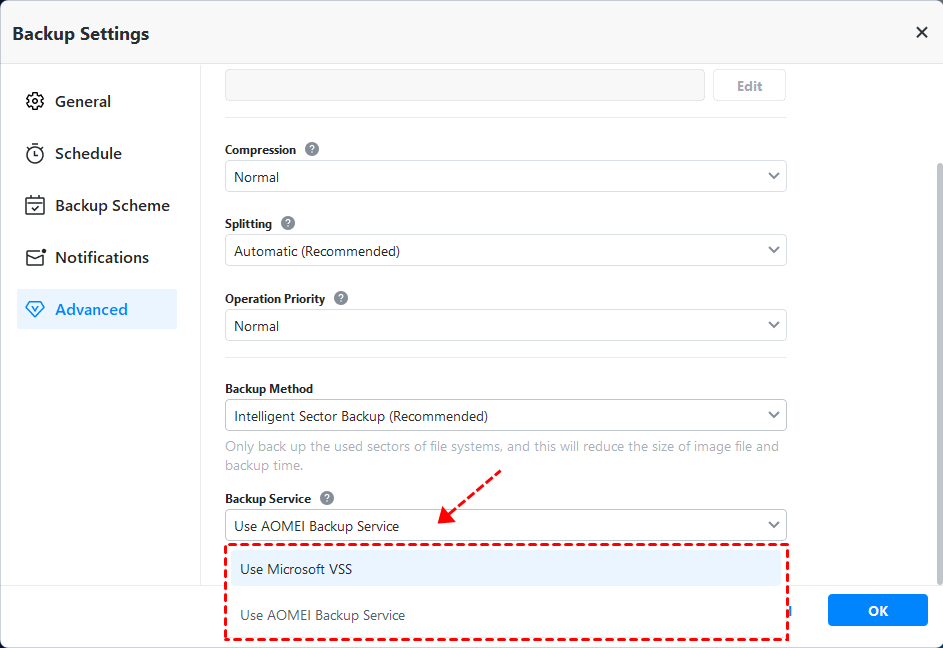
More Options in the main Menu-->Settings
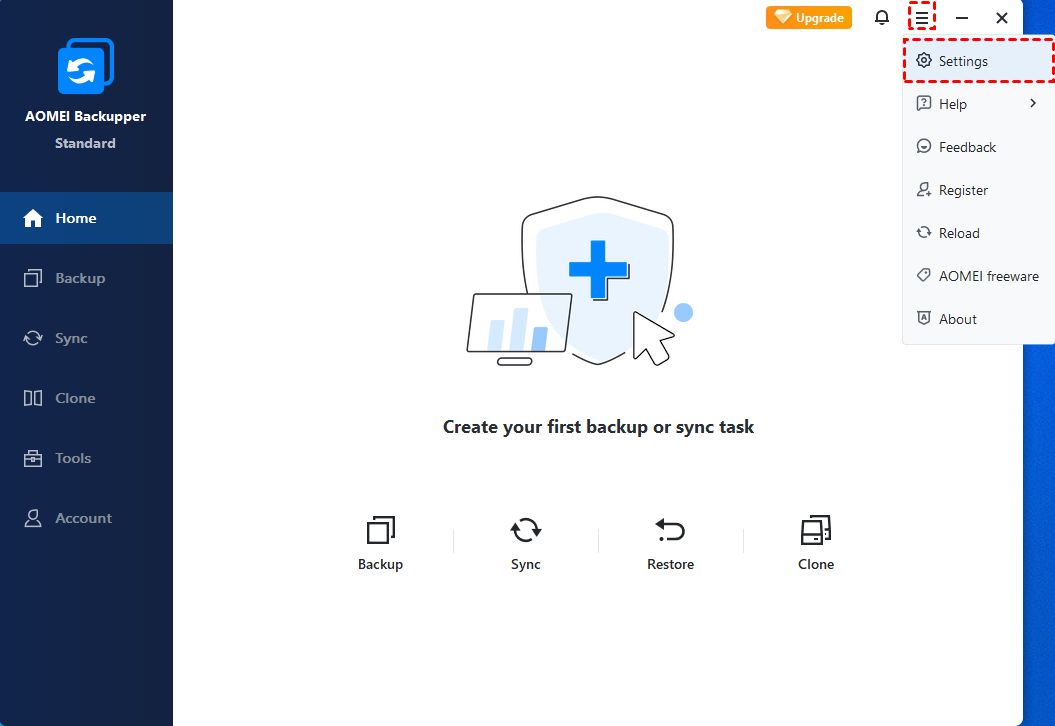
General
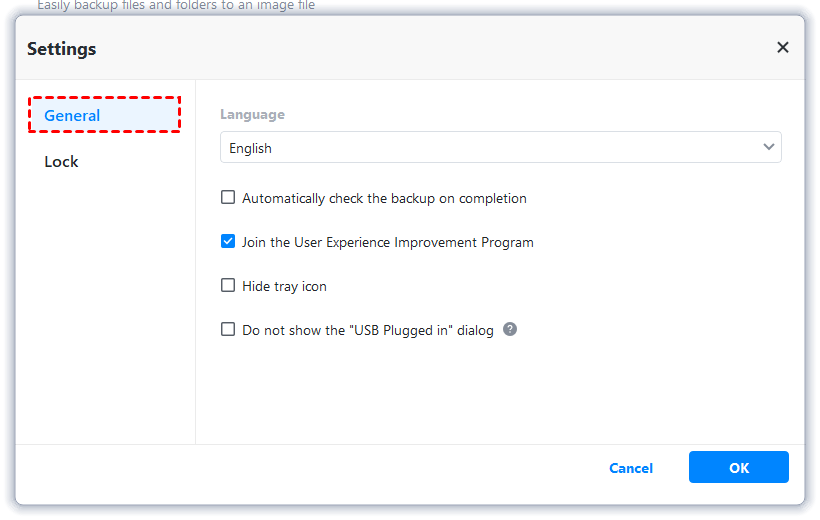
Language: Set the language of AOMEI Backupper.
Automatically check the backup on completion. Backupper will check each backup upon completion automatically to verify that the backup has been properly created.
Join the User Experience Improvement Program. It is beneficial to help us improve the software.
Hide tray icon. Generally, a scheduled task will show a tray on the taskbar when performing. If you check the option, the tray icon will not appear when the scheduled task is performing automatically.
Do not show the "USB Plugged in" dialog. If you tick the option, the "USB Plugged in" dialog will not show when you insert a USB if you configure the "USB Plug in" event backup.
Lock
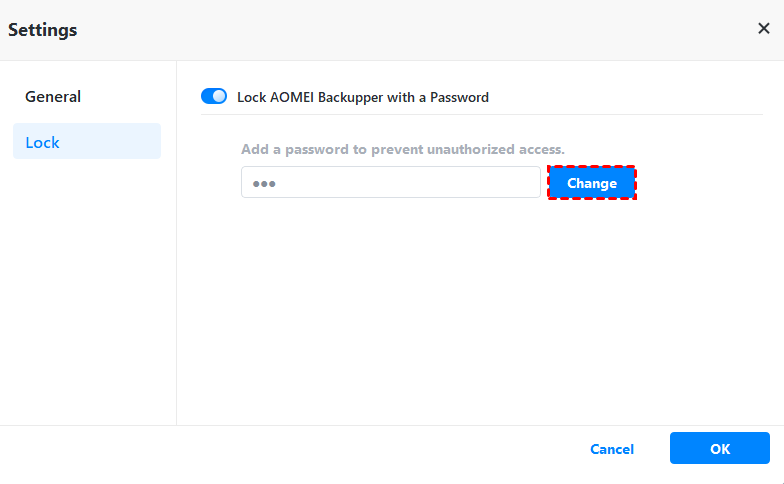
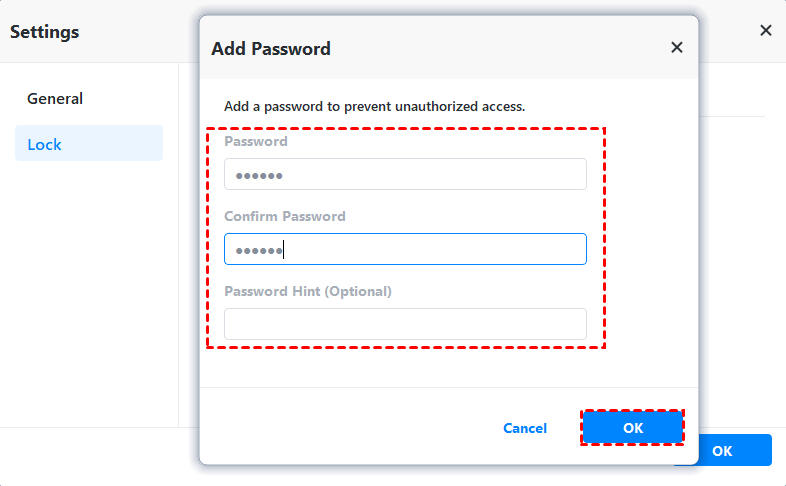
Lock AOMEI Backupper with a password. In this way, you can set a password to prevent unauthorized access. It is a way for your backup and data security.
You can enable the option "Lock AOMEI Backupper with a Password".
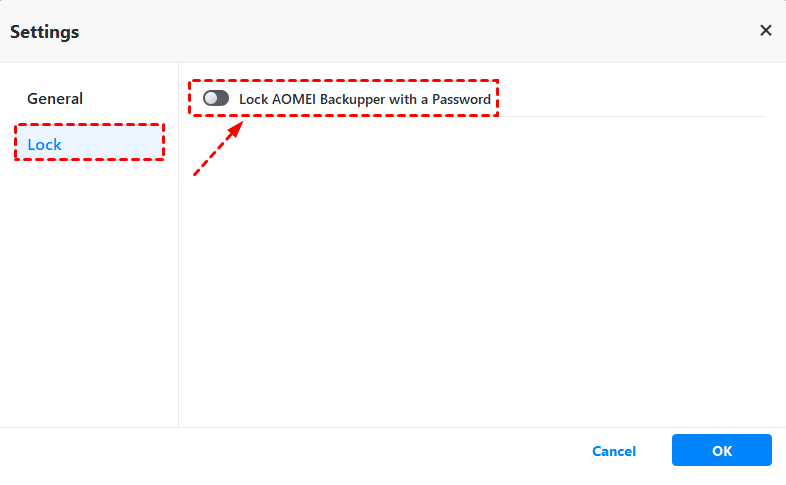
Then, just add a password to prevent unauthorized access. Please remember the password you set.
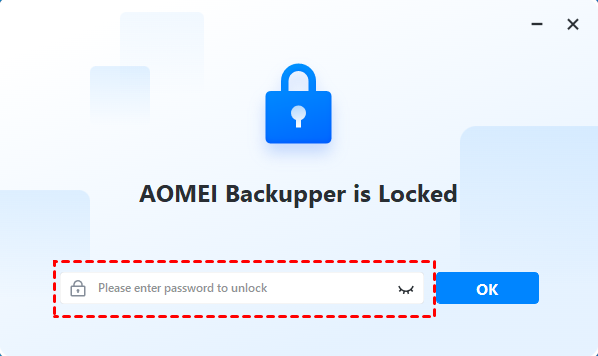
After the option is enabled and a password is set, you will be required to enter the password when launching AOMEI Backupper the next time.
And, you can change the password if necessary. Click "Change" and enter the old and new passwords to confirm the change.