Backup Image Encryption in AOMEI Backupper
Why You Need Backup Encryption?
The backup image you created may be restored by anyone, which is pretty unsafe, especially if the backups are important or sensitive. In a nutshell, the main advantage of password encryption is to protect your valuable data from unauthorized access. AOMEI Backupper offers an easy encryption way to protect your backup images. The password is used as a key by the industry-standard AES (Advanced Encryption Standard) cryptographic algorithm, which will totally encrypt all data in the image.
How to Enable Backup Image Encryption?
Step 1. Create a backup task of the system, individual files, disk, or volume. Any backup task will be OK.
Step 2. After the source and destination locations are selected, at the "Start Backup" interface, click the "Options" button.
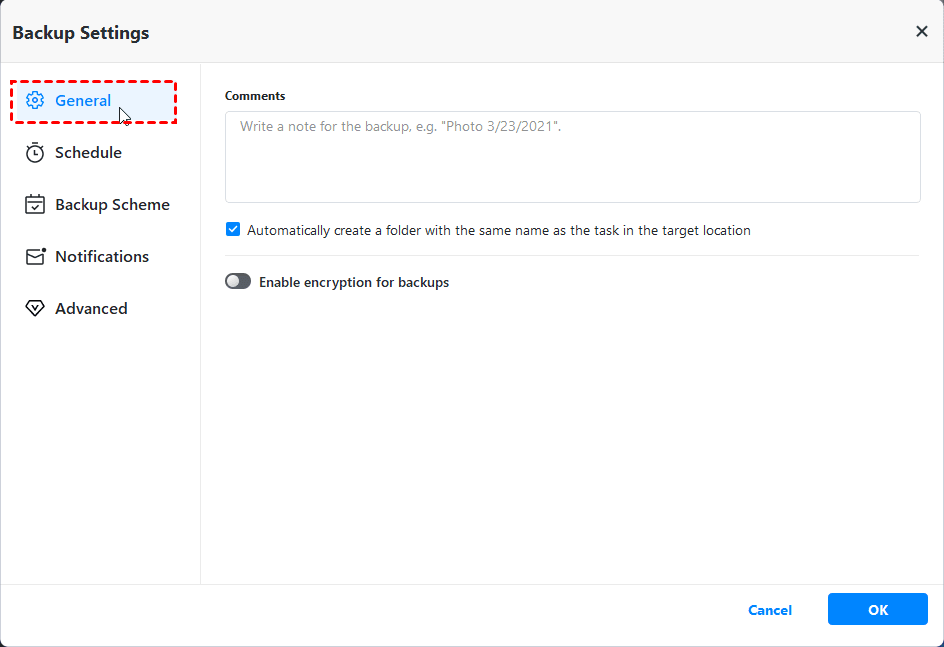
Step 3. At the pop-up window, under the General tab, turn on the "Enable encryption for backups" option. Input and confirm your password, and then click "OK".
 Notes:
-
A maximum of 24 characters is allowed.
-
You must remember your password, or it will be impossible to recover your backup.
-
Currently, the program does not support changing the password of a password-protected backup after the backup was created.