How to restore email with AOMEI Backupper
This function is used to restore email data. If the mailbox emails are lost, then you can use the backup image file created by AOMEI Backupper to restore the email.
How to Restore Email Backup with AOMEI Backupper in Windows 10
Prerequisites for Email Restore
AOMEI Backupper email restore is based on AOMEI Backupper email backup. You should already have at least one email image made by AOMEI Backupper (whatever the source email is.
Step 1: Initialize Restore
In the left "Home" tab, click Restore.
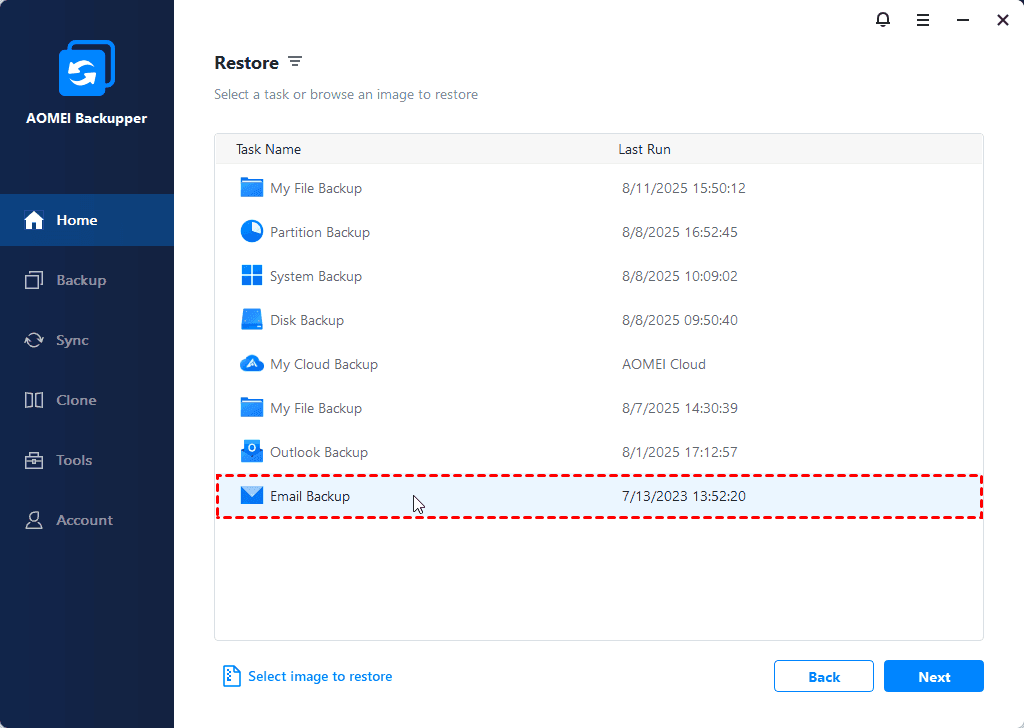
And then, you can either select an email backup task or browse an image to restore. (Here, we take "Select a task to restore" as an example.)
From the listed backup tasks, select the email backup task you want to restore and click Next to continue.
Step 2: Select Email Data
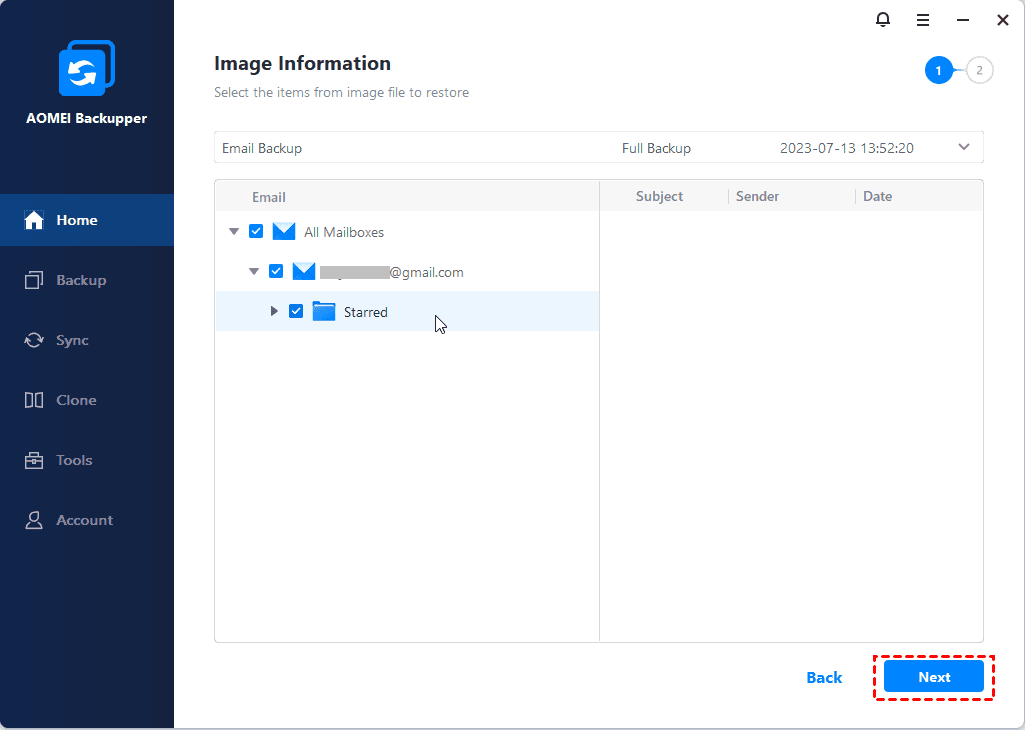
Select a backup point based on the created time and backup type, and then select the email you want to restore, followed by the "Next" button to continue.
Step 3: Select Destination
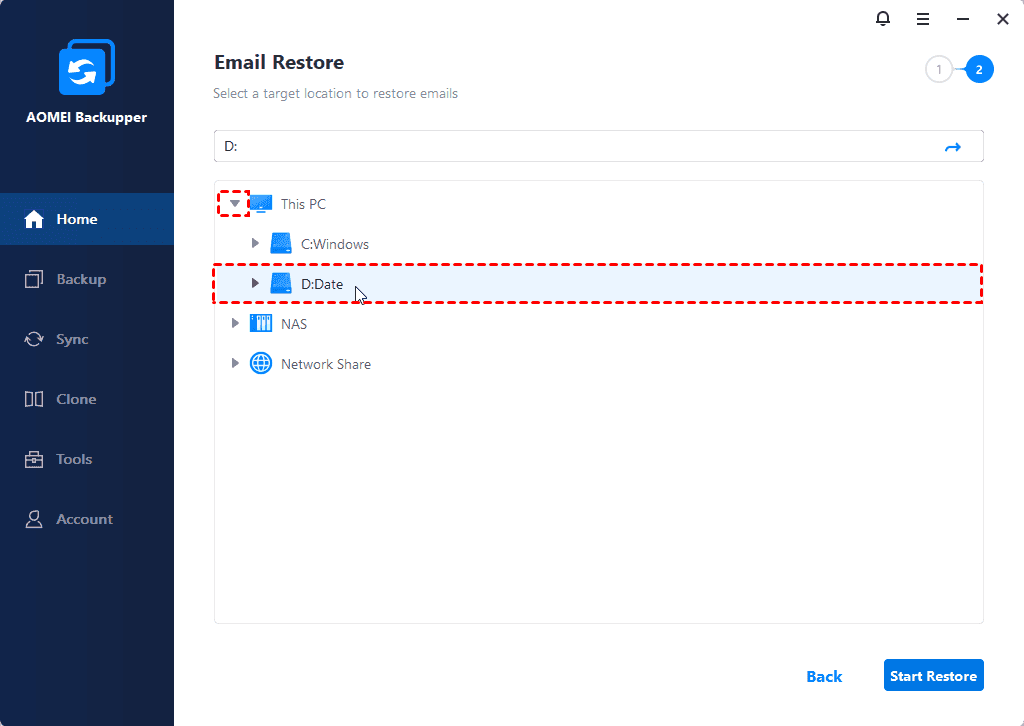
You need to select the target storage path to store the mailbox files
Step 4: Finish Restore
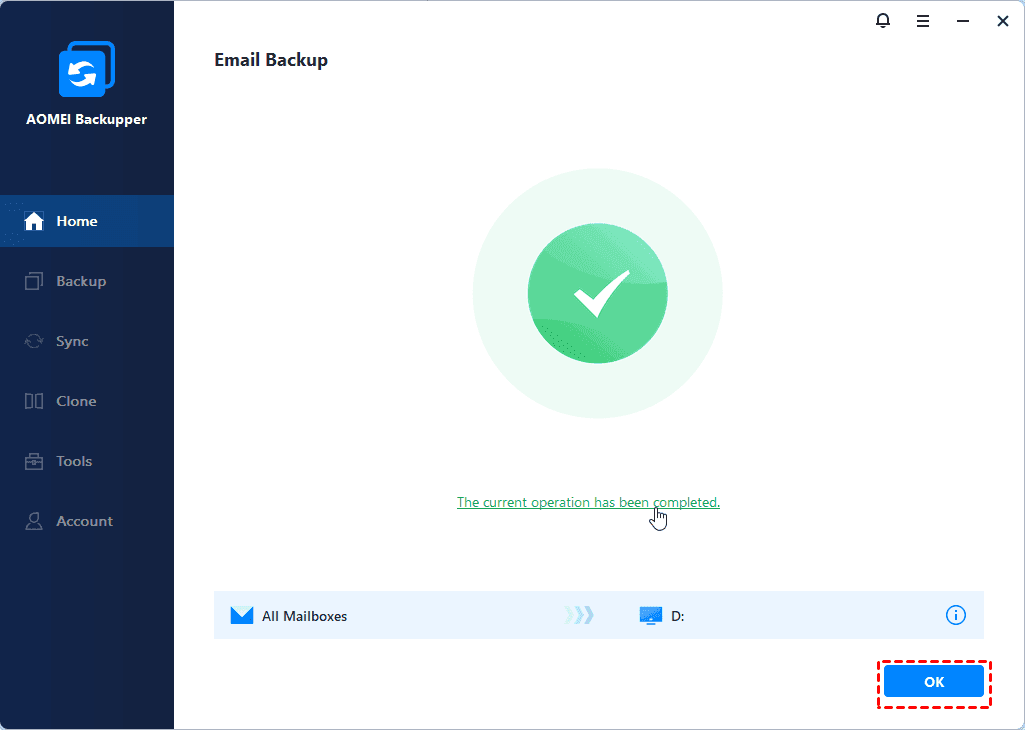
Click "OK" once the process has completed.
Note: Each backup will generate an image at a given time, allowing multiple time points to be selected.
Conclusion
Email restore is a crucial step in protecting and restoring essential email data, especially for businesses and individuals, as it helps avoid the risks of data loss and information leakage.