How to Enable Ransomware Protection in AOMEI Backupper?
What is Ransomware Protection?
Ransomware protection is critically essential for individuals, businesses, and governments because ransomware attacks might cause severe financial loss, operational disruption, and long-term damage to trust and reputation. It safeguards data, ensures operational continuity, reduces financial risk, and protects trust in an increasingly digital world.
In this article, we will describe how to enable ransomware protection in AOMEI Backupper to protect your data.
How to Enable Ransomware Protection in AOMEI Backupper?
AOMEI Backupper releases a new tool for ransomware protection. You can enable the ransomware protection in an effortless way.
Note: Ransomware Protection is a paid feature, so you need to upgrade to AOMEI Backupper Professional or advanced versions. If you want to use it on a server system, please use AOMEI Backupper Server or Technician Plus Edition.
Enable Ransomware Protection
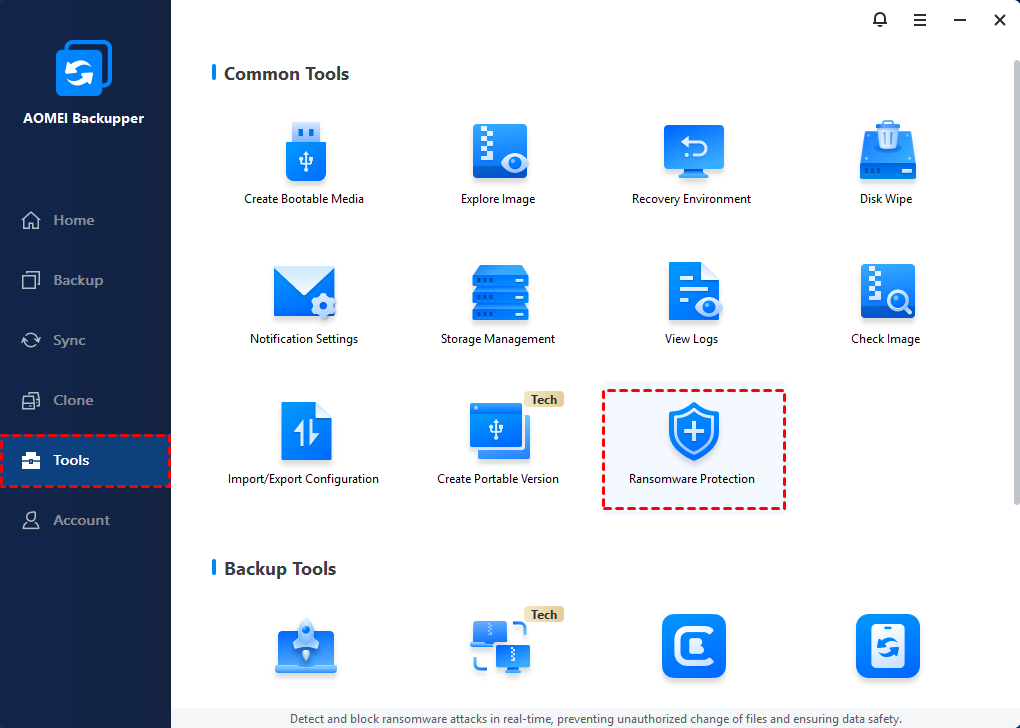
1. Click "Tools" in the left tab, and then select the "Ransomware Protection" tool under "Common Tools".
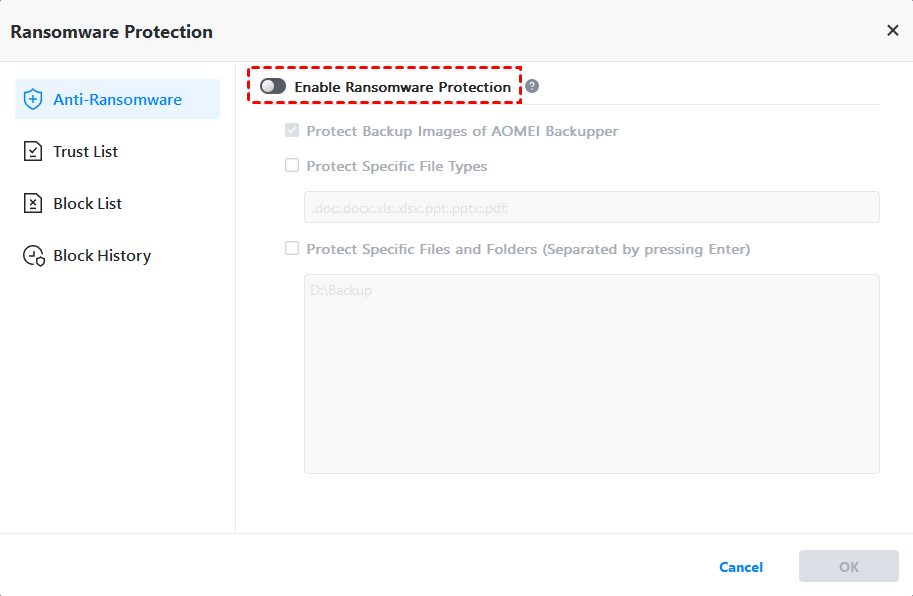
2. Then, you can just switch on the "Enable Ransomware Protection" to enable the tool. After it is enabled, it will actively protect specific files and folders from unauthorized modification or deletion according to the present rules.
And, you can do more settings of the protection rules.
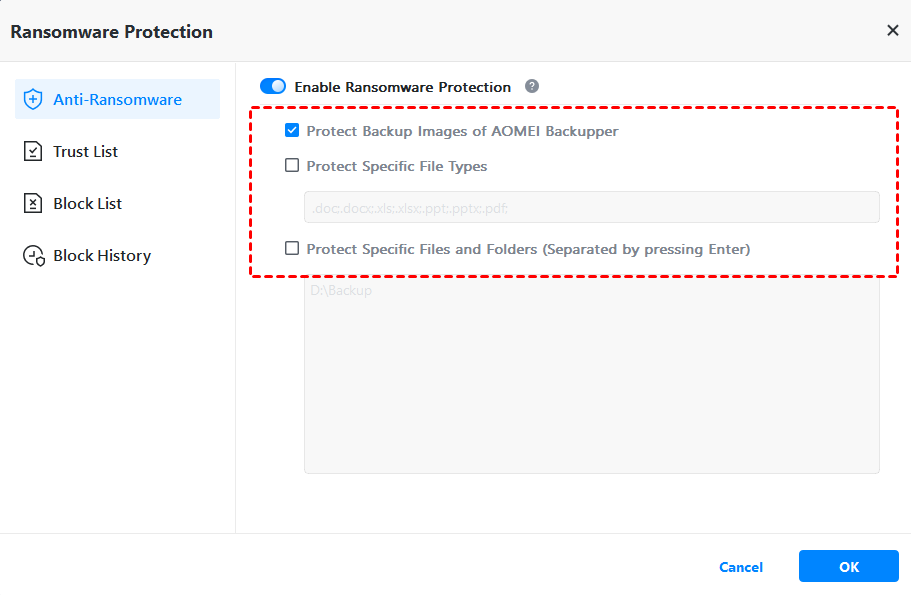
By default, the "Protect Backup Images of AOMEI Backupper" option is ticked to protect image files created by AOMEI Backupper.
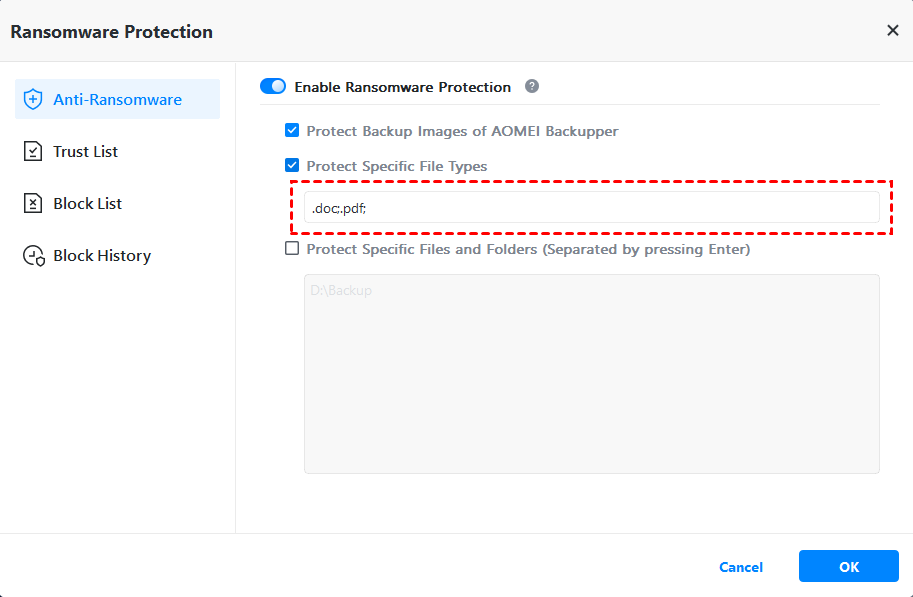
You can click "Protect Specific File Types" to add file extension(s) to be protected. For example, .doc;.pdf;
And, you can click the "Protect Specific Files and Folders" option to add specific folder paths to be protected, for example, C:\Program Files (x86), C:\ProgramData, or so on. (Separate them by pressing the "Enter" key.)
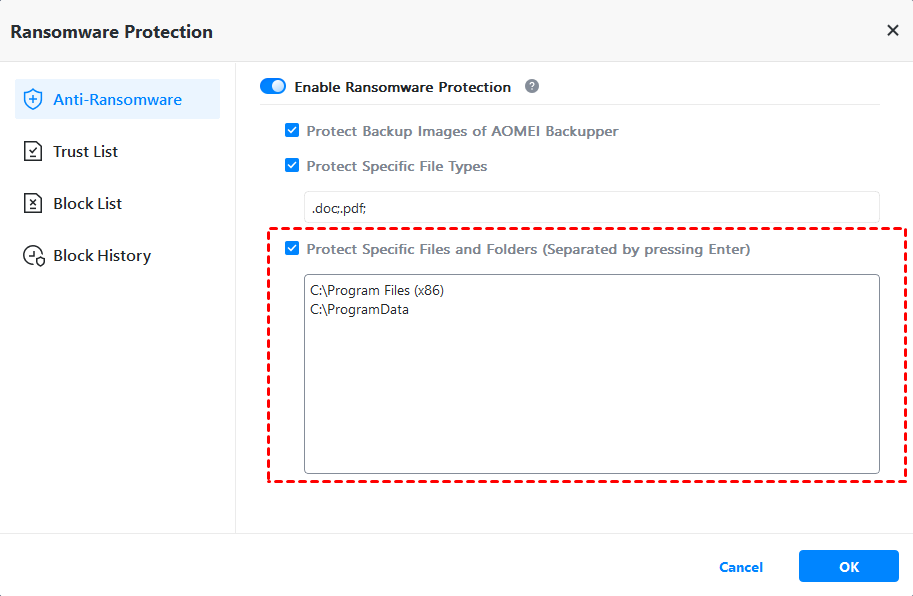
After all rules are set, please click "OK" to save settings.
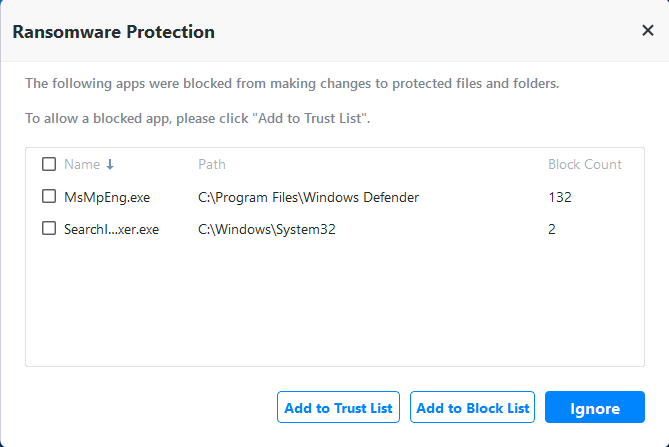
Once the tool is enabled, a prompt window will pop up when a file/folder operation is blocked. And, in the pop-up block window, you can still add APPs to the trust list or block list, or just ignore the current block window.
Trust List
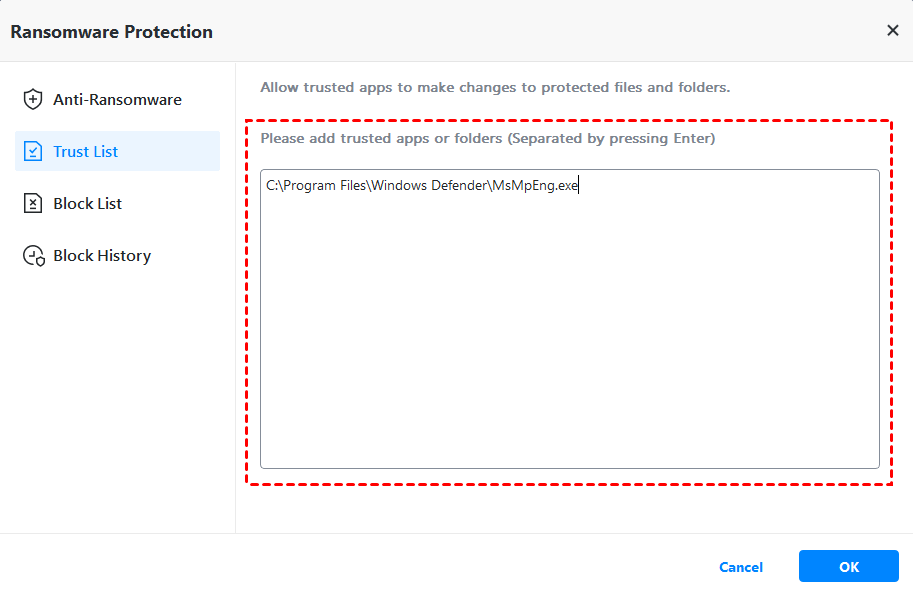
Add trusted APPs or folder paths to the trust list, for example, C:\Program Files\Windows Defender\MsMpEng.exe. (Separate them by pressing the "Enter" key.) Apps in the trust list are permitted to modify or delete protected files/folders, and these APPs' operations on protected files/folders will not be blocked. Click "OK" to save settings.
Block List
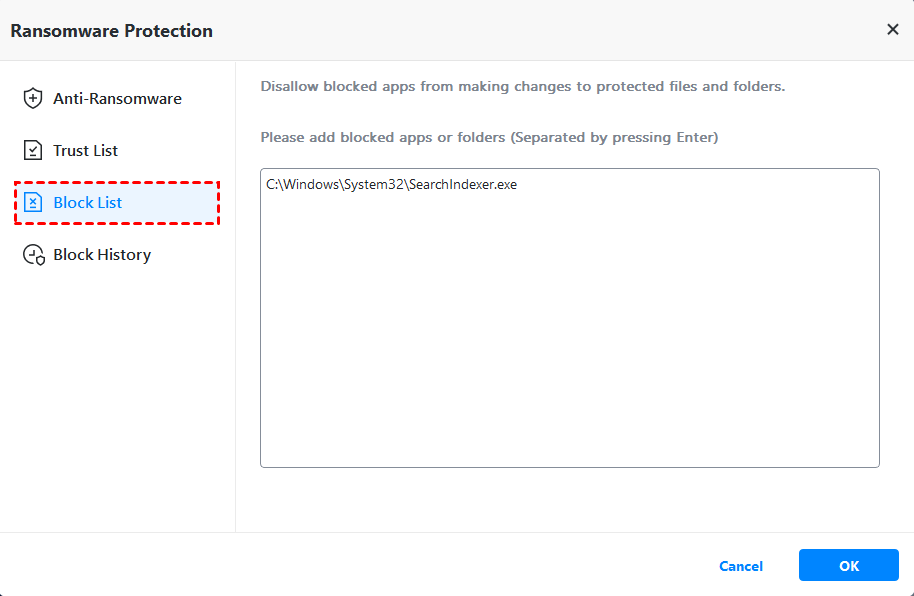
Add blocked APPs or folder paths to the block list, for example, C:\Windows\System32\SearchIndexer.exe. (Separate them by pressing the "Enter" key.) Apps in the block list are directly prohibited from modifying or deleting protected files/folders. Programs in the block list will have no prompt. Click "OK" to save settings.
Tips:
- Currently, network paths are not supported.
- To ensure successful operations in AOMEI Backupper, adding the AOMEI Backupper or its directory to the block list is ineffective. Whether added or not, it will not prevent AOMEI Backupper from accessing and operating these protected files/folders.
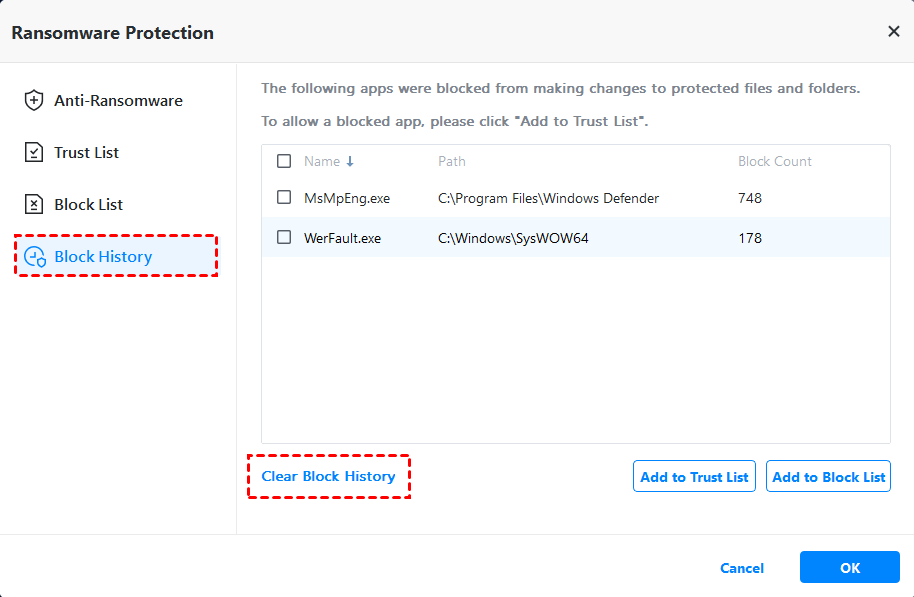
Block History
List all block logs. Display the program name, path, and block count.
You can click the "Clear Block History" button to clear the record. And, you can also easily add the APPs to the list to trust or block list in the Block History.
Conclusion
With the help of the tool "Ransomware Protection", you can easily set protection rules for important files and folders, so it is able to actively protect specific files and folders from unauthorized modification or deletion according to the present rules. It is a great tool to safeguard your important data.