AOMEI Backupper Settings - Advanced
General settings in the main Menu-->Settings
General
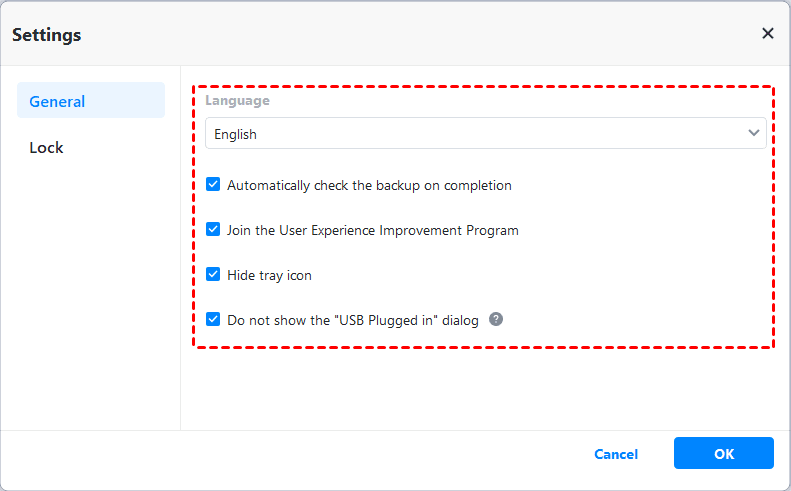
Choose Language. You can change the language of the program after you have installed it.
Automatically check the backup on completion. Backupper will check each backup upon completion automatically to verify that the backup has been properly created.
Join the User Experience Improvement Program. It is beneficial to help us improve the software.
Hide tray icon. Generally, a scheduled task will show a tray on the taskbar when performing. If you check the option, the tray icon will not appear when the scheduled task is performing automatically.
Do not show the "USB Plugged in" dialog. If you tick the option, the "USB Plugged in" dialog will not show when you insert a USB if you configure the "USB Plug in" event backup.
Lock
Lock AOMEI Backupper with a password. In this way, you can set a password to prevent unauthorized access. It is a way for your backup and data security.
You can enable the option "Lock AOMEI Backupper with a Password".
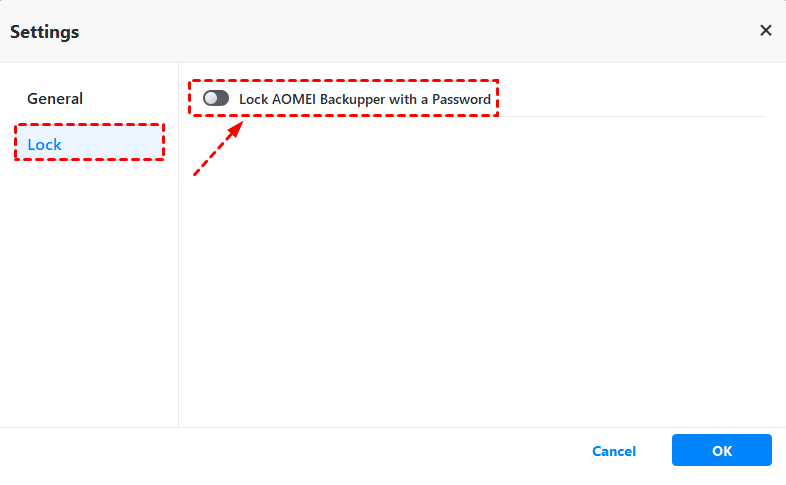
Then, just add a password to prevent unauthorized access. Please remember the password you set.
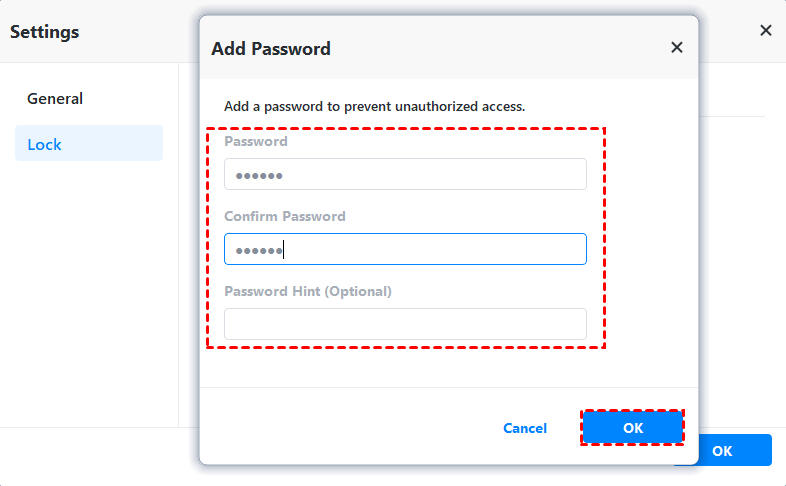
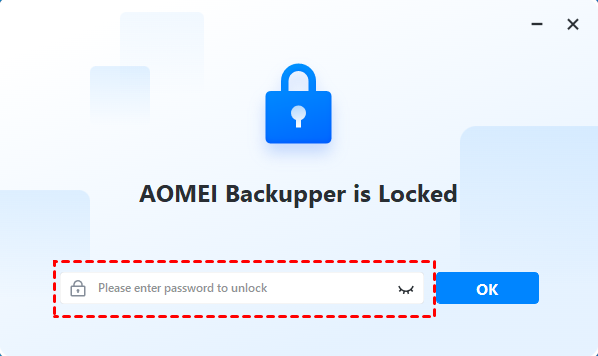
After the option is enabled and a password is set, you will be required to enter the password when launching AOMEI Backupper the next time.
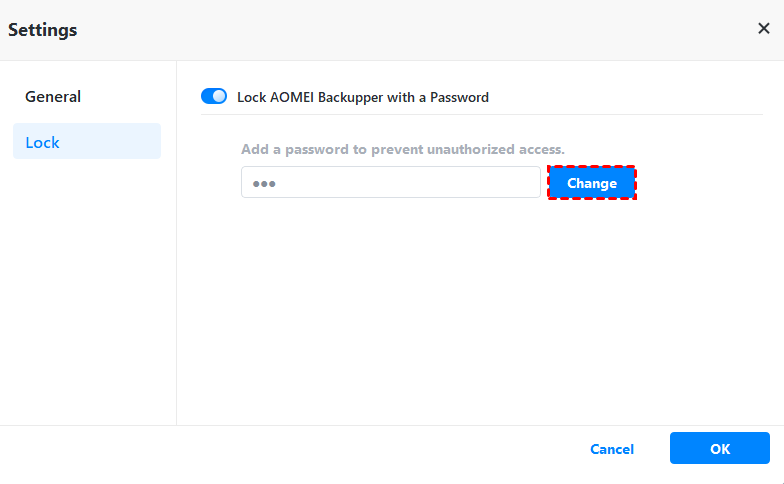
And, you can change the password if necessary. Click "Change" and enter the old and new passwords to confirm the change.