 AOMEI Backupper


5 Ways to Backup PC to Best Cloud (2026)
This article will describe which is the best cloud storage service and how to backup PC to cloud drive in 5 easy and free methods. Scroll down to learn more.

By Ivy Updated on December 29, 2025


Nowadays, Google Drive, OneDrive, Dropbox, Box, Amazon Cloud Drive, etc., are very popular cloud storage service that allow you to store your data online and access it anytime as long as there is a working internet connection.
Once you set a backup task, it will automatically and continuously backup data to the cloud whenever connected to the Internet. You can also think of it as an offsite backup, adding an extra layer of your data protection. But which is the best Cloud backup service? How to backup PC to cloud?
Wanna know the answer? Read on.
Which Is the Best Cloud Storage Service in 2025?
Now, let's take a look at the popular cloud storage options and compare their prices and storage capacities in the following chart.
For personal cloud storage
|
Cloud Drive |
Price |
Cloud Storage |
|
Google Drive |
Free |
15 GB |
|
$19.99/Year |
100 GB | |
|
$29.99/Year |
200 GB | |
|
$99.99/Year |
2 TB | |
|
$1199.88/Year |
120 TB | |
|
$2399.88/Year |
240 TB | |
|
$3599.88/Year |
360 TB | |
|
Microsoft OneDrive |
Free |
5 GB |
|
$23.88/Year |
1.2 TB | |
|
Dropbox |
Free |
2 GB |
|
$119.88/Year |
24TB | |
|
$198.96/Year |
36 TB | |
|
Box |
free |
10 GB |
|
$120.00/Year |
100 GB | |
|
Amazon S3 Standard |
free |
5 GB |
| $0.023 per GB | First 50TB |
For business cloud storage
These platforms offer a range of professional tools and services to manage your business data effectively. Simply comparing their storage space and price might be too one-sided. It's important to consider your specific business needs before making a decision.
|
Cloud Drive |
Price |
Cloud Storage |
|
Google Drive |
$6.00/month |
30 GB, 1 user |
|
$12.00/month |
unlimited cloud storage/1 TB, 1 user (1 TB per user if fewer than 5 users) |
|
|
Microsoft OneDrive |
$5.00/month |
1 TB, 1 user |
|
$10.00/month |
Unlimited cloud storage,1 user | |
|
Dropbox |
$12.5/month |
5 TB, 1 user |
|
$20.00/month |
Unlimited cloud storage,1 user | |
|
Box |
$5.00/month |
100 GB, 1 user |
|
$15.00/month |
Unlimited cloud storage,1 user | |
|
Amazon S3 Intelligent - Tiering |
$0.0025 per 1,000 objects | Monitoring and automation, all storage/month (Objects > 128 KB) |
| $0.023 per GB | Frequent Access Tier, First 50 TB / Month |
How to Backup PC to Cloud Automatically (2 Ways) 👑
Backing up your files to the cloud is usually cheaper than traditional methods, and you don't need fancy equipment or software. It's simple too - you can set up automatic backups with just a few clicks. Here's how to do it:
Method 1: Backup PC to Cloud using All-in-one Backup Software
We strongly recommend you use the best free Windows cloud backup software - AOMEI Backupper Standard to backup PC files to the Cloud as long as you download the desktop apps and log in with the account. It even allows you to backup system, the entire disk, or specific partitions, which are not available in any cloud storage.

 AOMEI Backupper
- User-friendly, easy-to-use interactive interface.
- Backup files, systems, disks, or partitions as you wish.
- Backup PC to AOMEI Cloud or many 3rd-party cloud storage, i.e. Google Drive, OneDrive, Dropbox.
- AOMEI Cloud offers 1TB of free cloud storage within 15 days.
- Support daily, weekly, monthly, etc., schedule backup, with precisely set backup dates, times, or intervals.
- Backup only changed files in a scheduled task, greatly saving time and backup space.
 100% Secure
Now, free download AOMEI Backupper Standard to get started.
Here take "backup PC to Google Drive" as an example, please follow the steps below carefully.
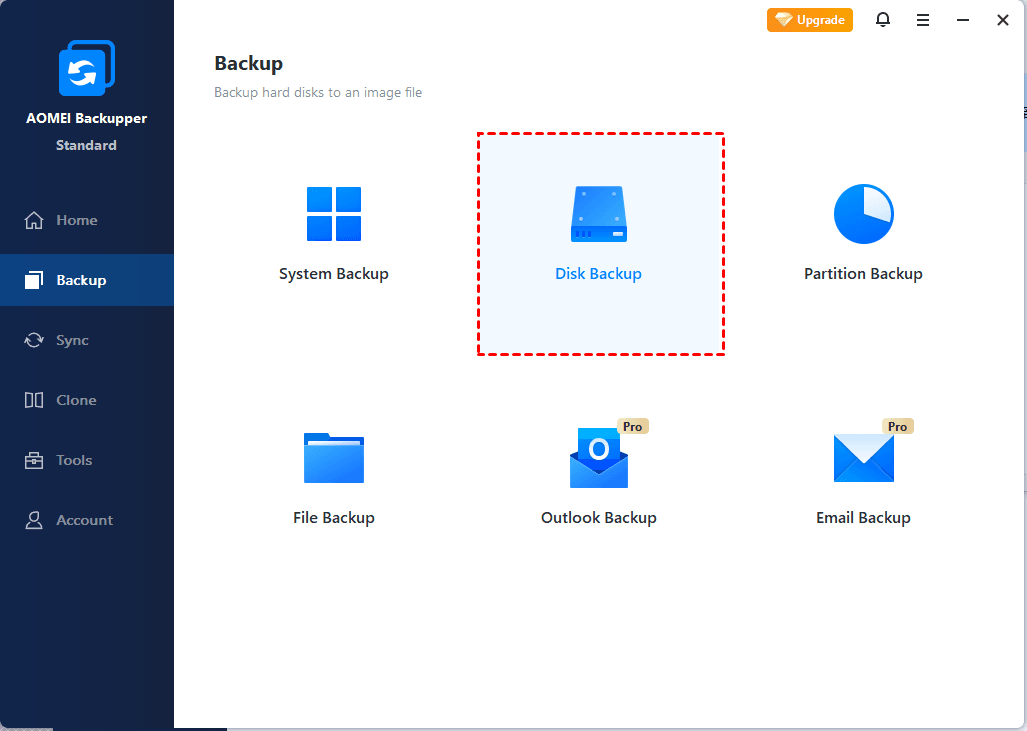
1. Open AOMEI Backupper Standard after installing. Then, go to the Backup tab and choose Disk Backup to backup the entire PC.
-
You can also click other backup features, such as System Backup, to backup system partition and system files required to start a Windows.
-
To backup PC to cloud without downloading extra software, consider using AOMEI Cloud. You need to sign up for an AOMEI account.
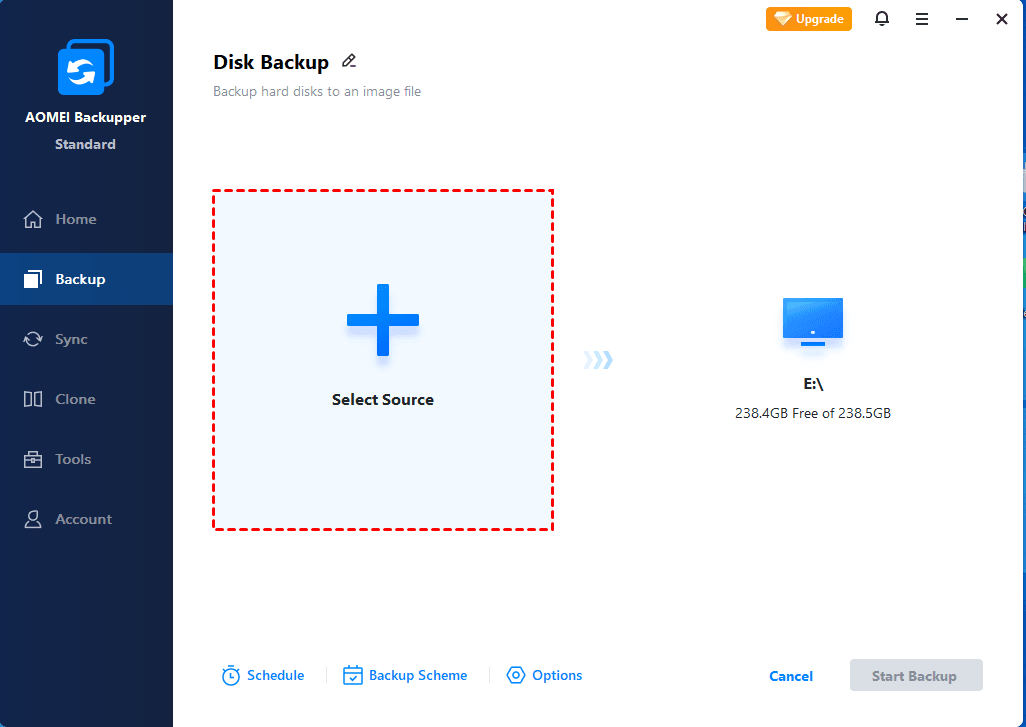
2. Click Select Source to choose the current system disk as the source disk.
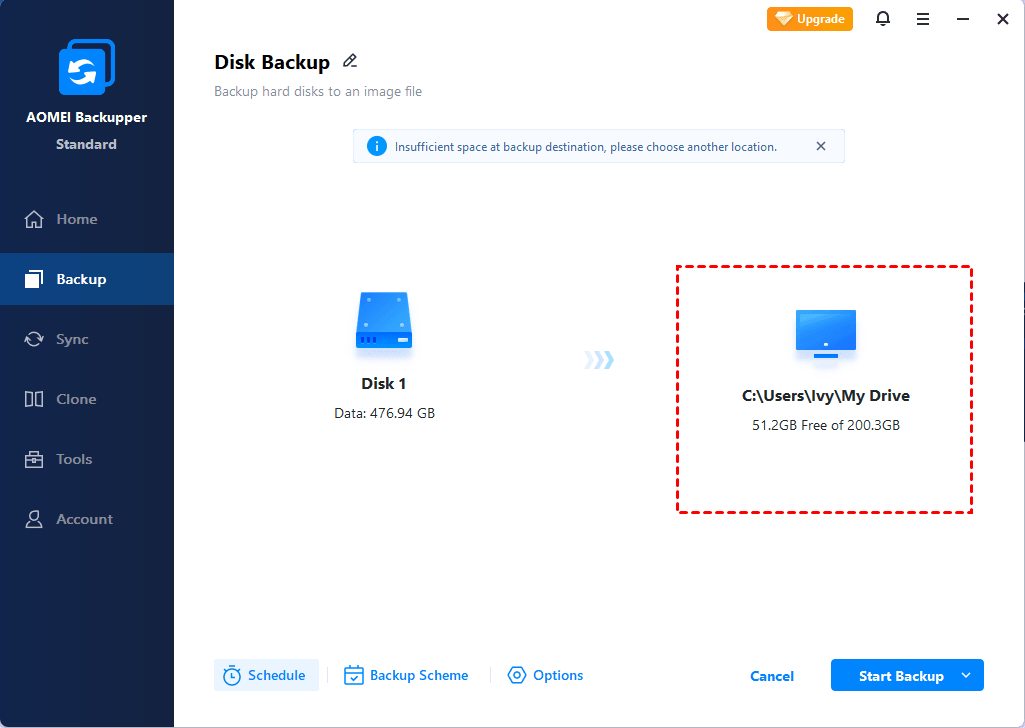
3. Click the PC icon at the right side. Then, go to Add New Destination and click Local Drive to select Google Drive folder locally. It's usually located in C:\Users\UserName\Google Drive. You can also find it quickly under Common Locations if you add it previously.
-
OneDrive desktop folder is probably located in C:\Users\UserName\OneDrive.
-
Dropbox folder is located in C:\Users\UserName\Dropbox by default.
-
Box Sync folder located in C:\Users\UserName\AppData\Box Sync in general.
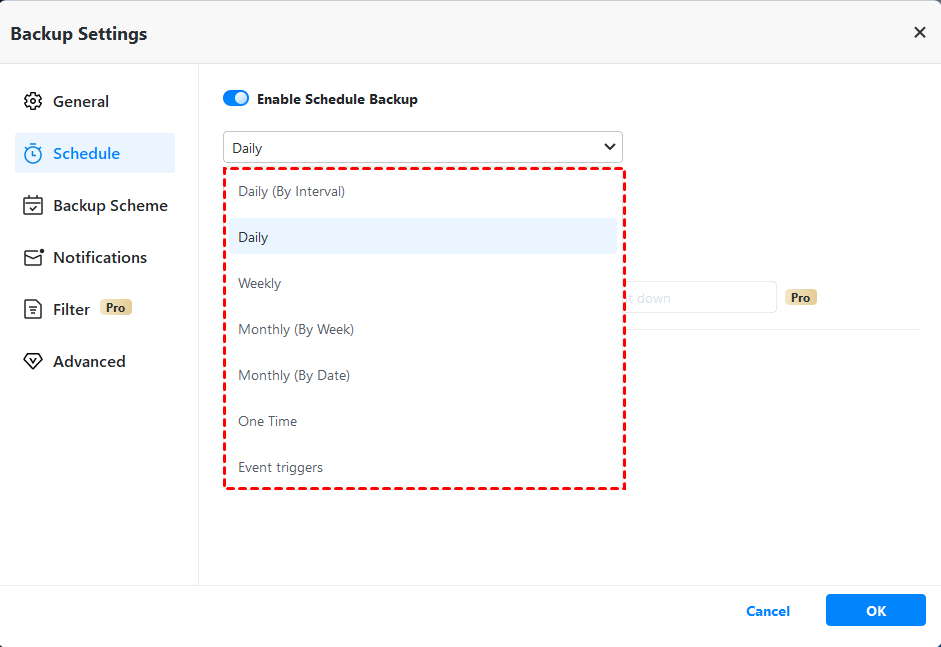
4. Click Schedule to set daily, weekly, monthly, etc. Meanwhile, incremental backup is enabled by default, it will backup only changes since the last backup.
-
Schedule "USB plug-in" is an advanced feature for specific situations, e.g, backup PC to USB drive automatically.
-
Options: It enables you to comment, enable or set encryption (available on AOMEI Backupper Professional), or notification, compression, and splitting.
-
Backup Scheme (advanced version): It integrates backup and cleanup methods to manage disk space in a scheduled backup task by reducing or freeing up space. So you don't need to worry about the backup disk full error.
5. Press Start Backup >> to perform an automatic PC backup to Google Drive easily and safely.
Wait patiently and the time depends on how much data you want to backup. Afterward, you can check the backup file in the Google Drive folder or go to https://drive.google.com/.
Method 2. Backup PC to Cloud using Desktop apps
You can also set the Desktop apps to backup PC to cloud like Google Drive, Dropbox, OneDrive, etc., and the process is automatic as long as there is an internet.
Here take the Google Drive desktop app as an example to show you the steps below.
1. Download and install the Google Drive desktop app. Then, log in to your Google Drive account.
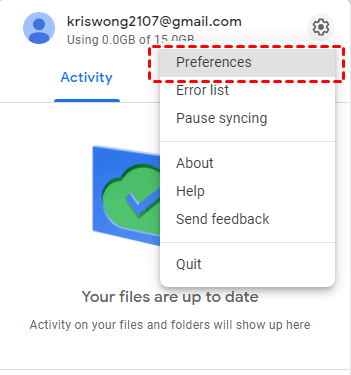
2. Then, click the Google Drive icon in the taskbar, and select Settings and Preferences.
3. At My Computer section, click Add folder to select the folder you want to backup to Google Drive.
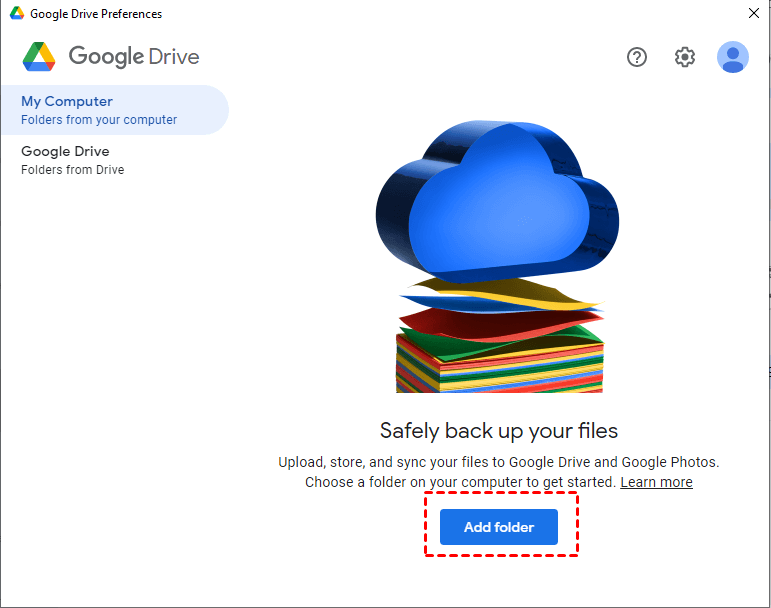
4. Select Sync with Google Drive and click Done > Save.
5. At the Google Drive section, select a syncing option. The Stream files option is recommended as it stores all files in the cloud and uses less hard drive space.
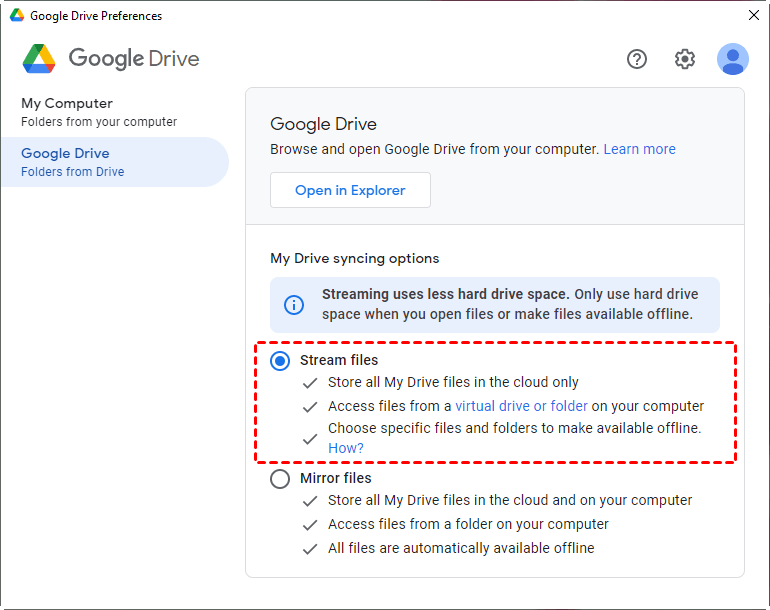
6. Finally, confirm your settings and click Save. It may require a restart to make the changes take effect.
Manual Methods to Backup PC to Cloud
If you just want to backup a few or a small number of files, you can choose to upload files to Google Drive, Dropbox, OneDrive, etc., manually. It's much faster.
Method 1: Backup Computer to Google Drive
With Google Drive, you get 15GB of free space when you sign up, which is usually enough for everyday needs. If you want to back up your computer to Google Drive, check out this following instruction:
1. Log in to your Google Drive account in your web browser.
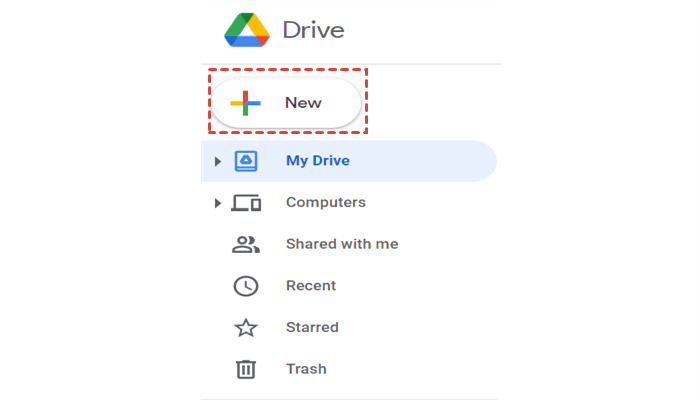
2. Click on the "New" button at the top left corner to upload files or folders from your laptop. You can also simply drag and drop the files or folder onto the Google Drive interface.
Method 2: Backup PC to Dropbox
Well, Dropbox is known for its online collaboration features. In this section, we'll guide you through the step-by-step process of backing up your PC files to Dropbox. You can easily do this using the Dropbox website. Let's dive into the details:
1. Sign in to your Dropbox account on the web.
2. Click on "Upload files" or "Upload folder" based on your needs.
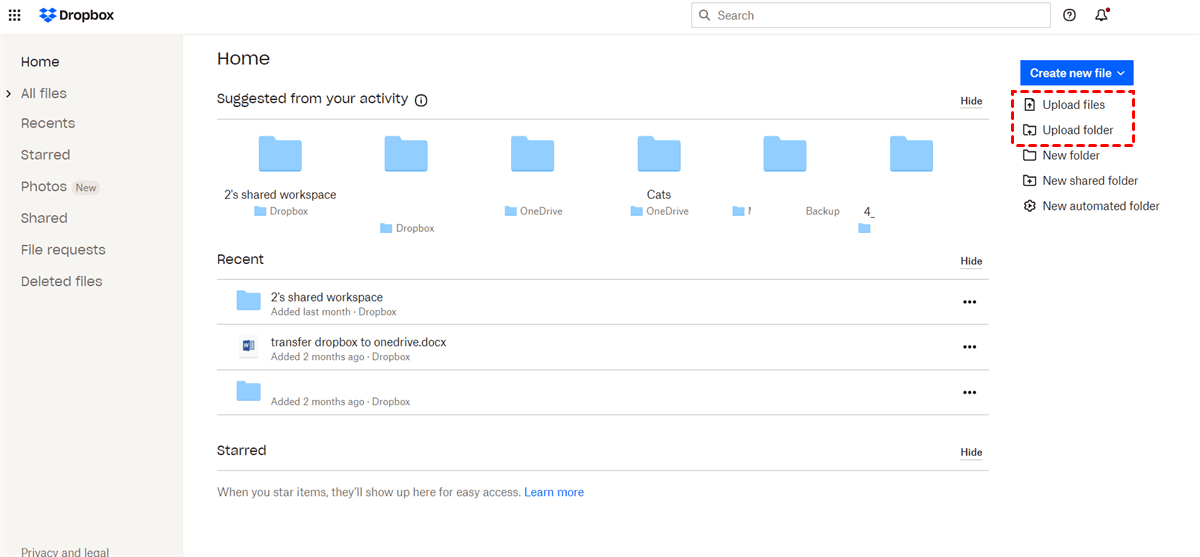
3. Then, select the files or folder you want to back up from your laptop to Dropbox. Alternatively, you can simply drag and drop the files or folders into Dropbox.
Method 3: Backup Computer to OneDrive
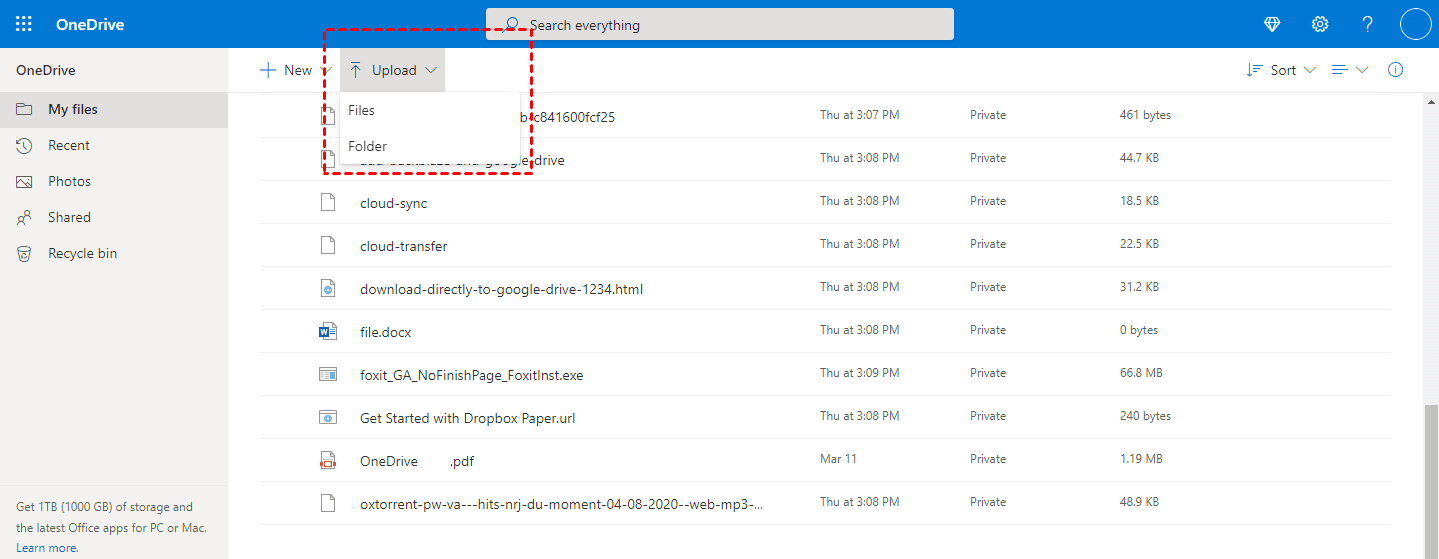
OneDrive is closely linked with Microsoft Office, OneNote, and other handy tools, making it a popular choice for many users. After backing up your computer data to OneDrive, you can easily edit and share files online. Let's explore how to backup PC files to OneDrive below.
1. Open your OneDrive account in your web browser.
2. Click on the "Upload" tab to uploadfiles or folders you want to backup from your laptop to OneDrive.
FAQs
Q1: Can I back up my entire PC to OneDrive?
A1: Unfortunately, OneDrive only allows you to backup individual files or folders, not your entire computer. To backup your entire PC, including the entire disk, you'll need to use third-party software.
Q2: How do I back up my entire computer?
A2: To backup your entire computer in Windows, you can use Windows Backup. Simply go to Start, then Windows Backup. From there, you can select which folders to back up, such as Desktop, Documents, Pictures, Videos, and Music. It also allows you to backup apps, settings, and credentials.
Q3: What is the best way to backup your computer in Windows 10?
A3: For the best and most secure backup solution for Windows 10, consider using AOMEI Backupper. It allows you to easily backup your files and memories to the cloud, ensuring you can access them on your new computer.
Conclusion
It’s a piece of cake for you to back your PC to a cloud drive, like Google Drive, Dropbox, OneDrive, Box, etc., as long as you find the best free way, and usually, it's a free backup software that supports schedule backup system, disk, partition or files. AOMEI Backupper Standard is one such software.
Besides, more advanced features in the premium edition, like event triggers, USB plug-in (copy files from or to plugged-in USB automatically), differential backup, and automatic backup cleanup to help you backup disk efficiently and flexibly.
 100%
Clean & Secure
100%
Clean & Secure
