FastRecovery



[2026] Free Undelete Tool on Windows 10/11
Do you want to find a undelete tool on Windows 10 for free to recover lost data? FastRecovery is a trusted free data recovery software for Windows 11/10/8/7 & Windows Server.

By Ivy / Updated on May 11, 2026


Help! I just deleted a crucial Word file with my client’s financial records and emptied the Recycle Bin. I need to recover it ASAP before my meeting tomorrow! Is there any free software that can restore it on Windows 10? Please, any advice would be greatly appreciated!"
We’ve all been there—accidentally deleting a file that we urgently need. Whether it’s a work document, photo, or video, losing data can be frustrating. Fortunately, Windows 10 doesn’t permanently erase files right away, even if they are not in the Recycle Bin. They remain recoverable until they get overwritten by new data.
This is why we need an undelete tool! FastRecovery is a powerful and free undelete tool that can quickly and efficiently recover lost files. In this article, we’ll explore it, including why choose it and how to use it to recover deleted files before data is lost forever.
Why choose FastRecovery?
As we all know, you can find a lot of information about data recovery software in the search page results. But looking closely you realize that they are of varying quality; either you need to pay first to use them, or they are not compatible with all Windows OS, or the recovery process is cumbersome and unfriendly to most users. So, that's why this article exists: to provide a real and valuable free undelete tool on Windows 10/11 for every user.
▶ About AOMEI Technology
AOMEI Tech is a software company that specializes in data backup, disk partition management, and data recovery solutions. Founded in 2010, the company provides a range of software products aimed at both individual users and businesses.
It is well-known for its AOMEI Backupper (a backup and recovery tool), AOMEI Partition Assistant (a disk partition management tool), and FastRecovery (a data recovery tool).
The company focuses on helping users manage their data effectively, offering solutions for system backup, disk cloning, partition resizing, and file recovery.
AOMEI’s products support various Windows operating systems and are designed to be user-friendly and have a strong presence in the data management and recovery software industry.
▶ Highlights of FastRecovery
Supported by AOMEI Tech and its sophisticated team, FastRecovery is reliable in data recovery.
FastRecovery is an all-in-one Windows data recovery solution. It uses advanced algorithms to recover valuable data from internal & external hard drives easily and safely.
In addition, it keeps your data and privacy safe with every recovery job through industry-leading GDPR & privacy compliance and built-in security protocols. No need to worry about data leakage during the recovery process!

 FastRecovery
- Recover 1000+ file types, including Word, Excel, PDF, Photos, Videos, PPTs, Audio, Emails, Compressed files, etc.
- Apply to comprehensive data loss scenarios: Accidental deletion, disk formatting, viruses, emptied Recycle Bin, etc.
- Create a bootable USB flash drive to recover data when PC won’t boot.
- Organize and display data by Type or Path, allowing you to sort, search, filter, and preview files, making it easier to find files.
- Compatible with HDDs/SSDs, external drives, USB drives, etc., and different file systems, NTFS, FAT32, exFAT, ReFS, etc.
- Offer Quick Scan & Deep Scan to scan for deleted and lost files at a high speed & recovery rate.
 100% Secure
How to use FastRecovery to undelete files
First of all, please download and install AOMEI FastReocvery on your PC, then please refer to the following steps to undelete Windows 10 files.
-
Don't download and install FastRecovery on the drive where you store deleted files, as this may cause data overwriting.
-
Any newly added data or disk formatting can overwrite data. Please avoid these operations after realizing data loss.
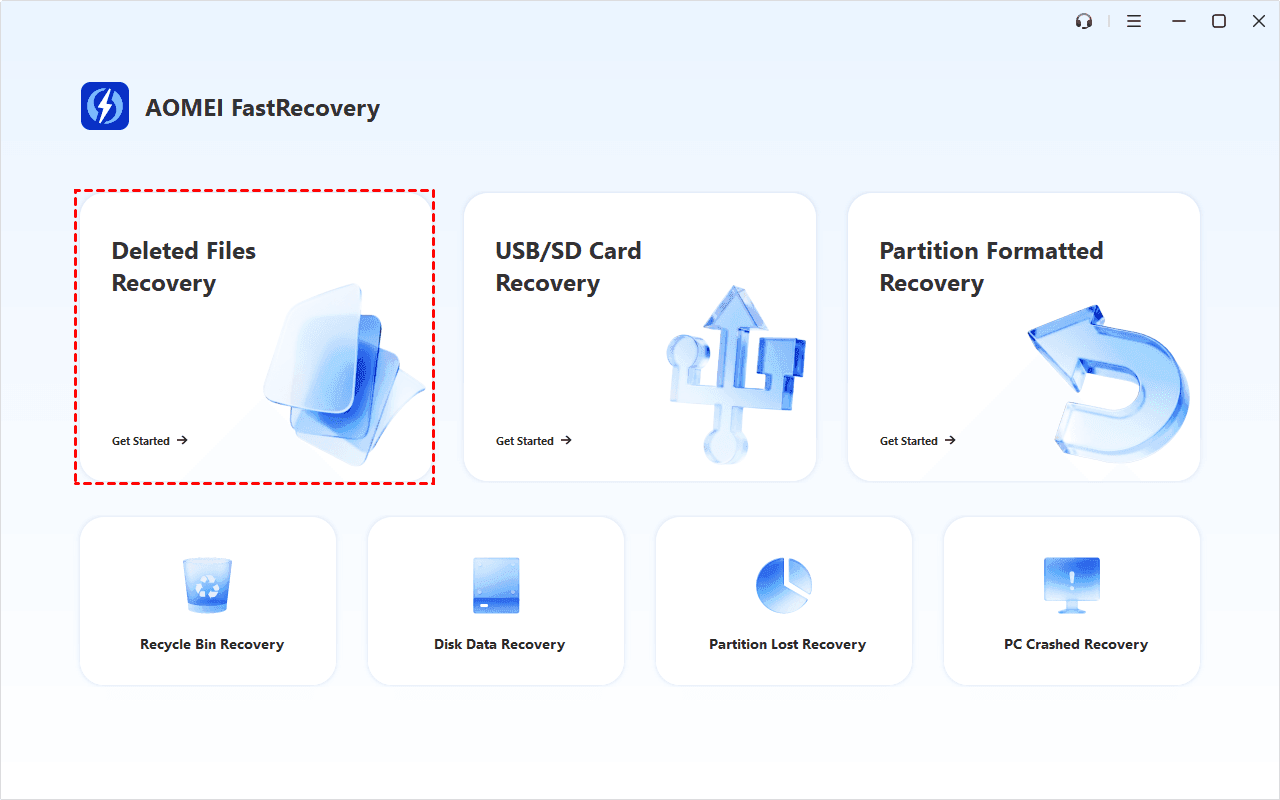
Step 1. Open FastRecovery after installing, then click Deleted Files Recovery for fast recovery. You can also choose a more suitable alternative. All of them can help you retrieve data without causing any damage.
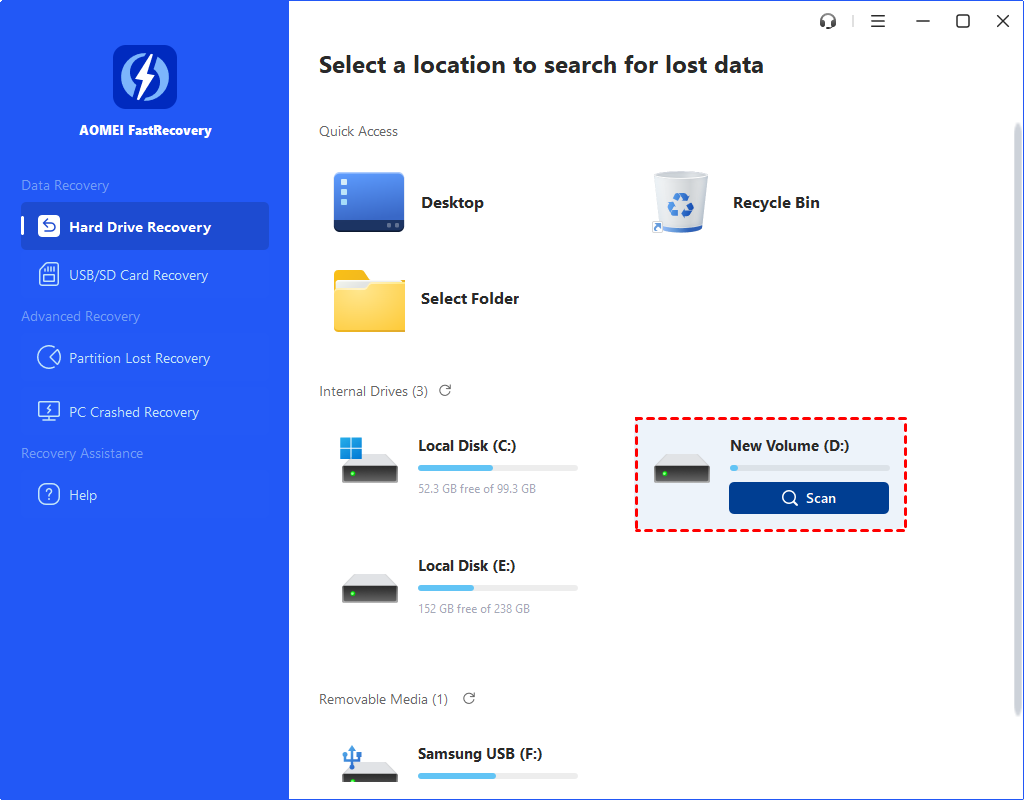
Step 2. Find your drive containing deleted files and click Scan.
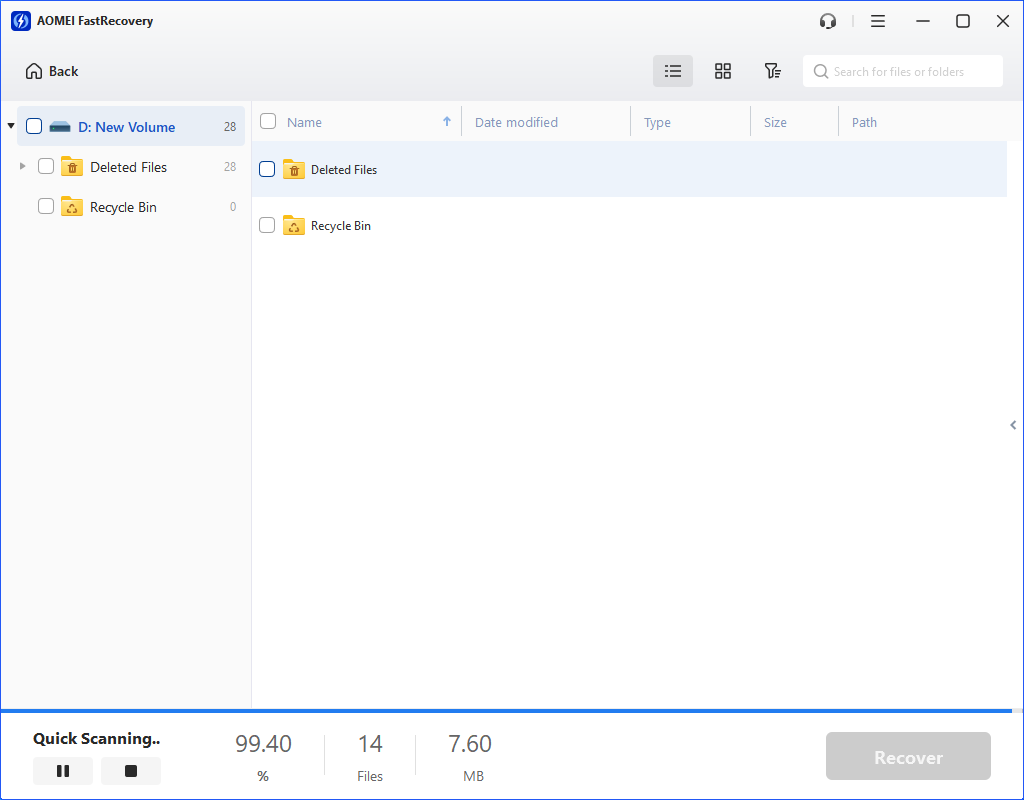
Step 3. Then, it will automatically run Quick Scan to scan the target drive.
-
Scan time mainly depends on disk size and health, especially regarding bad sectors or file system corruption.
-
During scanning, you can click the Stop or Pause button if you select the wrong disk or something goes wrong.
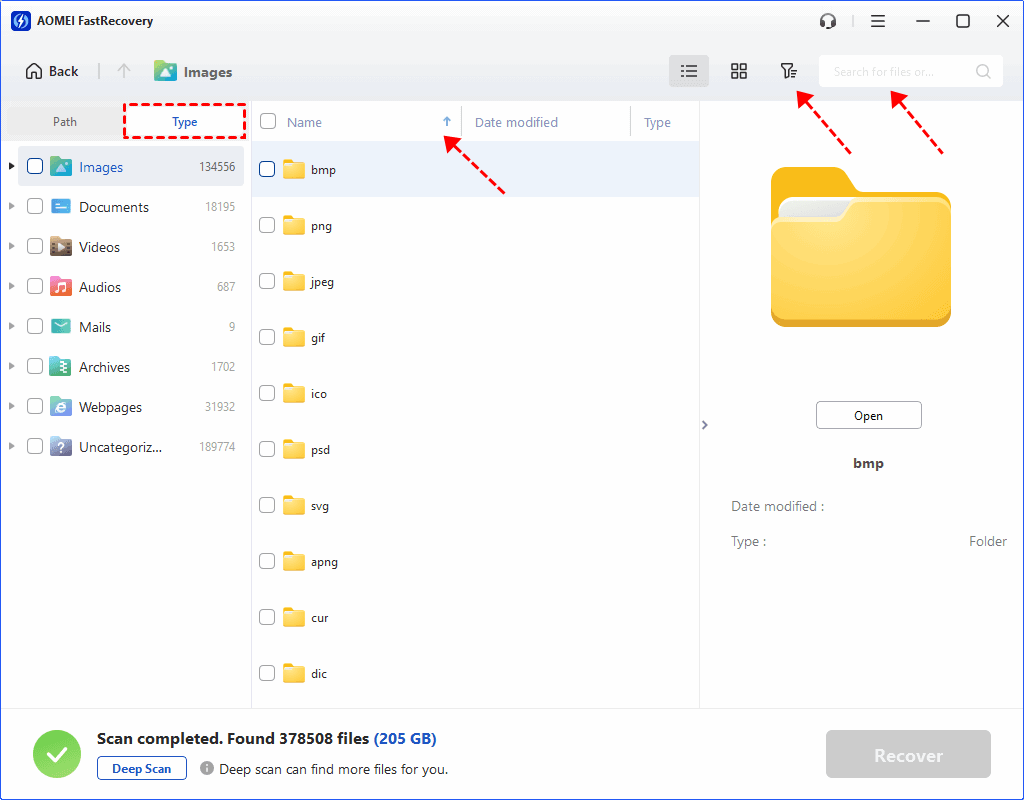
Step 4. Wait for the process to complete, then select files by Type (default) or Path, with options to sort, search, filter, and preview files.
👉Under the Type section:
- Specify the data type and click the arrow next to type, size, date modified, etc., to sort files.
- To locate files quickly, type the file name or extension in the search box.
- Or use the filter feature, similar to the Type category, allowing you to further specify the size of files, from less than 512 KB to 1GB above.
- Once found, double-click the files to preview.
👉 Under the Path section: Directly navigate to the original location where you saved deleted files. Sort files if needed.
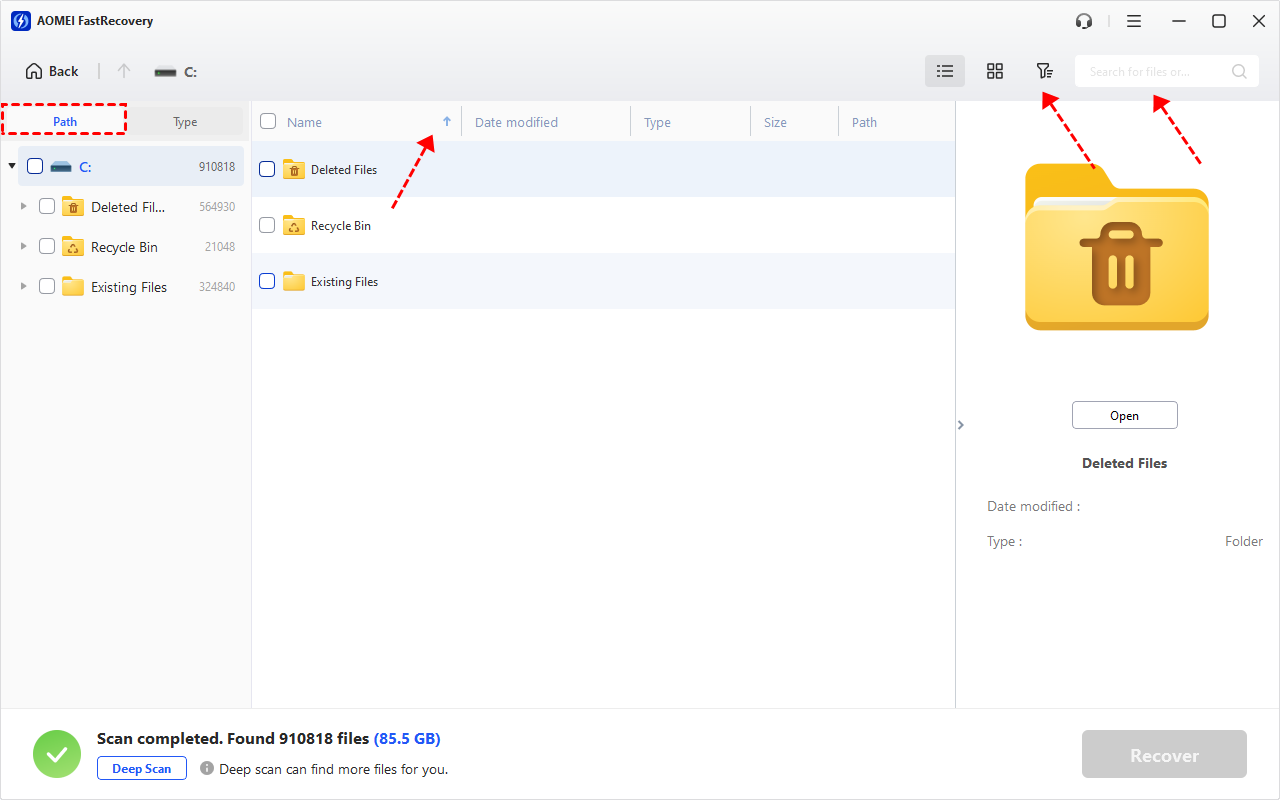
- The Type categories and filter options include all supported data types, such as images, videos, documents, mails, web pages, compressed files, etc.
- Click the Deep Scan to find more data if Quick Scan fails. It will scan every sector of the disk and take longer.
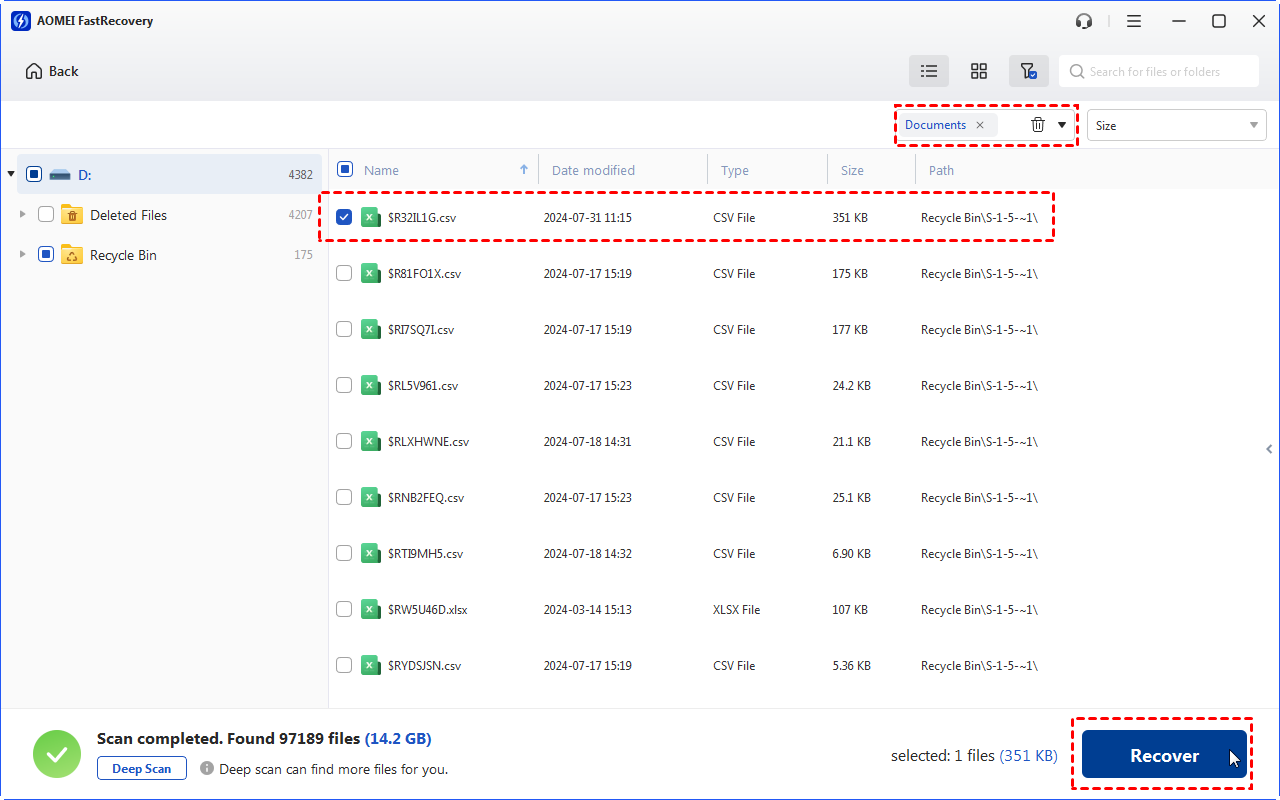
Step 5. Find the target file, select it, and click Recover. Please select a new location to save the recovered data.
-
Don’t save them to the original location, as it may cause data overwriting.
-
The free edition can recover deleted files on Windows 10 for free, up to 500MB. To recover unlimited files, try the advanced editions.
Windows File Recovery: Microsoft’s official alternative
If you insist on trying to use the official free undelete tool on Windows 10, you can turn to Windows File Recovery, which is a data recovery tool provided by Microsoft. Unlike FastRecovery, it is a command-line tool, and users need to type different commands to make the program work. This part shows how to use Windows File Recovery.
Some notes are to be figured out before using it.
- File System: How your computer's Operating System stores and retrieves the data.
- Source drive: the place where files are lost/deleted.
- Target drive: the place where you choose to store the recovered files.
- Recovery mode: general: Regular & Extensive; advanced: Segment & Signature.
- Switches: parameters to target the folders and file types.
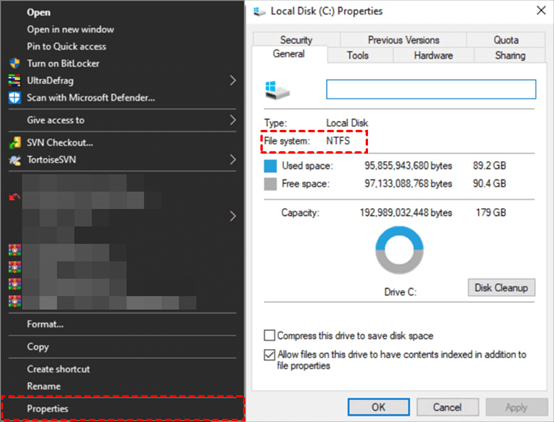
The beforehand will be to check the File System of your disk and decide on a recovery mode according to the File System and how you have lost your files, then decide on the switches.
To check your file system, go to This PC> right-click on the drive that has lost files > Properties.
Recovery modes:
| File system | Scenarios | mode |
| NTFS | Deleted recently | Regular |
| NTFS | Deleted for a while | Extensive |
| NTFS | Formatted disk | Extensive |
| NTFS | corrupted disk | Extensive |
| FATandexFAT | Any | Extensive |
Switches:
| Switches | Definition | Supported mode(s) |
| /n | Filter the scan range: scans for a specific file with its file name/path/type, etc. | All |
| /y: | Recover specific extension groups. | Signature |
| /k | Recover system files. | NTFS Segment |
| /u | Recovers undeleted files, for example, from the Recycle Bin. | NTFS Segment |
Now, follow the steps to recover lost files on Windows 10.
- Notes:✎...
- The target drive cannot be the same as the source drive.
- If you don’t specify the recovery mode, Regular mode will be utilized by default.
- Please replace the real username and folder name with those characters in the command.
- If Windows failed to create destination folder, please get help.
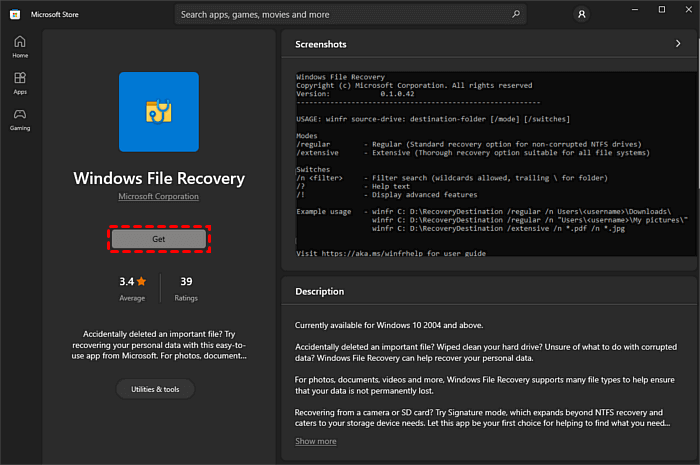
Step 1. Get Windows File Recovery from the Microsoft Store > run it.
Step 2. Input the command:
winfr source-drive: destination-drive: [/mode] [/switches]
For instance, if you want to recover some just-deleted photos in a folder under the C: drive to the D: drive, then you could input:
winfr C: D: /n Users\username\foldername\ *. jpg
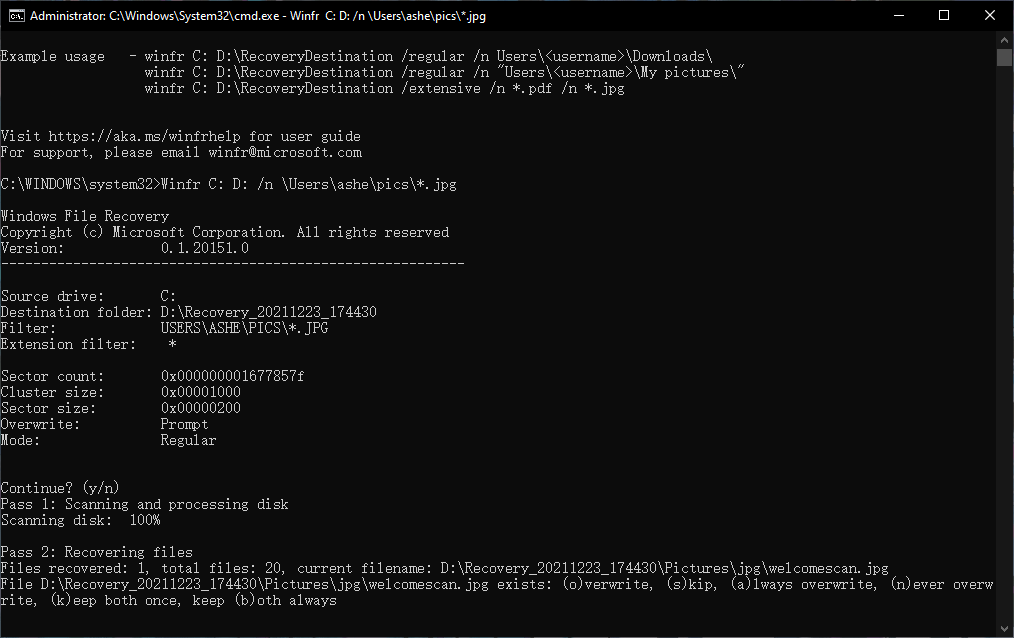
Step 3. Then press Y to continue, and wait for the recovery. When finished, you can check the files in a recovery folder in the destination.
Conclusion
If you need a free and reliable undelete tool for Windows 10, FastRecovery might be the best choice. As you can see, it has many great qualities, and more importantly, it's great for beginners and efficient.
For users who prefer Microsoft’s built-in option, Windows File Recovery is also available, but it lacks the ease of use and advanced recovery options found in FastRecovery.
To avoid data loss in the future, always back up important files and use file recovery tools as soon as possible when deletion occurs.
 100%
Clean & Secure
100%
Clean & Secure