 AOMEI Backupper


[Quick Fixes] Discord Installation Has Failed on Windows 11
Having trouble installing Discord on Windows 11? We'll help you diagnose the cause and apply proven fixes to complete your installation and avoid future problems.

By Lily Updated on January 9, 2026


Main Reasons for Discord Installation Has Failed
When you see the Discord Setup installation has failed error on Windows 11, it usually means the installer is being blocked or interrupted by system-level issues. Below are the most common reasons behind this problem:
🎯 Background processes interference.
🎯 Corrupted leftover files from a previous install.
🎯 Insufficient administrator permissions.
🎯 Overly restrictive antivirus or Windows Defender.
🎯 An outdated Windows 11 OS or damaged system dependencies (.NET, C++).
 AOMEI Backupper
To avoid future issues, it is recommended to backup installed apps using the best free Windows backup software.
How to Fix Discord Installation Has Failed on Windows 11
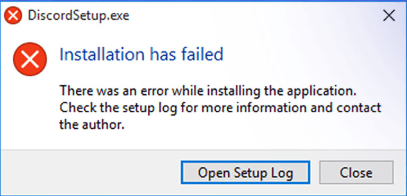
If you receive the error message, “Discord installation has failed check setup log”, please follow the fixes below in order.
Fix 1: Terminate All Discord Processes
Running or stuck Discord processes can block the installer. Follow the steps below to end the processes:
Step 1. Press Ctrl + Shift + Esc to open Task Manager.
Step 2. Look for Discord or Discord Updater under the Processes tab.
Step 3. Select each one and click End task.
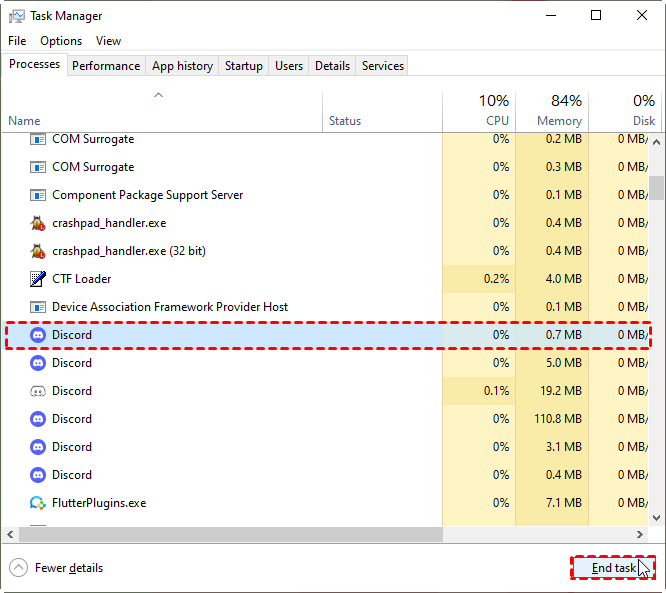
Step 4. Close Task Manager and try reinstalling Discord.
Fix 2: Delete Residual Discord Folders
Leftover files from a previous installation often cause the error. Here’s how to fix it:
Step 1. Press Win + R, type %appdata%, and press Enter.
Step 2. Delete the Discord folder.
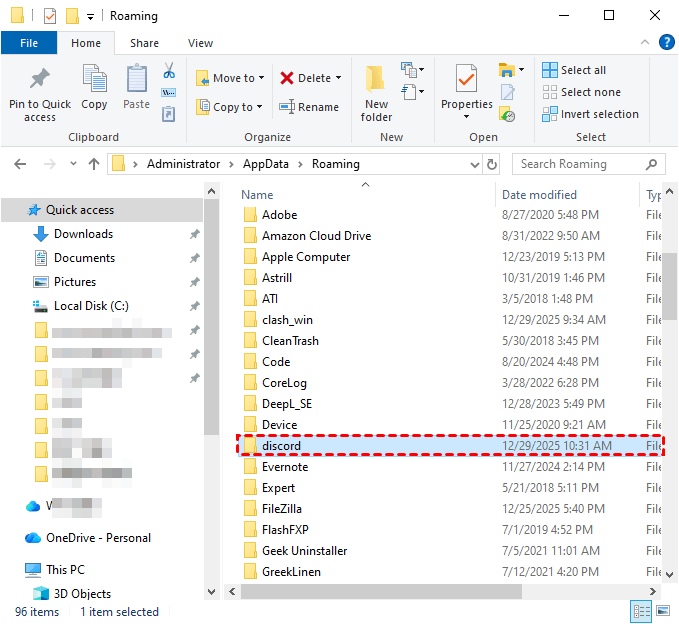
Step 3. Go back to the Run dialog (Win + R), type %localappdata%, and press Enter.
Step 4. Delete the Discord folder again if it exists.
Step 5. Restart your PC before reinstalling Discord.
Fix 3: Run the Discord Installer as Administrator
Without admin rights, the installer may fail to write system files. Follow the instructions below to fix it:
Step 1. Right-click the Discord installer file.
Step 2. Select Run as administrator.
Step 3. Approve the User Account Control (UAC) prompt. Wait for the installation to complete.
Fix 4: Temporarily Disable Antivirus/Firewall
Windows Defender or third-party antivirus tools may mistakenly block Discord’s installer or background services during setup. Follow these steps to disable protection temporarily:
Step 1. Open Windows Security from the Start menu.
Step 2. Go to Virus & threat protection. Click Manage settings under Virus & threat protection settings.
Step 3. Turn off Real-time protection.
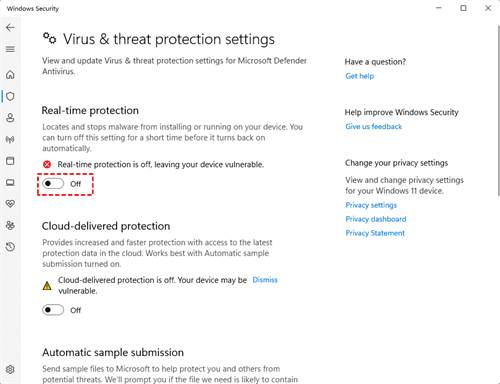
Step 4. If you use a third-party antivirus or firewall, pause or disable it from its control panel.
Step 5. Once protection is disabled, run the Discord installer again and complete the installation.
💡 Notes:
● Re-enable your antivirus and firewall immediately after Discord is installed to keep your system protected.
● If disabling security software fixes the issue, add Discord to your antivirus exclusion or allow list to prevent future installation or update failures.
Fix 5: Update Windows 11 and Required Dependencies
Outdated system files or missing components can prevent Discord from installing correctly. Follow the steps below to update Windows 11 and required dependencies:
Step 1. Update Windows 11
- Press Win + I to open Settings.
- Go to Windows Update. Click Check for updates and install all available updates.
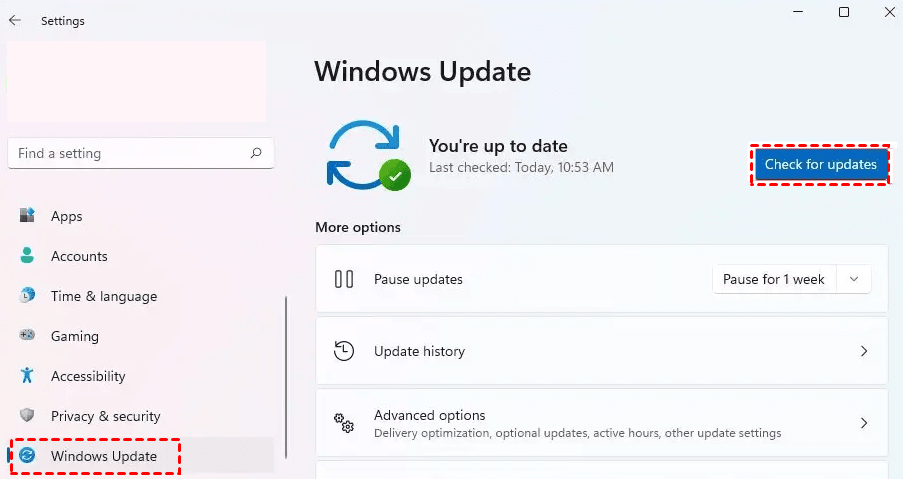
- Restart your PC once the updates are complete.
Step 2. Update Required System Dependencies
Discord depends on several Windows components to run properly:
- .NET Framework – Make sure the latest version is installed and enabled.
- Microsoft Visual C++ Redistributables – Install or repair the 2015–2022 versions (both x86 and x64).
You can download these components directly from Microsoft’s official website to avoid compatibility issues.
Step 3. After updating Windows 11 and all required dependencies, right-click the Discord installer and select Run as administrator to ensure a smooth installation.
Bonus: Best Way to Backup Installed Apps in Windows 11
After successfully installing Discord, it is a good habit to backup all your installed apps. With a reliable backup in place, you can quickly restore your applications and settings without having to reinstall everything from scratch. AOMEI Backupper Standard is a free backup and restore solution designed for Windows users.
 AOMEI Backupper
-
System Backup – Safely back up Windows 11 along with installed apps and configurations.
-
Disk and Partition Backup – Protect specific drives where applications are installed.
-
Scheduled Automatic Backups – Set daily/weekly/monthly backups to keep your data continuously protected without manual effort.
-
One-Click Restore – Quickly recover apps and system files without reinstallation.
 100% Secure
Download AOMEI Backupper now and follow the guidance below to backup installed apps in Windows 11:
Step 1. Install and open AOMEI Backupper on your Windows 11 PC. Go to Backup > System Backup.
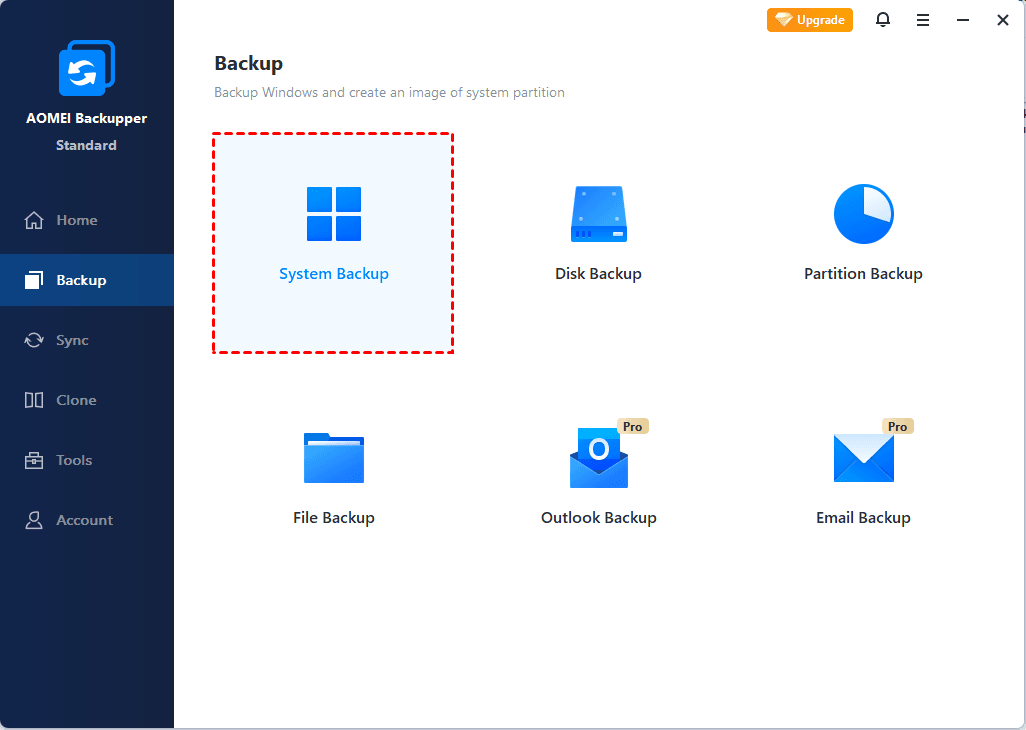
Step 2. The program automatically includes Windows and all installed applications in the backup. Select a secure destination, such as an external drive or network location.

Step 3. Use Schedule to configure an automatic backup as necessary. Finally, click Start Backup and wait for the process to complete.
Summary
If you encounter Discord installation has failed on Windows 11, it is usually caused by leftover files, permission issues, security software conflicts, or outdated system components. You can fix the error with the above solutions.
To avoid future issues, backing up installed apps is a smart practice. AOMEI Backupper enables you to protect installed applications by backing up the entire system or selected partitions. It also enables you to backup files to external hard drive in Windows 11. Why not give it a shot?
 100%
Clean & Secure
100%
Clean & Secure
