 AOMEI Backupper


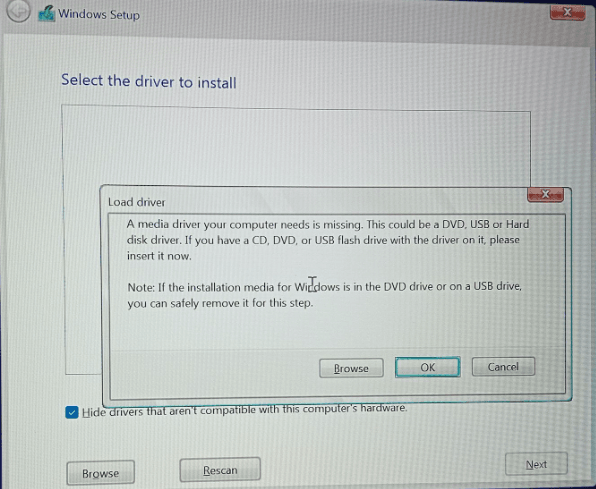
Troubleshooting: A Media Driver Is Missing in Windows 11
Fix a media driver is missing Windows 11 error during installation. Learn why it happens and how to load USB or storage drivers correctly.

By Lily Updated on December 16, 2025


Causes for a Media Driver Is Missing in Windows 11
The “Windows 11 a media driver your computer needs is missing” error usually appears during installation when Setup cannot detect the storage device or installation media. Below are the most common reasons behind this issue.
📍 Storage Driver Issues
Systems using NVMe, Intel RST, or RAID may lack the default Windows 11 drivers, causing the "missing media driver" error if the disk is not detected.
📍 Incorrect BIOS/UEFI Settings
Using RAID mode instead of AHCI, disabling USB, or incorrect UEFI settings can prevent Windows Setup from loading necessary storage drivers.
📍 USB Port Compatibility
Setup may fail to recognize newer USB 3.0 or USB-C controllers, especially on new hardware. Using an unsupported port can trigger the error.
📍 Corrupted Installation Media
A damaged Windows 11 ISO or incorrectly created bootable USB can cause required drivers not to load, often due to a bad download or faulty creation tool.
 AOMEI Backupper
Once Windows 11 is installed, protect your system with the best free Windows backup software.
How to Fix a Media Driver Your Computer Needs Is Missing in Windows 11
If you encounter a media driver is missing during Windows 11 USB install, you can try the following solutions to fix it.
Fix 1: Load Storage or USB Drivers Manually
If Windows 11 Setup cannot detect your hard drive, SSD, or installation media, manually loading the required driver is often the fastest solution.
1. Visit your PC or motherboard manufacturer’s website and download the correct storage controller or USB driver for your model. Common drivers include:
- Intel Rapid Storage Technology (RST)
- AMD RAID or chipset drivers
- NVMe or SATA controller drivers
Make sure the driver is compatible with Windows 11 (64-bit).
2. Extract the driver files so that the folder contains .inf, .sys, and .cat files. Windows Setup can only load drivers in this format.
3. Copy the extracted driver folder to a separate USB flash drive, or place it in a different folder on the Windows 11 installation USB.
4. Install Windows 11 again. When the “A media driver is missing” screen appears, click Browse to choose the correct driver.
Tip: If multiple drivers are listed, try them one by one until the disk becomes visible.
5. Windows Setup will rescan for available disks and installation media once the driver is loaded. Select the target disk and proceed with the Windows 11 installation as normal.
Fix 2: Change BIOS Settings
Incorrect BIOS or UEFI settings can prevent Windows 11 Setup from accessing storage devices or USB controllers, leading to the “a media driver is missing Windows 11” error. Here’s how to fix it:
1. Restart your PC and press Del, F2, F10, or Esc (varies by manufacturer) as soon as it powers on to enter the BIOS/UEFI setup.
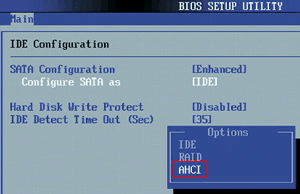
2. Locate the SATA Configuration or Storage Configuration section, and change RAID or Intel RST mode to AHCI.
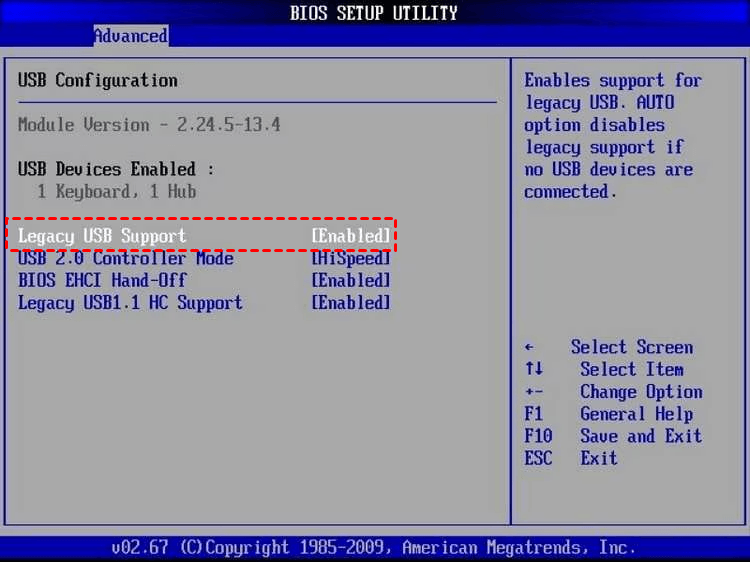
3. Check USB configuration. Ensure the following options are enabled:
- USB Controller
- Legacy USB Support
- XHCI Hand-off (if available)
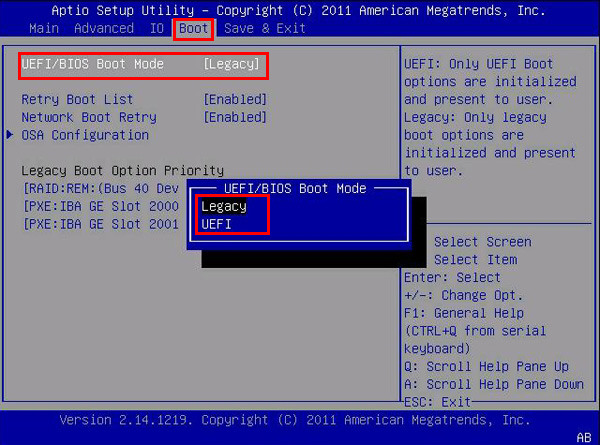
4. Verify boot mode and secure boot:
- Set Boot Mode to UEFI
- Temporarily disable Secure Boot if the installer fails to detect media
- Make sure CSM (Compatibility Support Module) is disabled unless required by your hardware
5. Save all changes, reboot, and start the Windows 11 installation again. In many cases, the storage drive and installation media will now be detected correctly.
Fix 3: Switch USB Ports
Sometimes a missing media driver error is caused by USB port compatibility rather than missing drivers. Switching USB ports is a quick and surprisingly effective fix.
1. Safely remove the Windows 11 installation USB from the current port.
2. Plug the USB drive into another port on your PC:
- Prefer USB 2.0 ports if available for broader driver support during Windows Setup
- Avoid front-panel ports; use rear motherboard ports instead
- Try switching between USB-A and USB-C ports if your system supports both
3. Reboot the PC and start the Windows 11 setup again. In many cases, the installer will immediately detect the media without prompting for drivers.
Fix 4: Recreate the Windows 11 Installation USB
A corrupted or improperly created installer can be the cause. Recreating the Windows 11 installation USB often resolves the issue completely.
1. Download Windows 11 media creation tool from Microsoft website and run it. You need to be an administrator to run this tool.
2. If you agree to the license terms, select Accept.
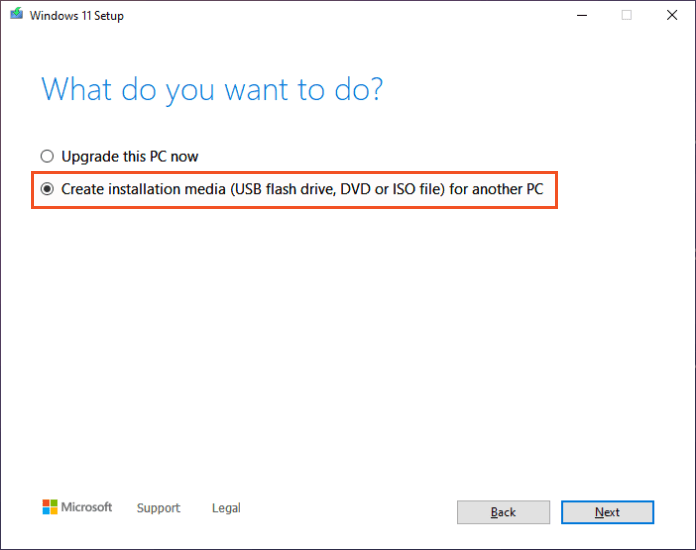
3. When asked “What do you want to do?”, select Create installation media for another PC, and then click Next.
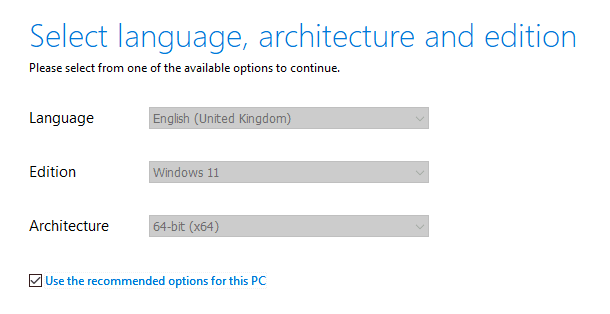
4. The Setup program automatically selects the language, edition, and architecture for Windows 11 according to your current Windows environment. You can uncheck Use the recommended options for this PC to change the options.
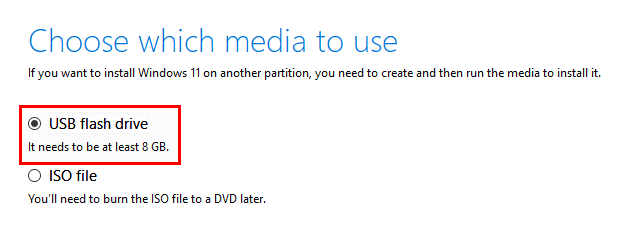
5. When prompted to choose which media to use, select USB flash drive and click Next.
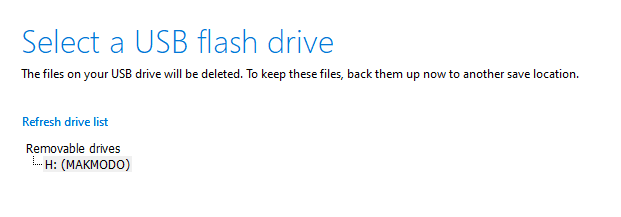
6. Select your USB drive and click Next to begin creating Windows 11 installation USB.
7. Boot from the newly created USB and start the Windows 11 installation again. In most cases, the media driver error will no longer appear.
Bonus: Best Way to Protect Your Windows 11 PC
After fixing the “a media driver is missing Windows 11” error and completing the installation, the next critical step is protecting your system from future failures. AOMEI Backupper Standard is a trusted and beginner-friendly backup tool designed specifically for Windows PCs.
 AOMEI Backupper
-
Multiple Backup Options: Supports system, disk, partition, and file backups, giving you flexible protection based on your needs.
-
Scheduled Automatic Backups: Set daily, weekly, or monthly backups to keep your data continuously protected without manual effort.
-
Various Backup Locations: It supports backing up to local disks, external hard drives, USB flash drives, network share, NAS devices, and cloud drives, etc.
-
Fast Recovery: If Windows fails to boot or encounters driver-related errors again, you can restore your system quickly from a backup image.
 100% Secure
Download AOMEI Backupper and follow the steps below to create a system image in Windows 11:
Step 1. Install and open AOMEI Backupper on your Windows 11 PC. Go to Backup > System Backup.
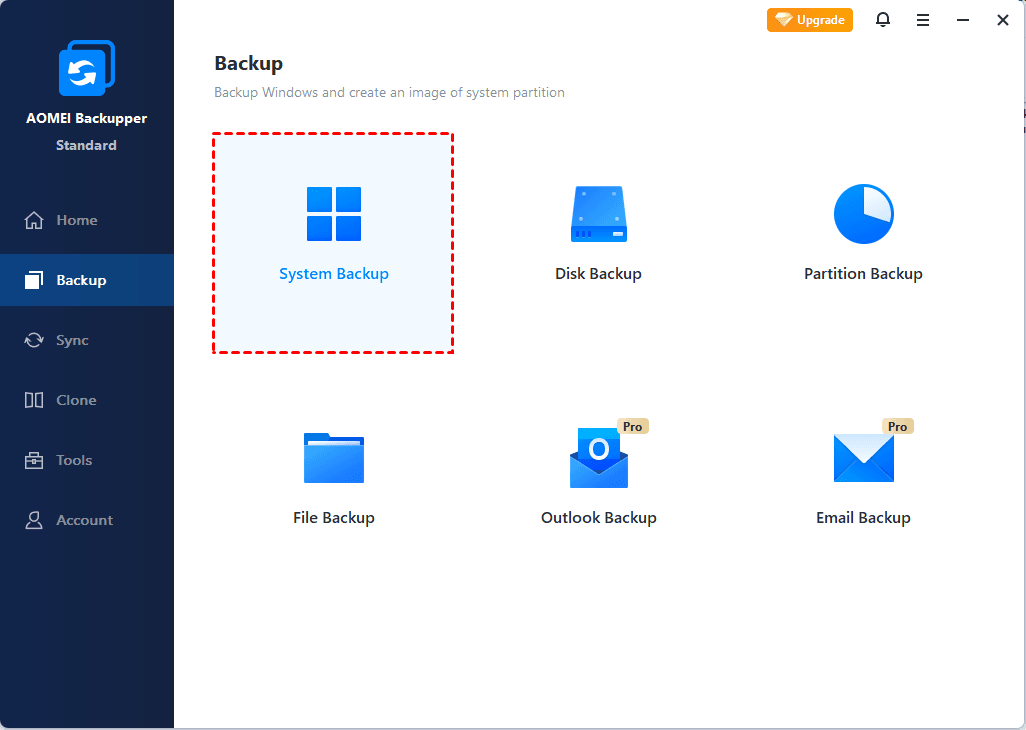
Step 2. Boot-related partitions are selected by default. Choose a destination path to store the system image. You can backup Windows 11 to an external hard drive, Synology NAS, etc.

Step 3. Use Schedule to configure an automatic backup as necessary. Finally, click Start Backup to begin backing up Windows 11.
Verdict
The “a media driver is missing Windows 11” error is a common installation issue, usually caused by missing storage drivers, incorrect BIOS settings, USB compatibility problems, or corrupted installation media. This guide covered practical fixes to the error.
Once Windows 11 is installed, protecting your system is just as important. Creating regular backups with a reliable tool like AOMEI Backupper Standard ensures you can quickly restore to an earlier date when problems occur. Download it now to secure your Windows 11 PC!
 100%
Clean & Secure
100%
Clean & Secure
