 AOMEI Backupper


Steam Windows 10 End of Support: Security Risks & What to Do?
On this page, you will learn the security risks of Steam Windows 10 end of support, and what you can do to deal with this problem. Scroll down to check the details now!

By Jonna Updated on September 17, 2025


Steam Users Still Mostly on Windows 10 Despite End of Support
There is no doubt that Windows 10 is currently the most popular operating system released by Microsoft due to its stability, broad driver compatibility, and minimal hardware requirements. But sadly, the support life of Windows 10 is counting down. Microsoft has officially set October 14, 2025, as the date when it will stop providing security updates for the operating system. Therefore, this poses a serious problem for gamers - Steam Windows 10 end of support.
According to Steam hardware survey data, although some Windows 10 users were forced to upgrade to Windows 11, a significant number of users are still running on Win 10. So what will happen when Steam Windows 10 end of life?
Steam itself will not immediately sever ties with Windows 10 on that day. Your game will still run, your library will still exist, and the Steam store will still function normally. However, the potential danger lies in using a system that no longer receives security patches. Let's break it down step by step:
- Steam games rely on an active, secure OS. Without updates, your system becomes vulnerable for malware, especially when downloading game updates or mods from community servers.
- Compatibility gaps will widen over time. Newer games and updates may eventually be primarily tested for Windows 11, meaning Windows 10 users may encounter performance and stability issues.
- Hackers love outdated systems. Once Microsoft stops patching vulnerabilities, cybercriminals often target these systems aggressively.
Easiest Way to Backup Your Steam Games for Disaster Recovery
When preparing for the Steam Windows 10 end of support, one of the smartest things you can do is create a solid backup plan. Even if you upgrade your system, there's always a chance that data could be lost during migration, especially when dealing with large Steam libraries. That's why you need AOMEI Backupper Standard, a free, reliable, easy-to-use backup tool that ensures your game files stay safe and can be restored in minutes.
Designed for both beginners and advanced users, it offers a seamless way to protect your Steam library against drive failure, accidental deletion, or malware attacks. Its features make it stand out for Steam library backups:

 AOMEI Backupper
- Game File Protection: Offers to securely backup Steam folders/files, or backup your entire hard drive, to ensure all game files, save data, and configuration are preserved.
- Scheduled Backups: Automates the backup processin daily, weekly, monthly, ect., so you never forget to protect your library.
- Incremental Backups: Saves time and space by only backing up changes instead of duplicating entire files every time. (Differential Backupis available in Professional edition)
- Multiple Storage Options: Supports local drives, external hard drives, NAS devices, and even cloud storage for flexible backup strategies.
- Quick Recovery: Restoresyour Steam games quickly, and you are allowed to create bootable media and restore data even if your OS won’t boot.
 100% Secure
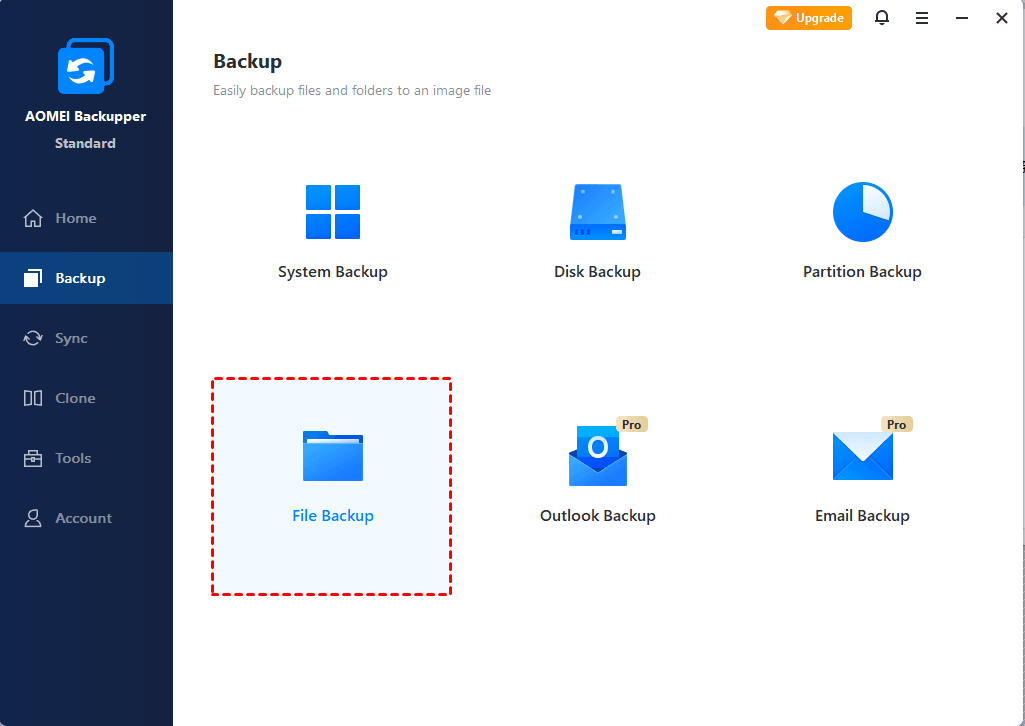
Backing up your Steam library with AOMEI Backupper is straightforward and efficient. You only need to download & run AOMEI Backupper on your computer, go to the Backup tab, and then choose File Backup or Disk Backup to choose the directory you wish to back up.
- ★Tips: By default, Steam’s main directory is located at: C:\Program Files (x86)\Steam\steamapps\common.
Steam Windows 10 End of Support: What to Do?
If you’re still running Windows 10 as the Steam Windows 10 support ending, it's important to decide on your next move. Here are the most practical strategies to ensure your gaming experience continues smoothly.
|
Strategies |
Pros |
Cons |
|
#1. Upgrade to Windows 11 >>Full Steps |
Secure, modern, improved features |
Need compatible hardware
|
|
#2. Buy a new Windows 11 PC >>Full Steps |
Future-proof, pre-installed ready |
Higher cost |
|
#3. ESU for Windows 10 >>Full Steps |
Extends security updates |
Short-term; still at risk afterwards |
|
#4. Switch to Another System >>Full Steps |
Privacy-friendly, no OS cost |
Learning curve, app compatibility |
Strategy 1: Upgrade to Windows 11
The most direct solution is to upgrade to Windows 11. This ensures you stay in a fully supported environment with ongoing security patches.
- Pros: It retains compatibility with all current and future Steam updates, enhanced security, and improved performance on newer hardware.
- Cons: Some older systems don’t meet Windows 11’s hardware requirements, particularly TPM 2.0 and Secure Boot.
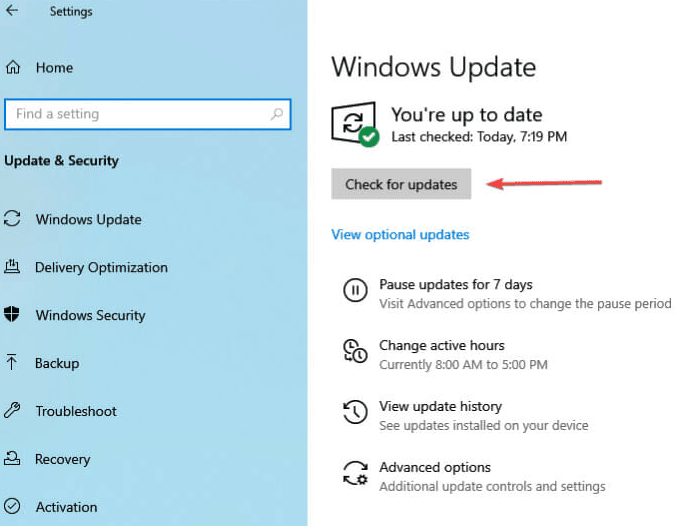
Before upgrading, run Microsoft’s PC Health Check tool to confirm compatibility. If your hardware meets the requirements, upgrading is relatively seamless - just remember to back up your Steam library first. You can navigate to Update & Security > Windows Update > Check for updates to download and install updates for Windows 11.
Strategy 2: Get a new PC Supported with Windows 11
If your current machine doesn’t meet Windows 11 requirements, investing in a new PC is a logical step.
Modern gaming PCs not only support Windows 11 but also come with faster processors, better graphics cards, and advanced storage solutions like NVMe SSDs. This ensures better frame rates, faster load times, and overall smoother gameplay.
Strategy 3: Enroll in Extended Security Updates (ESU)
For users who aren’t ready to move on from Windows 10, Microsoft offers the Extended Security Updates program for enterprises. Before the Steam Windows 10 support end date comes, you can:
Step 1. Check ESU Availability. See if your region offers it for individual users.
Step 2. Purchase the ESU License. This can extend security updates for up to three years.
Step 3. Install the ESU Updates. Follow Microsoft’s or the reseller’s instructions.
Step 4. Continue using Steam on Windows 10. You will still be on Windows 10, but with security patches.
Strategy 4: Switch to a Different Operating System
If you’d like to move off Windows entirely and turn to a new OS to run Steam, here are some options like:
1️⃣ SteamOS (Linux-based) - Official Valve OS (used in Steam Deck); Optimized for gaming with Steam, good Proton compatibility for Windows games.
2️⃣ Ubuntu - Free, open-source, privacy-friendly, stable; Supported via the Linux version of Steam and Proton compatibility layer.
3️⃣ macOS - Smooth OS experience, great for productivity, and some indie/AAA games. But Many popular Windows-only games don't run natively.
FAQs about Steam Windows 10 Ending of Support
1. What operating system is Steam no longer supported on?
As of 2024, Steam dropped support for Windows 7, 8, and 8.1. Windows 10 will lose Microsoft’s security updates in October 2025, but Steam may still work for a while afterward.
2. Does Steam still work with Windows 10?
Yes, for now. Steam will continue to function on Windows 10 until Valve decides otherwise, but after October 14, 2025, your OS won’t receive security updates from Microsoft.
3. Does Steam support Windows 11?
Absolutely. Steam runs smoothly on Windows 11, and many newer games are optimized for it. Upgrading ensures long-term compatibility.
4. Can I still use Windows 10 after 2025?
Technically, yes. However, it’s not recommended due to security risks. Without updates, vulnerabilities will accumulate, making your system a prime target for cyberattacks.
Conclusion
The Steam Windows 10 end of support date is not a Microsoft deadline; you can keep running Steam on Windows 10 for a while, but every day after October 14, 2025, increases your exposure to security threats and potential game compatibility headaches.
And no matter which path you choose, backing up your Steam library using software like AOMEI Backupper is non-negotiable. Also, you can run it to create bootable backup for Windows 10, allowing you to restore the system to its working state when a problem happens.
