FastRecovery



All My Pictures Disappeared from My Computer? Fix It Now
All my pictures disappeared from my computer? Discover 5 effective ways to recover missing photos quickly and safely.

By Teresa / Updated on May 18, 2026


Help! All My Pictures Disappeared from My Computer!
Have you ever experienced the situation “all my pictures disappeared from my computer”? Really like a nightmare! Due to the huge storage capacity of the computer, many people tend to store thousands of precious pictures on the computer.
When pictures can't be found on the computer, people often wonder this issue: "Where did all my pictures go on my PC?" In general, pictures are still stored somewhere on your computer, but sometimes some third-party applications like OneDrive will save your pictures in the folders. Even picture editing apps may store them in their folders. If you accidentally delete pictures, they will be stored in the Recycle Bin.
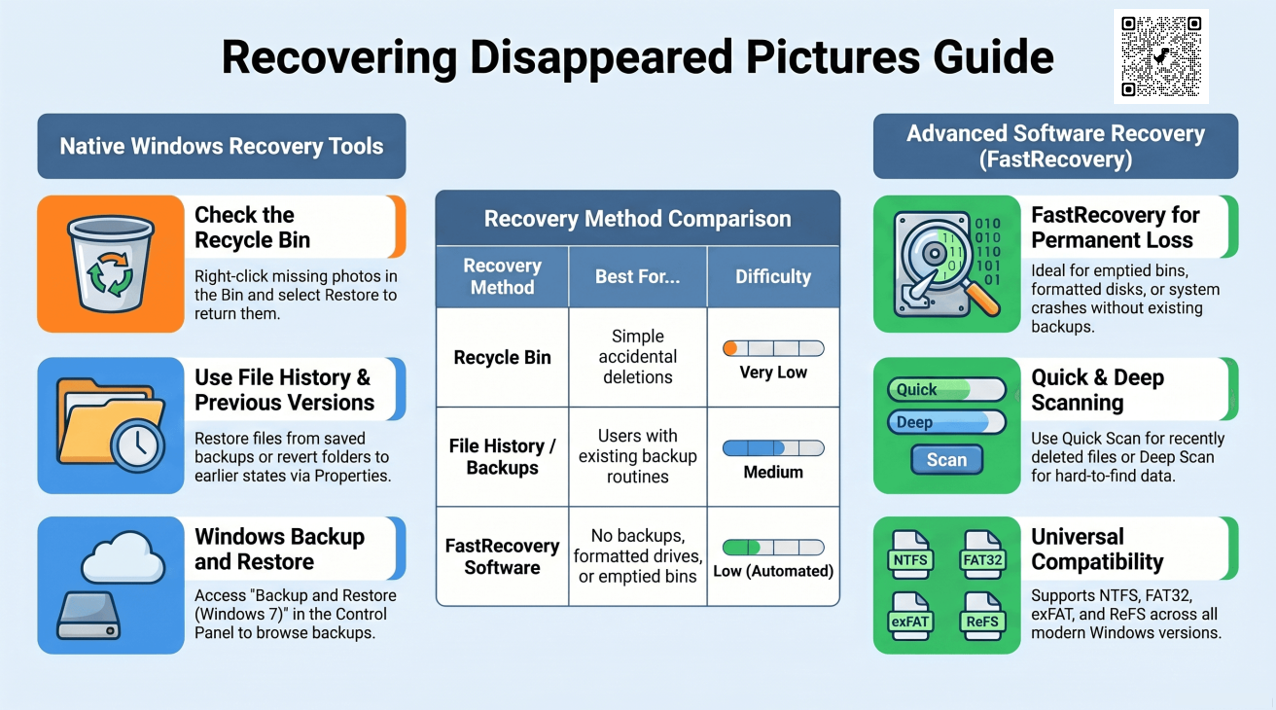
Why did pictures disappear from my computer?
There are a variety of causes of “Why have all my pictures disappeared on the computer?” We briefly outline a few common reasons.
- Pictures are lost due to accidental deletion and human error.
- The image attributes, or size do not match and cause it to be hidden.
- Improper operation causes the Windows system not to recognize the damaged picture folder.
- The hard drive where the pictures are stored is damaged.
- System upgrade.
How to find missing pictures on your computer (5 Ways)
If you already know why the photos disappeared, you can try the following 5 proven solutions to find missing photos on your computer.
🔥 Way 1. Recover disappeared pictures from my computer using software
Many users are not in the habit of backing up in advance. Even some users prefer to habitually empty the recycle bin to save storage space on their computers. In these situations, the other methods will not help you. Don't panic, a trusted Windows data recovery tool, FastRecovery, will help you find all your missing images without any reason.

 FastRecovery
- Integrate Quick Scan and Deep Scan to find missing files (e.g., Images, Documents, Videos, etc) easily and quickly.
- Recover deleted PNG files, JPG/JPEG, TIF, GIF, PSD, X3F, SVG, ARW, and a wide range of image file formats.
- Display all recoverable data by Type or Path, allowing you to sort, search, filter, and preview files, making it easier and faster to find files.
- Recover deleted photos in Windows 11, 10, 8, 7, and Windows Server for free over 500MB.
 100% Secure
Developed by a sophisticated team with more than 10 years of data security experience, FastRecovery has advanced scanning technology to quickly and efficiently detect and recover deleted or lost pictures from your computer.
-
Don't download and install FastRecovery on the drive where you store deleted files, as this may cause data to be overwritten.
-
Any newly added data or disk formatting can overwrite data. Please avoid these operations after deletion.
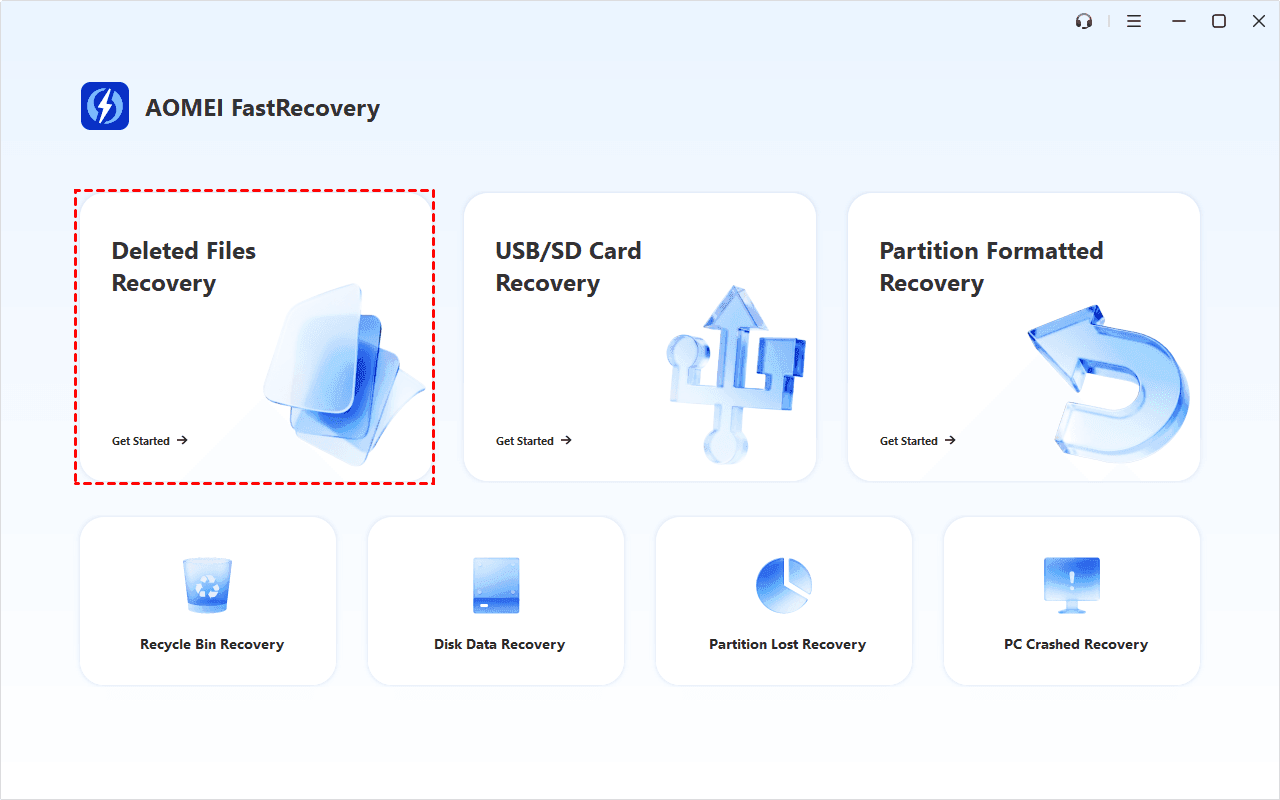
Step 1. Select a recovery option
Open FastRecovery on your computer and click Deleted File Recovery. You can also choose a more suitable alternative. All of them can help you retrieve data without causing any damage.
Step 2. Scan the drive
Find the drive where you store missing pictures, and click Scan.

Step 3. Search for missing pictures
It will automatically start the quick scanning process to find missing pictures. During scanning, you can click the Stop or Pause button if you select the wrong disk or something goes wrong.

Step 4. Find disappeared pictures quickly
To recover disappeared pictures from my computer, searching by type is more effective than by path. You can also combine it with options to sort, search, filter, and preview files.
- Specify the data type (e.g., Images) and specific formats (e.g., JPG, PNG, TIF, GIF, PSD, SVG, X3F, etc). Then, click the arrow next to type, size, date modified, etc., to sort files.
- For a specific image file or format, directly type the file name or extension in the search box.
- Or use the filter feature, similar to the Type category, allowing you to further specify the size of files, from less than 512 KB to 1GB above.
- Once found, double-click the files to preview.
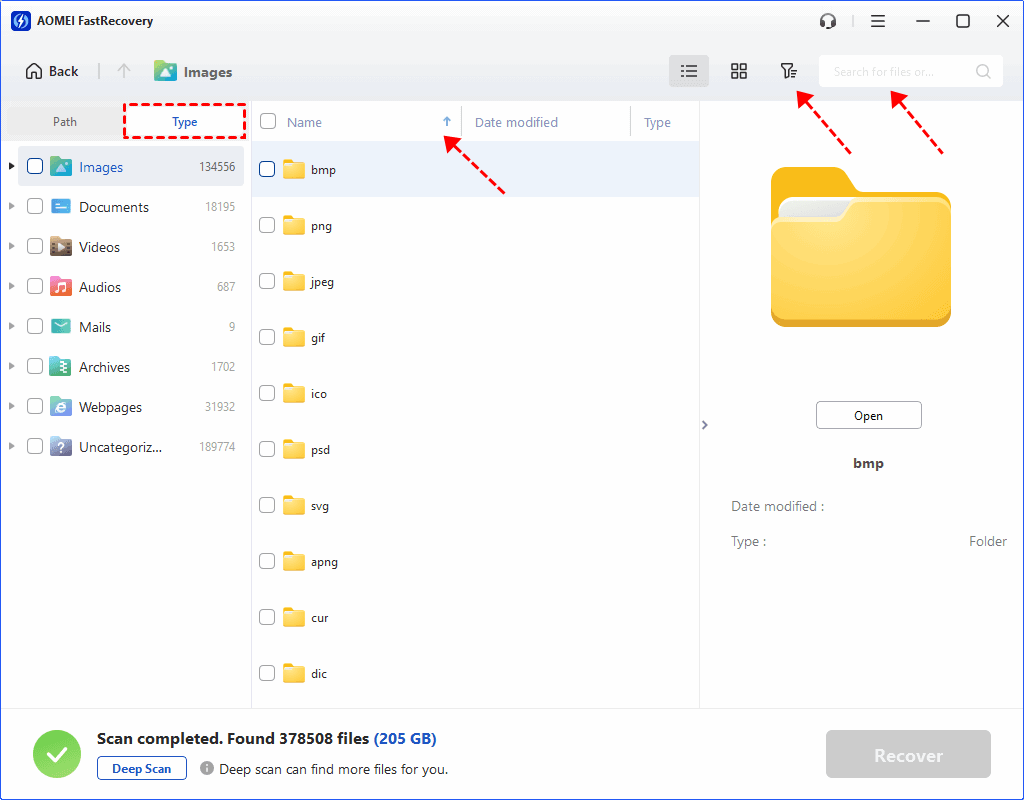
- The Type category and filter option include all supported data types, such as images, videos, documents, mails, web pages, compressed files, etc.
- Click the Deep Scan to find more data if Quick Scan fails. It will scan every sector of the disk and take longer.
Step 5. Recover disappeared pictures from my computer
Select the pictures you want to recover and click Recover. Please select a new location to save the recovered data, which may cause data overwriting.

▶ Way 2. Find missing pictures from Recycle Bin
When you delete pictures from your computer, whether intentionally or not, they are moved to the Recycle Bin. So it's worth searching the recycle bin to find all pictures on my computer on Windows 10 or 11
Step 1. Open the Recycle Bin on your PC.
Step 2. Find lost pictures you want to recover, right-click on them, then click the Restore option.
▶ Way 3. Find deleted photos using File History
If you accidentally emptied the recycle bin, files are permanently deleted. Backup will be the best method. File History, a built-in backup software, can back up and restore pictures, videos, music, and files in different users' folders. Follow the steps below to find lost pictures.
Step 1. Open the Control Panel and click the System and Security option.
Step 2. Tap File History and select the Restore your files with File History.
Step 3. Then, click the Restore personal files option.
Step 4. Click the left or right arrow to find the deleted pictures. Then, click the Recover button.
▶ Way 4. Restore deleted photos from Previous Versions
Also, you can restore deleted photos from Previous Versions if you turn on the system drive to automatically create restore points or create File History backup. Besides, this feature helps find previous versions of Word documents.
Step 1. Open the File Explorer. Locate the folder that stores deleted pictures, right-click the folder and select Properties.
Step 2. Under the Previous Versions tab, select a version you need and click Restore.
▶ Way 5. Find deleted pictures using Backup and Restore (Windows 7)
Using Backup and Restore (Windows 7) is another workable method to find missing pictures on your computer. Similar to File History, it can back up all users' folders, including Pictures.
Step 1. Go to Control Panel > System and Security > Backup and Restore (Windows 7), and click to access it.
Step 2. Click the Restore my files button.
Step 3. Click Browse for files and click Next.
Step 4. Choose the backup that contains the deleted pictures and click Next.
Step 5. Select a new location to store the recovered pictures and click Restore.
FAQs
1. How to get back deleted photos from hard drive?
To get back deleted photos from hard drive, first check the Recycle Bin, as all deleted files are moved there first. If the photos were permanently deleted, use professional data recovery software to scan and restore them.
2. How to recover pictures lost after Windows update?
To recover pictures lost after Windows update, try File History, Backup and Restore (Windows 7), or Previous Versions. If no backup exists, use a recovery tool to recover lost images.
3. How to recover disappeared photos from laptop without overwriting files?
To recover disappeared photos from laptop without overwriting files, stop using the laptop immediately, for example, don't save new to your laptop drive or format the disk. If you plan to use a data recovery tool, avoid downloading and installing it to the drive containng lost image files.
4. External drive photo recovery when all images vanish?
To start an external drive photo recovery when all images vanish, reconnect the external drive and check whether the files are hidden or deleted. If the photos are still missing, use deep scan recovery software to restore them.
Wrapping up
Hopefully, this article will help you out of the dilemma of “all my pictures disappeared from my computer”. By using the methods listed in the article, you can find the pictures you deleted by mistake from the recycle bin, and you can also implement picture recovery from a backup.
In addition, in the absence of a backup, you can also turn to a professional Windows data recovery tool - FastRecovery, which can easily retrieve missing pictures in seconds to minutes. It's 100% safe and trustworthy with a virus-free guarantee, so you can use it with confidence.
 100%
Clean & Secure
100%
Clean & Secure