 AOMEI Backupper


How to Fix Windows 11 Unknown USB Device: 7 Solutions
Meet Windows 11 Unknown USB Device (Device Descriptor Request Failed)? Here are 7 quick fixes for you!

By Jonna Updated on September 5, 2025


Why is My USB Device Showing up as An Unknown Device?
USB drives, keyboards, mice, and external hard disks are supposed to work instantly when you plug them into your PC. However, many users encounter the frustrating error message - Unknown USB Device (Device Descriptor Request Failed). This typically happens when the system can't identify or communicate with the hardware you plugged in through its descriptor, which contains information such as manufacturer, product type, and capabilities.
Don't worry, there are reliable ways to solve the Windows 11 unknown USB device error. But before diving into the solutions, let's take a look at the root causes of this issue.
- Faulty USB port or cable - Loose connections or damaged ports often cause recognition issues.
- Outdated or corrupted drivers - When Windows cannot match the correct driver, the device fails to load.
- Power management conflicts - USB selective suspend or fast startup settings can interfere with recognition.
- BIOS misconfigurations - Disabled USB support in BIOS can block detection.
- System bugs or pending updates - Outdated Windows builds may lack patches for compatibility issues.
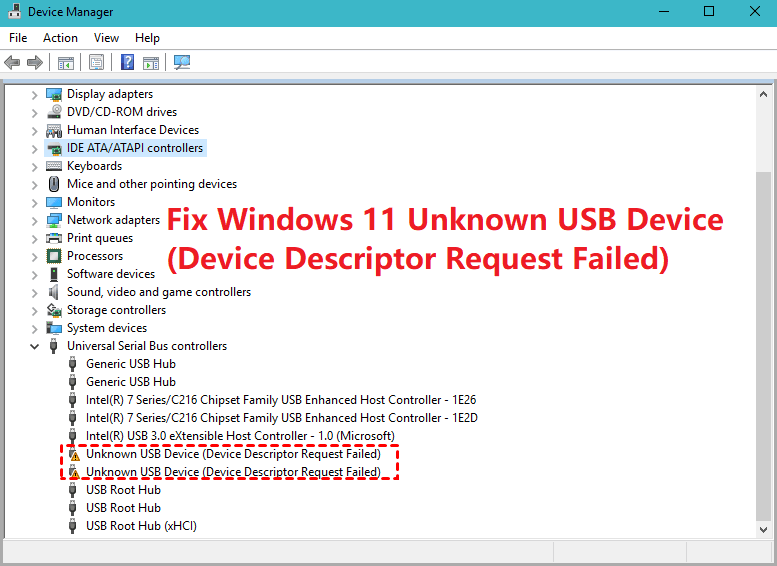
How to Fix Unknown USB Device (Device Descriptor Request Failed) on Windows 11
The good news is that most cases of Windows 11 unknown USB device error are fixable with simple adjustments. Here are 7 proven solutions.
Way 1. Check Basic Hardware Issues
Sometimes the simplest fixes are the most effective. The "unknown USB device in Windows 11" error may be caused by nothing more than a loose connection or bad cable.
1️⃣ Try a different port: Unplug your device and connect it to another USB port. If you’re using a desktop, test both the front and back ports.
2️⃣ Switch cables: For external drives and devices that rely on cables, swap out the cable to rule out physical damage.
3️⃣ Test on another PC: Plug the USB device into a different computer. If it works elsewhere, the issue is with your Windows 11 machine.
4️⃣ Clean the port: Dust or debris can block proper contact. Use compressed air to clear out the USB port.
Way 2. Use Device Manager to Uninstall/Update USB Driver
Corrupted drivers are a leading cause of device descriptor request failed in Windows 11. Drivers act as a connector between your device and the operating system. If they’re corrupted, your device won’t function properly. You can try updating or reinstalling drivers:
Step 1. Press Windows + X and select Device Manager. Expand the Universal Serial Bus controllers section.
Step 2. Locate the entry labeled Unknown USB Device (Device Descriptor Request Failed).
Step 3. Right-click and choose Uninstall.
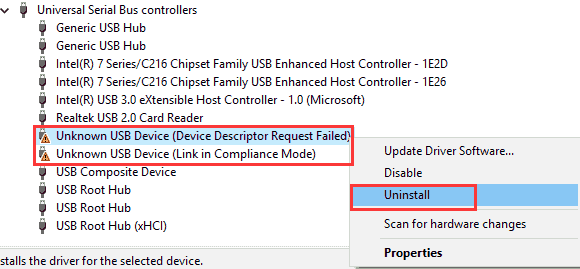
Step 4. Restart your PC. Windows will attempt to reinstall the driver automatically.
If this doesn’t solve it, right-click again and select Update Driver Software, then choose Search automatically for drivers.
Way 3. Disable USB Selective Suspend
USB selective suspend allows Windows to save power by turning off idle USB ports. Sometimes, it incorrectly disables active devices, causing unknown device in Device Manager on Windows 11. To disable it:
Step 1. Search for "edit power plan" in the Windows Search box, and open the program.
Step 2. Click Change advanced power settings.
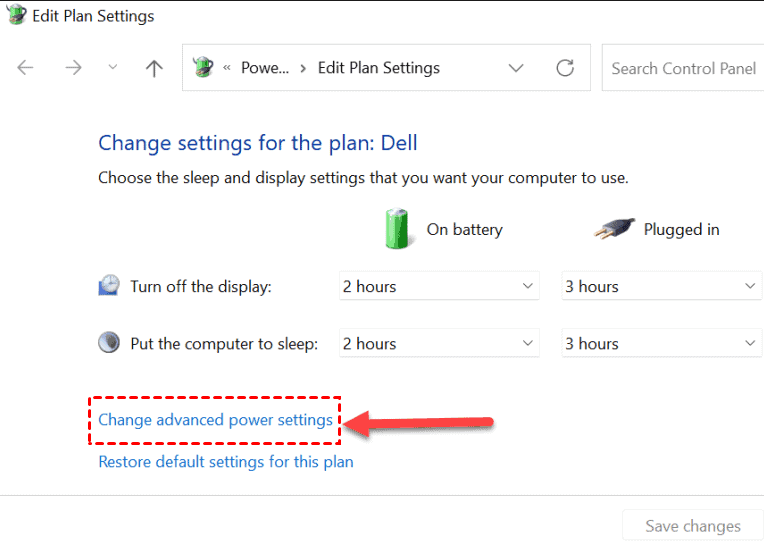
Step 3. Choose Change advanced power settings.
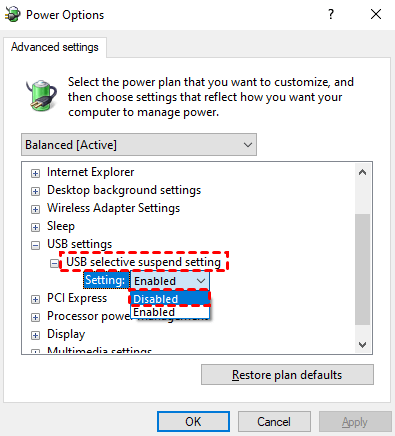
Step 4. Then, expand USB settings and switch the USB selective suspend setting option to Disabled. Click Apply and OK.
Way 4. Turn off Fast Startup
Fast Startup makes your PC boot faster by saving some system information to a file before shutting down. But this can sometimes interfere with USB detection, resulting in the Windows 11 device descriptor request failed error. Steps to disable Fast Startup:
Step 1. Open Control Panel > System and Security > Power Options.
Step 2. Then, click Choose what the power buttons do on the left, and then Change settings that are currently unavailable.
Step 3. Under Shutdown settings, uncheck the box next to the Turn on fast startup (recommended) option to turn it off.
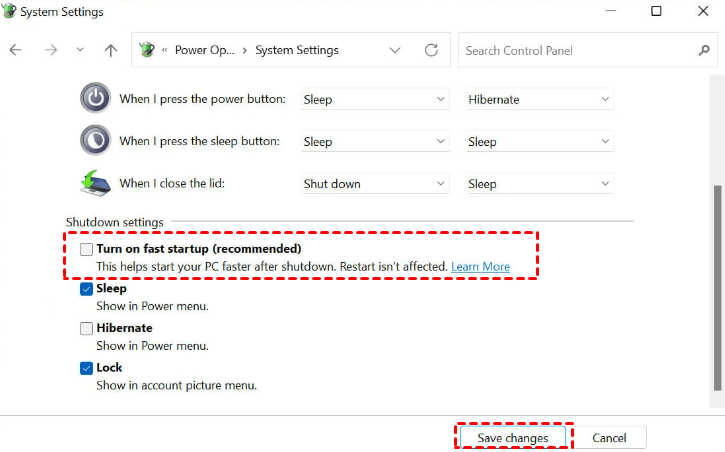
Step 4. Click Save changes to apply the changes.
Way 5. Run Windows Troubleshooter
Windows 11 comes with a built-in troubleshooter that can automatically detect and fix common hardware issues. Here is how to run the troubleshooter:
Step 1. Press Windows + I to open Settings.
Step 2. Navigate to System > Troubleshoot > Other troubleshooters.
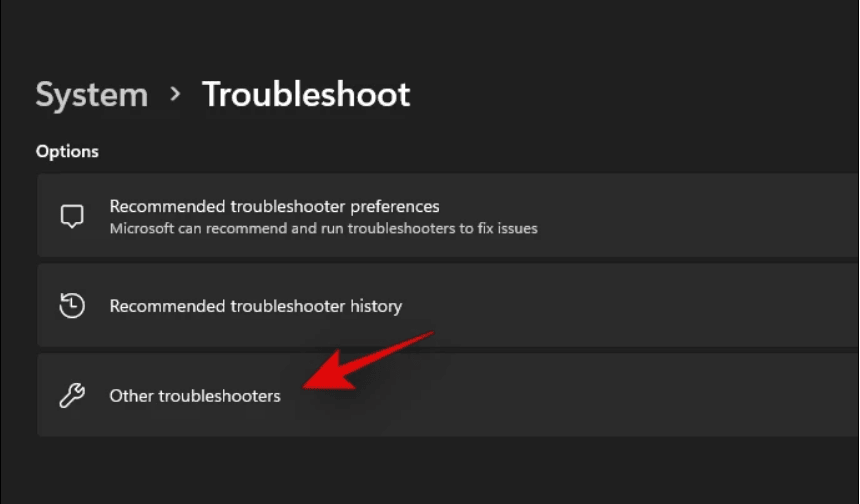
Step 3. Look for Hardware and Devices and click Run.
Step 4. Follow the on-screen instructions to apply fixes.
Way 6. Check BIOS USB Settings
Sometimes the issue lies deeper than Windows; it may be in your BIOS settings.
Step 1. Restart your PC and press the appropriate key (often F2, F10, DEL, or ESC) to enter the BIOS.
Step 2. Navigate to the Advanced section.
Step 3. Look for BIOS settings related to USB configuration, like Legacy USB Support, which is enabled.
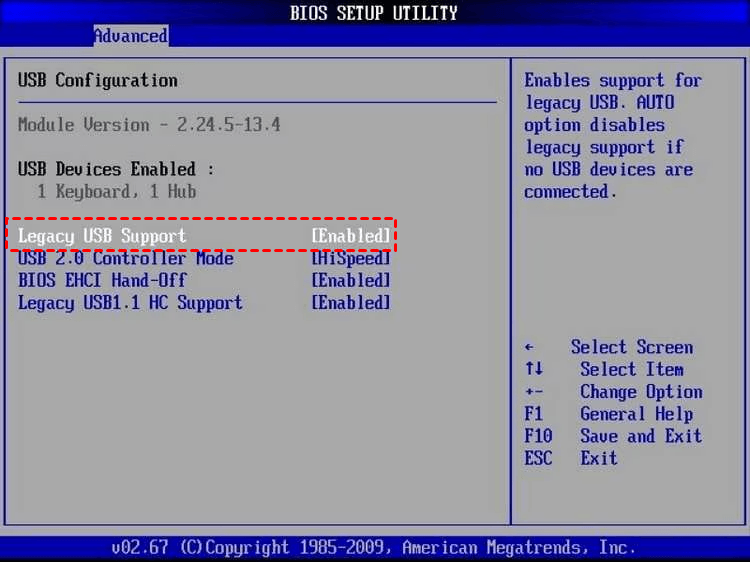
Step 4. Save and exit the BIOS.
Way 7. Check for Windows Updates
Outdated system files can cause compatibility issues with USB devices.
Step 1. Press Windows + I to open Settings.
Step 2. Go to Windows Update. Click Check for updates.
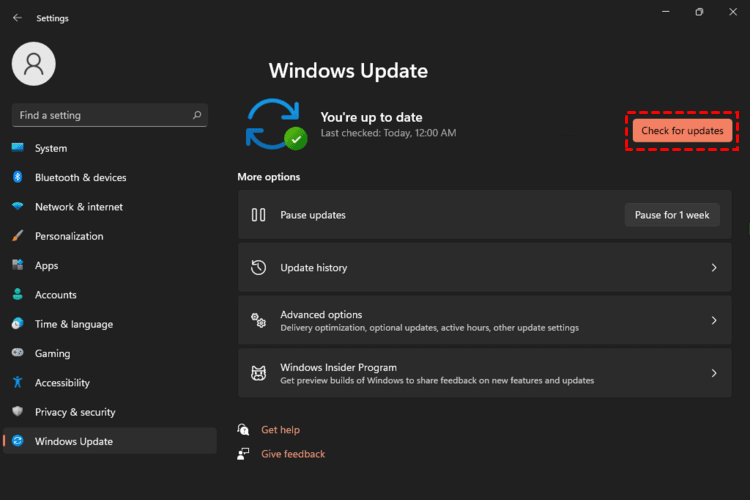
Step 3. Download and install all available updates.
Best Free Way to Backup Your USB Drive
Even when you've fixed the Windows 11 unknown USB device error, it's wise to back up your USB drive to protect data from corruption or loss. Free Windows backup tools like AOMEI Backupper Standard offer reliable and easy-to-use backup solutions.

 AOMEI Backupper
- Full backup options: It supports you to create full disk imaging, as well as selective file/folder backup.
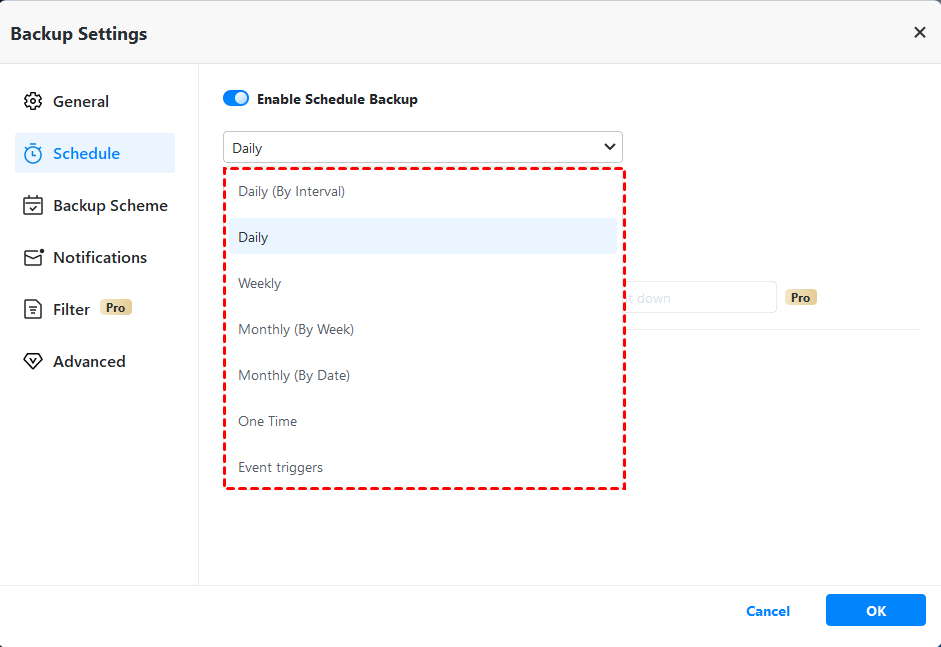
- Automatic scheduling: You can set up daily, weekly, or monthly backups as needed.
- Easy recovery: You can restore data quickly when disaster strikes.
- Cloning feature: It also offers to clone USB drives, HDDs, or SSDs for one-click quick migrations.
 100% Secure
Step-by-step guide to backup USB drive with AOMEI Backupper
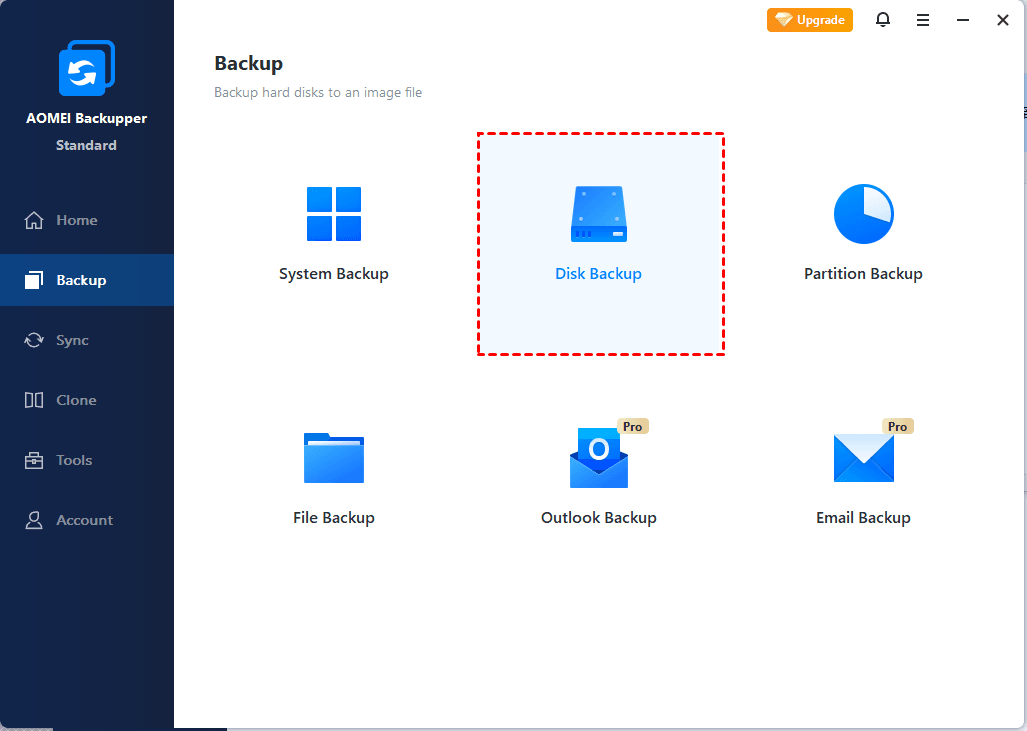
Step 1. Download and install AOMEI Backupper Standard. Launch it and select Backup, and then Disk Backup. You can also use File Backup to copy specific files or folders to another location.
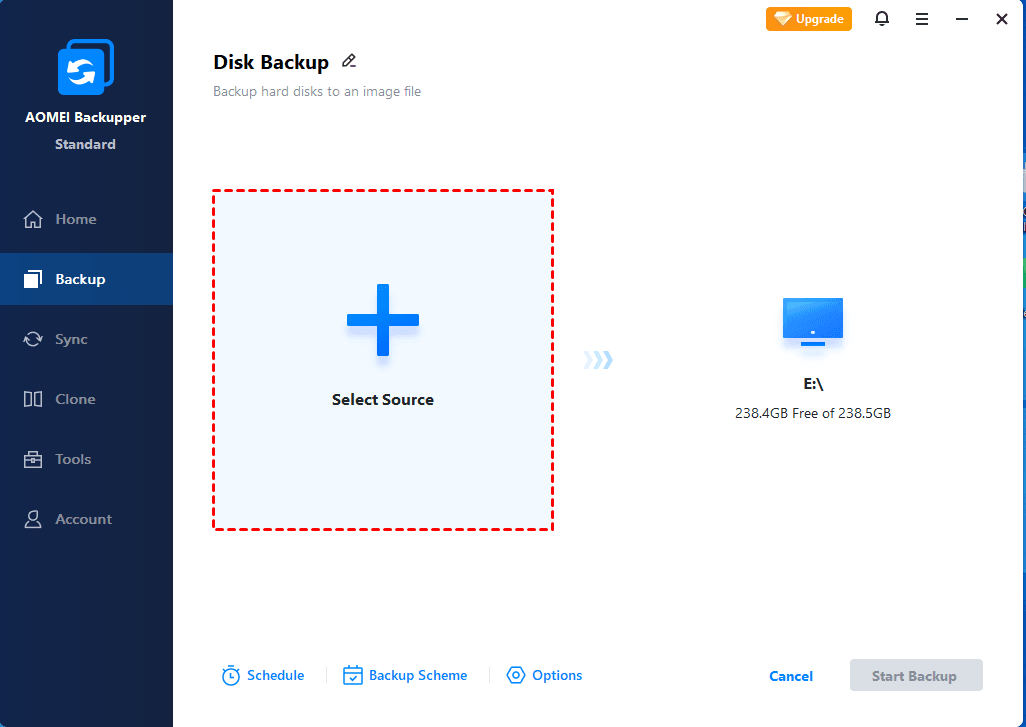
Step 2. Click Select Source to choose your USB drive.
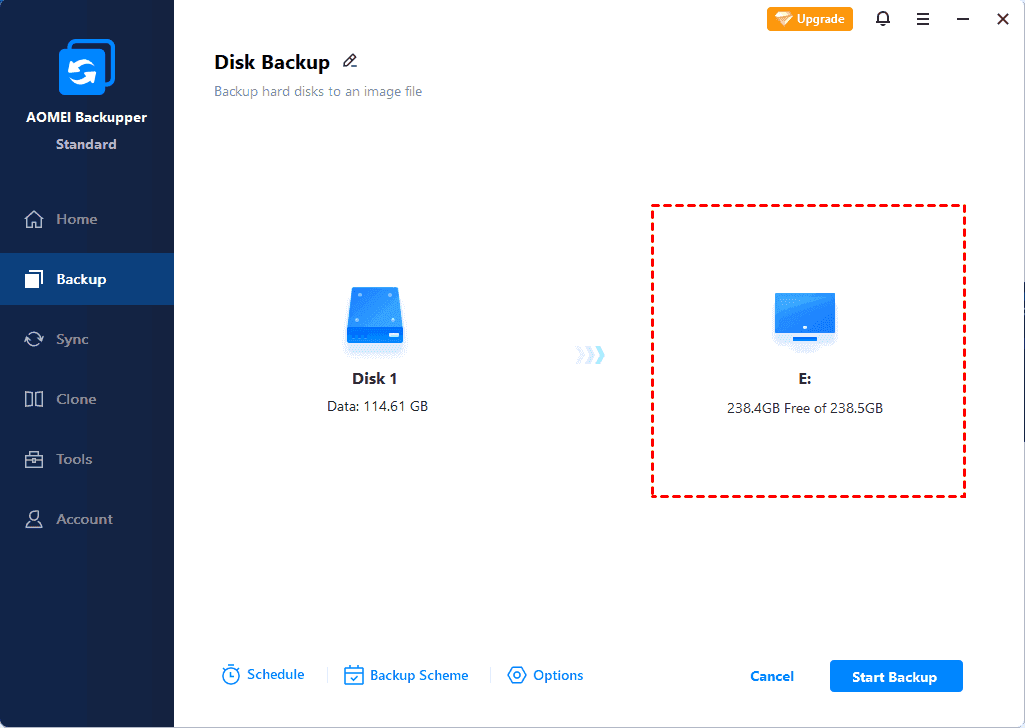
Step 3. Choose a destination path (another drive or external storage).
Step 4. Click Schedule to set automatic backups (optional). Click Start Backup.
Conclusion
Dealing with the Windows 11 unknown USB device error can be frustrating, but with the 7 ways outlined above, you should be able to get your USB device recognized again. Whether it’s updating drivers or adjusting power settings, one of these fixes will likely solve the issue. Besides, backing up your USB data ensures you never lose important files, even if hardware issues return. With the fully-featured tool, AOMEI Backupper, you can create automatic USB backup flexibly.
What’s more, you can use this software to sync files between PC and USB as well as copy USB to USB with ease.
 100%
Clean & Secure
100%
Clean & Secure
