 AOMEI Backupper


How to Remove Hard Drive from HP Laptop: Complete Guide
This article aims to show you how to remove hard drive from HP laptop, including preparations, how-to guides, and post-removal things. Scroll down to get the details.

By Jonna Updated on August 13, 2025


Whether you're troubleshooting a failing drive, planning to repurpose or dispose of your old laptop, or simply upgrading to a faster/larger SSD, knowing how to safely and properly remove your hard drive is crucial. But before you grab a screwdriver, there are several steps to take to protect your data and ensure everything goes smoothly.
In this guide, we will provide a complete guide on how to remove hard drive from HP laptop. From there, we'll guide you through the process of data protection before disk removal, physically removing the drive, installing a new one, and securely disposing of the old hard disk. Let's start with the most essential question: what to do before removing a hard drive?
What to Do Before Removing a Hard Drive from HP Laptop?
Before diving into the process of how to remove hard disk from HP laptop, it's important to prepare both your data and your hardware. Here are a few essential things to handle first:
- Backup all critical data. Even if you're replacing the drive, you don't want to lose personal files, photos, or software.
- Power off the laptop. Never attempt hardware removal while the system is running.
- Unplug everything. That includes the power adapter, external drives, and USB devices.
- Gather the right tools. Typically, a small Phillips-head screwdriver is all you need. You may also need a plastic spudger or pry tool (especially for newer models with sealed cases).
- Locate your laptop model. HP laptops come in many variations. Knowing your exact model number will help find the correct guide or replacement drive.
|
👉 Here are some key steps to follow for how to remove HP laptop hard drive securely: |
|
1️⃣ Backup your data >> Full step 2️⃣How to remove hard drive from HP laptop >> Full step 3️⃣Replace old hard drive with new HDD/SSD >> Full step 4️⃣Reboot your HP laptop >> Full step 5️⃣Properly dispose of old hard drives to prevent information leaks >> Full step |
Part 1. Create a Copy of Your Data/Hard Drive
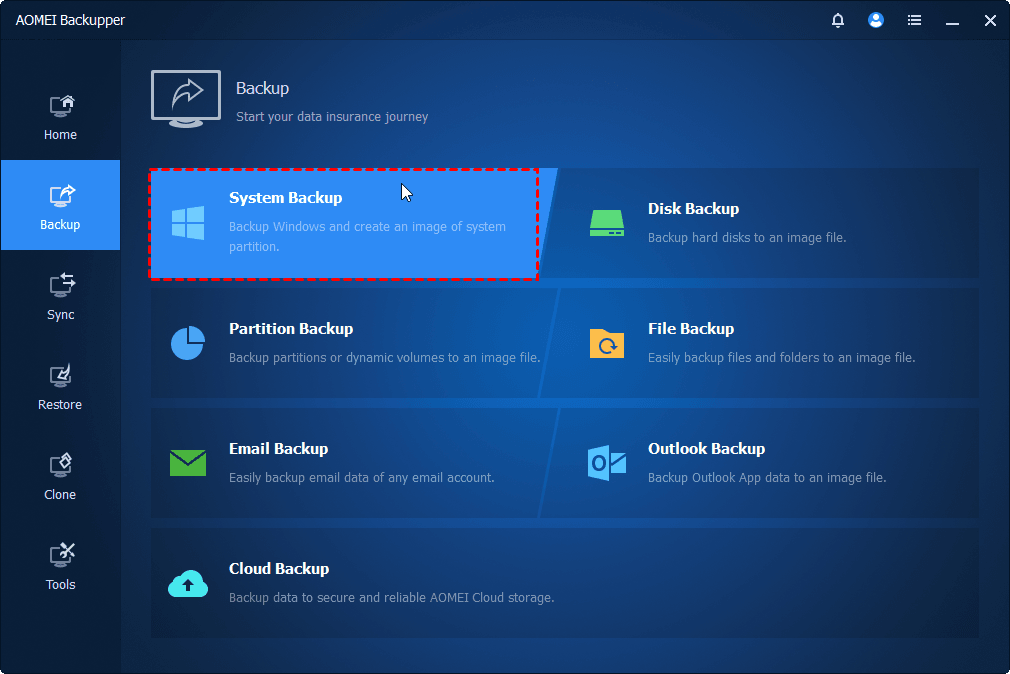
Removing the hard drive without safeguarding your files can lead to irreversible data loss, whether it’s family photos, work documents, or personal projects. Even if you're planning to reuse the old hard drive elsewhere, a backup gives you peace of mind. The professional yet free Windows backup software - AOMEI Backupper, is designed to backup HP laptop to external hard drive, NAS, network drive, cloud storage (Google Drive/OneDrive/Dropbox), and various locations.
This tool offers 4 backup options - System Backup, Disk Backup, Partition Backup, and File Backup, to meet different backup needs. Also, it is embedded with Clone features that allow you to migrate all data from one disk to another with one click.
*For cloning, the free Standard version only provides data disk clone. To clone system drive, like transferring C drive to SSD, please upgrade to its Pro or higher editions.
Part 2. Remove Hard Drive from HP Laptop
With your data backed up and tools ready, it's time to learn how to remove hard drive from HP laptop safely. Each model might look a little different, but the general process remains similar across most HP laptops.
Step 1. Shut down your laptop completely. Ensure it's not in sleep or hibernate mode. Unplug the AC adapter and remove the battery, if it's removable.
Step 2. Then, place the laptop on a clean, static-free surface with the bottom side up.
Step 3. Locate the hard drive access panel. It’s often marked with a small cylinder icon. In ultrabooks, you may need to remove the entire bottom cover to find the HP laptop hard drive location.
Step 4. Remove the screws securing the panel, and keep them in a safe spot.
Step 5. Then, gently open the panel. You can use a plastic pry tool if needed.
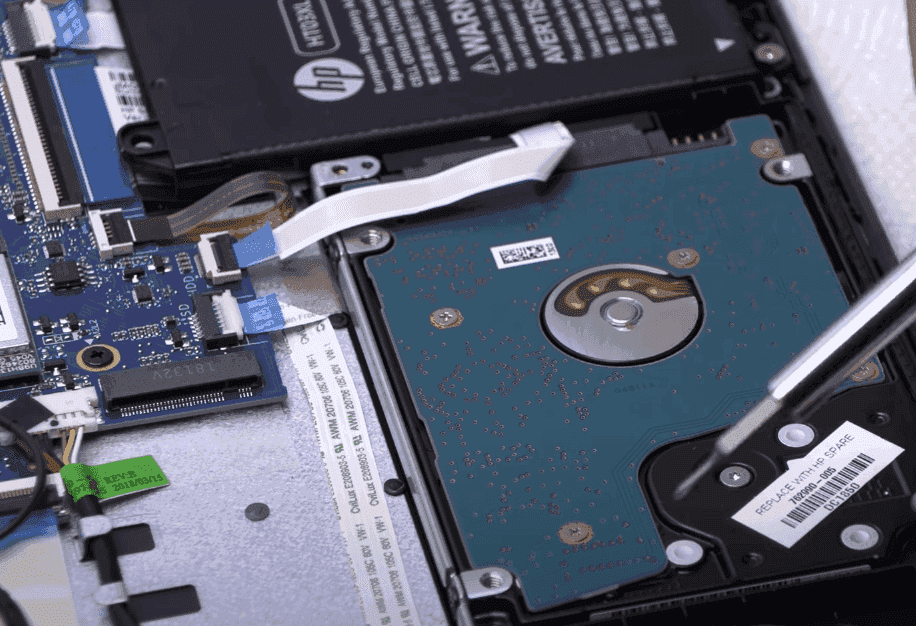
Step 6. Identify the hard drive, which is usually held in place by a bracket or screws.
Step 7. Unscrew and slide the hard drive out of the SATA connector to carefully lift the drive out.
Part 3. Replace Hard Drive with New Drive
Swapping out the old hard drive for a new one is straightforward once the original is removed. Whether you're upgrading to a solid-state drive (SSD) or replacing a faulty HDD, this step improves performance and reliability. Here’s how to install the new drive for your HP laptop hard drive replacement:
Step 1. Ensure the new drive matches your laptop's interface (usually 2.5-inch SATA or M.2 for modern models). If necessary, mount the drive into the original bracket that held the old drive.
Step 2. Align the drive with the SATA connector inside the laptop. Gently slide it in until it fits snugly.
Step 3. Reattach any mounting screws or frames that held the original drive.
Step 4. Replace the bottom cover or access panel, and screw it back in place.
Step 5. Reinstall the battery (if removed), then plug in the AC adapter.
Part 4. Boot HP Laptop from New Drive
After learning how to replace a hard drive in a HP laptop, your HP laptop won't boot automatically unless the new drive has an operating system. Here’s how to get it running:
▶ If You Cloned Your Old Drive - Simply boot up. Your system should load like nothing changed.
▶ If It's a Fresh Drive:
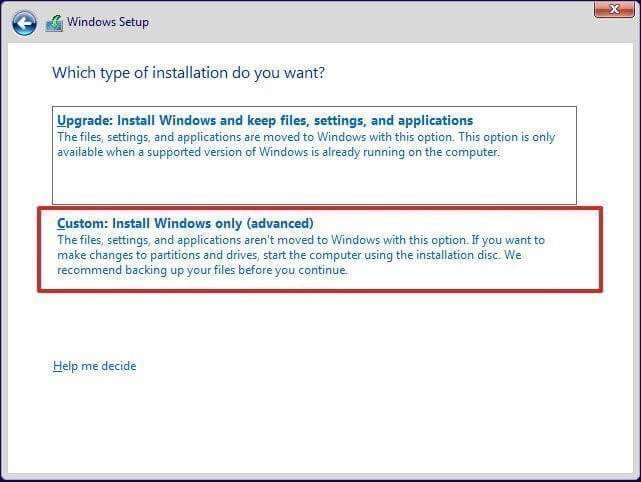
- Create a bootable USB installer for Windows or Linux using a tool like Rufus. Then, insert the USB and power on the laptop.
- Enter BIOS/UEFI settings. Usually, by pressing Esc, F2, or F10 immediately after powering on.
- Change the boot order to boot from USB first.
- Save changes and exit.
- Install the operating system on the new drive following the on-screen instructions.
Part 5. Dispose Old Hard Drive
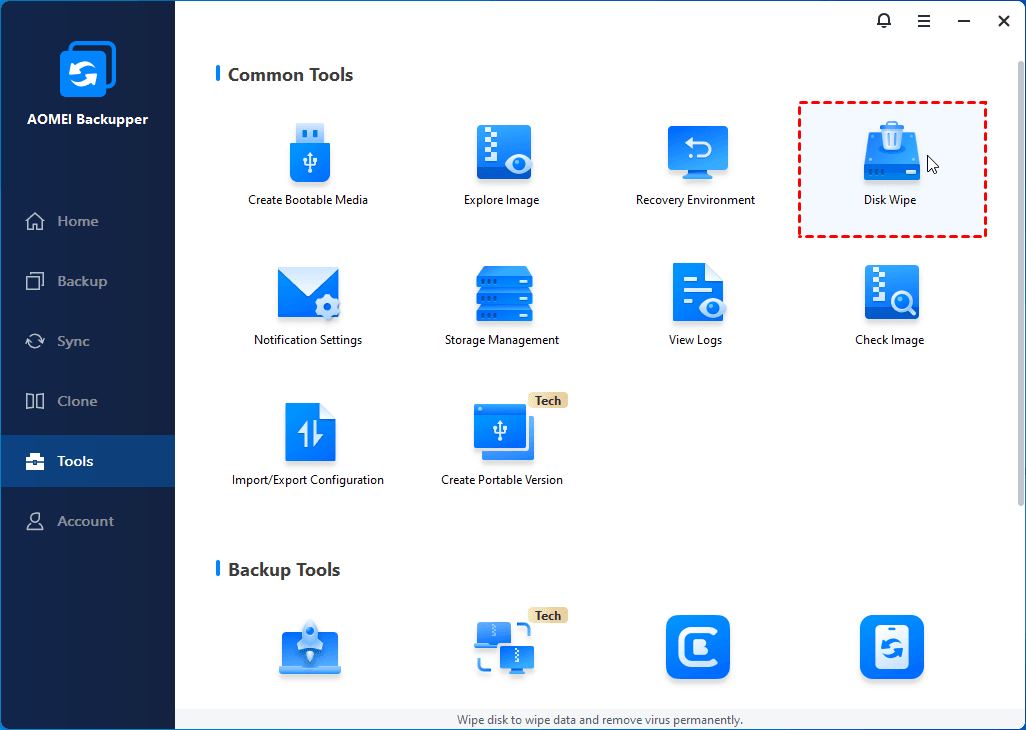
You old hard drive may contain sensitive data, even if deleted. Simply throwing them away can put your personal information at risk. Fortunately, the all-in-one software AOMEI Backupper also offers a Disk Wipe function that helps you erase all your data safely to prevent sensitive data from being recovered.

 AOMEI Backupper
- You can use it to wipe hard drive with Windows installed, as well as other devices like external hard drive, USB drive, SD card, and so on.
- It provides 4 wiping methods - Fill sectors with Zero, Fill sectors with random data, DoD 5220.22-M, and Gutmann, to meet different levels of secure erasure.
- It is capable of creating bootable media to perform bootable disk wipe without booting into Windows.
 100% Secure
You can download and run this software, go to Tools > Disk Wipe to erase your old hard drive hassle-free.
FAQs about Removing Hard Drive from HP Laptop
#1. Does removing the hard drive remove all data?
No. Removing the drive does not delete data. All your files remain on the drive unless manually erased. Anyone can access them if the drive is reused or recovered.
#2. What happens if you remove a hard drive while the computer is on?
Removing a hard drive while the laptop is running can cause: data corruption, file loss, hardware damage, and an immediate system crash. So, please always shut down before removing internal hardware.
#3. Can you remove a hard drive from a laptop and put it in another?
Yes, if both laptops support the same drive interface (e.g., SATA). However:
- The new laptop may not boot unless the OS matches the hardware.
- You may need drivers or a clean OS install.
#4. How to completely erase an old hard drive?
Use disk-wiping software like AOMEI Backupper. It's secure, fast, and free.
#5. What happens to a laptop when the hard drive is removed?
The laptop won’t boot without a hard drive containing an OS. You may see a "No boot device" error or a black screen with a boot error, as the OS lives on the hard drive.
Concluding Words
That’s everything about how to remove hard drive from HP laptop before recycling or selling, a complete walk-through on what to do before, during, and after. With the fully-featured software AOMEI Backupper, you can backup or clone your old hard drive for data protection or migration, and erase your old hard drive with simple clicks to prevent data breaches.
What’s more, it is able to create HP recovery media that can help you to boot and restore you laptop from system crash.
 100%
Clean & Secure
100%
Clean & Secure
