 AOMEI Backupper


Windows Server 2022 Freezing [Hyper-V, After Update, etc]
With 6 useful methods, you can easily fix Windows Server 2022 freezing issues, along with step by step instructions. Always create a system backup to prevent such an error. Scroll down to learn more.

By Ivy Updated on January 27, 2026


What Does “Windows Server 2022 Freezing” Mean?
“Windows Server 2022 freezing” refers to a condition where the server becomes unresponsive or extremely slow, preventing users from performing normal operations. This issue can appear suddenly or gradually, may last from a few seconds to several minutes, and in severe cases requires a forced reboot to restore functionality.
Freezing is especially dangerous in business environments because it disrupts services without warning and often indicates underlying system instability. You may recognize the following behaviors:
- Remote Desktop sessions become unresponsive or disconnect repeatedly.
- Applications stop responding or take an extremely long time to open.
- Mouse and keyboard input lag or stop completely.
- File transfers stall or fail without errors.
- Hyper-V virtual machines pause, hang, or become unreachable.
- CPU, memory, or disk usage spikes abnormally before the freeze.
- Event Viewer logs show system, storage, or driver warnings around the time of the freeze.
In environments running Hyper-V, freezing can cascade across multiple virtual machines, multiplying the impact and turning a single server issue into a company-wide outage.
Why Windows Server 2022 Keeps Freezing?
When Windows Server 2022 freezes repeatedly, the problem is almost always tied to underlying system pressure, misconfiguration, or failing components. Identifying the real cause is essential because treating only the symptoms often leads to recurring downtime.
1️⃣ Insufficient system resources (CPU, RAM, Disk I/O) prevent the operating system from responding to requests in time.
2️⃣ Faulty or outdated drivers and firmware, such as controller drivers, network drivers, chipset firmware, BIOS incompatibilities after updates, etc., disrupt the communication layer between Windows Server and hardware.
3️⃣ Windows updates occasionally introduce bugs or compatibility issuesorconflictswith existing drivers, applications, or virtualization components.
4️⃣ Storage and disk health problems, e.g., bad sectors, RAID degradation, controller timeouts, and I/O errors, and more
5️⃣ Third-party software and security conflicts. Security software, backup agents, monitoring tools, and system optimizersoften integrate deeply into the operating system. Poorly optimized or incompatible with recent updates, causing resource contention, deadlocks, or kernel-level conflicts.
How to Fix Windows Server 2022 Freezing Issues
A single factor rarely causes Windows Server 2022 system freezes, but rather results from multiple factors working together. Below are some quick or in-depth troubleshooting steps to minimize downtime and restore full system stability.
#1: Install KB5061906 Patch (for Hyper-V VM)
KB5061906 is a special out-of-band (OOB) update released by Microsoft for Windows Server 2022 on May 23, 2025, to improve system stabilityand address Windows Server 2022 with Hyper-V VM freezing issues, especially Azure Confidential Virtual Machines. It’s only available through Microsoft Update Catalog and requires you to manually download and install it.
#2: Check System Resource Usage
Excessive CPU load, memory exhaustion, or disk congestion is the most common trigger of Windows Server 2022 freezing. Monitoring resource usage reveals whether the system is simply overloaded or if an underlying service is behaving abnormally.
Using Task Manager and Event Triggers
Step 1. Press Ctrl + Shift + Esc to open Task Manager. Under the Performance tab, monitor CPU, Memory, Disk, and Network graphs.
Step 2. Identify any resource consistently near 90 - 100%. Sort by affected resources, identify the responsible service or apps, and disable them temporarily.

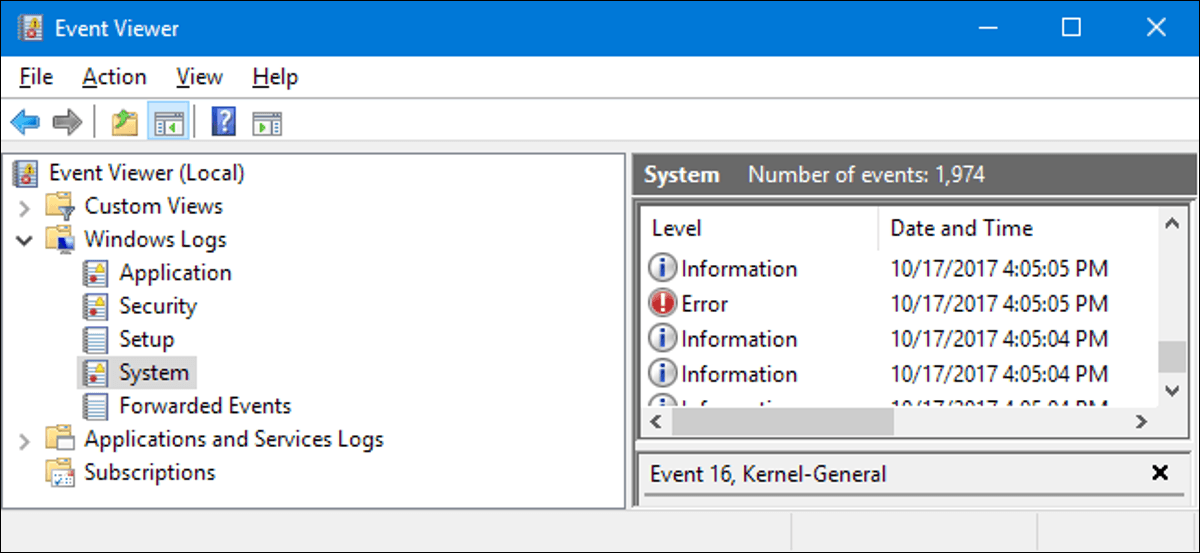
Step 3. Open Event Viewer. Go to Windows Logs > System and review warnings or errors at the same time during a resource spike.
Using Performance Monitor
Step 1. Press Win+R to open the Run dialogue. Type perfmon and press Enter to open Performance Monitor.
Step 2. Then, expand Monitoring Tools >Performance Monitor and click the green + (Add Counters) button on the toolbar.
Step 3. In the Add Counters window, scroll down to add these critical counters and click OK to continue.
- Processor → % Processor Time, All instances (optional)
- Memory → Available MBytes
- Memory → Pages/sec
- PhysicalDisk → Avg. Disk sec/Read, Avg. Disk sec/Write, Avg. Disk Queue Length
- Network Interface → Bytes Total/sec
#3: Repair Corrupted System Files (SFC and DISM)
System file corruption may cause instability in Windows core services and gradually lead to system freezes. SFC and DISM rebuild critical system components and repair hidden corruption that cannot be fixed by normal updates.
Step 1. Type cmd in the Start menu and select Run as administrator.
Step 2. In the Command Prompt window, type sfc /scannow and press Enter.
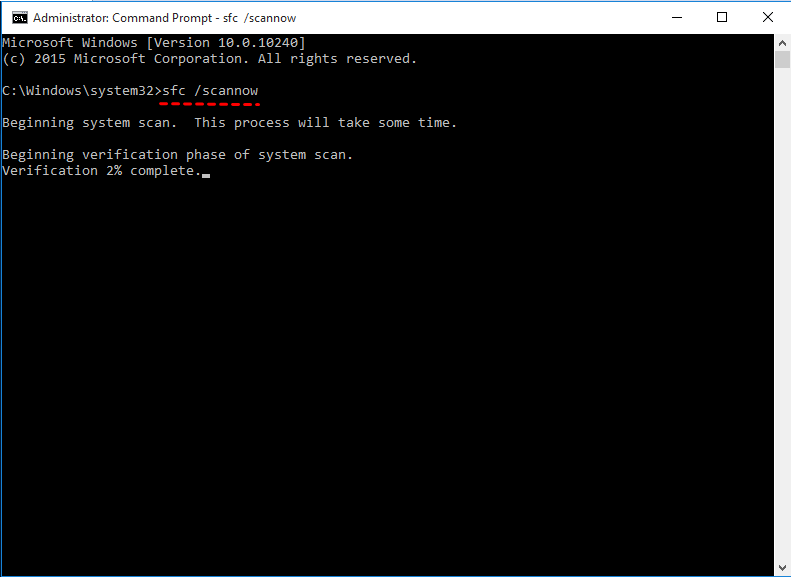
Step 3. After completion, run: DISM /Online /Cleanup-Image /RestoreHealth. Wait for the repair process to finish and restart the server.
#4: Update Drivers, BIOS, and Firmware
Outdated drivers and firmware are a frequent cause of random freezing, especially on servers with storage controllers, network adapters, or Hyper-V workloads.
You can check the server manufacturer label or system documentation for the exact model and list installed hardware and driver versions in Device Manager (devmgmt.msc). For Hyper-V hosts, check virtual switches, storage controllers, and network adapters specifically.
Then, visit the server manufacturer’s official support website (HP, Dell, Lenovo, etc.) and download the latest drivers, BIOS updates, and firmware for your server model. Be sure to start with critical components: storage controllers >network adapters >chipset >BIOS/firmware.
Notes:
❌ Do not install all updates at once, as this makes it hard to isolate problems if freezing reappears.
✅ Reboot after each major update and check for system stability. You can use Task Manager or Performance Monitor.
#5: Uninstall Recent Windows Update
Some freezes begin immediately after installing Windows updates due to conflicts with drivers or existing software. Rolling back problematic updates often restores stability.
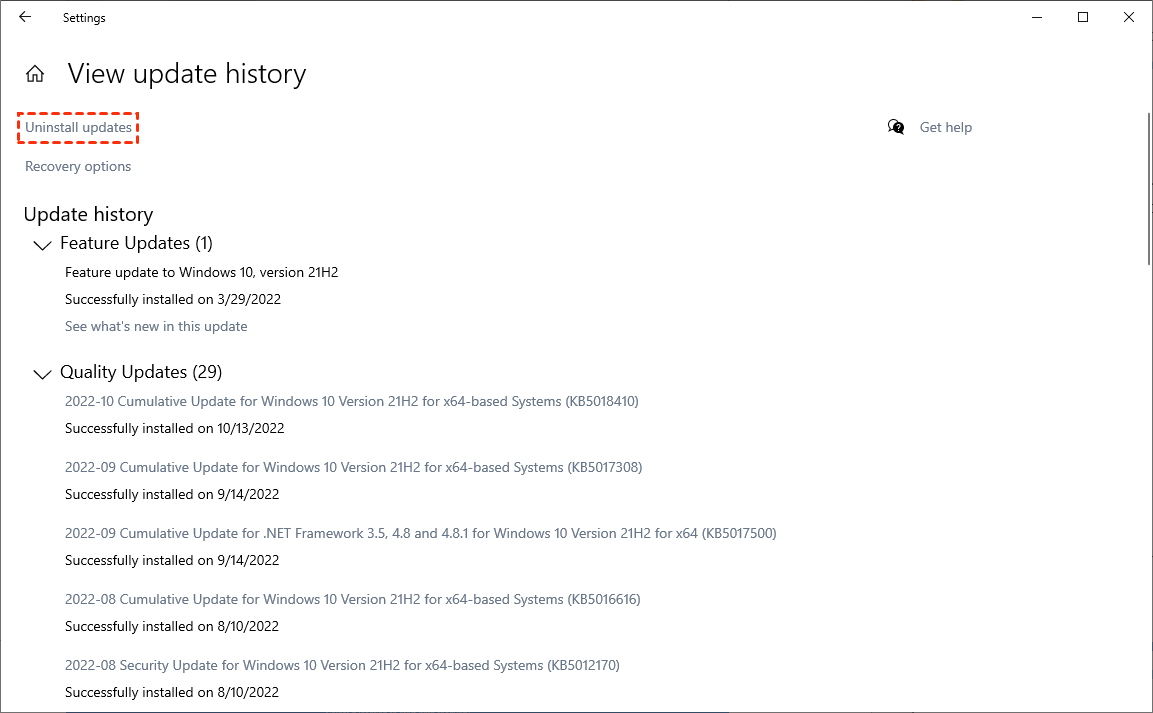
Step 1. Open Settings. Click Update & Security and then View Update History.

Step 2. Click Uninstall Updates.
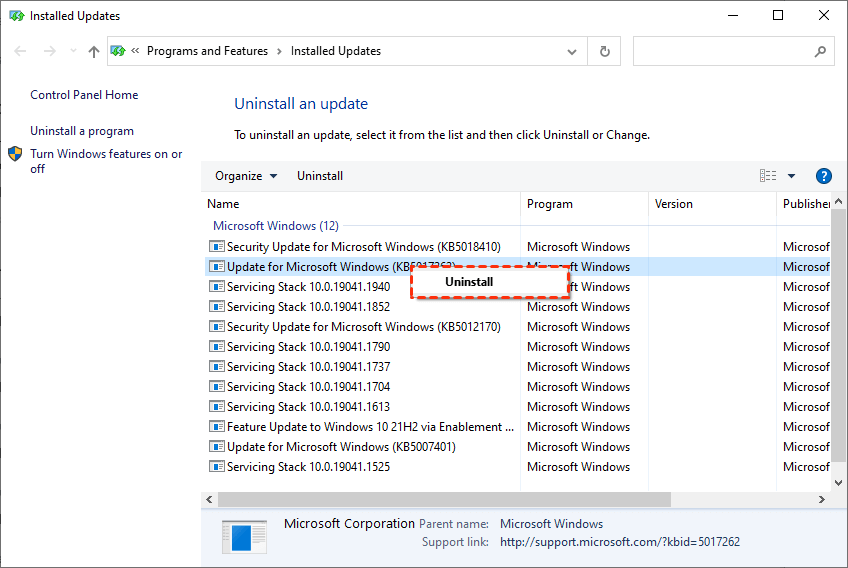
Step 3. Select the most recent updates, right-click them, and select Uninstall.
Reboot and monitor if your Windows Server 2022 is freezing. If not, open Windows Update again and pause updates for 7 days.
#6: Scan for Disk Errors and Failing Hardware
Disk failures are one of the most dangerous causes of freezing because they can silently corrupt data while stalling the entire operating system. Early detection prevents catastrophic system failure.
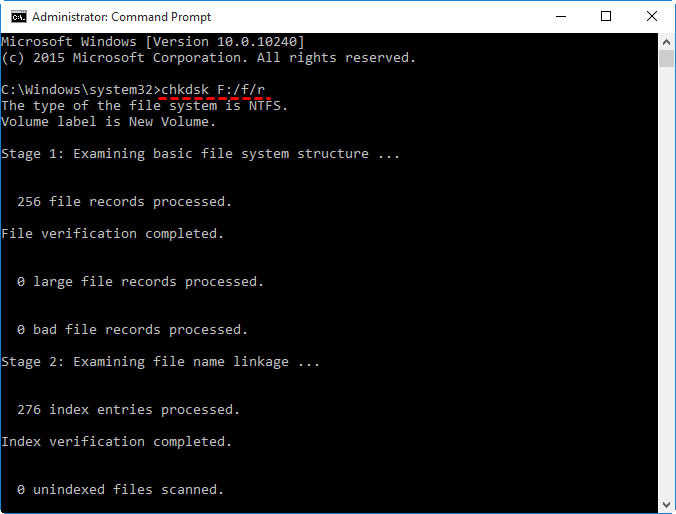
Step 1. Open CMDas administrator.
Step 2. In the Command Prompt window, type chkdsk /f /r and press Enter. Reboot whenprompted.
How to Prevent Windows Server 2022 from Freezing Again
Always have a full serverbackup before applying updates or changes. You can then restore Windows Server 2022 from backup without downtime, preventing data loss or system failure during troubleshooting.
AOMEI Backupper Server is a reliable server backup software that provides users with different backup solutions, alongside a suite of advanced features, making this process simple and efficient.

 AOMEI Backupper
- Full Backup Solutions: Include System Backup, Disk Backup, File Backup, etc. Select as needed.
- Set-and-forget Backups: Support continuous backup triggered daily, weekly, monthly, or by events, with up to 7 options available.
- Fast, Space-Saving: Backup only changed files with faster incremental backup and differential backup, combined with automatic backup cleanup, compression, splitting, etc., to significantly save space and time.
- Emergency Media: Createa Windows Server 2022 bootable USB, CD/DVD, or ISO to start a failing PC for disaster recovery.
- Flexible Backup Destination: Compatible with HDDs/SSDs, external hard drives, USB drives, network drives, etc.
 100% Secure
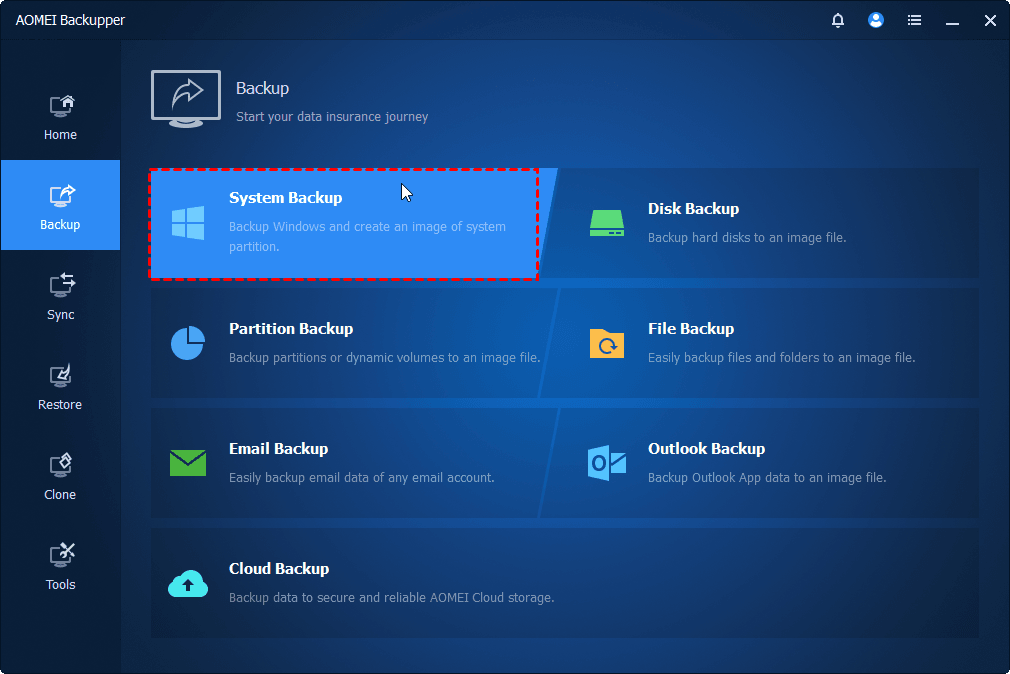
Step 1. Open AOMEI Backupper Server. Click Backup on the left panel, then choose System Backup.
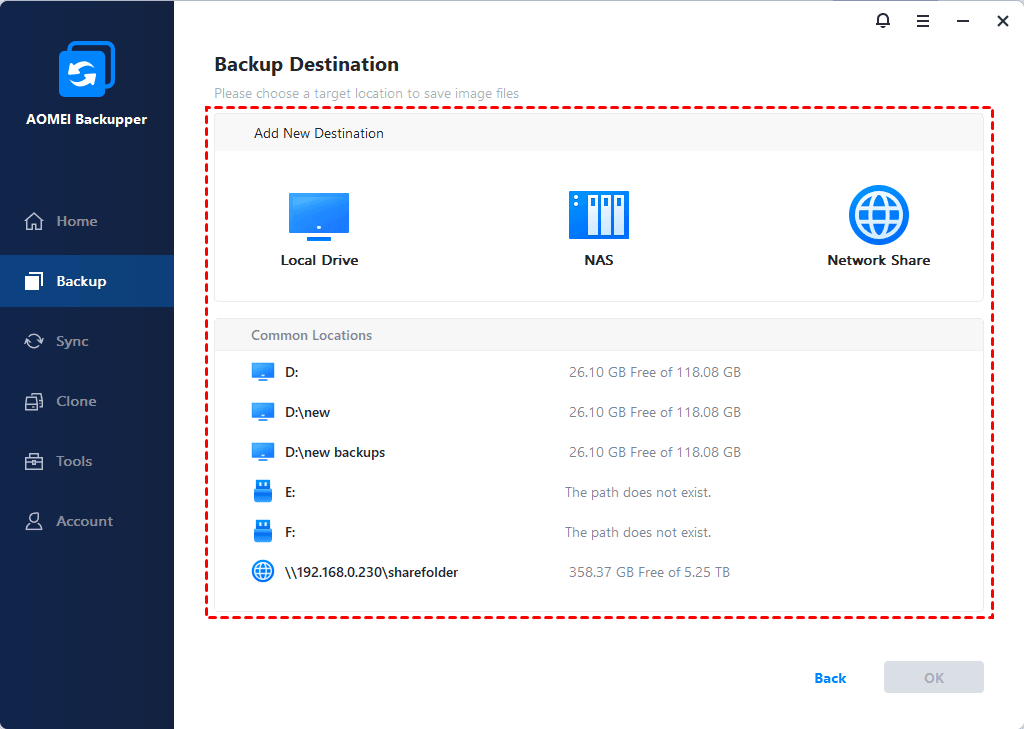
Step 2. The software auto-selects all required boot partitions. Click the PC icon > Local Drive/Network Drive/NAS to add a new destination. Or select the current location (if it exists).
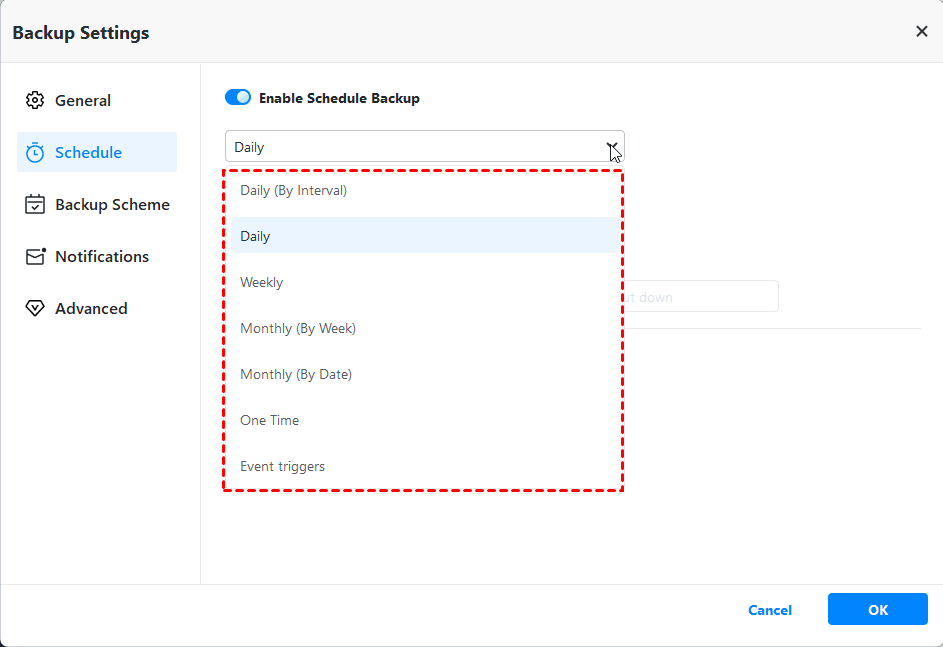
Step 3. Click Schedule and enable it. Select Daily, Weekly, Monthly (By week), Event triggers, etc., from the drop-down menu. Optionally, click Options or Backup Scheme to review or change what you want. At last, click Start Backup.
⚠️Notes:
✅Options: Include compression, splitting, backup only used sectors of the file system, VSS, etc., to reduce storage space automatically and avoid any interruption.
✅Backup Scheme: Incremental backup is enabled by default. You can also change it to differential backup and enable automatic backup cleanup to delete old backups automatically.
Final Thoughts
Windows Server 2022 freezing issues can range from a minor annoyance to a critical warning sign, depending on the cause. Thus, it’s necessary to find the root cause before any attempt. You can then try the above methods.
In addition, it’s suggested to create a system backup with a reliable server backup software - AOMEI Backupper Server to prevent data or system failure during troubleshooting. With it, you can directly restore Windows Server 2022 from backup in any disaster.
 100%
Clean & Secure
100%
Clean & Secure
