 AOMEI Backupper


Windows 8/8.1 Disk Backup and Restore with Simple Steps
Learn how to create disk backup in Windows 8/8.1 with the step-by-step guide provided by the best free Windows 8 backup software - AOMEI Backupper Standard.

By Ivy Updated on March 26, 2026


How to create disk backup in Windows 8/8.1
As you know, you could use Backup and Restore in Windows 8 to create backups for your important data, but you could not create disk backup for Windows 8. And it’s impossible for you to backup files with Backup and Restore in Windows 8.1, because the Windows 8.1 Backup and Restore is missing due to the release of File History.
Hence, how to backup disk in Windows 8 or Windows 8.1, please see the following.
Windows 8 Backup Software - AOMEI Backupper
As the best free Windows 8 backup software, AOMEI Backupper Standard provides you with flexible ways to create disk backup, like full backup, incremental or differential backup to meet the continuity of data protection. And provides multiple backup destination for you to save the Windows 8 disk image backup, like local disk, external hard drive, USB flash drive, CD/DVD, NAS or network share, etc.
Besides, you could backup Windows 8/8.1 operating system, partitions, file and folders as you want. Please download the Windows 8 backup software - AOMEI Backupper Standard to have a try:
It’s highly recommended to backup Windows 8 hard drive to external hard drive just in case hard drive failure.
Windows 8/8.1 Disk Backup to External Hard Drive
Follow the detailed steps to create disk backup for WIndows 8/8.1:
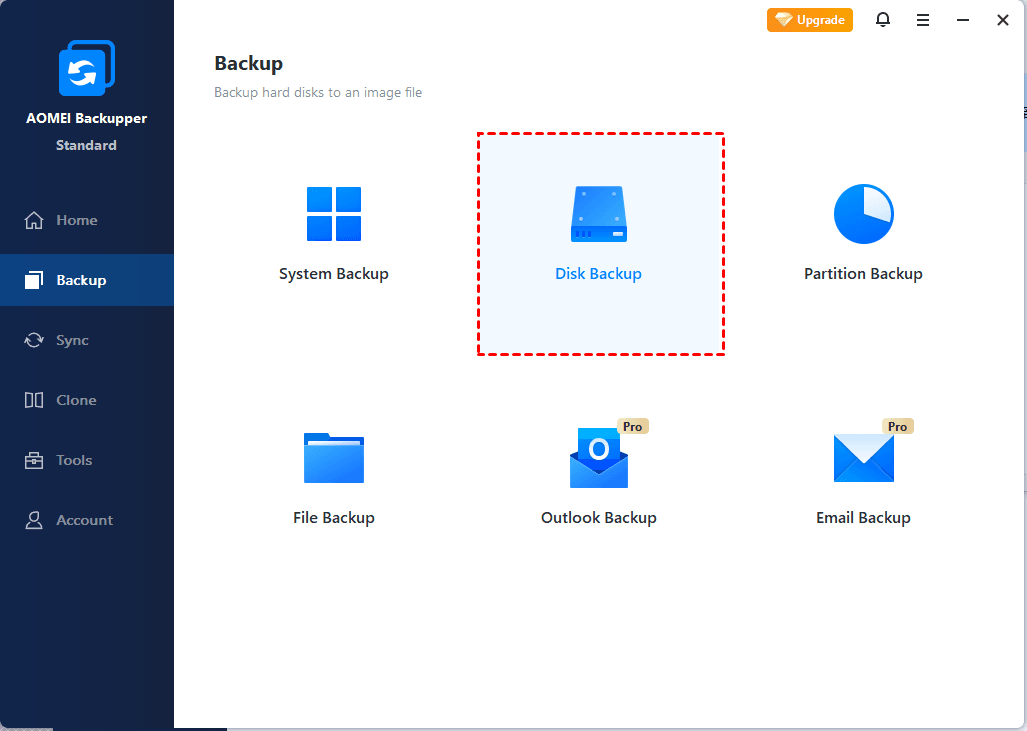
Step 1. Open the Windows 8 backup software, choose Backup > Disk Backup subsequently.
Step 2. Click Select Source. In the next window, choose the Windows 8/8.1 hard disk to back up and click OK.
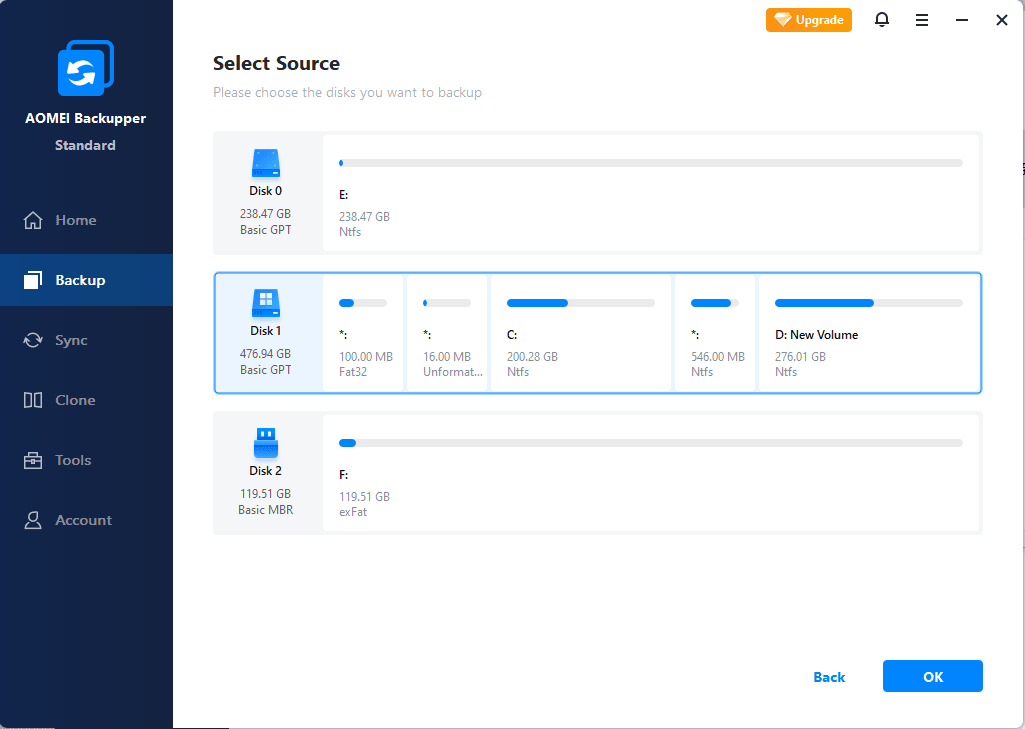
▶ Tip: You could choose multiple hard drives to back up.
Step 3. Select the external hard drive to save the Windows 8/8.1 disk backup image.
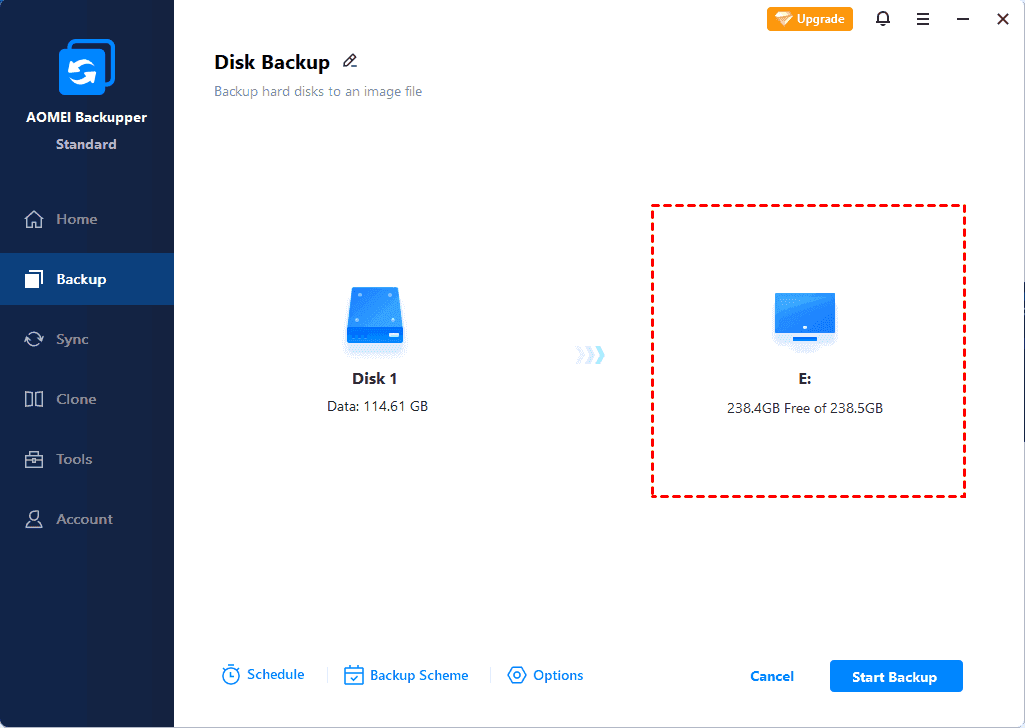
▶ Tips:
✿ Options allows you to create sector by sector backup, use Volume Shadow Copy (VSS), enable email or SMS notification, comment, split, compress, and encrypt (paid) the Windows 8/8.1 backup disk image.
✿ Schedule provides multiple modes to create Windows 8/8.1 disk backup automatically, like Daily, Weekly, Monthly, and Event triggers.
✿ Backup Scheme permits you to delete the old Windows 8/8.1 disk image automatically when the backup versions exceed the number to retain.
Step 4. Press Start Backup >> button to create disk backup for Windows 8/8.1.
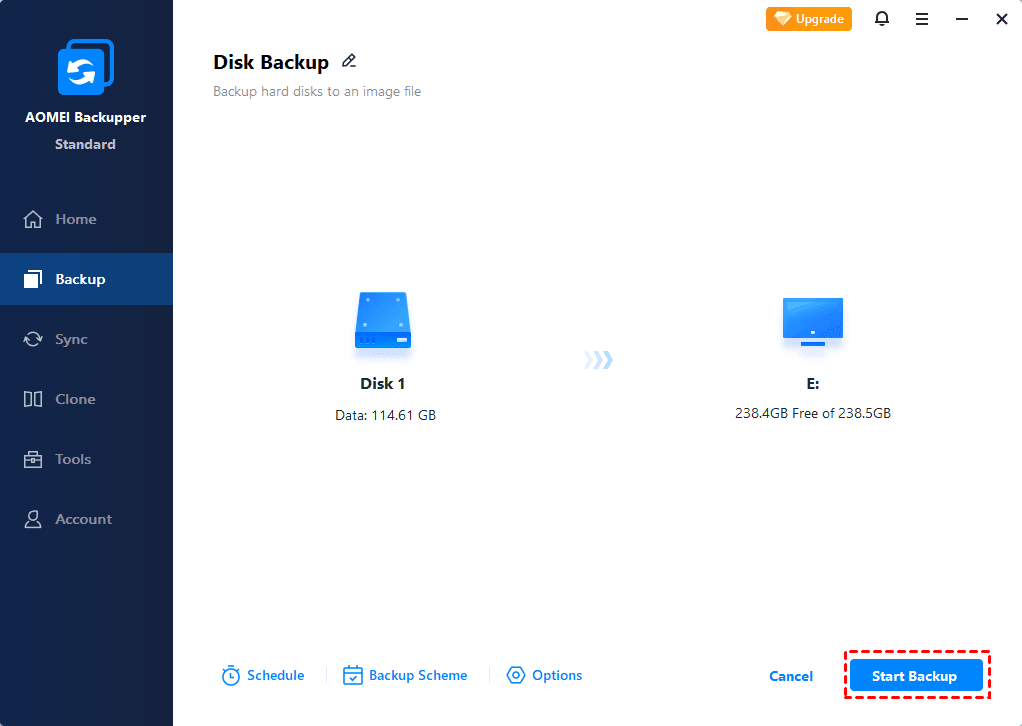
Wait for about 30 minutes, the disk backup will be finished. Then please keep the external hard drive safe just in case of data loss.
How to Backup Windows 8/8.1 Operating System
Just in case you want to protect your Windows 8/8.1 operating system, we will show you the step-by-step guide to create system image for Windows 8/8.1:
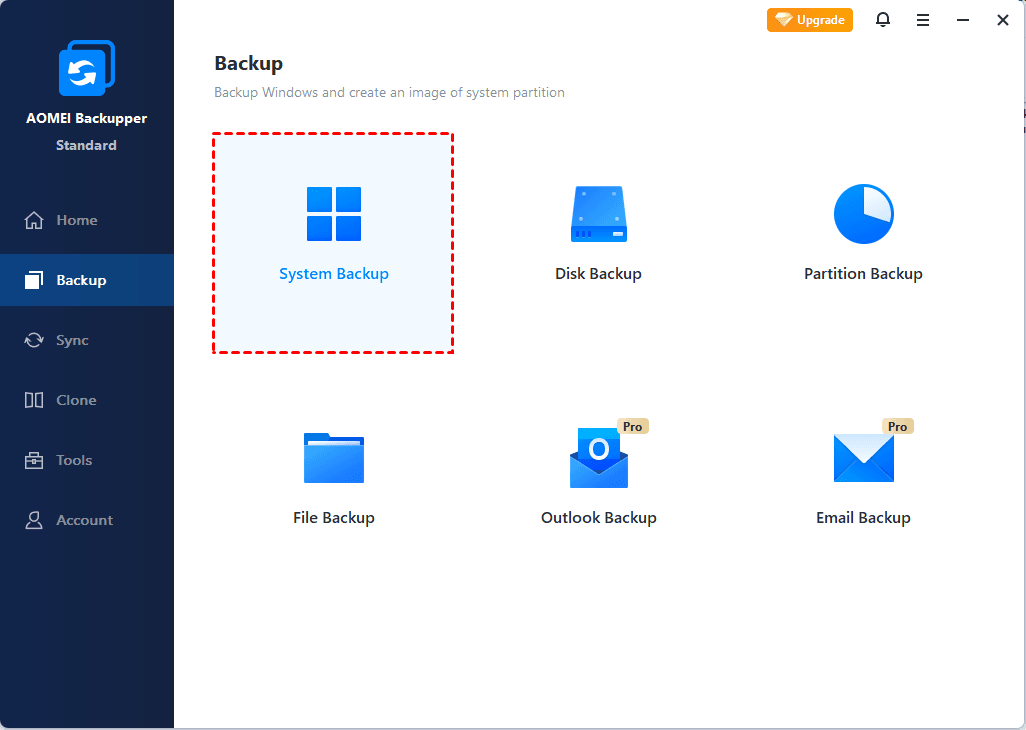
Step 1. Click Backup and then choose System Backup.
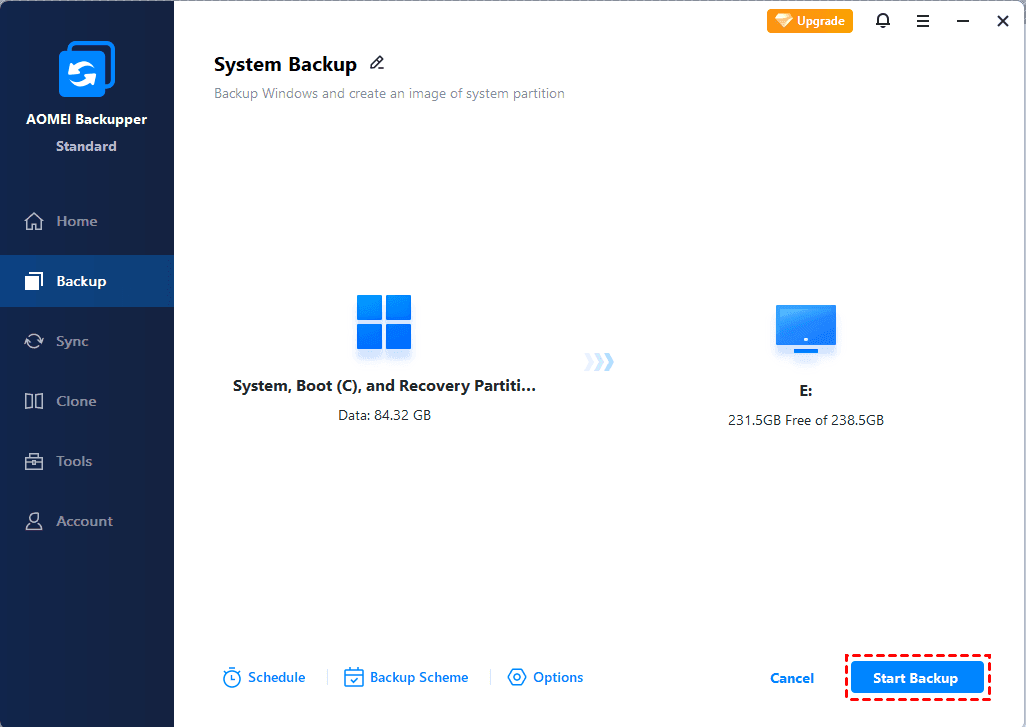
Step 2. Select the external hard drive to save the Windows 8/8.1 system image. Edit the task name "System Backup" if needed.

Step 3. Hit Start Backup >> button to backup Windows 8/8.1 to external hard drive.
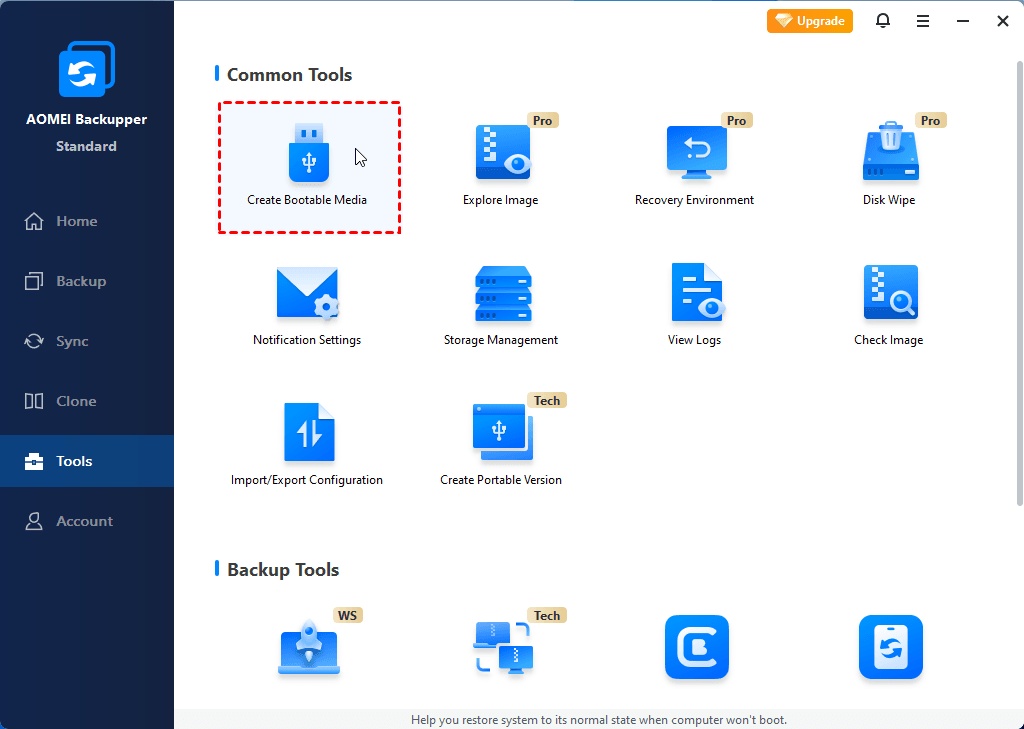
After creating a backup, you can use this tool to create a recovery environment to restore the image created by AOMEI Backupper. This tool can help you perform system restore or other restore operations without booting Windows.
If your Windows 8/8.1 system refuses to boot, you could create Windows 8/8.1 recovery disk to restore Windows 8/8.1 system from boot: Tools > Create Bootable Media, and follow the steps to create Windows 8 recovery disk easily.
Restore Windows 8/8.1 Disk Image Backup from External hard drive
To restore data from the Windows 8/8.1 disk backup image, you could try the explore image feature: Tools > Explore Image, and mount the Windows backup image, then copy and paste to other location to restore individual files.
Or you could restore Windows 8/8.1 entire hard drive with the following steps:
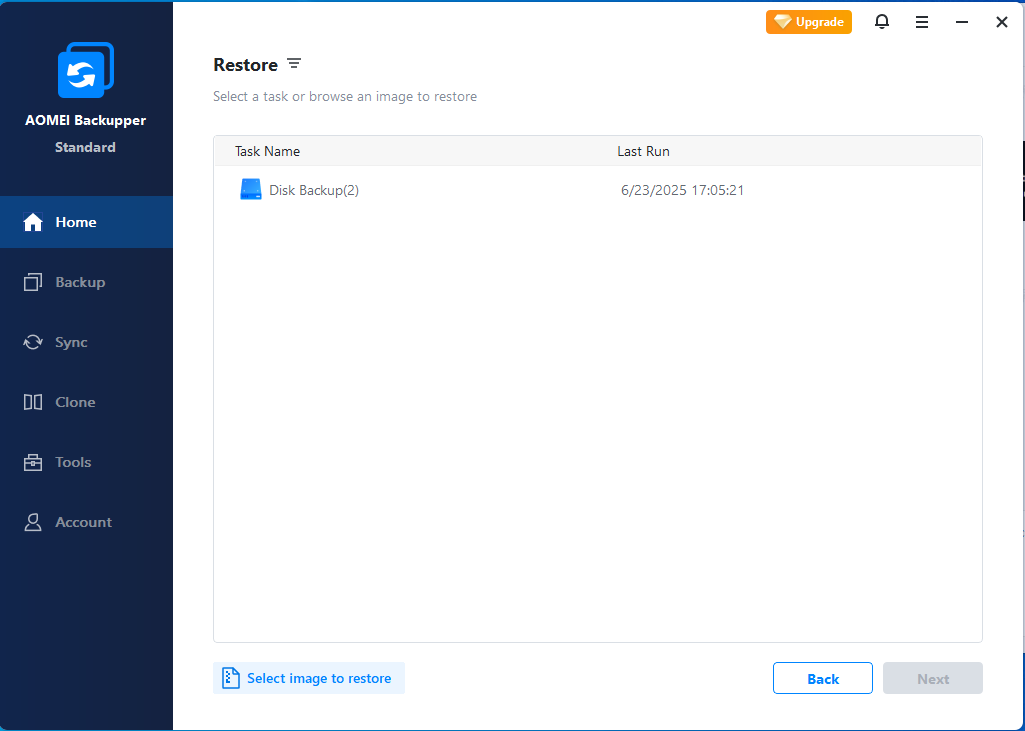
1. Connect the external hard drive with your computer. Run AOMEI Backupper, click Home, find the Windows 8/8.1 disk image backup, and choose Restore.
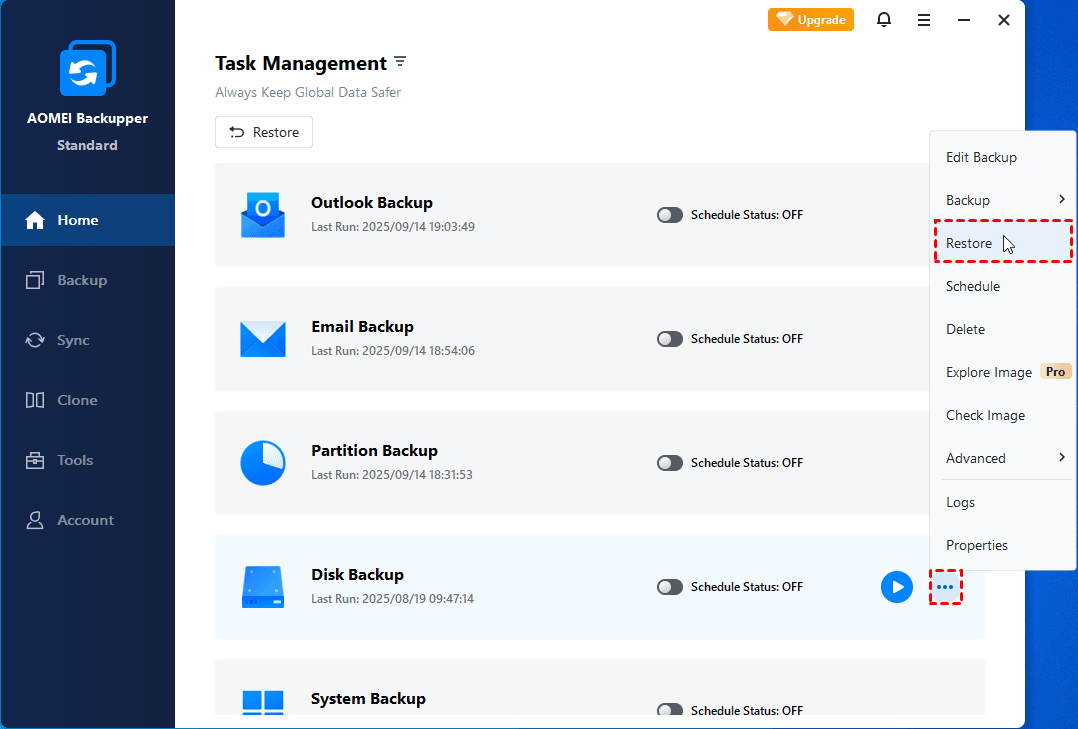
Or go to Home > Restore. Then select the disk backup task or click Select image to restore to choose Windows 8/8.1 disk backup image to restore. Hit Next >>.
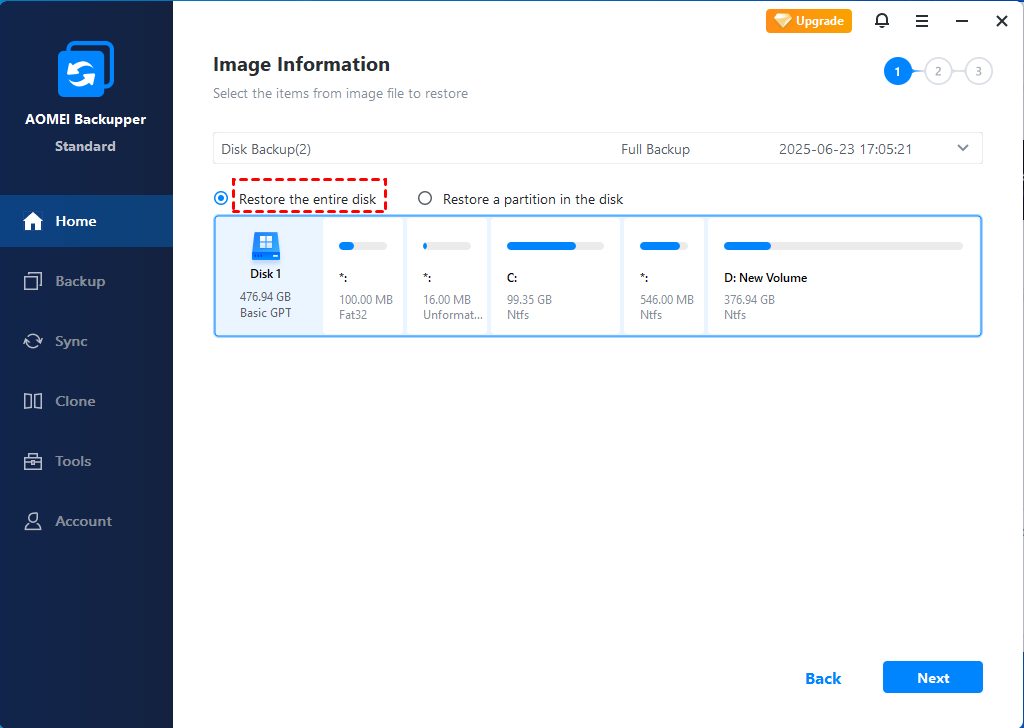
2. Select Restore the entire disk, and hit Next >>.
3. Keep the default option Restore to original location and hit Next >>.
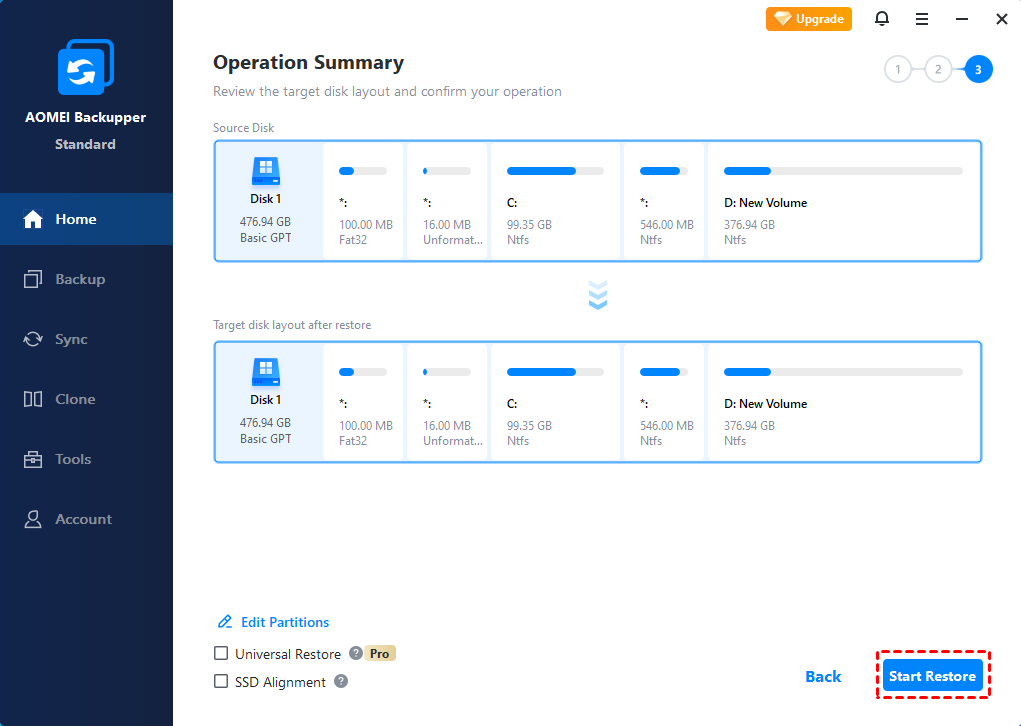
4. Press Start Restore >> to restore Windows 8/8.1 disk backup from the external hard drive.
▶ Tips:
✩ Universal restore allows you to restore Windows 8/8.1 to another computer equipped with different hardware.
✩ If you want to deploy system image to multiple computers at the same time rather than restore system image to single computer one by one, you can get help from AOMEI Image Deployment.
Bonus: How to Backup Files in Windows 8/8.1 with File History
You could use the Windows built-in backup tool in Windows 8/8.1 to backup files, here are the steps:
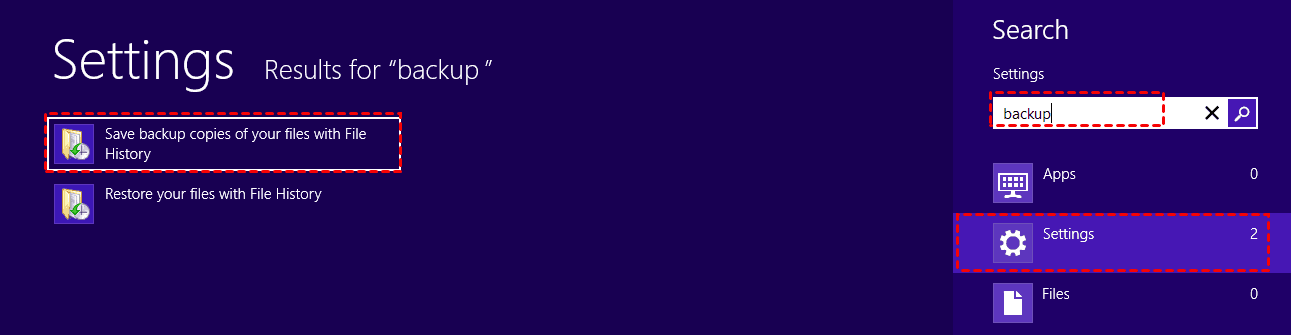
1. Press Windows + C key to open Windows 8 charm bar.
2. Input backup, and click Settings, then choose Save backup copies of your files with File History.
3. Choose the external hard drive as the destination. (or click Select Drive at the left side to choose target drive)
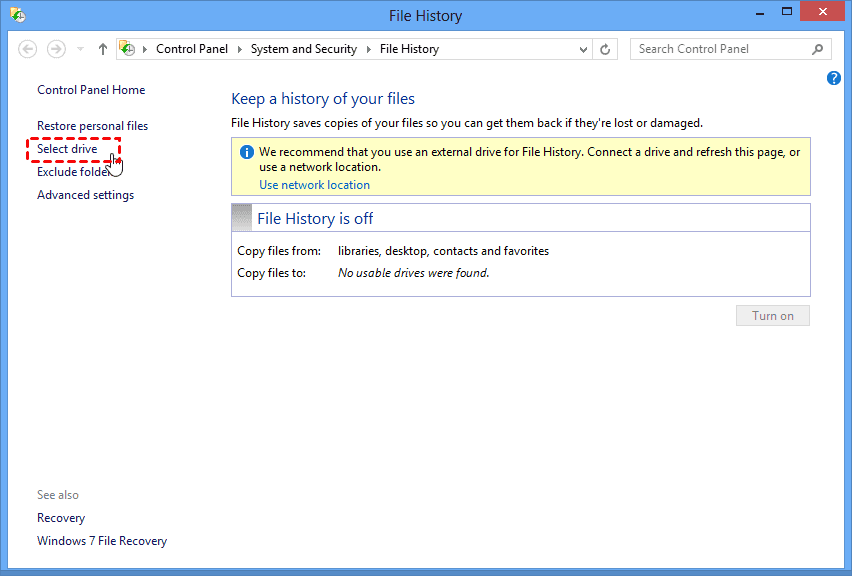
4. Press Turn on to backup files to external hard drive for Windows 8/8.1.
The Epilogue
It’s easy to create disk backup for Windows 8/8.1 with the free backup software - AOMEI Backupper Standard. It provides you easier way to protect data.
Furthermore, the Windows 8 backup software allows you upgrade HDD to SSD without reinstalling everything, sync files on regular basis, transfer files from Windows 7 to Windows 10, etc. The advanced editions allows you to backup RAID 0 hard drive, dynamic disk volume, backup NAS to NAS, etc.
 100%
Clean & Secure
100%
Clean & Secure
