 AOMEI Backupper


OneNote for Windows 10 End of Support: Everything You Need to Know
As Microsoft announced that OneNote for Windows 10 will reach end of support in Oct 2025, you may be worried about your data security. This post tells you what it means and an easy way to backup OneNote for Windows 10.

By Jonna Updated on September 17, 2025


Microsoft recently announced Windows 10 end of support in Oct 2025. This also came with OneNote for Windows 10 end-of-support, which is a bolt from the blue event for those who rely on it for meetings, projects, or personal organization.
Overview of OneNote
OneNote is Microsoft's digital notebook app, where you can record ideas, make checklists, paste images, embed links, or even sketch doodles. You can think of it as a virtual binder with sections and pages that you can flip through, but it is more flexible and has more powerful search capabilities.
There are two available versions for Windows users - OneNote for Windows 10 vs OneNote:
|
|
OneNote for Windows 10 |
OneNote(formerly OneNote 2016) |
|
Main Features |
👉 Pre-installed all editions of Windows 10 PCs. 👉 Features a touch-friendly interface optimized for tablets and laptops. 👉 Integrates directly with Windows 10 features, like Timeline and Cortana. 👉 Updates were distributed through the Microsoft Store. |
👉 Part of the Microsoft Office / Microsoft 365 suite. 👉 Packed with advanced features like integration with Outlook and Excel, custom tags, and more extensive formatting. 👉 Updates were bundled with Office updates, but are now available in the Microsoft Store as well. |
What Does OneNote for Windows 10 End of Support Mean?
If you've seen terms like "OneNote for Windows 10 end of life" or "OneNote for Windows 10 will reach end of support," they're all pointing to the same reality: Microsoft is winding down development and updates for this version. So what does this mean for OneNote for Windows 10 right now?
Microsoft Store allows new users to find the OneNote app instead of the OneNote for Windows 10 app when searching for OneNote. While OneNote for Windows 10 is still available in the Store, new users will no longer be able to search for or install it. New Windows 11 devices no longer include OneNote for Windows 10; the upgraded OneNote for Windows app is typically included with Microsoft 365 or can be installed as the default note-taking app for free to everyone.
But after the OneNote support ending date, the app may no longer get new tools, layouts, or integrations. If you store your notes in OneDrive, syncing will likely continue for a while after OneNote for Windows 10 end of support. However, long-term compatibility isn't guaranteed.
- Notes:✎...
- You can use whichever version of OneNote, or use both Windows versions simultaneously until you choose one.
- Installing or using the OneNote app on Windows does not replace or remove OneNote for Windows 10. You can switch back to OneNote for Windows 10 if you want.
How to Backup OneNote for Windows 10 Locally - Freeware
OneNote stores notebooks primarily in OneDrive, which is convenient but not immune to accidental deletion or sync errors. Backing up locally ensures you have a copy of your notes that is completely under your control. AOMEI Backupper Standard - a free, reliable backup tool that can safeguard your OneNote notebooks along with other important files. Its key features include:

 AOMEI Backupper
- File & Folder Backup: Select specific folders where your OneNote notebooks are stored for simple backup.
- Automatic Backup: Daily, weekly, or monthly backups to ensure your data is always current.
- External Drive & NAS: Backups can be stored on external hard drives, USB drives, SD cards, and NAS devices, network drives, etc.
- Easy Restore: Quickly recover notebooks to their original location or a new path in case of loss or corruption.
 100% Secure
Here’s how to backup OneNote for Windows 10 safely using free software:
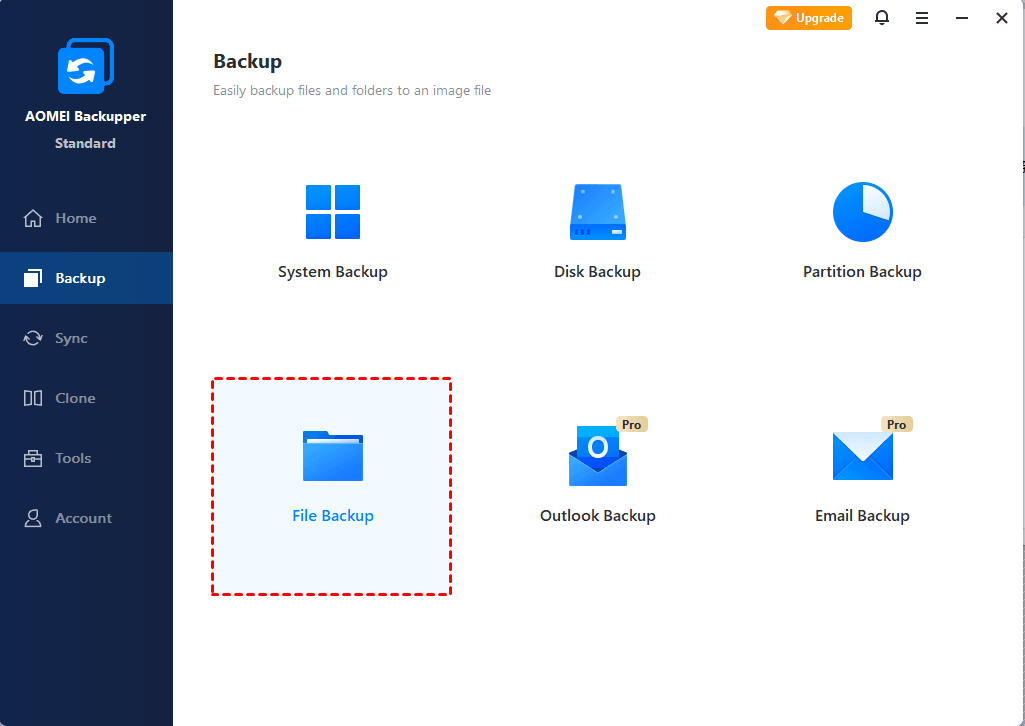
Step 1. Install and run AOMEI Backupper, select Backup and then File Backup to create a OneNote for Windows 10 backup.
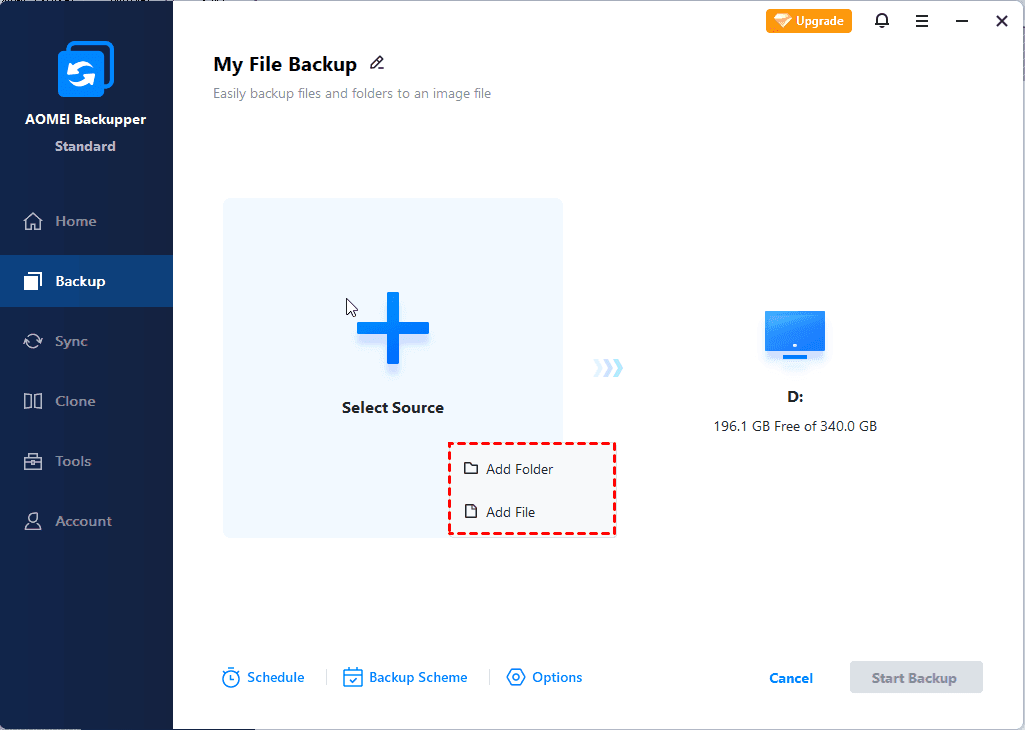
Step 2. Then, tap on Select Source > Add File or Add Folder and navigate to where your OneNote files are stored.
✅Tip: By default, Your OneNote notebooks are stored in C:\Users\Username\Documents\OneNote Notebooks.
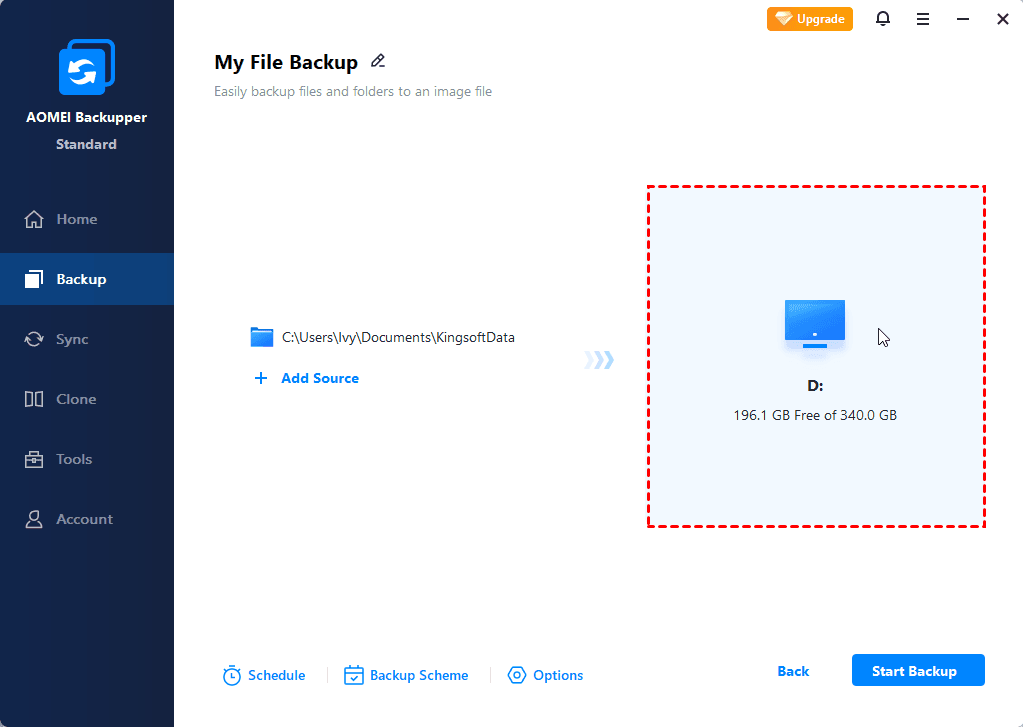
Step 3. Choose a destination path - this could be an external hard drive, USB flash drive, or even a NAS.
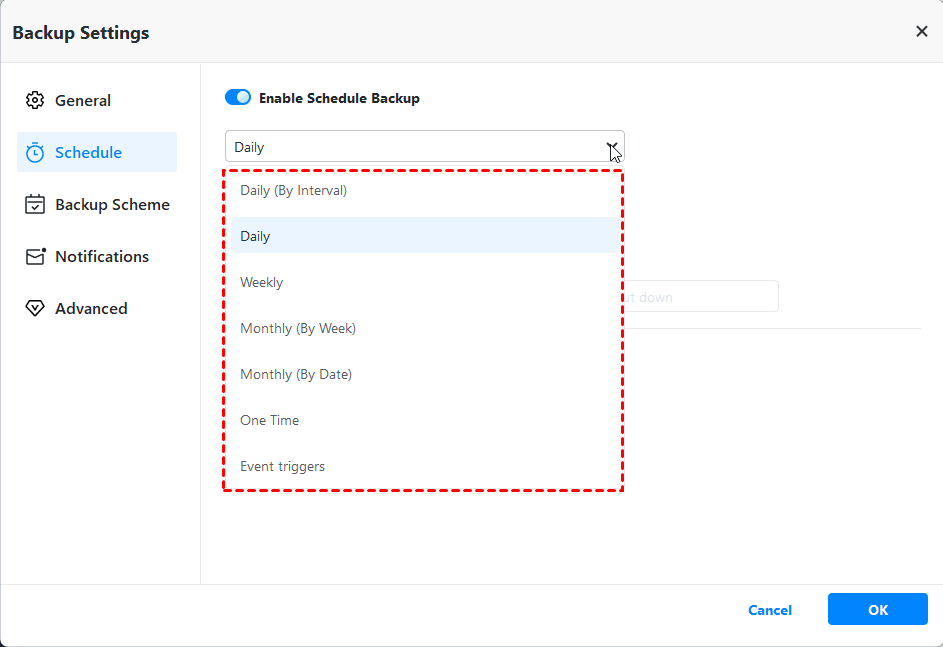
Step 4. (Optional) You can click Schedule in the bottom left corner to set up a daily, weekly, or monthly backup. You can also create a USB plug in backup under Event triggers if needed.
Step 5. Click Start Backup to initiate the process.
FAQs on OneNote for Windows 10 End of Support
#1. Is Microsoft shutting down OneNote?
No. Microsoft is not shutting down OneNote entirely. The end of support applies specifically to the Windows 10 version. Users can continue using the desktop version that comes with Microsoft 365 or Office 2019/2021.
#2. What replaces OneNote for Windows 10?
The recommended replacement is the desktop version of OneNote, often labeled simply as "OneNote." It provides:
- Full feature parity with Windows 10 OneNote.
- Advanced functionality for power users.
- Regular updates and security patches.
#3. Is OneNote being replaced by Loop?
Microsoft Loop is a collaborative app designed to integrate fluid components across Microsoft 365 apps. While it complements OneNote, it does not fully replace it. Users migrating from OneNote for Windows 10 can use Loop for collaborative tasks, but will likely need the desktop OneNote for comprehensive note-taking.
Summary
The announcement of OneNote for Windows 10 end of support signals a clear shift. While the app won't immediately stop working, continuing to rely on it can introduce risks. OneNote for Windows 10 may still function for a while, but the safest move is to switch to the OneNote app and make sure your notes are backed up, ideally with a reliable tool like AOMEI Backupper.
With this free software, you can also create Windows system image and restore computer to its working state when needed. What’s more, it comes with other various features like syncing, cloning, and bootable media creation.
 100%
Clean & Secure
100%
Clean & Secure
