 AOMEI Backupper


How to Fix Hulu Error Code P-TS207 Quickly
Learn how to fix Hulu error code P-TS207 quickly with our step-by-step guide. Get back to streaming without interruptions.

By Lily Updated on September 24, 2025


Common Causes of Hulu Error Code P-TS207
Hulu Error Code P-TS207 is a playback error that typically indicates a problem with the streaming service’s connection to your device. It often appears when there’s a disruption in the data transfer between Hulu’s servers and your device, causing playback to stop or fail to start.
Several factors can contribute to Hulu Error Code P-TS207, including:
- Network Issues: Unstable or slow internet connections are a primary cause.
- Device Compatibility: Using an outdated device or software version can trigger this error.
- Hulu Server Problems: Issues on Hulu’s end, such as server maintenance or outages, can also cause this error.

Solutions to Fix Hulu Code P-TS207
If you encounter P-TS207 in Hulu, use the following solutions to get it fixed.
Solution 1: Improve Your Internet Connection
A reliable internet connection is crucial for streaming services. Here’s how to optimize your connection:
- Restart Your Router: Unplug the router, wait for about 30 seconds, then plug it back in to refresh your connection.
- Check Speed: Use an online speed test to ensure your internet speed meets Hulu’s requirements (3 Mbps for SD, 8 Mbps for live streams, and 16 Mbps for 4K content).
- Wired Connection: Use an Ethernet cable to connect your streaming device directly to the router for a more stable connection.
- Limit Other Devices: Ensure other devices aren’t hogging bandwidth while you’re streaming.
- Contact ISP: If your speed is consistently below what’s needed, contact your Internet Service Provider for assistance.
Solution 2: Adjust Video Playback Settings
Lowering the video quality can help if you have a weak internet connection.
- Open Hulu App: Launch the Hulu app.
- Navigate to Settings: Go to the settings menu within the app.
- Adjust Quality: Select a lower video quality setting.
- Test Playback: Try playing content to see if the error persists.
- Gradually Increase Quality: If playback improves, gradually increase the quality to find a balance.
Solution 3: Re-log Into Your Hulu Account
Refreshing your Hulu login session can sometimes fix playback errors.
- Log Out: Go to account settings in the Hulu app and log out.

- Restart Device: Restart your streaming device.
- Log In Again: Log back into your Hulu account.
- Try Streaming: Attempt to stream content.
- Update Credentials: Ensure your login details are correct and updated.
Solution 4: Clear Cache and Data
Clearing the cache and data of the Hulu app can resolve many playback issues.
- Open Settings: Go to your device’s settings.
- Locate Hulu App: Find the Hulu app in your list of installed applications.
- Clear Cache: Select the option to clear the cache.
- Clear Data: If clearing the cache doesn’t work, also clear the data.
- Restart App: Open the Hulu app and try streaming again.
Solution 5: Update Your Device and Reinstall Hulu
Ensuring your device’s software is up to date can prevent compatibility issues with Hulu.
- Check for Updates: Go to your device’s settings and look for any available software updates.
- Install Updates: Download and install any available updates.
- Restart Device: Restart your device after updating to apply the changes.
- Reinstall Hulu App: Uninstall and reinstall the Hulu app to refresh its data.
- Verify Compatibility: Make sure your device is compatible with the latest Hulu app version.
Solution 6: Check Hulu Server Status
Sometimes, the issue is with Hulu’s servers, not your device or network.
- Visit Hulu Help Center: Check for any reported outages on Hulu’s Help Center or social media pages.
- Use Down Detector: Websites like Down Detector provide real-time reports of outages.
- Wait it Out: If it’s a server issue, you might need to wait until Hulu resolves it.
- Contact Hulu Support: Reach out to Hulu’s customer support for updates and assistance.
- Retry Later: Attempt streaming again after some time.
Solution 7: Disable VPN or Proxy Services
Using VPNs and proxies can interfere with Hulu’s streaming.
- Turn Off VPN: Disable your VPN service if you’re using one.
- Disable Proxy: Ensure no proxy settings are enabled.
- Test Connection: Check if Hulu works without the VPN or proxy.
- Contact VPN Support: If necessary, contact your VPN provider for guidance on streaming Hulu.
- Use Compatible VPN: If you need a VPN, choose one known to work with Hulu.
Solution 8: Perform a Power Cycle
Performing a power cycle can also help to resolve playback issues.
- Turn Off Your Device: Power down your streaming device completely. Also, turn off the modem and router if applicable.
- Rest: Allow the device to rest for a few minutes before turning it back on.
- Restart Hulu: Launch the Hulu app again to see if the issue is resolved.
Bonus: Protect Your Windows Device from Various Errors
Even though resolving the Hulu P-TS207 error gets your streaming back on track, it’s important to look at the bigger picture—your Windows device faces risks that go far beyond Hulu. System crashes, malware infections, or even accidental file deletions can strike at any time, leaving both your data and applications vulnerable.
That’s where AOMEI Backupper Standard comes in. It’s the best free backup software for Windows with all-around backup and recovery solutions.

 AOMEI Backupper
-
Create system images – Restore computer to a working state after crashes.
-
Automate backups – Schedule daily, weekly, or monthly tasks so you never forget.
-
Backup to multiple destinations – External drives, USB flash drives, NAS devices, or cloud storage, etc.
 100% Secure
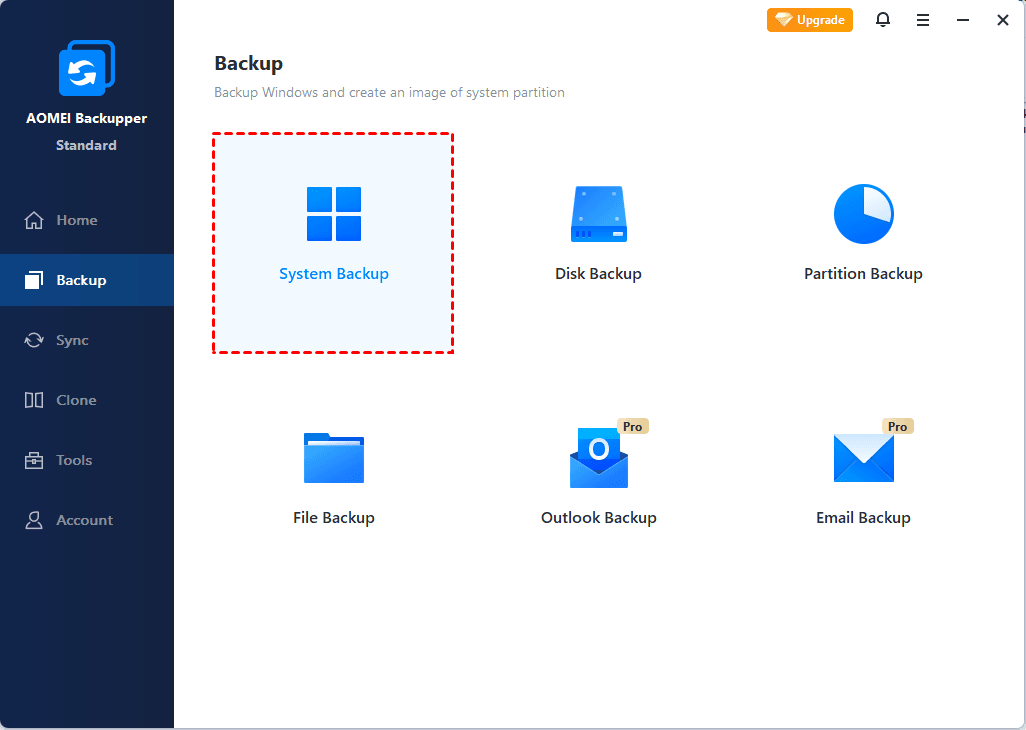
To create a system image, just click Backup > System Backup and follow the wizard to complete the process.
FAQs about Hulu P-TS207 Error
1. What should I do if none of the solutions work?
If none of the solutions fix Hulu Error Code P-TS207, contact Hulu’s customer support for further assistance. They can provide more specific troubleshooting steps.
2. How can I prevent Hulu Error Code P-TS207 from happening again?
To prevent Hulu Error Code P-TS207, ensure a stable internet connection, keep your device’s software updated, and avoid using incompatible VPNs or proxies.
3. How often should I back up my Windows OS?
It's recommended to back up your Windows OS regularly, especially before installing new software or updates. AOMEI Backupper allows you to schedule automatic backups for convenience.
Tips for a Better Streaming Experience
- Regularly Update Devices: Keep your streaming devices and apps updated to avoid compatibility issues.
- Optimize Internet Speed: Ensure your internet speed meets the requirements for streaming services.
- Use Quality Hardware: Invest in reliable streaming devices and routers for a better experience.
Conclusion
Experiencing Hulu Error Code P-TS207 can be frustrating, but with these detailed solutions, you can quickly resolve it and return to enjoying your favorite shows.
Additionally, regularly backing up your system using AOMEI Backupper can protect your data from unexpected issues. Download it now to try it out!
 AOMEI Backupper
Best free Windows backup software for personal use.
