 AOMEI Backupper


Hulu Error Code P-EDU101: Fix It Now
Learn how to resolve Hulu error code P-EDU101 with our step-by-step guide. Get back to streaming without interruptions.

By Lily Updated on September 24, 2025


What Causes Hulu P-EDU101?
When Hulu error code P-EDU101 appears, it signifies an authentication issue, often linked to account verification or subscription problems. This error can prevent users from logging in or accessing their desired content, leading to a less than ideal streaming experience.
Several factors can contribute to Hulu error code P-EDU101:
- VPN or Proxy Usage: Accessing Hulu through a VPN or proxy can interfere with location verification and result in error code P-EDU101.
- Subscription Issues: Problems with your Hulu subscription, such as an expired subscription or billing issues, can trigger this error.
- Account Verification Problems: If there are issues verifying your account details, you may encounter this error.
- Internet Connection Problems: Poor or unstable internet connections can prevent Hulu from authenticating your account correctly.
- Device Compatibility: Using an incompatible device or outdated app version may also lead to this error.
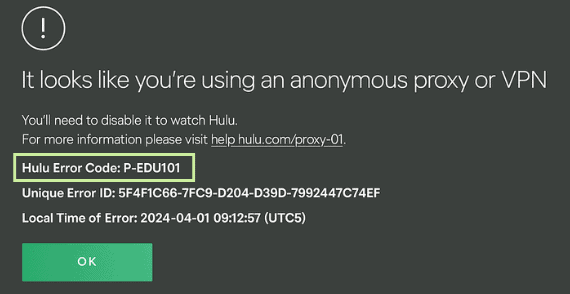
How to Fix Error Code P-EDU101 in Hulu
This part offers you 8 solutions to the Hulu P-EDU101 error. Try them one by one until your problem is solved.
Solution 1: Disable VPN or Proxy
As the error message points out, the first thing you can try is to disable VPN or proxy.
- Open VPN/Proxy Settings: Access the settings for your VPN or proxy service.
- Disable VPN/Proxy: Turn off the VPN or proxy service.
- Restart Device: Restart your streaming device.
- Log Back into Hulu: Open the Hulu app and log back into your account.
- Check Streaming: Test if the error persists without the VPN or proxy.
Solution 2: Check Internet Connection
A stable internet connection is essential for proper authentication.
- Test Internet Speed: Use an online speed test to ensure your connection meets Hulu’s requirements (at least 3 Mbps for SD and 8 Mbps for HD streaming).
- Restart Router: Turn off your router, wait 30 seconds, and turn it back on to refresh your connection.
- Use Wired Connection: Connect your device directly to the router with an Ethernet cable for a more stable connection.
- Limit Bandwidth Usage: Ensure other devices on your network are not consuming excessive bandwidth.
- Contact ISP: If internet speed issues persist, contact your Internet Service Provider for further assistance.
Solution 3: Verify Your Hulu Subscription
Ensuring your subscription is active and in good standing can resolve many authentication issues.
- Check Subscription Status: Log into your Hulu account and verify that your subscription is active.
- Update Payment Information: Ensure that your payment information is up-to-date and there are no billing issues.
- Renew Subscription: If your subscription has expired, renew it to regain access.
- Contact Hulu Support: If you encounter issues with your subscription, reach out to Hulu support for assistance.
- Confirm Resolution: After resolving subscription issues, try accessing Hulu again.
Solution 4: Reauthenticate Your Account
Reauthenticating your account can resolve verification issues.
- Log Out of Hulu: Log out of your Hulu account on all devices.

- Restart Device: Restart the device you are using to access Hulu.
- Log Back In: Log back into your Hulu account with your credentials.
- Verify Email: Ensure your email address is verified by checking your inbox for a verification email from Hulu.
- Check Streaming: Try accessing content again to see if the issue is resolved.
Solution 5: Update Hulu App and Device Software
Outdated software can cause compatibility issues, leading to errors.
- Check for App Updates: Go to your device’s app store and check for Hulu app updates.
- Install Updates: Update the Hulu app to the latest version available.
- Restart Device: Restart your device after updating the app.
- Update Device Software: Ensure your device’s operating system is up-to-date.
- Reopen Hulu: Open the Hulu app and check if the error is resolved.
Solution 6: Clear App Cache and Data
Clearing cache and data can help resolve app-related issues.
- Access Device Settings: Open the settings menu on your device.
- Find Hulu App: Navigate to “Apps” or “Application Manager” and select Hulu.
- Clear Cache: Tap “Clear Cache” to remove temporary files.
- Clear Data: Tap “Clear Data” to reset the app’s settings.
- Restart Device: Restart your device and log back into Hulu.
Solution 7: Check Device Compatibility
Ensure your device is compatible with Hulu.
- Check Supported Devices: Visit Hulu’s support page to confirm your device is supported.
- Update Device Firmware: Make sure your device’s firmware is up to date.
- Restart Device: Restart your device after updating the firmware.
- Try a Different Device: If possible, try streaming on a different compatible device.
- Contact Device Manufacturer: For persistent issues, contact the device manufacturer for further support.
Solution 8: Reset Network Settings
Resetting network settings can resolve connectivity issues.
- Open Settings: Go to your device’s settings menu.
- Find Network Settings: Navigate to “Network & Internet” or “Connections.”
- Reset Network Settings: Tap “Reset Network Settings.”
- Restart Device: Restart your device after resetting network settings.
- Reconnect to Wi-Fi: Reconnect to your Wi-Fi network and try streaming on Hulu again.
Bonus: Best Way to Protect Your Windows Device
While fixing Hulu error code P-EDU101 ensures you can get back to watching your favorite shows, it’s just as important to safeguard your device from unexpected issues that could disrupt streaming in the future. One of the smartest ways to do this is by creating regular backups.
A reliable tool like AOMEI Backupper makes it simple to protect your entire system, apps, and personal data.

 AOMEI Backupper
-
Flexible backup types: You can choose system backup, disk backup, partition backup, or file/folder backup based on your need.
-
Scheduled backups: Perform backups daily, weekly, or monthly to ensure your data and apps are always protected.
-
Incremental backup: This helps to save storage space while keeping copies up to date.
 100% Secure
How to backup Windows with AOMEI Backupper
1. Download and install AOMEI Backupper on your computer.
2. Open the software on your computer. Navigate to the “Backup” tab and choose “System Backup.”
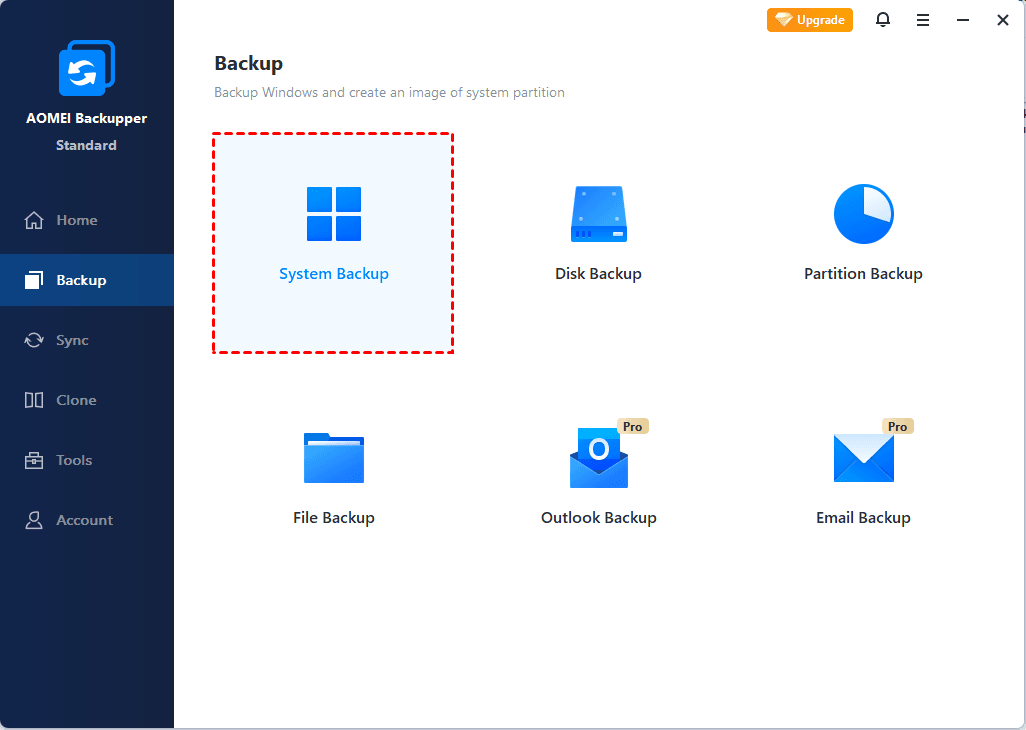
3. Choose a destination path to save the system backup. You can backup computer to USB, external drive, network share, NAS, etc.

4. Click “Start Backup” to begin the backup process.
FAQs about P-EDU101 in Hulu
1. What should I do if Hulu error code P-EDU101 persists?
If the error continues, consider verifying your subscription, checking your internet connection, updating the Hulu app, clearing cache and data, and disabling any VPNs. If none of these steps work, contact Hulu support for further assistance.
2. Can outdated software cause Hulu error code P-EDU101?
Yes, outdated versions of the Hulu app or your device’s operating system can lead to compatibility issues and trigger error codes. Keeping your software updated is essential for smooth streaming.
3. How do I check if Hulu servers are down?
You can check Hulu’s server status by visiting their Help Center or using websites like Down Detector that provide real-time outage reports. If there is a server issue, you may need to wait until Hulu resolves it.
4. Are VPNs and proxies responsible for Hulu error code P-EDU101?
Yes, VPNs and proxies can interfere with Hulu’s ability to authenticate your account, often resulting in error codes. Disabling these services can help resolve the issue.
Tips for a Better Streaming Experience
- Regularly Clear Cache: Regularly clear your app or browser cache to prevent streaming issues.
- Update Software: Keep your Hulu app and device software updated to ensure compatibility.
- Optimize Internet Speed: Ensure your internet speed meets the requirements for streaming services to avoid buffering and errors.
Conclusion
This page offers quick fixes to Hulu error code P-EDU101. Whether it’s verifying your subscription, checking your internet connection, or updating software, these solutions address the common causes of Hulu error codes.
Additionally, regularly backing up your system with AOMEI Backupper ensures you're prepared for any technical issues. You can also use AOMEI Backupper to clone disks or partitions if you plan to upgrade hardware. Try it now to discover more!
