 AOMEI Backupper


Hulu Error Code P-DEV310 on TV: Solved Now!
Fix Hulu error code P-DEV310 on TV with our step-by-step guide. Stream your favorite shows without interruptions!

By Lily Updated on September 23, 2025


Why Does Hulu Error Code P-DEV310 Occur on TV?
Hulu error code P-DEV310 on TV is an error that prevents the Hulu app from functioning properly on your television. This error can stem from various reasons, such as:
- Network Connectivity Issues: Poor or unstable internet connections are a common cause.
- Outdated Software: Running outdated firmware on your TV or an outdated Hulu app.
- App Corruption: Temporary bugs or corrupted data within the Hulu app.

How to Fix Hulu Error Code P-DEV310 on TV
In this part, you can learn 8 effective solutions to the P-DEV310 error on TV.
Solution 1: Restart Your TV and Router
- Turn Off Your TV: Power down your television completely.
- Unplug the Router: Disconnect your router from the power source.
- Wait for a Minute: Allow both devices to rest for a minute.
- Reconnect the Router: Plug the router back in and wait for it to establish a connection.
- Restart Your TV: Turn your TV back on and check if Hulu is working.
Solution 2: Check Your Internet Connection
- Run a Speed Test: Use a speed test website to check your internet speed.
- Improve Signal Strength: Move your TV closer to the router or use a Wi-Fi extender.
- Switch to Ethernet: If possible, connect your TV directly to the router using an Ethernet cable.
- Restart Router: Unplug and plug back in your router to reset the connection.
- Contact ISP: If you experience persistent speed issues, contact your internet service provider for assistance.
Solution 3: Update the Hulu App
- Access App Store: Open the app store on your TV.
- Search for Hulu: Look for the Hulu app.
- Check for Updates: If an update is available, download and install it.
- Restart App: After updating, close and reopen the Hulu app.
- Try Streaming: Check if the error persists.
Solution 4: Clear Hulu App Cache and Data
- Open Settings: Go to the settings menu on your TV.
- Select Apps: Find and select the Hulu app.
- Clear Cache: Choose the option to clear the app cache.
- Clear Data: Also clear the app data to remove any corrupted files.
- Restart TV: Restart your TV and try launching Hulu again.
Solution 5: Update Your TV Firmware
- Access TV Settings: Open the settings menu on your TV.
- Check for System Updates: Look for firmware or system updates.
- Download and Install Updates: If available, download and install the updates.
- Restart TV: After updating, restart your TV.
- Launch Hulu: Open Hulu to see if the issue is resolved.
Solution 6: Disable VPN or Proxy
- Access VPN Settings: If you're using a VPN, open its settings.
- Disable VPN: Turn off the VPN service.
- Check Proxy Settings: Ensure no proxy is configured in your network settings.
- Restart TV: Restart your TV after disabling VPN or proxy.
- Try Hulu Again: Open Hulu and check if the error persists.
Solution 7: Reinstall the Hulu App
- Uninstall Hulu: Go to the app settings and uninstall the Hulu app.
- Restart TV: Turn off your TV and turn it back on.
- Reinstall Hulu: Go to the app store and reinstall the Hulu app.
- Log In Again: Sign back into your Hulu account.
- Check Streaming: Try streaming to see if the error is resolved.
Solution 8: Contact Hulu Support
- Visit Hulu Help Center: Go to the Hulu support page.
- Check FAQs: Look for similar issues in the FAQ section.
- Submit a Ticket: If you can't find a solution, submit a support ticket.
- Provide Details: Include detailed information about the error and troubleshooting steps you've taken.
- Wait for Response: Hulu support will guide you with further instructions.
FAQs about P-DEV310 on a Smart TV
Q1: Can a slow internet connection cause Hulu error code P-DEV310 on TV?
Yes, a slow or unstable internet connection is a common cause of Hulu error code P-DEV310 on TV. Improving your internet speed and stability can help resolve this issue.
Q2: Is it necessary to update my TV firmware to fix Hulu error code P-DEV310?
Updating your TV firmware can help fix Hulu error code P-DEV310 by ensuring compatibility and resolving any software-related issues. It is recommended to keep your TV firmware up to date.
Q3: Can using a VPN cause Hulu error code P-DEV310 on TV?
Yes, using a VPN can sometimes interfere with streaming services like Hulu, leading to error code P-DEV310 on TV. Disabling the VPN can help resolve the issue.
Bonus: Best Way to Protect PC (If Running Hulu on PC)
If you prefer streaming Hulu on your computer, it’s just as important to protect your PC from unexpected errors, crashes, or system failures that could interrupt your viewing. The most reliable way to safeguard your setup is by creating regular backups. AOMEI Backupper is an excellent choice for this.

 AOMEI Backupper
-
Create full system images so your entire Windows environment—including apps, settings, and files—can be restored in minutes.
-
Schedule automatic backups daily, weekly, or monthly to keep your system and data always up to date.
-
Restore quickly after errors so downtime is minimal, ensuring you’re back to streaming Hulu without frustration.
 100% Secure
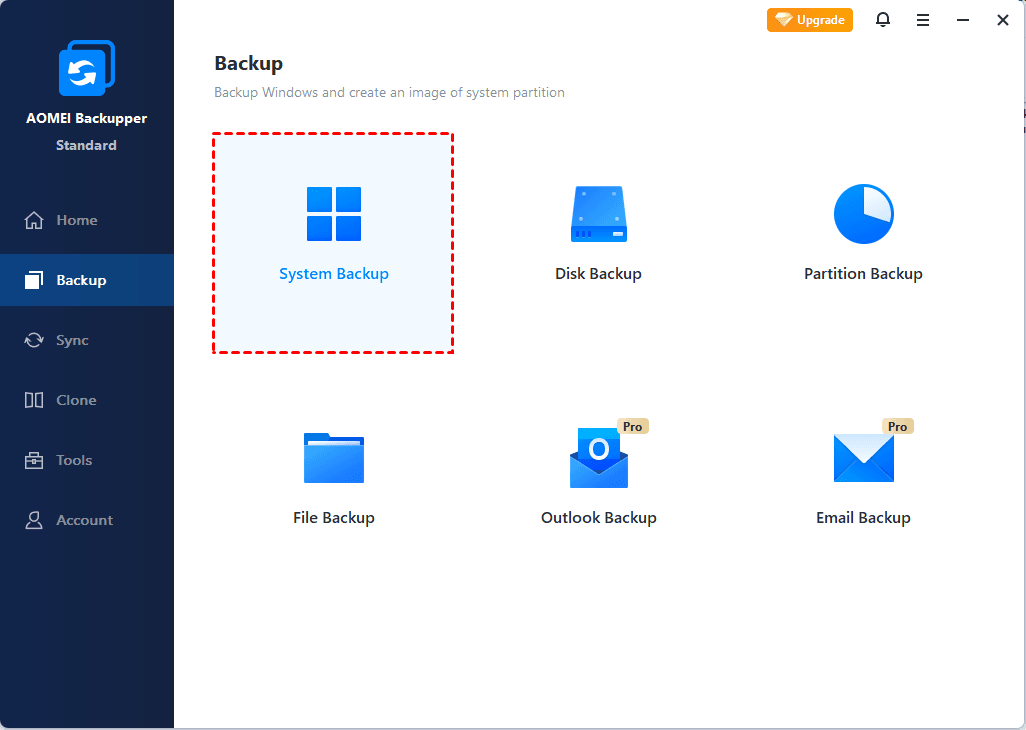
Just download AOMEI Backupper and use the System Backup feature to protect your Windows OS.
Conclusion
Hulu error code P-DEV310 on TV can be a significant obstacle to enjoying your streaming content. However, with the right troubleshooting steps, this error can be resolved quickly.
Additionally, using AOMEI Backupper to back up your Windows OS ensures your data is always safe and recoverable. Implement these tips and solutions to maintain a smooth and secure digital experience.
 AOMEI Backupper
Best free Windows backup software for personal use.
