FastRecovery



How to Recover Data from Soldered SSD
In this article, you'll learn 3 effective methods and how to recover data from a soldered SSD step by step, with the recovery service being the best option.

By Ivy / Updated on March 9, 2026


In recent years, soldered SSDs have become an increasingly popular choice to create slim, high-performance gadgets in modern devices, especially in ultra-thin laptops, tablets, and smartphones.
Unlike traditional removable SSDs that can be easily swapped out or replaced, soldered SSDs are directly attached to the motherboard, making them more difficult to upgrade, replace, or recover data from if things go wrong.
However, this may be on a case-by-case basis and is not impossible. Understanding how to recover lost data from soldered SSDs is essentialand more important than ever.
Can You Recover Data from a Soldered SSD Drive?
Yes, it’s possible to recover data from a soldered SSD, but not in all situations. To understand it easily, you need to learn the differences between Soldered SSD vs Removable SSD and when to recover data and when not to.
Soldered SSDs vs Removable SSDs
An SSD (Solid-State Drive) is a storage device that stores data on flash memory chips instead of spinning disks like traditional hard drives (HDDs). While SSDs have become the go-to storage option due to their speed, reliability, and compact size, not all SSDs are created equal.
- Soldered SSDs: No easy swap out and non-replaceable. Directly soldered the storage chips to the device’s motherboard, making them an integrated part of the system, usually in ultra-thin laptops, smartphones, and tablets.
- Removable SSDs: Easily replaceable and swapped out without specialized tools or technical expertise, plugged in through standard interfaces (like SATA, M.2, PCIe/NVMe), usually in desktop computers, external hard drives, and some laptops with easily accessible drive bays.
When to Recover Data and When Not to
Since there is no easy swap-out for soldered SSDs integrated into the device, theyare harder to upgrade or replace. But for data recovery, this may be on a case-by-case basis.
If the cause is accidental deletion, recycle bin empty, software errors, etc., recovery will be much easier. However, if your device is physically damaged or the soldered SSD fails and needs to be removed, this can be challenging.
In a complex recovery process, this often involves chip-off recovery or working with professional data recovery services, requiring advanced tools and technical know-how.
Common Causes Behind Data Loss on Soldered SSDs
Here’s a breakdown of the main reasons for data loss on soldered SSDs:
- Accidental Deletion: Accidentally deleting files or folders, or due to software errors, or empty the Recycle Bin, etc.
- Accidental Formatting: If you mistakenly format the SSD, it might look empty, but the data could still be there (if not overwritten).
- System Crashes: A crash or improper shutdown can corrupt files and make data hard to access.
- Physical Damage: If the device is dropped or knocked, the soldered SSD can get damaged or lose data due to power surges, overheating, corrupted firmware, wear and tear, etc.
How to Recover Data from Soldered SSDs (3 Methods)
Data loss on soldered SSDs can happen for various reasons,but they are permanently attached to the motherboard, recovering data from them, especially for damaged or encrypted SSD drives,is more challenging than with removable SSDs. Here are 3 common data recovery methods.
#1: Seek Assistance from Professional Data Recovery Services [For Most Cases]
When it comes to soldered SSDs, professional data recovery services are often the best option as removing them requires specific tools and skills, especially when the drive is physically damaged or encrypted, and can handle the most complex recovery tasks, with a higher success rate of data recovery compared to DIY methods. The overall steps are:
- Initial Assessment: The recovery service first checks the SSD and determines the cause(e.g., physical failure, corruption, etc.)as well as damage extent.
- Recovery Plan: Based on the assessment, a detailed recovery plan is created, including using specialized equipment, firmware repair, or chip-off recovery.
- Recovery Process: Once approved, the service will start to recover data, repair corrupted firmware, or use a clean room environment if the SSD has physical damage.
- Data Transfer: Once the data is recovered, it is transferred to a new, secure storage medium, such as an external hard drive or another SSD. Some services offer support to help you retrieve your files and ensure they are in usable formats.
#2: Recover Data from Soldered SSD using DIY Tools [for Accidental Deletion]
If you’re comfortable trying to recover data from soldered SSDs yourself, you can consider using a reliable DIY recovery tool like FastRecovery. It can deal with data loss due to accidental deletion, empty Recycle Bin, virus infection, etc.
 FastRecovery
- Simple and intuitive interface, without technical skills required.
- Scene matching scan algorithms: Quick Scan for deleted files, while Deep Scan for more complex scenarios, such as virus attack, corrupted drive, etc.
- 1000+ data formats: Recover deleted documents (e.g., recover Word files), images, audios, videos, compressed files, emails, etc.
- Preview files before recovery: It helps to ensure the files you need are there and not corrupted.
- File filtering: You can filter files by type (e.g., images, documents, videos), file name, or extension, making it easier to locate and recover specific files or folders.
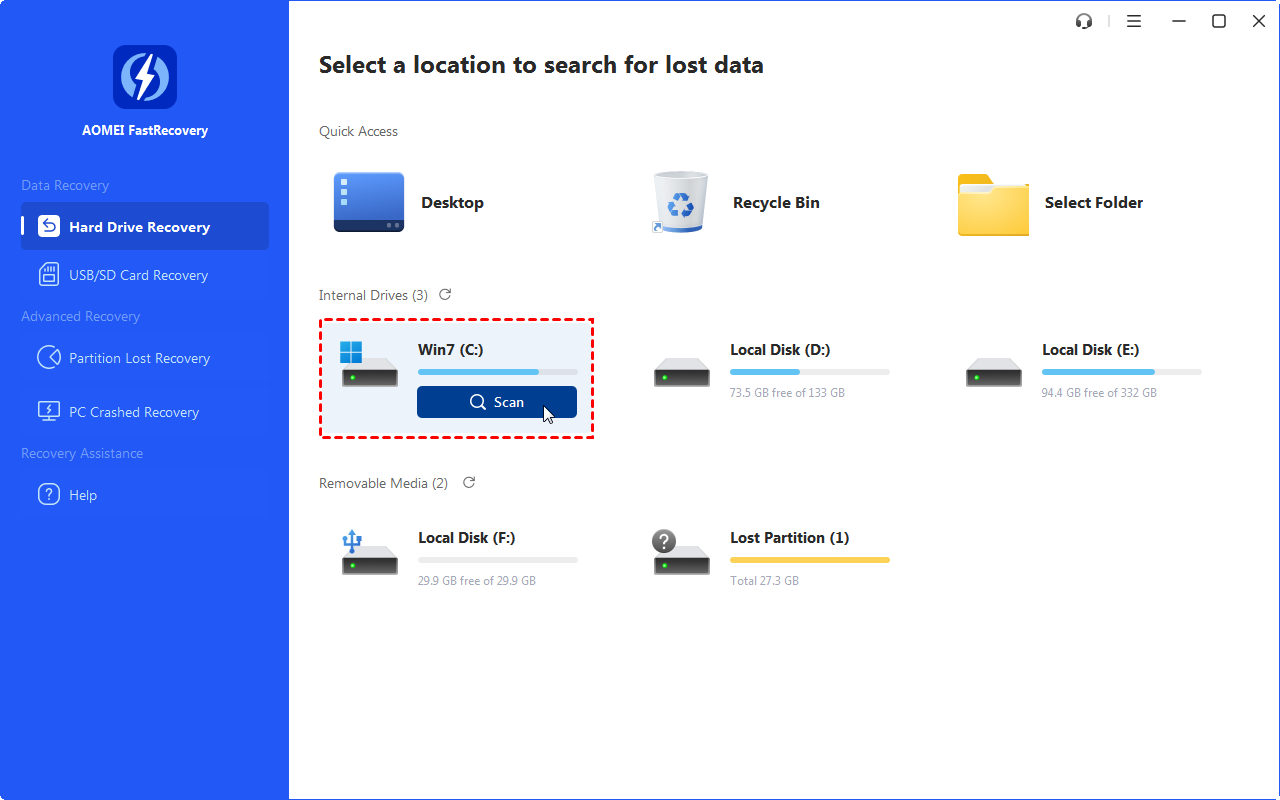
Step 1. Download and install FastRecovery to a new location besides the soldered SSD to avoid data loss. Then, under Hard Drive Recovery, select the soldered SSD and click Scan.
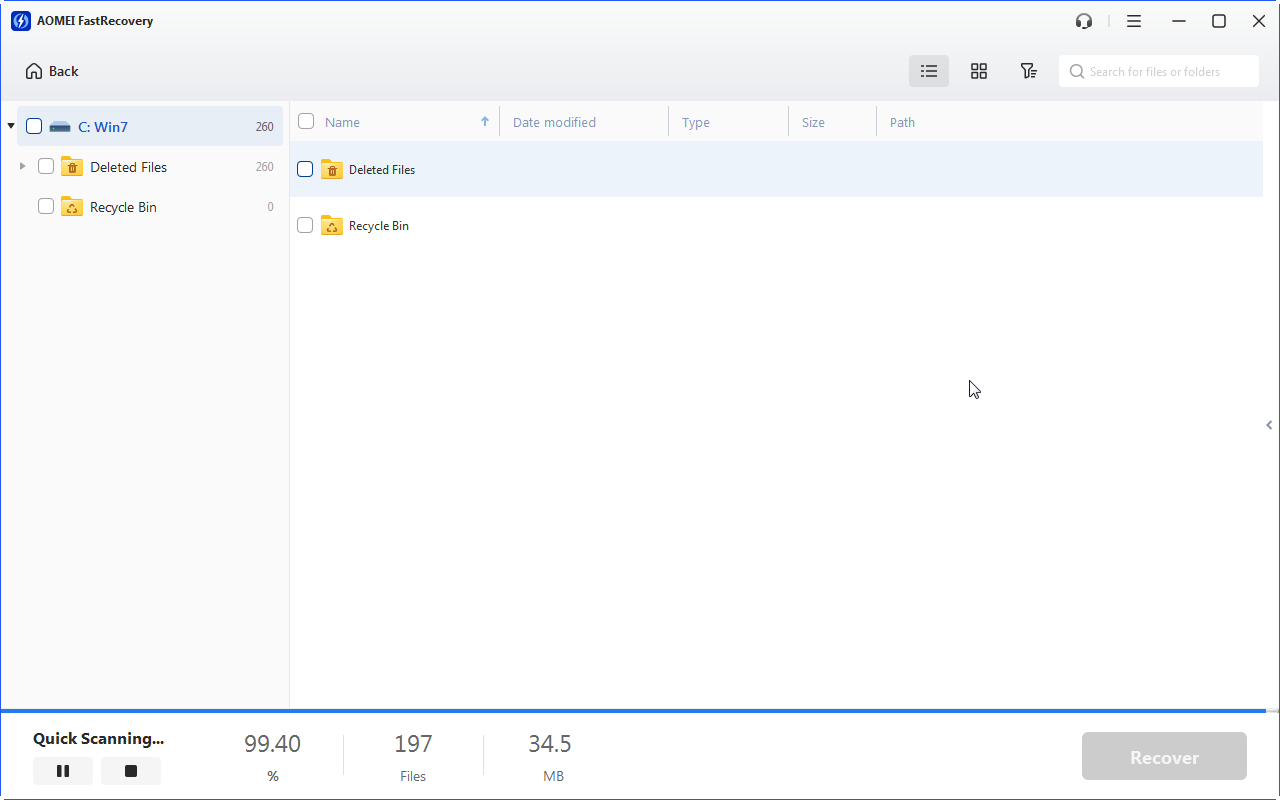
Step 2. It will start Quick Scan automatically to find deleted files within 3-5 seconds. You can then filter the data type, file name, extension, etc., to find and preview the files you want to recover.
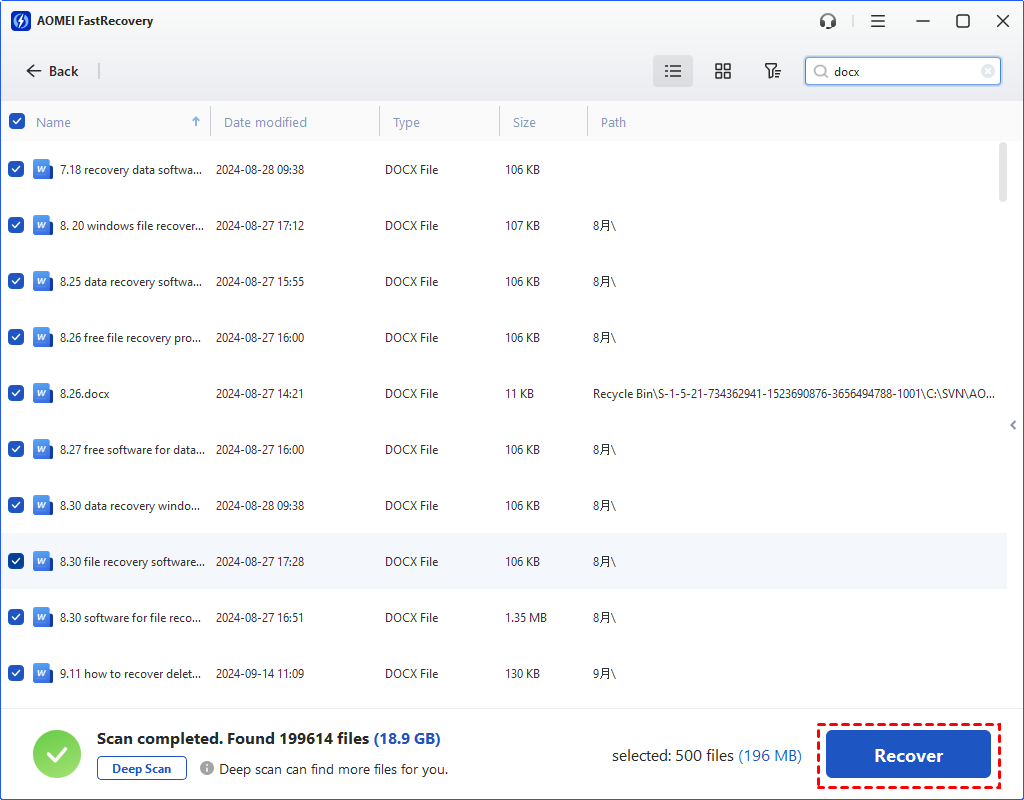
Step 3. Once you’ve selected the desired files, click Recover and select a new location to save them safely.
- Always recover files to a different location (not soldered SSD) to avoid data overwriting, making recovery more difficult.
- If you can’t find deleted files, click the Deep Scan to scan this drive more thoroughly.
While DIY data recovery tools may seem like an appealing option, they are mostly designed for logical errors, such as accidental deletion, formatting, etc.
However, it depends on whether you need to remove the soldered SSD drive, which requires specialized knowledge and can cause damage if not handled properly.
#3: Use a Chip-Off Method for Advanced Recovery
The chip-off method is an advanced recovery technique often used when the soldered SSD is physically damaged (e.g., SSD failure, motherboard or firmware corruption, etc), or the data is inaccessible through conventional methods.
Physically remove the NAND flash memory chips from the soldered SSD and then place it in a reader to retrieve the stored data, even if the original SSD is no longer functional. This is a delicate process that takes time and requires precise control because even a small mistake can damage the chips.
What’s more, it’s effective in many cases, but expensive and time-consuming, as it requires highly specialized knowledge and tools.
Conclusion
In summary, soldered SSDs are compact and efficient but come with trade-offs, particularly when it comes to accessing data and performing recovery. The lack of physical separation between the SSD and the motherboard means data recovery is often more complicated, requiring specialized tools and expertise.
So, using recovery services will be the best choice to recover data from a soldered SSD. DIY tools are only useful for deleted files.
 100%
Clean & Secure
100%
Clean & Secure