 AOMEI Backupper


Windows 11 Unexpected Shutdown - 8 Quick Fixes
Windows 11 unexpected shutdown can be caused by various reasons, such as improper power settings, hardware issues, etc. Check the detailed info below and get some useful solutions to this issue.

By Jonna Updated on September 24, 2025


Why Does My Windows 11 PC Turn off Unexpectedly?
Experienced a Windows 11 unexpected shutdown while you are in the middle of working on a project, gaming, or attending a virtual meeting? Why is Windows 11 PC shutting down randomly? How to stop it from happening again? This comprehensive guide will dig deep into the possible reasons and offer practical, step-by-step solutions to get your computer running smoothly again.
Unlike a scheduled shutdown in Windows 11, unexpected shutdowns usually indicate an underlying issue that needs attention. There are several common reasons why a Windows 11 PC may turn off unexpectedly, ranging from hardware issues to software misconfigurations.
- Power Settings Misconfigurations - Sometimes, the advanced power plan settings are configured incorrectly, leading to sudden shutdowns.
- Fast Startup Glitches - Fast Startup is designed to make booting quicker, but it can sometimes trigger Windows system instability.
- Overheating Issues - If your system temperature spikes, Windows may shut down to protect internal hardware.
- Corrupted System Files - Damaged or missing files in the operating system can result in unpredictable shutdowns.
- Driver or Update Problems - Outdated or buggy drivers and incomplete Windows updates may cause Windows 11 laptop shuts down unexpectedly.
- Sleep Mode or Hibernation Bugs - Improperly configured sleep or hibernation settings can mimic shutdown behavior.
How to Fix Windows 11 Unexpected Shutdown with Ease
Since your Windows 11 random shutdown can be triggered by different issues, you may need to try several of the methods below until you find the one that works for your specific situation. Let's get into it.
Way 1. Check Advanced Power Settings
Sometimes, your PC's power plan has settings that cause it to shut down suddenly. You can adjust these to resolve the Windows 11 laptop shuts down unexpectedly issue.
Step 1. Access Control Panel, navigate to Hardware and Sound > Power Options.
Step 2. Click Change plan settings next to your selected power plan, and then Change advanced power settings.
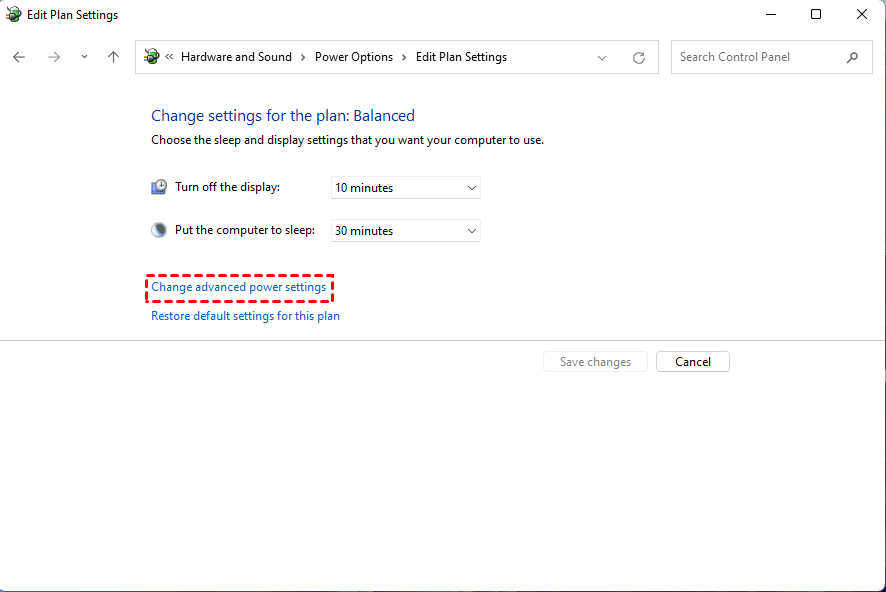
Step 3. On the pop-up screen, click Hard disk > Turn off hard disk after, and set the On battery and Plugged in options to Never.
Step 4. Then, find Processor power management > Minimum processor state to change the value on it from 100 to 0.
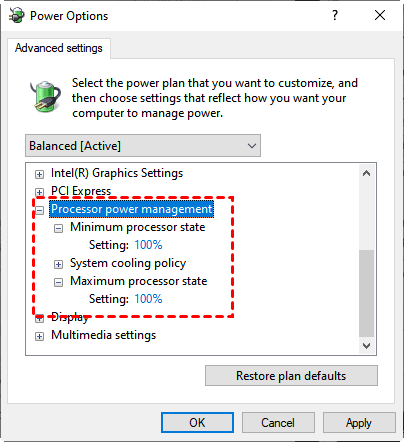
Step 5. Then, click Apply > OK to save the changes.
Way 2. Run Power Troubleshooter
Windows 11 comes with built-in troubleshooters that can detect and fix common issues automatically. The Power Troubleshooter is especially useful for shutdown-related problems.
Step 1. Press Windows + I to open Settings.
Step 2. Go to System > Troubleshoot > Other troubleshooters.
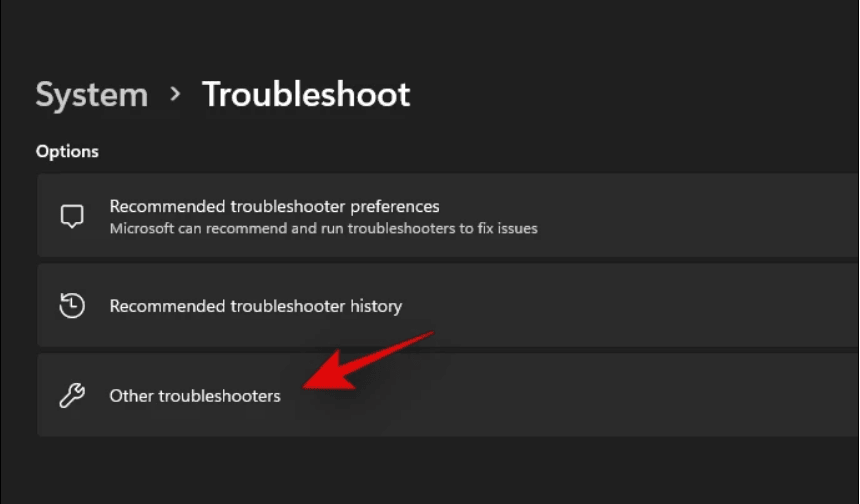
Step 3. Scroll down and find Power, then click Run next to it.

Step 4. Follow the on-screen instructions to let Windows detect and fix issues.
Way 3. Turn off Fast Startup
Fast Startup is a hybrid mode between shutdown and hibernation. While it makes booting faster, it can sometimes cause Windows 11 shutting down randomly. You can try disabling Fast Startup:
Step 1. Open Control Panel and go to Hardware and Sound > Power Options.
Step 2. On the left panel, click Choose what the power buttons do.
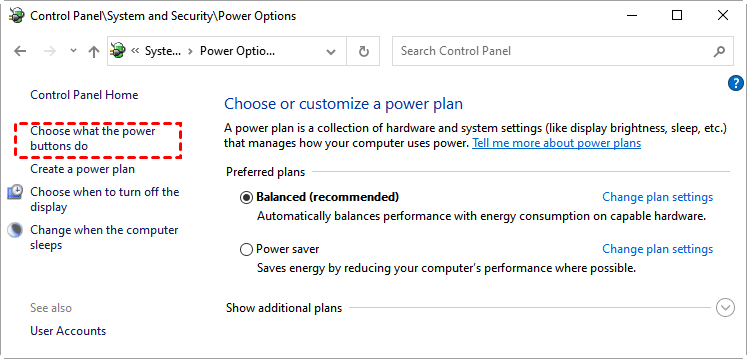
Step 3. Click Change settings that are currently unavailable.
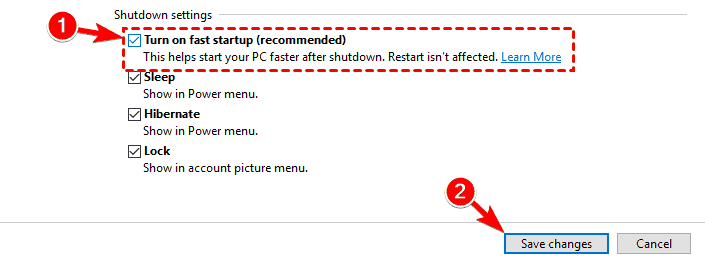
Step 4. Uncheck Turn on fast startup (recommended).
Step 5. Click Save changes and restart your PC.
Way 4. Disable Sleep Mode
If your PC mistakenly interprets sleep instructions as a shutdown, disabling Sleep Mode could help.
Step 1. Press Windows + X keys and choose Power Options.
Step 2. Click System > Power & battery in turn.
Step 3. Under Screen and sleep, set the options of "On battery power, put my device to sleep after" and "When plugged in, put my device to sleep after" to Never.
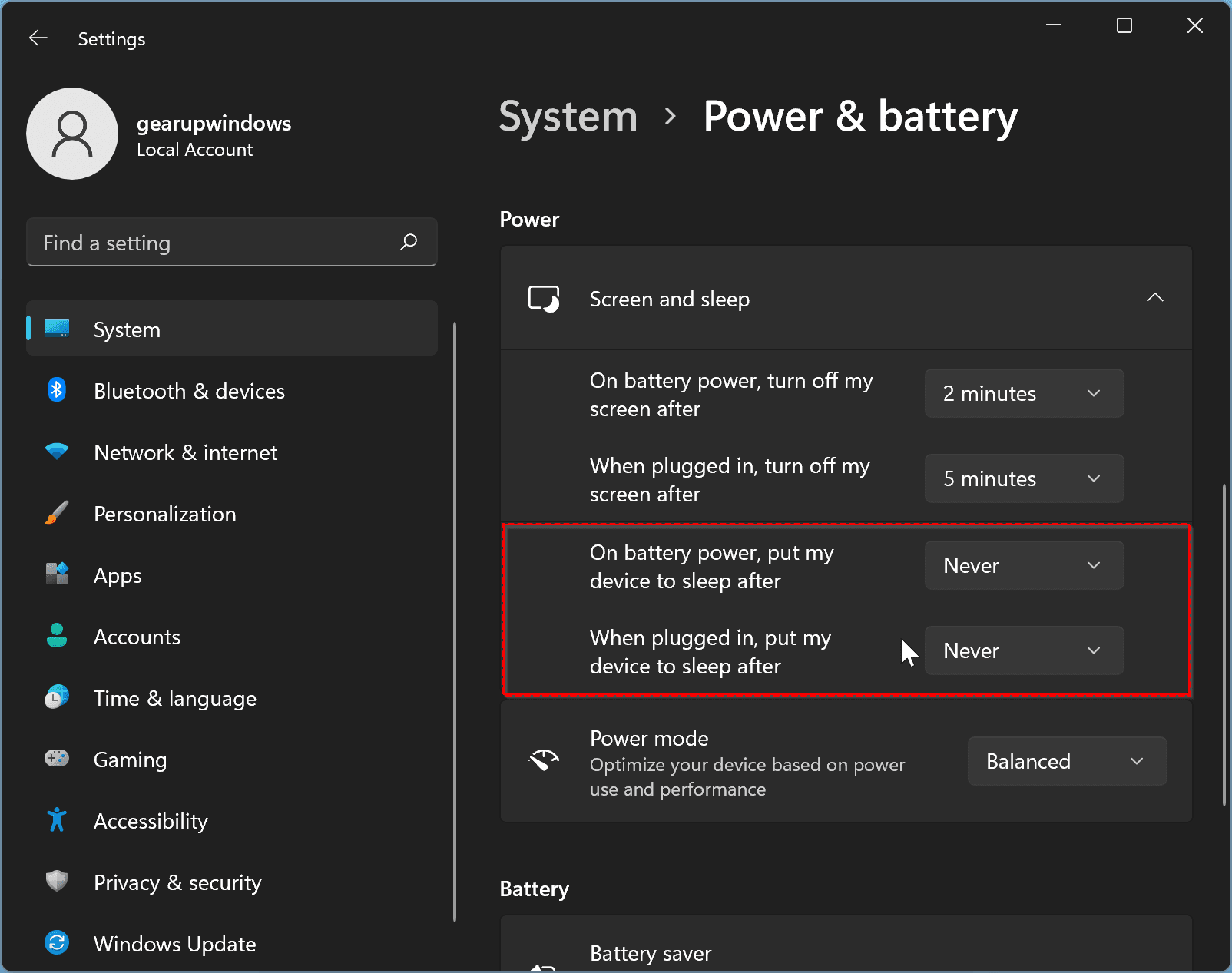
Then, check if the Windows 11 shutting down instead of sleep problem is solved. This ensures your PC stays awake unless you manually shut it down.
Way 5. Run DISM & SFC Command
Corrupted system files can lead to unpredictable system behavior, including shutdowns. How do I stop Windows 11 from automatically shutting down in such a case? You can utilize the commands - DISM (Deployment Image Servicing and Management) and SFC (System File Checker), to fix them.
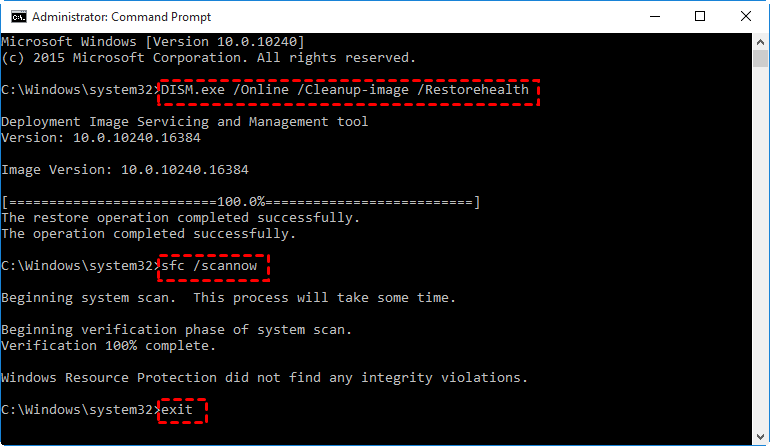
Step 1. Press Windows + S, type cmd, and choose Run as administrator under Command Prompt.
Step 2. Type the following commands one by one, pressing Enter after each:
- DISM /Online /Cleanup-Image /RestoreHealth
- sfc /scannow
Step 3. Wait for the scans to complete and follow any instructions. After completing, type exit and press Enter to exit Command Prompt.
Way 6. Check Your System Temperature
Overheating is one of the most overlooked reasons behind Windows 11 randomly shuts down issues. When your CPU or GPU overheats, Windows shuts down automatically to prevent permanent hardware damage.
Step 1. Download a hardware monitoring tool like HWMonitor, Core Temp, or MSI Afterburner.
Step 2. Check your CPU and GPU temperatures under load. Ideally, temperatures should stay below 85°C for most hardware.
Step 3. If your PC is overheating:
- Clean dust from vents and fans.
- Ensure your PC is in a well-ventilated area.
- Reapply thermal paste if necessary.
- Consider adding additional cooling fans or upgrading your cooling system.
Way 7. Update Windows 11
Outdated system files or drivers often cause instability, which could explain why Windows 11 auto shutdown randomly. You can upgrade Windows 11 to get rid of Windows 11 unexpected shutdown:
Step 1. Open Windows Settings, go to Windows Update.
Step 2. Click on Check for updates.
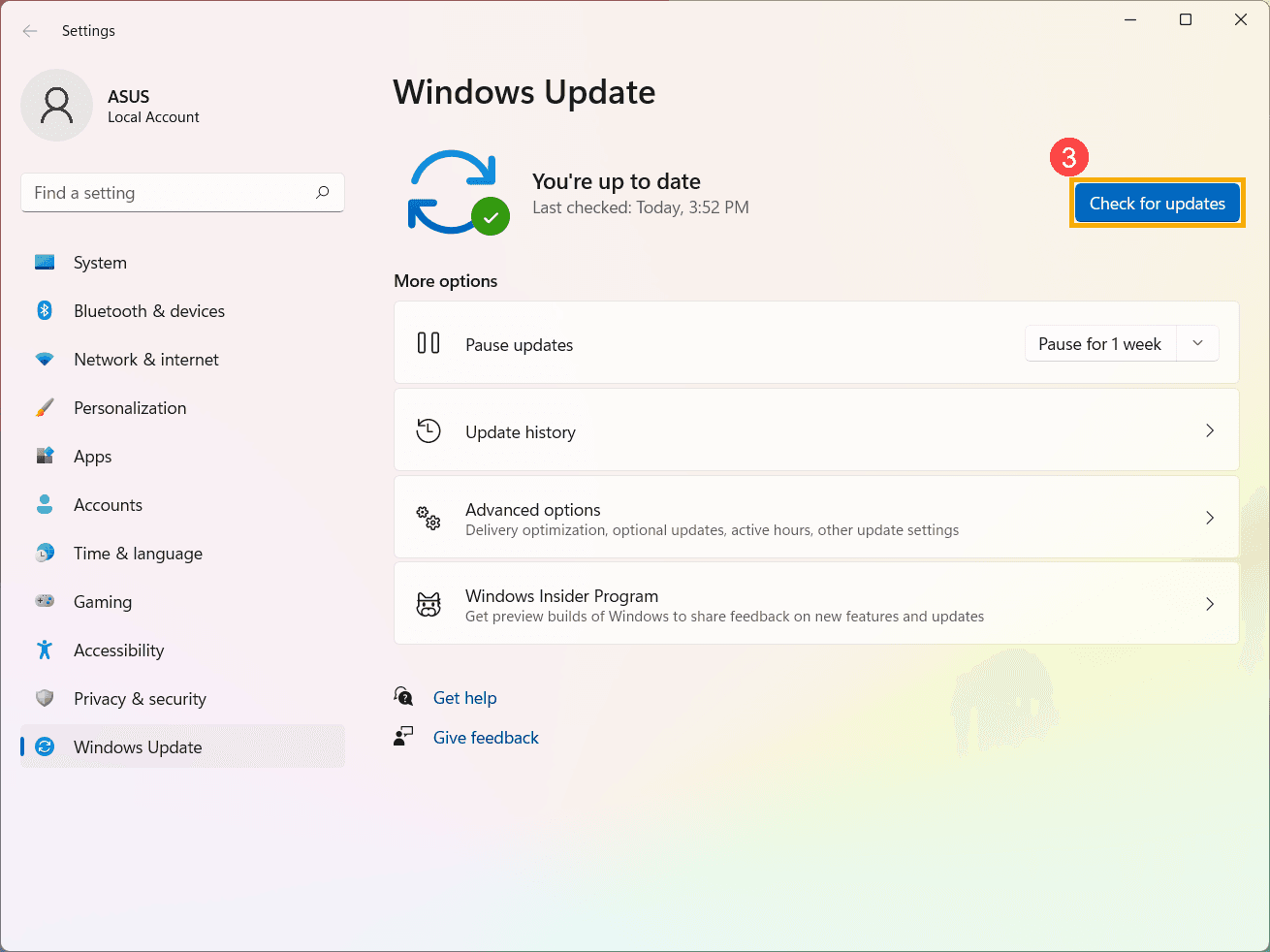
Step 3. Download and install any available updates. Restart your PC after installation.
Way 8. Check Shutdown Log
Sometimes, you may need to identify what’s causing the Windows unexpected shutdown. Windows Event Viewer can provide detailed logs. These logs help pinpoint whether your issue is hardware or software-related.
Step 1. Press Windows + X and choose Event Viewer.
Step 2. Expand Windows Logs and select System.
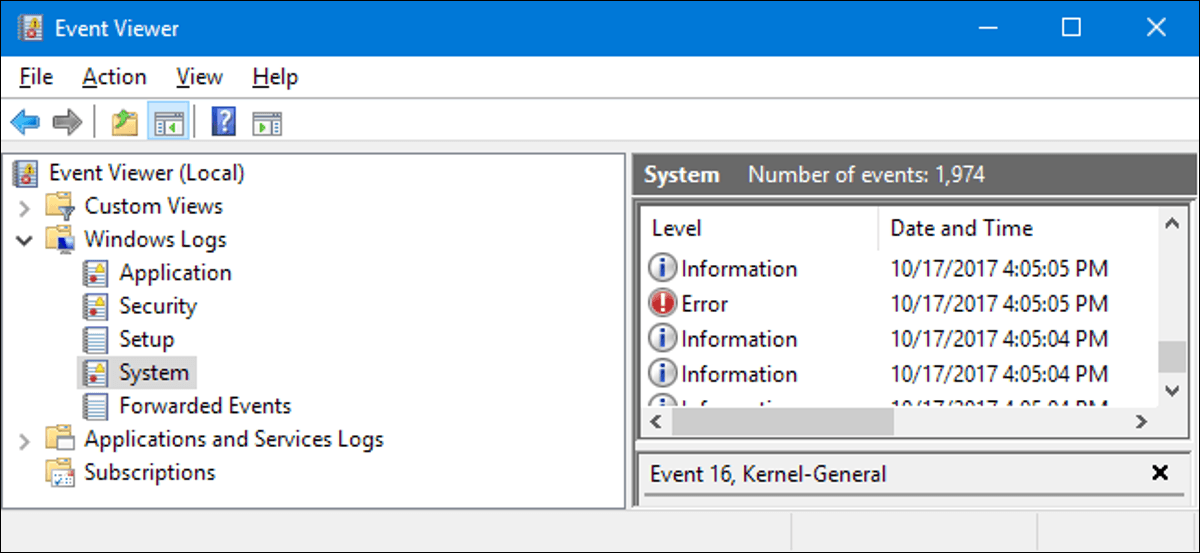
Step 2. On the right-hand side, click Filter Current Log.
Step 3. In the Includes/Excludes Event IDs field box, type 41,1074,6006,6605,6008 - these are common shutdown-related events. Then, click OK.
Step 4. Windows will show you the corresponding shutdown and restart logs. You can review the logs to identify the trigger of Windows 11 unexpected restart/shutdown.
Always Back up Your Windows 11 Regularly to Prevent Data Loss
Even if you manage to fix the shutdown problem, unexpected crashes can still happen from time to time. That's why creating regular backups is crucial. Losing unsaved work or, worse, your entire system to a Windows 11 unexpected shutdown is a nightmare scenario. One of the most free and reliable tools for this job is AOMEI Backupper Standard.

 AOMEI Backupper
- With an intuitive interface, it offers file backup, partition backup, system backup, disk backup, and various backup options.
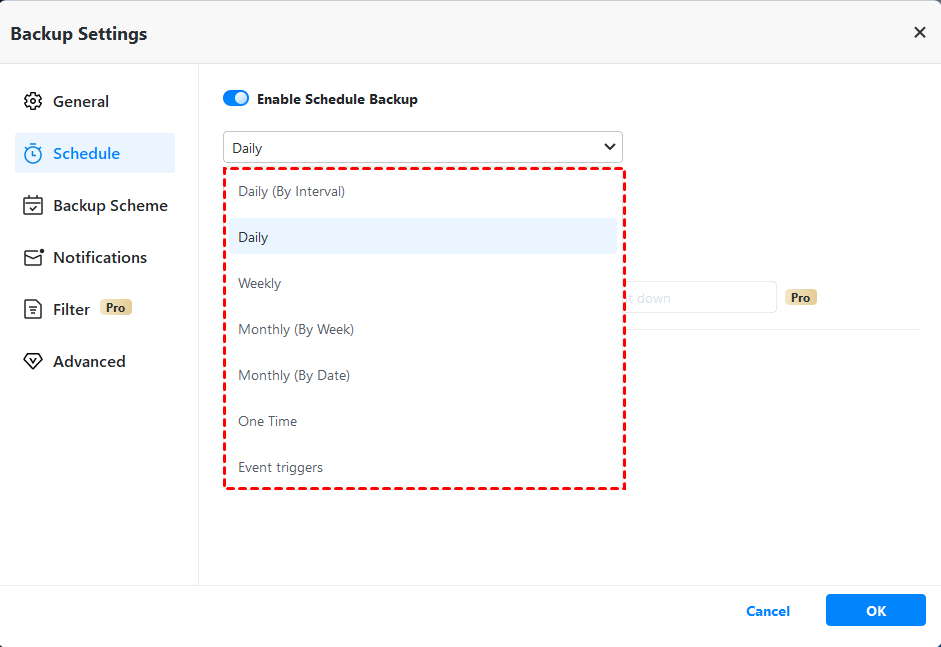
- It provides various scheduled backup modes, like daily, weekly, one time, event triggers (like USB plug in), and so on.
- It comes with Full Backup, Incremental Backup and Differential Backup (paid feature).You can choose incremental backup and differential backup features to save target disk space while keeping the backup up to date.
- It allows you to create bootable media, which enables you to start boot the computer for recovery.
 100% Secure
You can follow the steps below to create an auto backup for Windows 11 with AOMEI Backupper:
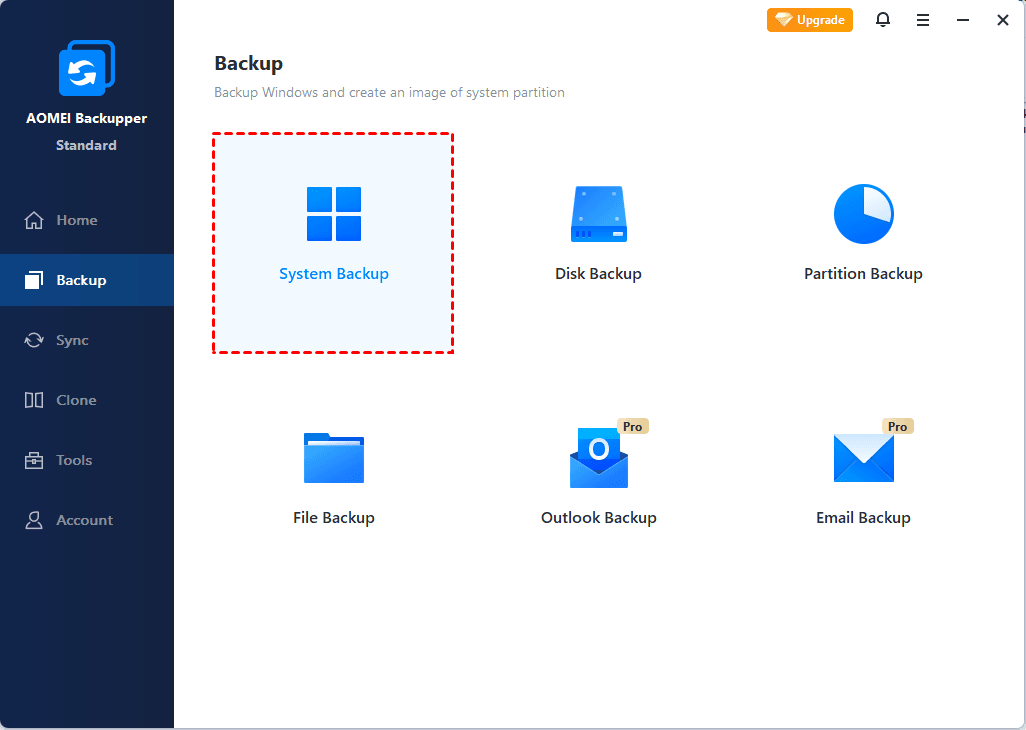
Step 1. Download and launch AOMEI Backupper Standard. Select Backup from the left-hand menu, and pick System Backup for a full system image.
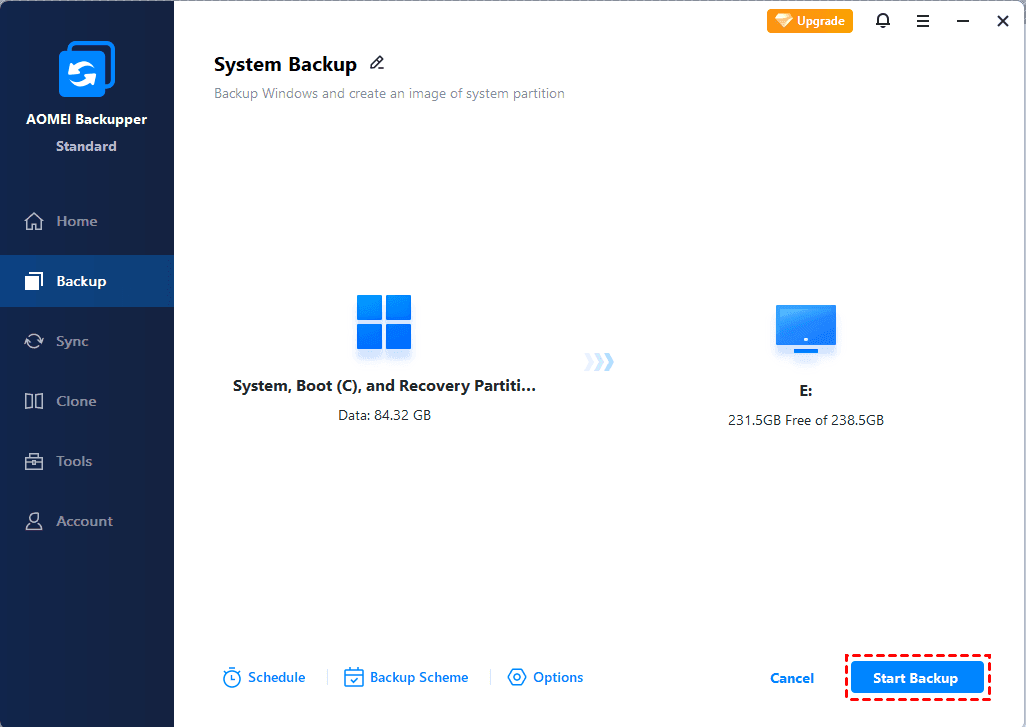
Step 2. Click on the destination box; you can choose to backup to an external hard drive, NAS, local disk, or cloud storage.
Step 3. Tap on Schedule and select the wanted backup frequency.
Step 4. Click Start Backup to schedule backup Windows 11.
Conclusion
You are troubled by Windows 11 unexpected shutdown, you can try the 8 solutions provided in this article to fix this problem. Whether they can help you solve your problem, it is recommended that you backup Windows 11 automatically for continuous data protection with AOMEI Backupper.
This software is also a great disk cloning software that can help you migrate OS to SSD without reinstalling Windows. It can also clone an entire disk to another, including system and all data on it.
 100%
Clean & Secure
100%
Clean & Secure
