 AOMEI Backupper


[SOLVED] Installation Failed in the SAFE_OS Phase on Windows 11
How to fix "the installation failed in the SAFE_OS phase" during Windows 11 installation? This article will show you 5 methods to solve it effectively.

By Jonna Updated on January 20, 2026


Want to upgrade or install Windows 11, but troubled by the error: the installation failed in the SAFE_OS phase? In this comprehensive guide, I will unpack what installation failed in SAFE_OS phase in Windows 11 actually means, why it happens, and most importantly, how to fix it step by step. I'll also cover a fast recovery option in case your system becomes unbootable during the process.
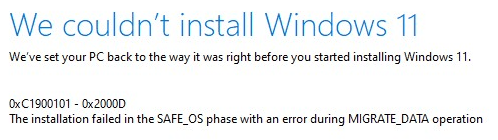
What is Windows 11 installation failed in SAFE_OS Phase?
To understand the error, it helps to know how Windows installs major updates. The Windows 11 installation process happens in multiple phases, each with a specific purpose. The SAFE_OS phase is one of the earliest and most critical stages. During this phase, Windows boots into a temporary, minimal operating environment - similar to Windows PE.
In SAFE_OS, Windows prepares system files, checks hardware compatibility, installs low-level drivers, and configures essential security components such as Secure Boot and TPM. When the Windows 11 installation failed in the SAFE_OS phase occurs, it means Windows was unable to complete these early checks or preparations. Because this phase happens before the full operating system loads, even small issues can cause the installation to stop entirely. The error messages may vary:
- The installation failed in the safe_os phase with an error during migrate_data operation
- The installation failed in the safe_os phase with an error during bootoperation
- The installation failed in the safe_os phase with an error during install_updates operation
- The installation failed in the safe_os phase with an error during apply_image operation
- The installation failed in the safe_os phase with an error during replicate_oc operation
- The installation failed in the safe_os phase with an error during prepare_first_boot operation
...
Although these messages look alarming, the underlying causes are usually practical and fixable:
- Corrupted system or update files
- Incompatible or outdated drivers
- Misconfigured BIOS/UEFI settings
- Problems with Secure Boot or TPM
- Conflicts caused by third-party software
How to Fix "installation failed in the safe_SAFE_OS" on Windows 11
Now that we know what's happening, let's move on to solutions for the installation failed in the SAFE_OS phase error. Before that, please temporarily disable third-party antivirus on computer and disconnect all your peripherals to prevent occasional clashes with Windows Update.
Way 1. Run Windows update troubleshooter
The Windows Update troubleshooter is designed to automatically detect and fix common update-related issues. While it may seem basic, it often resolves hidden configuration problems that cause SAFE_OS failures during Windows update.
Step 1. Press Windows + I to open Settings.
Step 2. Go to System > Troubleshoot > Other troubleshooters.
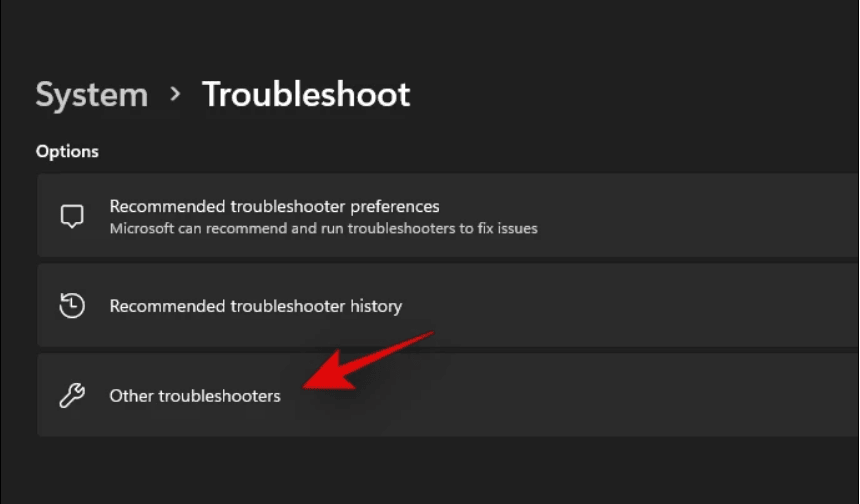
Step 3. Locate Windows Update and choose Run.
Way 2. Reset Windows Update components
If update files or services are corrupted, Windows may fail during 0x800f0830 0x20003 SAFE_OS install_updates. Resetting Windows Update components forces the system to rebuild the update infrastructure from scratch.
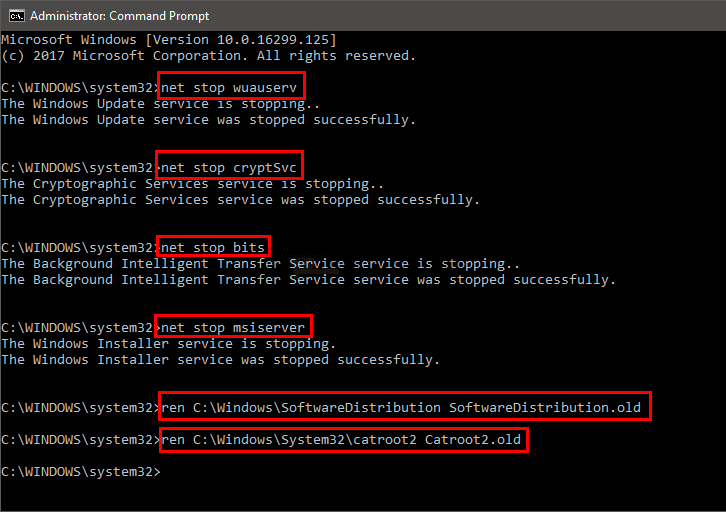
Step 1. Press Windows + S, type cmd. And run Command Prompt as an administrator.
Step 2. Enter the following commands one by one, pressing Enter after each:
- net stop wuauserv
- net stop cryptSvc
- net stop bits
- net stop msiserver
Step 3. Rename the update cache folders:
- ren C:\Windows\SoftwareDistribution SoftwareDistribution.old
- ren C:\Windows\System32\catroot2 catroot2.old
Step 4. Restart the services:
- net start wuauserv
- net start cryptSvc
- net start bits
- net start msiserver
Step 5. Restart your PC and attempt the Windows 11 installation again.
Way 3. Use DISM & SFC for system repair
Corrupted system files can interfere with Windows setup, especially during early installation phases. DISM and SFC scans repair these issues using built-in Windows tools. These scans repair core Windows components that SAFE_OS depends on. In many cases, this resolves persistent installation failed errors related to 0xc1900101 0x20017 SAFE_OS.
Step 1. Launch Command Prompt with administrator privileges.
Step 2. Run the DISM command:
- DISM /Online /Cleanup-Image /RestoreHealth
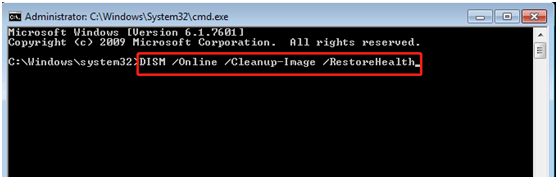
Step 3. Wait for the process to complete. Then run the System File Checker:
- sfc /scannow
Step 4. Restart the system after both scans finish.
Way 4. Reset BIOS/UEFI settings for Secure Boot and TPM
Windows 11 has strict hardware and firmware requirements. If BIOS or UEFI settings are misconfigured, the installer may fail during SAFE_OS when checking security features. To reset and verify BIOS/UEFI settings:
Step 1. Restart the computer and enter BIOS/UEFI by pressing F2, DEL, or ESC during startup.
Step 2. Look for an option like Load Optimized Defaults or Default Settings.
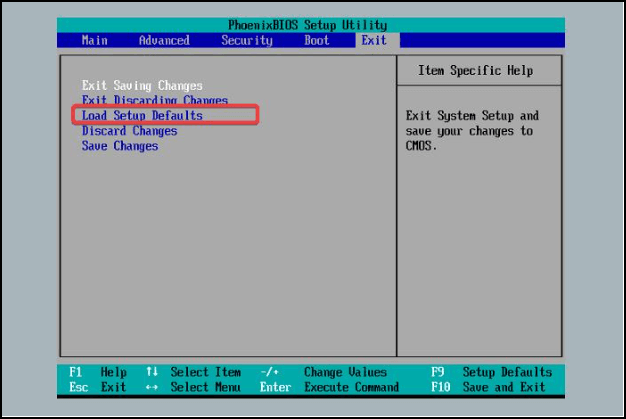
Step 3. Ensure Secure Boot is enabled. And verify that TPM 2.0 is enabled and detected.
Step 4. Save changes and exit BIOS/UEFI.
Way 5. Try Clean Install Windows 11
When upgrades repeatedly fail, a clean installation may be the most reliable solution to get rid of 0x800f0830 0x20003 on Windows 11. This method bypasses upgrade conflicts by installing Windows 11 from scratch. But before proceeding, it is advised to back up all important data, as the process will erase all your personal files and settings. Then:
Step 1. Create Windows 11 installation media using Microsoft's Media Creation Tool.
Step 2. Boot the system from the installation USB.
Step 3. Choose Custom: Install Windows only.
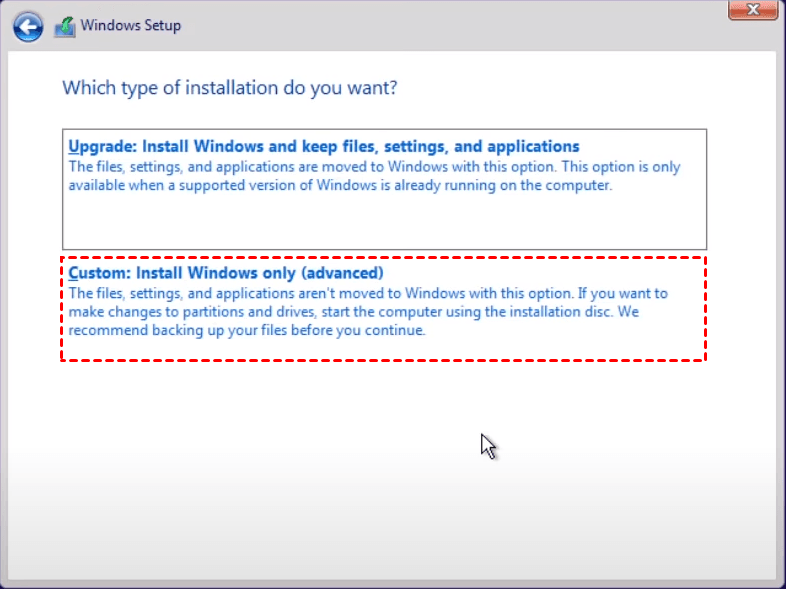
Step 4. Select the target drive and proceed with installation.
Step 5. Complete setup and install drivers afterward.
Quick & Free Way to Back Up Files on Windows PCs
Except for data loss during a Windows clean install, sometimes troubleshooting or failed installations may leave the system unstable or unable to boot. Thus, data backup is always crucial. AOMEI Backupper Standard provides comprehensive backup and recovery capabilities designed for Windows PCs. Below are some outstanding advantages of it:

 AOMEI Backupper
Best Free Windows Backup Software
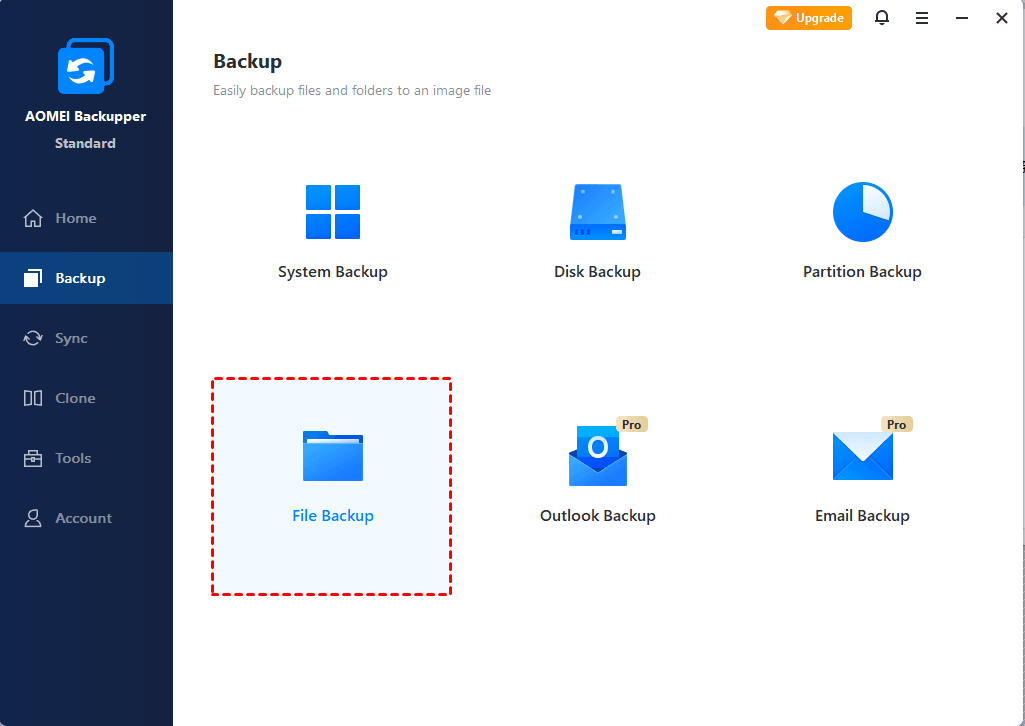
- Various backup options - File Backup, System Backup, Disk Backup, and Partition Backup. Thus, you are able to backup any items as needed.
- Auto backup - It supports scheduled backup at a fixed interval, like daily, weekly, monthly, event triggers, USB plug in, etc.
- Create bootable media- It even offers to create bootable USB/CD/DVD to boot into WinPE, when Windows won’t start.
 100% Secure
👉 Create backup: You can go to Backup, click File Backup or System Backup, select a storage path, and click Start Backup to create a backup image.
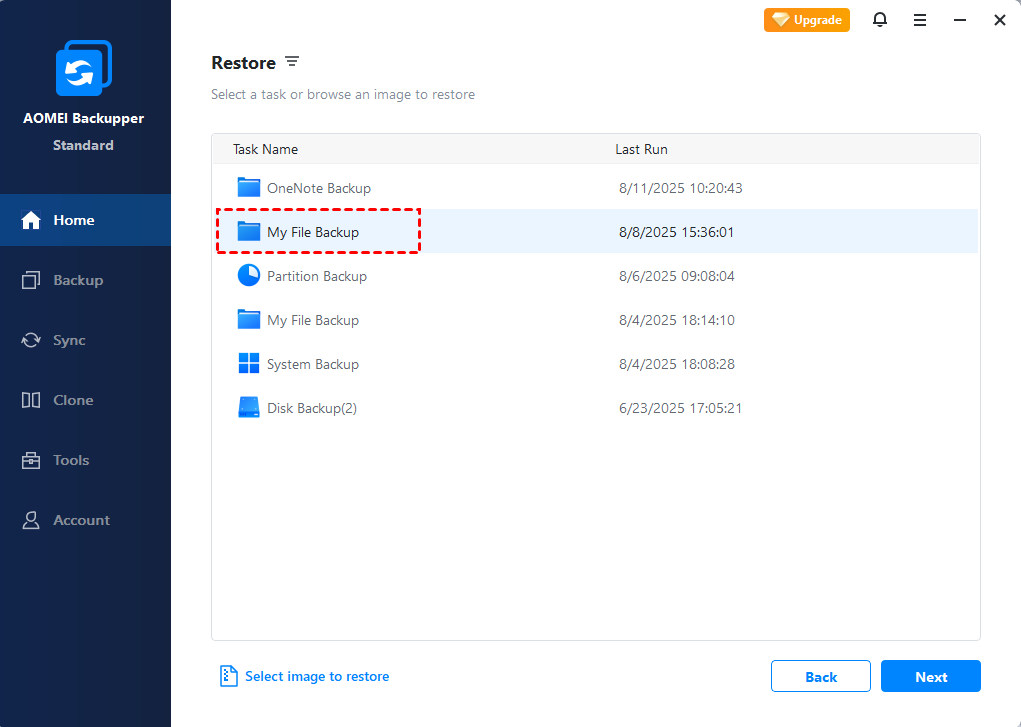
👉 Quick Restore: When needed, just run AOMEI Backupper, go to Home > Restore, then select the backup task or image for recovery easily.
-
For system restore, you are able to restore system image created on another working computer with different hardware with its Universal Restore (available in Pro version).
-
AOMEI Backupper also offers a Recovery Environment function that allows you to add a dedicated recovery boot entry to the system startup menu to load the WinPE recovery environment for restore operations (available in Pro version).
Summary
That’s all about how to resolve installation failed in the SAFE_OSphase on Windows 11. For data security, it's always recommended to backup important files or create system backup to an external hard drive before any major changes on computer, like system update. AOMEI Backupper Standard is simple to use and works for all Windows PCs. Try it for data protection now!
 100%
Clean & Secure
100%
Clean & Secure
