
3 Steps to Create a Custom “Factory” Recovery Partition

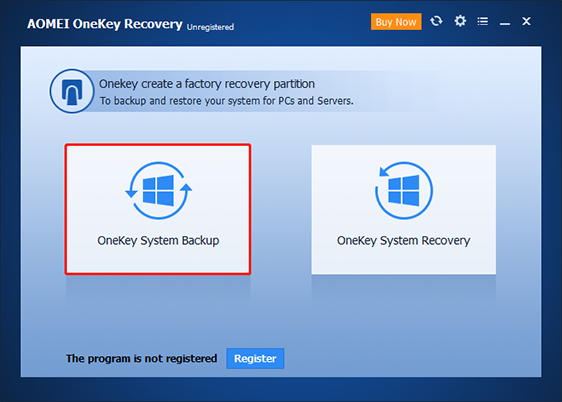
  • 1. Launch AOMEI OneKey Recovery, and choose "OneKey System Backup".
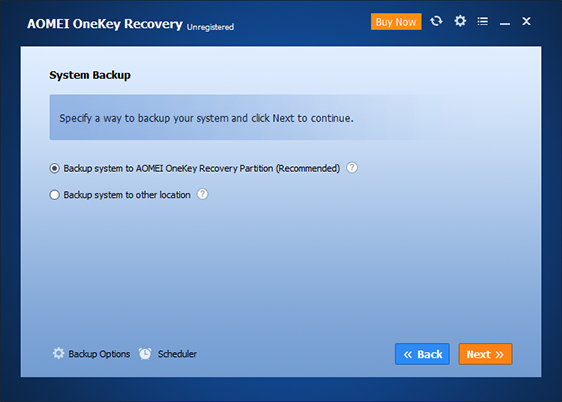
  • 2. Specify a way to backup your system.
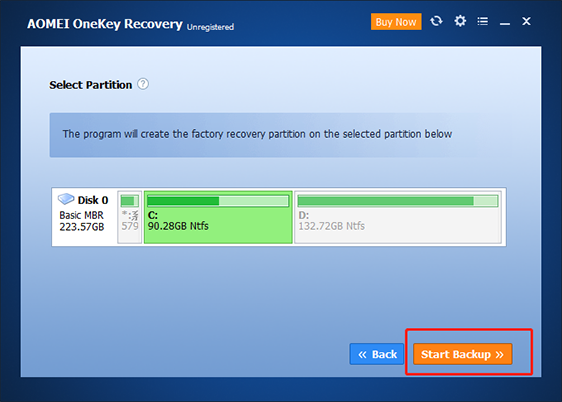
  • 3. Select one partition and then click “Start Backup”.
Popular Topics From AOMEI OneKey Recovery

How to Make a Factory Recovery Partition in Windows 10/8/7?

When your computer breaks down, you may be suggested to reinstall the Windows. This operation only gives you a brand new computer with preinstalled programs.

Read More >>

How to Create ASUS Recovery Disk in Windows 10 Efficiently?

ASUS recovery disk is very useful when you’re having problems with your computer. Learn how to create one in Windows 10 efficiently from this page.

Read More >>

How to Make Dell/HP/Lenovo Recovery Partition Bootable?

You may want to make the HP/Dell/Lenovo recovery partition bootable. This page you’ll learn how to do it and you can create a recovery boot drive for Windows 10/7 in another way.

Read More >>

Discover More AOMEI Products

AOMEI Backupper Standard

Easy-to-use backup and recovery software to protect your system, partitions, and data for free.

Download Freeware Learn More >>

AOMEI Centralized Backupper

Centrally manage backup tasks for all computers within LAN.

Try it for Free Learn More >>

AOMEI FoneBackup

All-in-one iOS device management tool enables you to backup, transfer, manage data on iPhone/iPad iPod Touch.

Download Freeware Learn More >>