 AOMEI Backupper


Fix Hulu Error Code P-DEV340: Easy Solutions
Learn how to fix Hulu error code P-DEV340 with our step-by-step guide. Stream your favorite shows without interruptions.

By Lily Updated on September 26, 2025


What Causes Hulu P-DEV340?
Hulu Error Code P-DEV340 indicates a problem with the streaming service’s ability to communicate with its servers. This can result in your video not loading, constant buffering, or outright failure to access any content on Hulu. Here are several typical causes for Hulu Error Code P-DEV340:
- Network Instability: An unstable or slow internet connection can lead to this error.
- Outdated Software: Using an outdated version of the Hulu app or your web browser can cause compatibility issues.
- Device Issues: Problems with your device’s settings or firmware can also trigger this error.
- Server Problems: Occasionally, the problem might be on Hulu’s end, involving server outages or maintenance.

How to Fix Error Code P-DEV340 in Hulu Efficiently
There are 8 effective solutions to help you fix P-DEV340 in Hulu.
Solution 1: Perform a Power-Cycle
As mentioned in the error message, performing a power cycle may help resolve the streaming issue.
- Turn Off Your Device: Power down your streaming device completely. Also, turn off the modem and router if applicable.
- Rest: Allow the device to rest for a few minutes before turning it back on.
- Restart Hulu: Launch the Hulu app again to see if the issue is resolved.
Solution 2: Check and Improve Your Internet Connection
A strong and stable internet connection is essential for streaming services like Hulu.
- Run a Speed Test: Use an online speed test tool to check your internet speed. Hulu recommends at least 3 Mbps for SD quality and 8 Mbps for HD quality.
- Restart Your Router: Unplug your router, wait for about 30 seconds, then plug it back in to refresh your connection.
- Use Ethernet: If possible, connect your streaming device directly to the router with an Ethernet cable for a more stable connection.
- Reduce Bandwidth Usage: Ensure that other devices aren’t consuming too much bandwidth while you’re streaming.
- Contact Your ISP: If your internet speed is consistently below the recommended levels, contact your Internet Service Provider for assistance.
Solution 3: Update the Hulu App or Browser
Keeping your Hulu app or web browser updated can prevent many compatibility issues.
- Check for Updates: Go to your device’s app store and check for updates for the Hulu app.
- Install Updates: Download and install any available updates for the Hulu app.
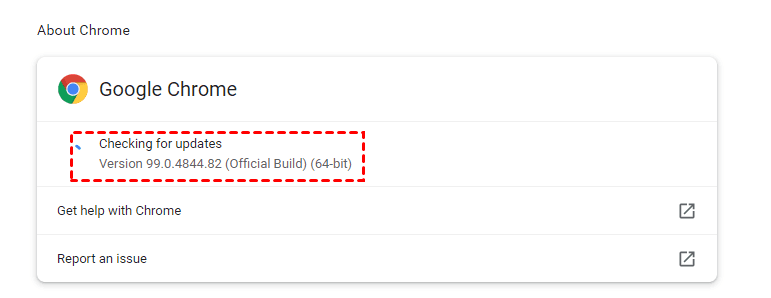
- Update Your Browser: If you’re using a web browser, ensure it’s updated to the latest version. For Chrome, click on the three dots, go to “Help,” and select “About Google Chrome” to check for updates.
- Restart Your Device: After updating, restart your device to apply the changes.
- Try Streaming Again: Open Hulu and see if the error persists.
Solution 4: Clear Cache and Data
Clearing the cache and data can help resolve issues caused by corrupted or outdated files.
- Open Settings: Navigate to your device’s settings.
- Find Apps: Select “Apps” or “Application Manager.”
- Select Hulu: Locate and select the Hulu app.
- Clear Cache and Data: Tap “Clear Cache” and then “Clear Data.”
- Restart Your Device: Restart your device and try streaming on Hulu again.
Solution 5: Verify Device Compatibility
Ensure that your device is compatible with Hulu’s streaming requirements.
- Check Hulu’s Support Page: Visit Hulu’s support page to see a list of compatible devices.
- Update Device Software: Make sure your device’s operating system is updated to the latest version.
- Restart Your Device: Restart your device after updating.
- Try Another Device: If available, try streaming Hulu on another compatible device to see if the error persists.
- Contact Hulu Support: If the problem continues, reach out to Hulu’s customer support for further assistance.
Solution 6: Disable VPN or Proxy
Using a VPN or proxy can interfere with Hulu’s streaming service.
- Open VPN/Proxy Settings: Go to your VPN or proxy settings.
- Disable VPN/Proxy: Turn off your VPN or proxy service.
- Restart Your Device: Restart your device to apply the changes.
- Log Back into Hulu: Open Hulu and log back into your account.
- Try Streaming Again: Check if the error persists without the VPN or proxy enabled.
Solution 7: Reset Network Settings
Resetting your network settings can help resolve connectivity issues.
- Open Settings: Go to your device’s settings.
- Find Network Settings: Select “Network & Internet” or “Connections.”
- Reset Network Settings: Find and select “Reset Network Settings.”
- Restart Your Device: Restart your device to apply the changes.
- Reconnect to Wi-Fi: Reconnect to your Wi-Fi network and try streaming on Hulu again.
Solution 8: Check Hulu Server Status
Sometimes, the issue might be with Hulu’s servers.
- Visit Hulu Help Center: Check for any reported outages or issues on Hulu’s Help Center or social media pages.
- Use Down Detector: Websites like Down Detector provide real-time outage reports.
- Wait it Out: If it’s a server issue, you might need to wait until Hulu resolves it.
- Contact Hulu Support: Reach out to Hulu’s customer support for updates and assistance.
- Retry Later: Try streaming again after some time.
Bonus: Protect Your Windows Device from Various Errors
While fixing the Hulu error code P-DEV340 may get your streaming back on track, it’s important to think beyond Hulu—your Windows device can face many unexpected issues. From system crashes and malware infections to accidental file deletions, any disruption can put your data and applications at risk.
That’s where AOMEI Backupper Standard comes in. It’s the best free backup software for Windows with all-around backup and recovery solutions.

 AOMEI Backupper
-
Create system images – Restore computer to a working state after crashes.
-
Automate backups – Schedule daily, weekly, or monthly tasks so you never forget.
-
Backup to multiple destinations – External drives, USB flash drives, NAS devices, or cloud storage, etc.
 100% Secure
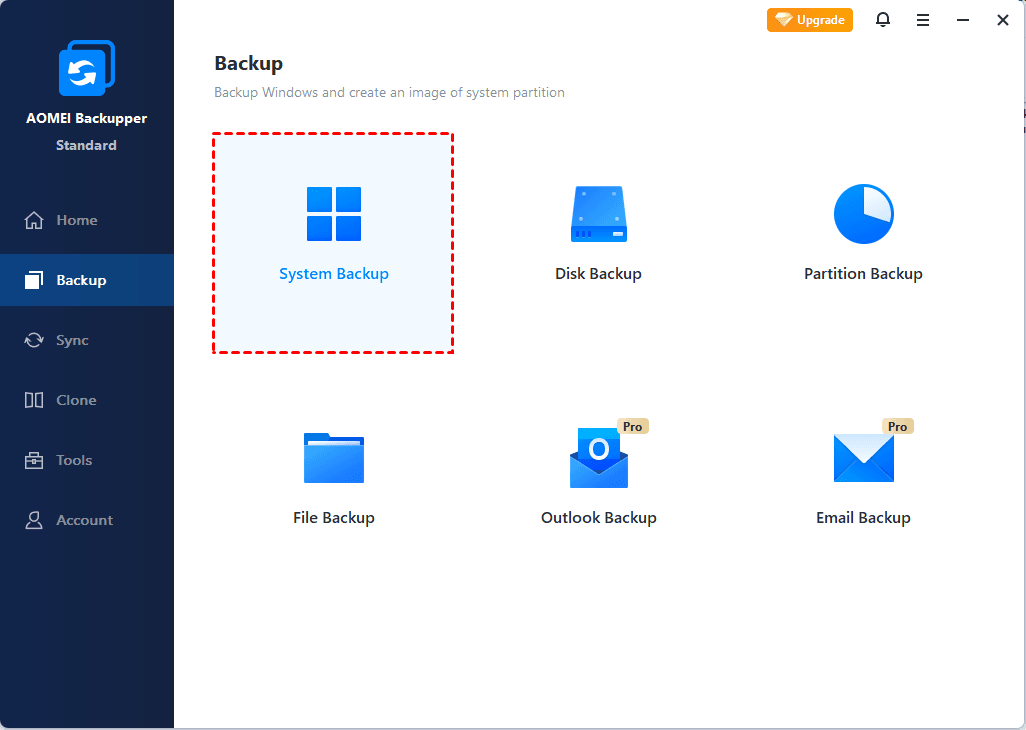
To create a system image, just click Backup > System Backup and follow the wizard to complete the process.
Tips for a Better Streaming Experience
⭐ Regularly Clear Cache: Over time, cached data can build up and cause glitches or playback errors. Clearing your app or browser cache on a regular basis helps free up storage and ensures smoother streaming.
⭐ Update Software: Running outdated versions of the Hulu app, browser, or even your operating system can lead to compatibility problems. Always check for updates to keep your software current and reduce the risk of errors.
⭐ Optimize Internet Speed: Hulu requires a stable internet connection for uninterrupted streaming. Test your speed to confirm it meets Hulu’s requirements, and if possible, switch to a wired Ethernet connection for greater stability.
⭐ Use Quality Hardware: Streaming performance can also depend on your device. Ensure your computer, smart TV, or streaming device has the processing power and memory needed for smooth playback.
Conclusion
Experiencing Hulu Error Code P-DEV340 can be a significant disruption to your streaming enjoyment. However, by following these detailed solutions, you can troubleshoot and resolve the issue effectively.
Moreover, regularly backing up your system with AOMEI Backupper ensures that you are prepared for any technical issues that may arise. You can use it to backup Windows 11/10/8/7, HDDs, SSDs, and specific files, etc. Try it now to discover more!
 AOMEI Backupper
Best free Windows backup software for personal use.
