 AOMEI Backupper


Hulu Error Code P-DEV322: Fixed Now!
Learn how to fix Hulu error code P-DEV322 with our simple, step-by-step guide.

By Lily Updated on September 26, 2025


Why Does Hulu P-DEV322 Occur?
Hulu error code P-DEV322 signifies a playback issue, preventing the streaming of content on the platform. It often occurs due to a disruption in the connection between your device and Hulu’s servers. Here are three primary causes:
- Internet Connectivity Issues: An unstable or slow internet connection is a primary cause of this error.
- Server Problems: Sometimes, the issue may be due to Hulu’s server downtime or maintenance.
- Device Compatibility: Incompatible or outdated devices and apps can also lead to this error.
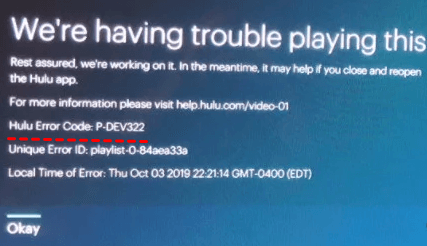
How to Fix Error Code P-DEV322 in Hulu Easily
To resolve Hulu error code P-DEV322, follow these detailed solutions:
Solution 1: Restart Hulu App and Device
As said in the error screen, a simple restart may help resolve the issue.
- Close Hulu App: Completely close the Hulu app.
- Restart Device: Turn off your device, wait a few seconds, then turn it back on.
- Reopen Hulu App: Open the Hulu app again.
- Log In: Log back into your Hulu account.
- Check Streaming: Try streaming to see if the error is resolved.
Solution 2: Check Internet Connection
- Test Your Connection: Run a speed test to ensure your internet connection is stable and fast enough for streaming.
- Restart Router: Unplug your router, wait for 30 seconds, and plug it back in to reset the connection.
- Move Closer to Router: Ensure your streaming device is close to the router to get a better signal.
- Use Ethernet Cable: For a more stable connection, use an Ethernet cable instead of Wi-Fi.
- Limit Other Devices: Disconnect other devices from the network to reduce bandwidth usage.
Solution 3: Check Hulu Server Status
- Visit Hulu’s Website: Check for any announcements regarding server issues or maintenance.
- Use Down Detector: Visit websites like Down Detector to see if other users are experiencing the same issue.
- Follow Hulu on Social Media: Check Hulu’s official Twitter account for real-time updates on server status.
- Contact Hulu Support: Reach out to Hulu support for confirmation if there are no updates online.
- Wait It Out: If it’s a server issue, you may need to wait until Hulu resolves the problem.
Solution 4: Update Your Device and Hulu App
- Check for Updates: Ensure your streaming device’s operating system is up to date.
- Update Hulu App: Go to your device’s app store and check for updates to the Hulu app.
- Restart Device: After updating, restart your device to apply the changes. Check if the issue persists.
Solution 5: Clear Cache and Data
- Access Settings: Go to the settings menu on your device.
- Select Apps: Find and select the Hulu app.
- Clear Cache: Tap on ‘Clear Cache’ to remove temporary files.
- Clear Data: Tap on ‘Clear Data’ to reset the app to its default state.
- Restart App: Open the Hulu app and log in again to check if the issue is resolved.
Solution 6: Disable VPN or Proxy
- Open VPN/Proxy Settings: Access the settings for your VPN or proxy service.
- Disable VPN/Proxy: Turn off the VPN or proxy service.
- Restart Device: Restart your streaming device.
- Log in to Hulu: Open Hulu and try streaming again.
- Test Without VPN: Check if the error persists without the VPN or proxy.
Solution 7: Check Device Compatibility
- Visit Hulu’s Website: Check the list of compatible devices on Hulu’s official website.
- Update Device Firmware: Ensure your device firmware is up to date.
- Use Supported Devices: Switch to a device that is officially supported by Hulu.
- Contact Manufacturer: If necessary, contact the device manufacturer for additional support.
- Consider Upgrading: If your device is outdated, consider upgrading to a newer model.
Solution 8: Reset Your Device
- Access Settings: Go to the settings menu on your device.
- Select System: Choose the ‘System’ option and look for reset options.
- Factory Reset: Select the factory reset option to restore your device to its original state.
- Reinstall Hulu App: After resetting, reinstall the Hulu app.
- Log in to Hulu: Open the Hulu app and log in again to check if the issue is resolved.
Note:
Resetting a device can cause data loss. Make a backup before you start. Please check out the following tutorials:
FAQs about Hulu P-DEV322 Error
1. What devices are compatible with Hulu?
Hulu is compatible with a wide range of devices including smartphones, tablets, smart TVs, gaming consoles, and streaming devices like Roku and Amazon Fire Stick. Make sure your device is on Hulu’s list of supported devices.
2. Does internet speed affect Hulu streaming?
Yes, a stable and fast internet connection is crucial for smooth Hulu streaming. Slow or unstable internet can lead to buffering and playback errors, including P-DEV322.
3. What should I do if the Hulu app is outdated?
If the Hulu app is outdated, update it through your device’s app store. If issues persist, uninstall and reinstall the app.
Bonus: Best Way to Protect Your PC
System crashes, malware attacks, and accidental file deletions affect far more than your streaming—they threaten your whole PC. Safeguarding your device calls for a reliable backup strategy, and that’s exactly what AOMEI Backupper Standard, a free backup and recovery tool, delivers.

 AOMEI Backupper
-
Flexible backup types: You can choose system backup, disk backup, partition backup, or file/folder backup based on your need.
-
Scheduled backups: Perform backups daily, weekly, or monthly to ensure your data and apps are always protected.
-
Incremental backup: This helps to save storage space while keeping copies up to date.
 100% Secure
Download AOMEI Backupper and follow the steps below to backup Windows OS:
1. Open the software on your computer. Navigate to the “Backup” tab and choose “System Backup.”
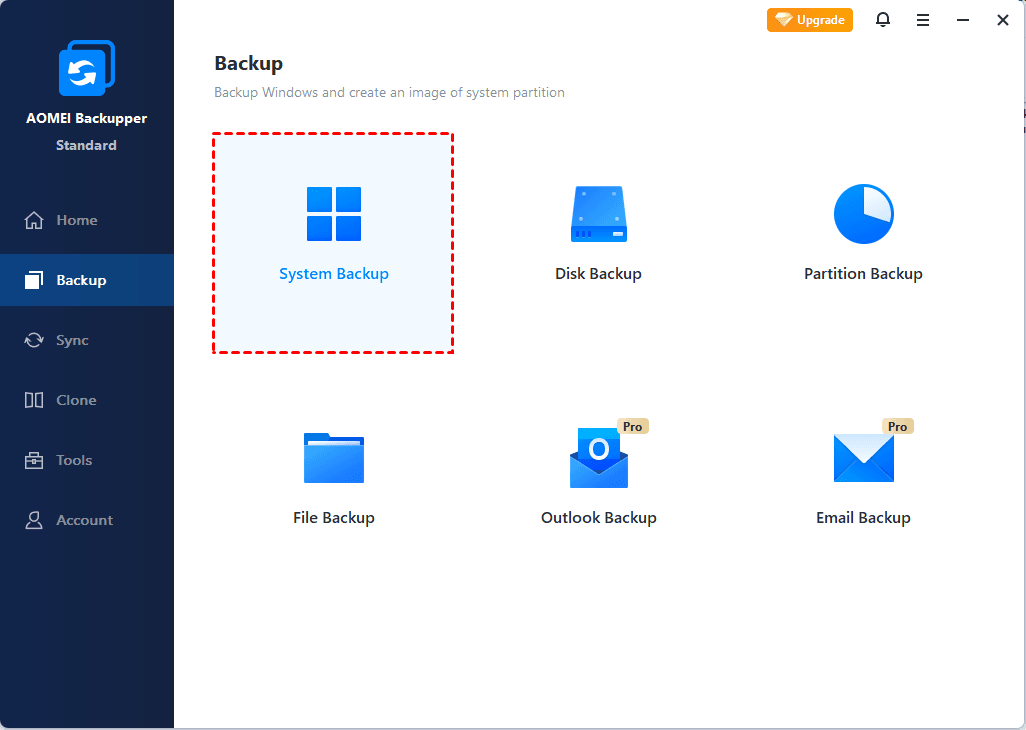
2. Choose a destination path to save the system backup. Various computer backup devices are supported. Then click “Start Backup” to begin the backup process.

Conclusion
Fixing Hulu error code P-DEV322 can be straightforward with the right approach. By following the detailed solutions provided, you can resolve this issue and enjoy uninterrupted streaming.
Moreover, using AOMEI Backupper to regularly backup your Windows OS ensures that your data is protected, giving you peace of mind. Download and try AOMEI Backupper today to safeguard your system and avoid data loss.
 AOMEI Backupper
Best free Windows backup software for personal use.
