 AOMEI Backupper


Hulu Error Code 137: Quick Fix Guide
Discover how to quickly fix Hulu error code 137 and get back to streaming seamlessly.

By Lily Updated on September 22, 2025


Causes of Hulu Error Code 137
Hulu error code 137 appears when there is a playback issue, often related to network connectivity or streaming device problems. This error can cause the video to stop playing or fail to load, leading to interruptions in the viewing experience. Understanding the specific causes of this error is crucial for finding a solution.
Several factors can contribute to Hulu error code 137:
- Network Connectivity Issues: Problems with your internet connection, such as slow speeds or unstable connections, can trigger this error.
- Device Compatibility: Using an incompatible device or outdated Hulu app version can lead to playback failures.
- Server Issues: Sometimes, Hulu’s servers may experience downtime or technical issues, causing playback errors.

Solutions to Fix Hulu Error Code 137
Here are 8 effective solutions to help you get Hulu error code 137 fixed. These solutions apply to various devices. You can use them to fix Hulu error code 137 on Samsung Smart TV, Windows PC, etc.
Solution 1: Check and Improve Your Internet Connection
Ensuring a stable and fast internet connection is essential for smooth streaming.
- Test Internet Speed: Use an online speed test to check if your connection meets Hulu’s requirements (at least 3 Mbps for SD and 8 Mbps for HD streaming).
- Restart Router: Power cycle your router by turning it off, waiting 30 seconds, and turning it back on.
- Use Wired Connection: If possible, connect your device directly to the router using an Ethernet cable.
- Limit Bandwidth Usage: Ensure other devices on your network are not consuming excessive bandwidth.
- Contact ISP: If speed issues persist, contact your Internet Service Provider for further assistance.
Solution 2: Update the Hulu App and Your Device Software
Keeping your software up to date can resolve many compatibility issues.
- Check for App Updates: Go to your device’s app store and check for updates to the Hulu app.
- Install Updates: Download and install any available updates for the Hulu app.
- Restart Device: Restart your device after updating the app.
- Update Device Software: Ensure your device’s operating system is up to date.
- Reopen Hulu: Open the Hulu app and check if the error is resolved.
Solution 3: Clear Cache and Data of the Hulu App
Clearing cache and data can help resolve app-related issues.
- Access Device Settings: Open the settings menu on your device.
- Find Hulu App: Navigate to “Apps” or “Application Manager” and select Hulu.
- Clear Cache: Tap “Clear Cache” to remove temporary files.
- Clear Data: Tap “Clear Data” to reset the app’s settings.
- Restart Device: Restart your device and log back into Hulu.
Solution 4: Restart Your Streaming Device
Sometimes a simple restart can fix many streaming issues.
- Turn Off Device: Completely power off your streaming device.
- Unplug Device: Unplug the device from the power source.
- Wait a Few Minutes: Wait for at least two minutes before plugging it back in.
- Turn On Device: Turn the device back on.
- Reopen Hulu: Open the Hulu app and try streaming again.
Solution 5: Ensure Device Compatibility
Using a compatible device is crucial for a seamless streaming experience.
- Check Supported Devices: Visit Hulu’s support page to confirm your device is supported.
- Update Device Firmware: Make sure your device’s firmware is up to date.
- Restart Device: Restart your device after updating the firmware.
- Try a Different Device: If possible, try streaming on a different compatible device.
- Contact Device Manufacturer: For persistent issues, contact the device manufacturer for further support.
Solution 6: Check Hulu’s Server Status
Hulu’s servers might be experiencing issues that are out of your control.
- Visit Hulu’s Help Center: Go to the Hulu Help Center to check for any service outages.
- Use Down Detector: Check websites like Down Detector to see if other users are reporting similar issues.
- Wait for Resolution: If there is a server issue, you may need to wait until Hulu resolves it.
- Try Again Later: Attempt to stream again after some time.
- Contact Hulu Support: If the issue persists, contact Hulu support for further assistance.
Solution 7: Disable VPN or Proxy
Using a VPN or proxy can interfere with Hulu’s streaming services.
- Open VPN/Proxy Settings: Access the settings for your VPN or proxy service.
- Disable VPN/Proxy: Turn off the VPN or proxy service.
- Restart Device: Restart your streaming device.
- Log Back into Hulu: Open the Hulu app and log back into your account.
- Check Streaming: Test if the error persists without the VPN or proxy.
Solution 8: Reinstall the Hulu App
Reinstalling the app can fix many underlying issues.
- Uninstall Hulu App: Go to your device’s app settings and uninstall the Hulu app.
- Restart Device: Restart your device to clear any remaining data.
- Reinstall Hulu App: Download and install the Hulu app from your device’s app store.
- Log Back into Hulu: Open the app and log back into your account.
- Check Streaming: Try streaming again to see if the error is resolved.
Bonus: Protect Your Windows Device from Various Errors
Streaming errors like Hulu error code 137 are often linked to underlying system issues, such as corrupted files, unstable updates, or misconfigured settings. While fixing Hulu directly helps in the short term, keeping your Windows device healthy ensures fewer interruptions in the long run. This is where AOMEI Backupper comes in.

 AOMEI Backupper
-
Back up your entire Windows system or just important files.
-
Restore your PC quickly when unexpected errors appear.
-
Schedule automatic backups so you’re always protected.
-
Clone disks or partitions if you plan to upgrade hardware.
 100% Secure
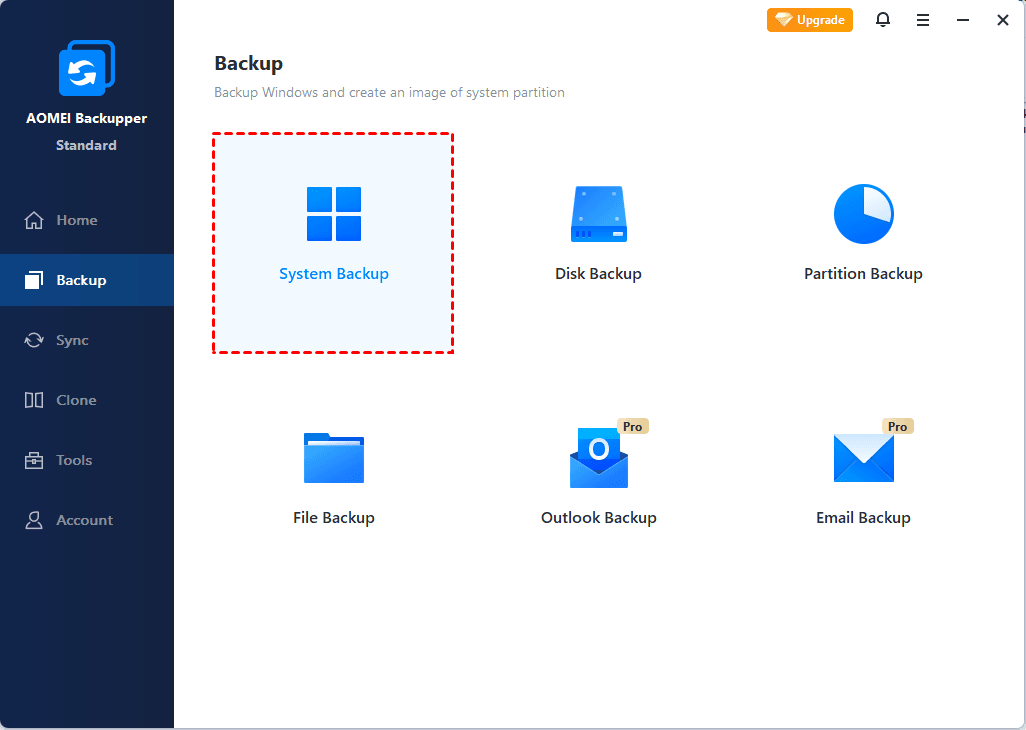
To protect your Windows OS, just click Backup > System Backup and follow the wizard to complete the process.
FAQs about Hulu Error Code 137
1. What should I do if Hulu error code 137 persists?
2. Can outdated software cause Hulu error code 137?
3. How do I check if Hulu servers are down?
4. Are VPNs and proxies responsible for Hulu error code 137?
Tips for a Better Streaming Experience
- Regularly Clear Cache: Regularly clear your app or browser cache to prevent streaming issues.
- Update Software: Keep your Hulu app and device software updated to ensure compatibility.
- Optimize Internet Speed: Ensure your internet speed meets the requirements for streaming services to avoid buffering and errors.
Conclusion
With the right Hulu error code 137 solutions, you can quickly resolve the issue and get back to enjoying your favorite shows. Additionally, regularly backing up your system with reliable tools like AOMEI Backupper ensures you're prepared for any technical issues. Don’t hesitate to try it out!
 AOMEI Backupper
Best free Windows backup software for personal use.
