 AOMEI Backupper


OneDrive Login Error Code 0x8004de44: Quick Fixes
Learn how to fix error code 0x8004de44 with our step-by-step guide. Easy solutions to resolve this issue.

By Lily Updated on September 18, 2025


Common Causes of Error Code 0x8004de44
Error code 0x8004de44 typically occurs when there is a problem with your Microsoft OneDrive account, preventing it from syncing properly. To effectively resolve error code 0x8004de44, it's important to identify the root causes. Here are three primary causes:
- Account Authentication Issues: This is the most common cause, where OneDrive fails to authenticate your Microsoft account credentials properly.
- Corrupted OneDrive Files: Sometimes, files within the OneDrive directory can become corrupted, leading to synchronization problems.
- Network Connectivity Problems: Unstable or poor internet connections can interrupt OneDrive's ability to sync files correctly.
How to Fix Error Code 0x8004de44 in OneDrive
This part offers you 8 effective solutions to fix 0x8004de44 in Windows 11/10:
Solution 1: Check Internet Connection
- Test Connection: Ensure that your internet connection is stable by testing it with other applications or websites.
- Restart Router: Sometimes, a simple router restart can resolve connectivity issues.
- Use Wired Connection: If possible, switch to a wired connection for more stable internet.
- Disable VPN: If you are using a VPN, try disabling it temporarily to see if it resolves the issue.
- Check Firewall Settings: Ensure that your firewall settings are not blocking OneDrive.
Solution 2: Reauthenticate Your OneDrive Account
- Open OneDrive Settings: Click on the OneDrive icon in the system tray and go to "Help & Settings" > "Settings."
- Unlink Your PC: Under the "Account" tab, click on "Unlink this PC."
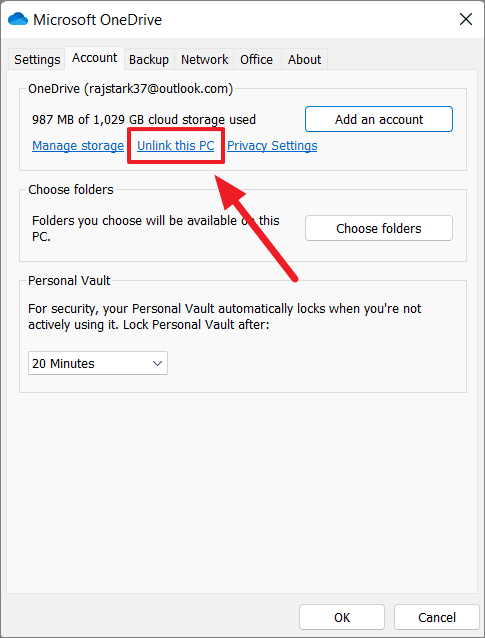
- Sign In Again: After unlinking, you will be prompted to sign in again. Enter your Microsoft account credentials.
- Verify Credentials: Make sure to verify your account credentials by following any additional prompts.
- Restart OneDrive: Close OneDrive and reopen it to ensure the changes take effect.
Solution 3: Clear OneDrive Cache
- Close OneDrive: Exit the OneDrive application completely.
- Open File Explorer: Navigate to the OneDrive directory.
- Locate Cache Folder: Find the cache folder, which is typically hidden. You may need to enable hidden files in File Explorer.
- Delete Cache Files: Select all files within the cache folder and delete them.
- Restart OneDrive: Reopen OneDrive to see if the issue is resolved.
Solution 4: Reset OneDrive
- Close OneDrive: Exit the application completely.
- Run Command Prompt: Open Command Prompt as an administrator.
- Enter Reset Command: Type
"%localappdata%\Microsoft\OneDrive\onedrive.exe /reset"and press Enter. - Restart OneDrive: Open OneDrive again and check if the error persists.
- Sign In Again: You might need to sign in again with your Microsoft account.
Solution 5: Update OneDrive
- Check for Updates: Open OneDrive and go to "Help & Settings" > "Settings" > "About" and check for updates.
- Download Latest Version: If an update is available, download and install it.
- Restart Computer: After updating, restart your computer.
- Sign In Again: Ensure you are signed in with your Microsoft account.
- Sync Files: Check if your files are syncing correctly.
Solution 6: Reinstall OneDrive
- Uninstall OneDrive: Go to "Control Panel" > "Programs" > "Programs and Features," find OneDrive, and uninstall it.
- Download OneDrive Installer: Visit the official OneDrive website and download the latest installer.
- Install OneDrive: Run the installer and follow the prompts to install OneDrive.
- Sign In: Sign in with your Microsoft account credentials.
- Sync Files: Check if the error code 0x8004de44 is resolved and files are syncing properly.
Solution 7: Use Windows Troubleshooter
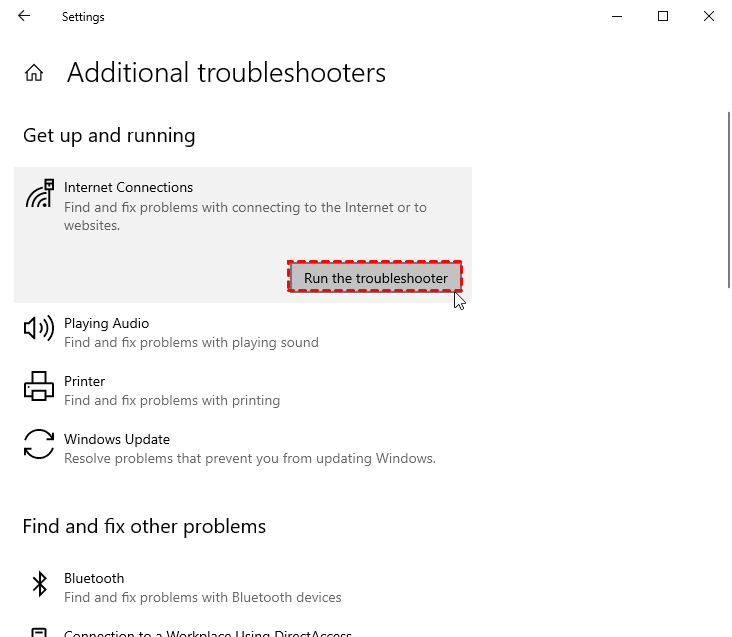
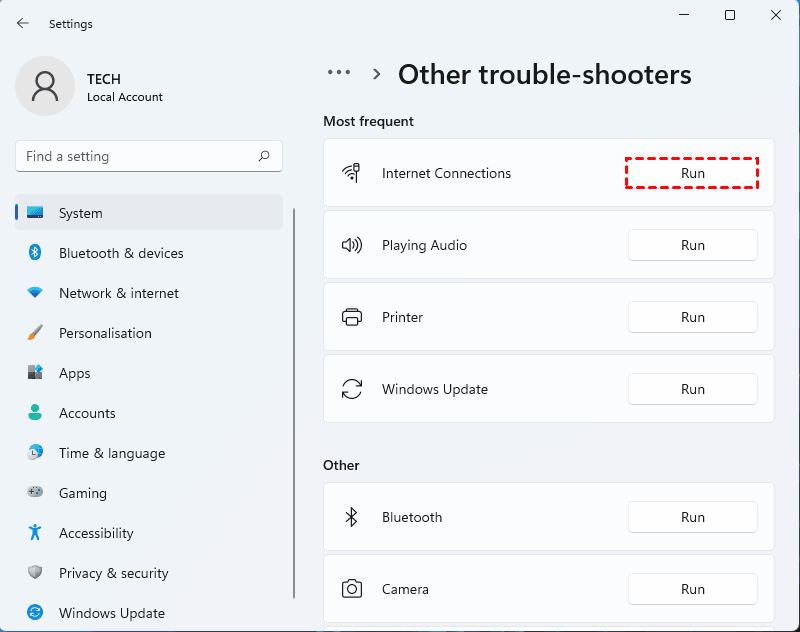
- Open network troubleshooter.
👉In Windows 10, go to Settings > Update & Security > Troubleshoot > Additional troubleshooters.
👉In Windows 11, go to Settings > System > Troubleshoot > Other Trouble-shooters.
- Run the troubleshooter.
👉In Windows 10, click Run the troubleshooter in the Internet Connections section.
👉In Windows 11, click on Run beside Internet Connections.
Solution 8: Contact Microsoft Support
- Visit Microsoft Support: Go to the official Microsoft Support website.
- Search for Error Code 0x8004de44: Use the search bar to find relevant support articles.
- Follow Instructions: Follow the detailed instructions provided by Microsoft support.
- Live Chat Support: If needed, initiate a live chat with a support representative.
- Follow Up: Ensure to follow up on any additional steps recommended by the support team.
Bonus: Easy Way to Sync Files from PC to OneDrive
If you want to keep your files safe and accessible anytime, syncing them to OneDrive is a smart move. However, the built-in sync feature of OneDrive can sometimes be slow or fail to sync properly, especially when dealing with large amounts of data.
A more reliable method is to use a professional tool like AOMEI Backupper Standard. This free software lets you sync files from your PC to OneDrive quickly and securely.

 AOMEI Backupper
-
You are able to perform local file sync, cloud drive sync and NAS device sync, etc.
-
You can perform automatic syncs daily, weekly, or monthly.
-
You are allowed to sync multiple folders simultaneously, instead of one folder one task.
 100% Secure
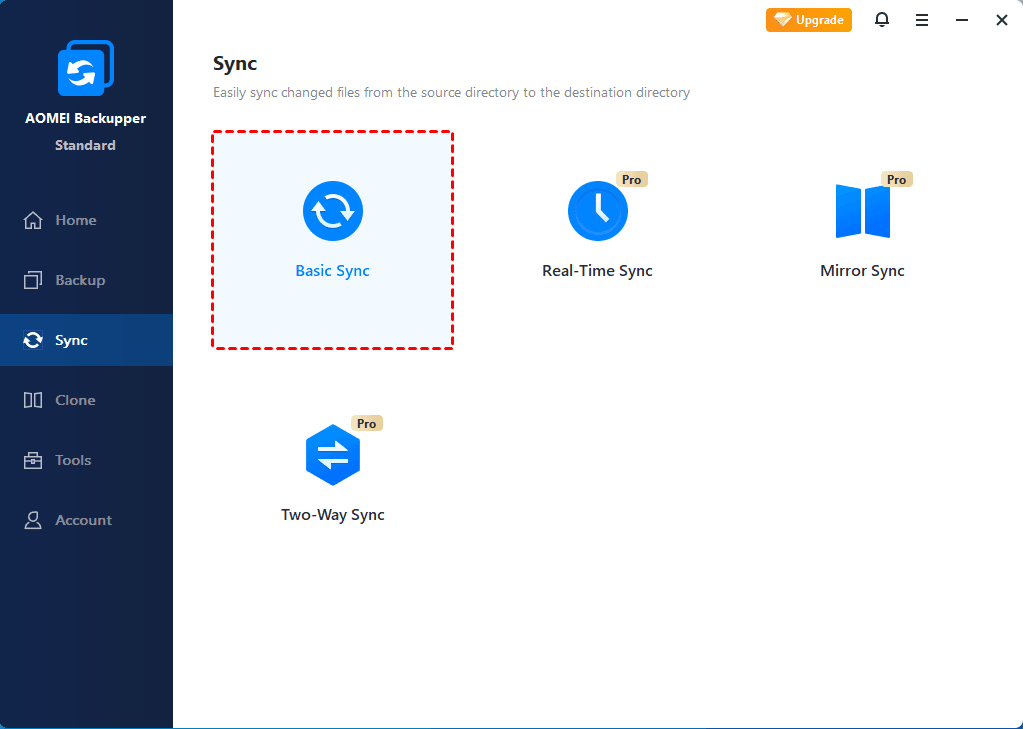
To sync PC files to OneDrive, just click Sync -> Basic Sync and follow the wizard to complete the process.
FAQs about Error Code 0x8004de44
1. What should I do if OneDrive keeps asking for my credentials repeatedly?
This issue often relates to authentication problems. Reauthenticate your account by signing out and signing back in as described in Solution 2.
2. Can resetting OneDrive cause data loss?
Resetting OneDrive should not cause data loss, but it's always wise to ensure that all your files are backed up before proceeding.
3. Why does error code 0x8004de44 appear only on my work computer?
This could be due to network restrictions or configurations specific to your workplace. Check with your IT department for potential network or security settings that might be affecting OneDrive.
4. How can I prevent error code 0x8004de44 from recurring?
Ensure that your OneDrive and Windows OS are always up-to-date, regularly clear cache files, and maintain a stable internet connection to prevent this error from recurring.
5. Is there an alternative to OneDrive for syncing files?
While there are alternatives, ensuring that OneDrive is functioning correctly is often the best approach due to its integration with Windows OS and Microsoft Office.
Conclusion
Error code 0x8004de44 can disrupt your workflow and access to important files, but with the right steps, you can resolve it effectively. By understanding the causes and following the detailed solutions provided, you can ensure your OneDrive functions smoothly.
If you want a hassle-free way to keep your files safe in OneDrive, give AOMEI Backupper a try. It’s simple, fast, and ensures you’ll never lose access to your important data. Download it right now!
