
By Penny
 / Last update January 17, 2022
How to restore my reminders on iPhone?
As a good assistant, iPhone reminder is convenient for Apple users to keep track of the to-do list and some significant data. This application is playing an increasing role in my daily life and work.

Unluckily, I accidentally deleted my reminders on iPhone. What’s more, these deleted reminders mean a lot to me. I am wondering how to restore my reminders on iPhone and if anyone could lend me a hand?
The top priority for those users is to restore deleted reminders as quickly as possible. Don’t worry. Here are two practical solutions and an easy alternative that have been enlisted for iPhone reminder recovery in the following section.
Three ways to restore deleted reminders
The Apple operating system provides the ability to recover data from backups. Thus it makes it possible for you to restore deleted reminders on your iPhone via iCloud or iTunes backup. Given that a necessary backup is a key to restoring deleted reminders, so I hope you have already backed up your data.
If there’s no available backup for you, you could turn to employ solution 3. With cutting-edge data recovery technology, the third method is also the easiest and most efficient one. Please be reminded that some tips or notes must be followed before beginning the operation steps.
Solution 1. Restore reminders on iPhone from iCloud backup
If you turn on APPS USING ICLOUD including Reminder, then the data stored in iCloud.com will not be stored in the iCloud backup. Therefore, you have to turn off the iCloud before recovering iPhone reminders from iCloud backup.
- ★Tips:
- You are unable to preview or access iCloud backup first. (This tip also applies to iTunes backup.) Please ensure this backup contains the deleted reminders you want to restore.
- Solution 1 needs you to erase all your existed data on your iOS device.
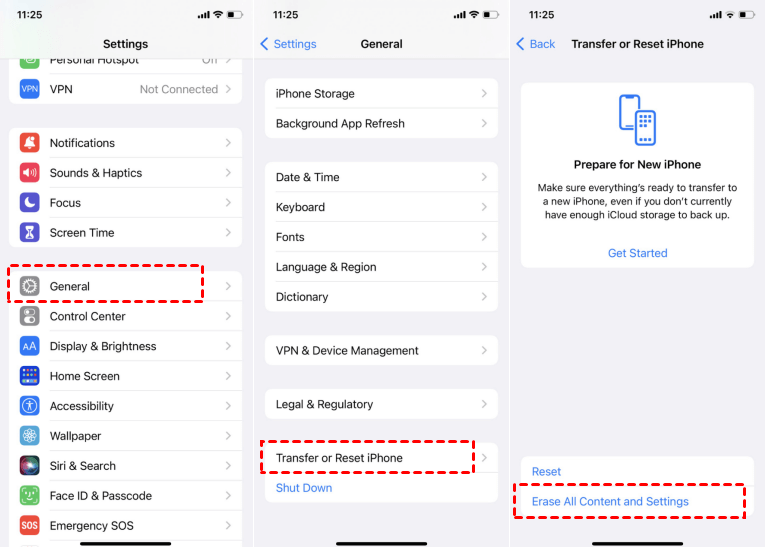
Step 1. Tap to “Settings” > “General” > “Reset” > “Erase All Content and Settings”.
Step 2. Your iPhone will restart and be set up. When comes to the “Apps & Data” screen, tap “Restore from iCloud Backup”.
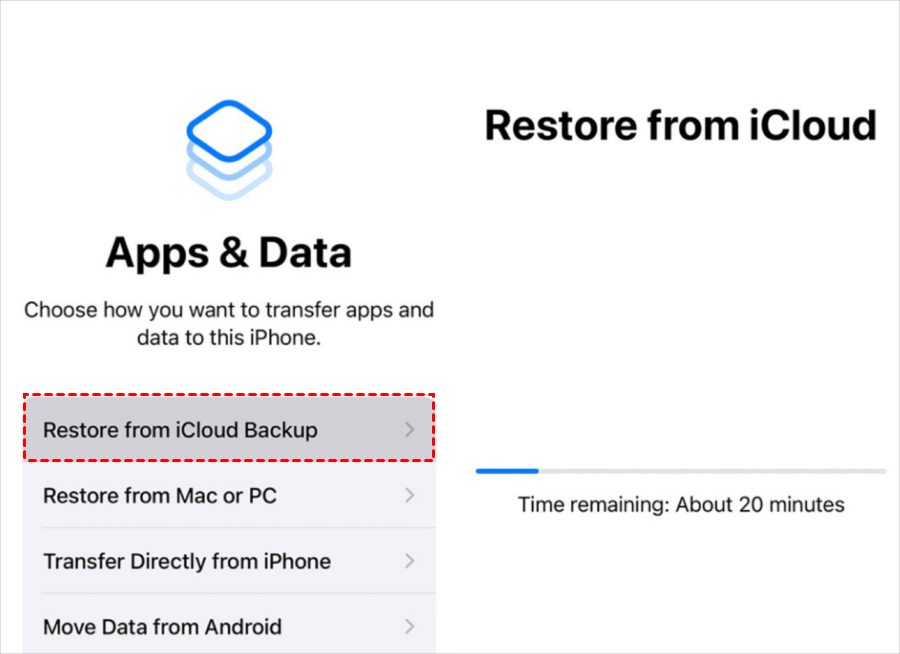
Step 3. Sign in to iCloud with your Apple ID, then select a needed backup from the list of iCloud backups. Please keep the internet working.
Solution 2. Restore reminders on iPhone from iTunes backup
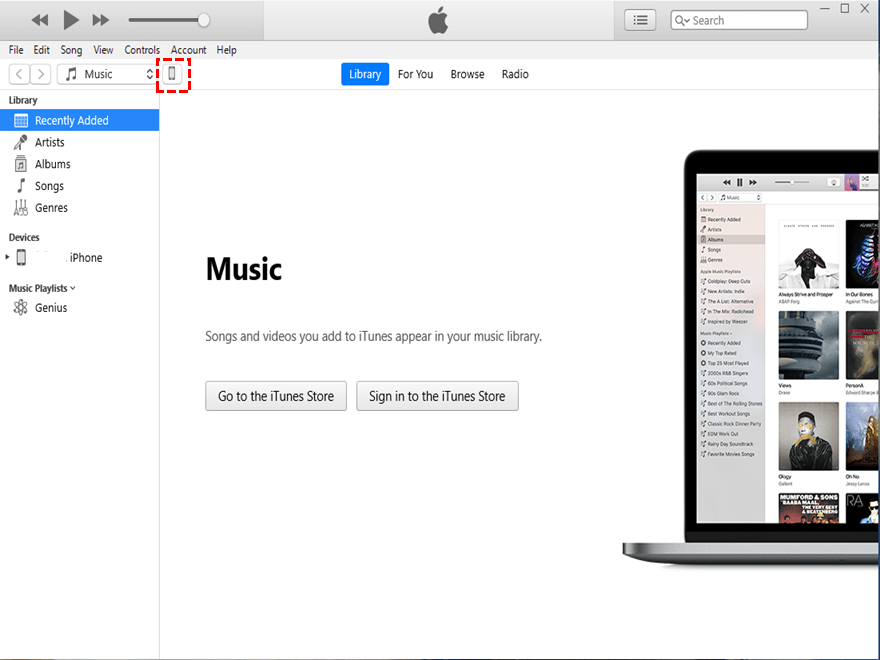
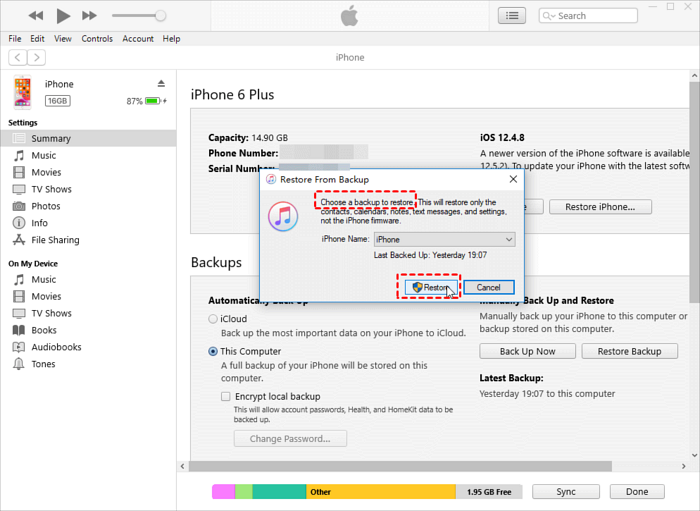
Step 1. Run the latest version of iTunes. Connect your iPhone to the computer.

Step 2. Click the “iPhone” icon.
Step 3. Go to “Summary” > “Restore Backup”.
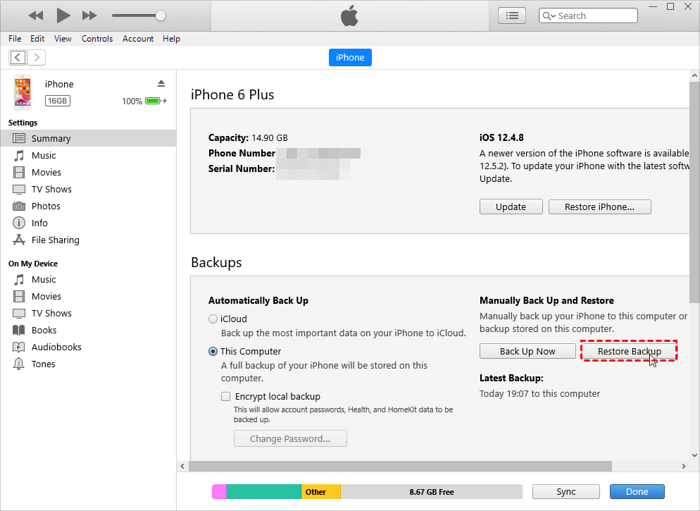
Step 4. All contents will be restored from iTunes backup. Select your needed backup from the list.
Solution 3. Restore reminders on iPhone with FastRecovery for iOS
“Is there another method for me on how to restore my reminders on iPhone?” Hopefully, the popularity of iPhones has contributed to the boom of new solutions, including potential solutions for how to restore reminders on iPhone. It turns out there is a better approach. As the name suggests, FastRecovery for iOS can assist you with many troubleshooting tasks on your iPhone. Here are the steps below.
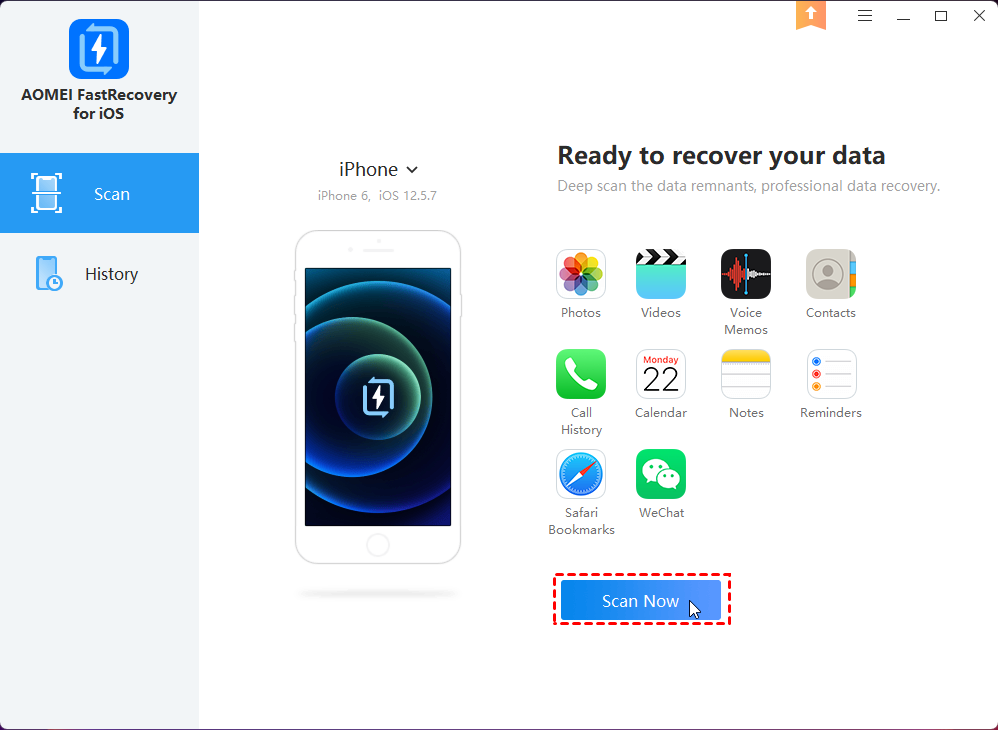
Step 1. Download and install AOMEI Data Recovery Assistant for iOS on your computer. Then connect your iPhone to your computer.

Step 2. Trust the computer on your iPhone and click “Scan Now”.
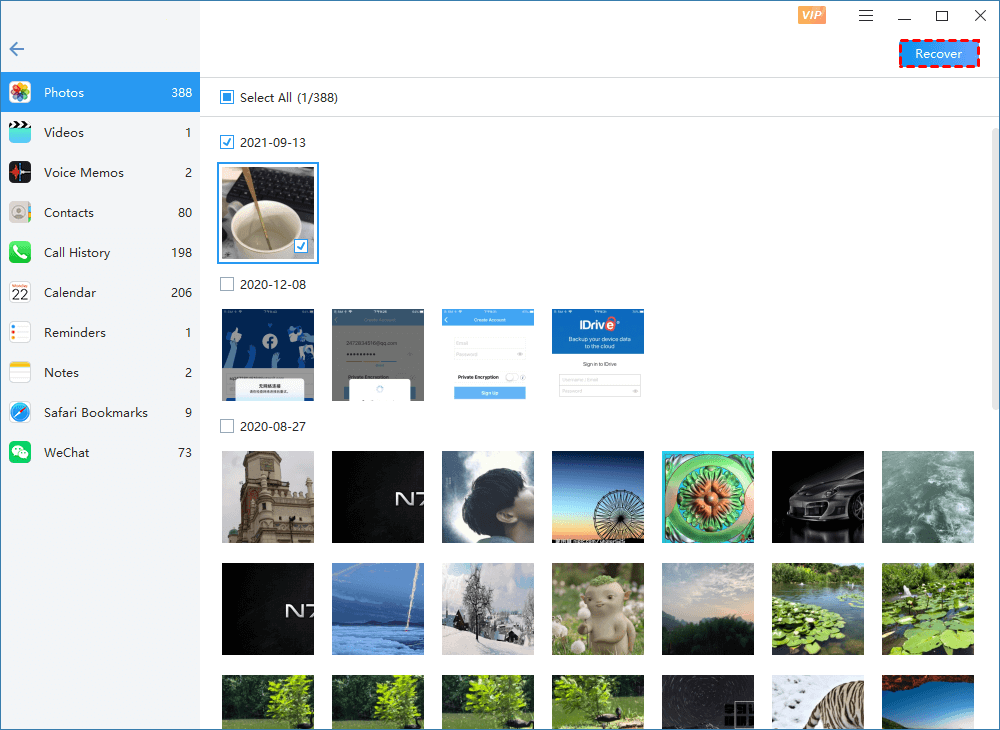
Step 3. After the process is completed, you can see all the recoverable data. Please select the data containing the deleted reminders, then click “Recover”.
Wrapping up
These three methods are practical on how to restore reminders on iPhone. You could select a specific solution to restore deleted reminders. Furthermore, if you don't want to erase your current data on your iPhone, you could use FastRecovery for iOS to restore the lost or deleted iPhone reminders. This tool also allows you to preview all files before data recovery.
Another recommended tool is AOMEI MBackupper. This free software supports full backup and restores your entire iPhone data, including photos, videos, apps data, call history, messages, etc. Hope you can benefit from this essay.

