How to do System Clone

  • Step1

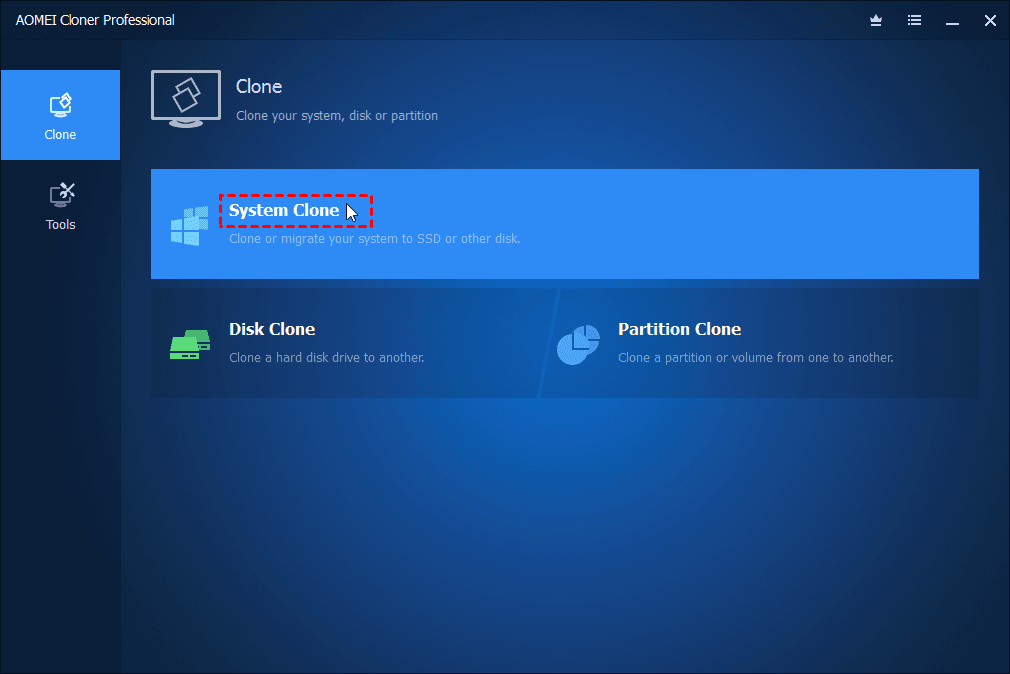
    Activate AOMEI Cloner and click “System Clone”.

    Launch and activate AOMEI Cloner with license code, and then select the "System Clone" option under the "Clone" tab.

  • Step2

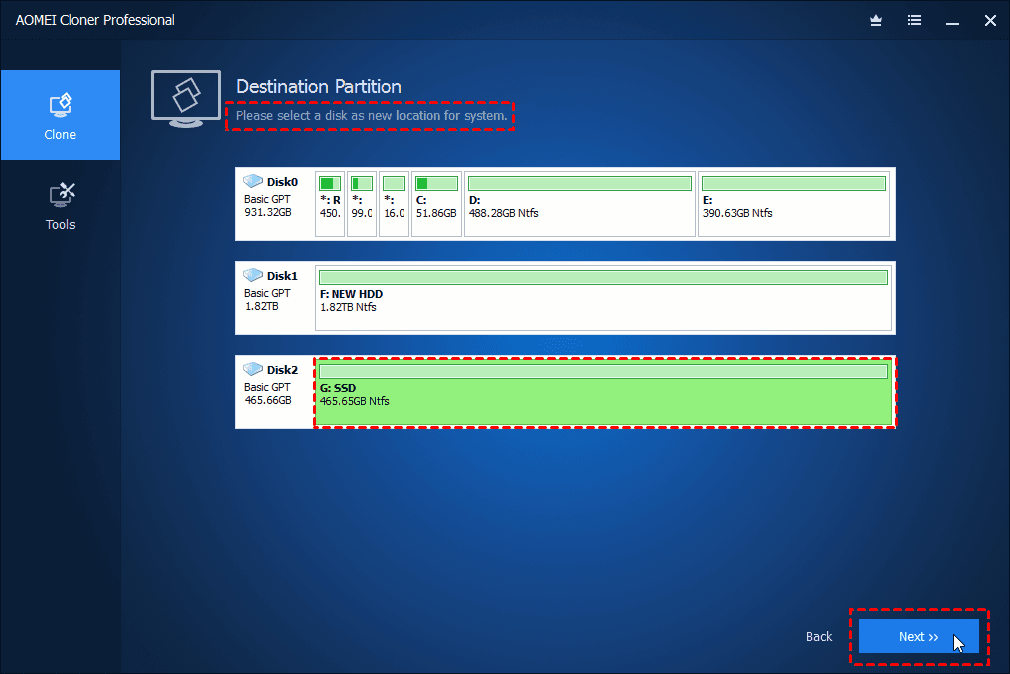
    Select the destination partition as you want.

    Select the connected SSD or HDD as the destination location to clone your system drive to,and then click "Next".

  • Step3

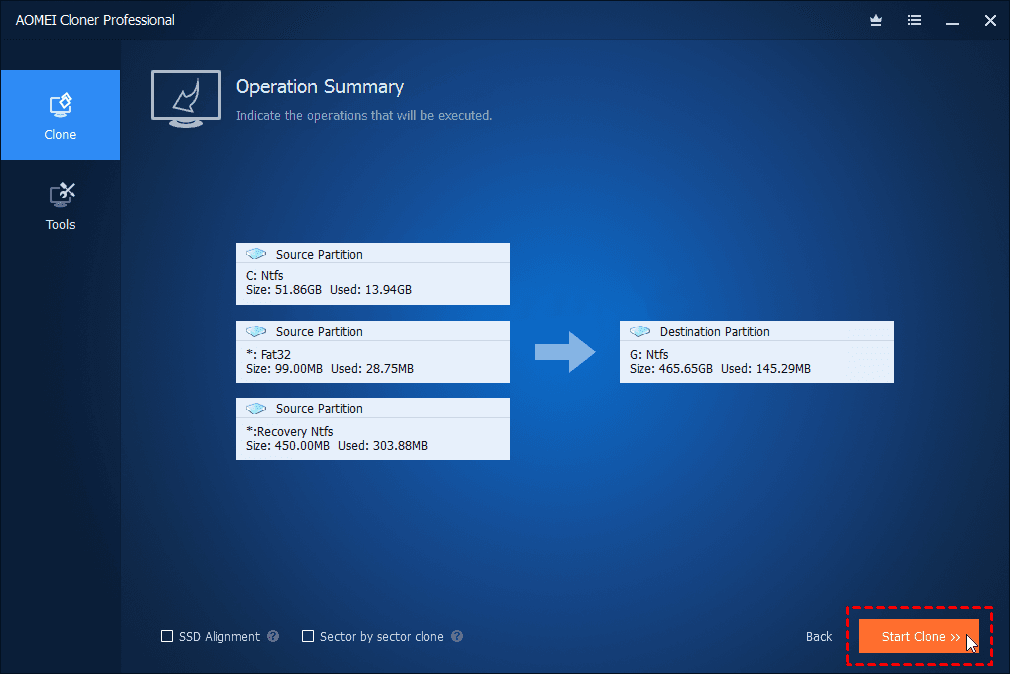
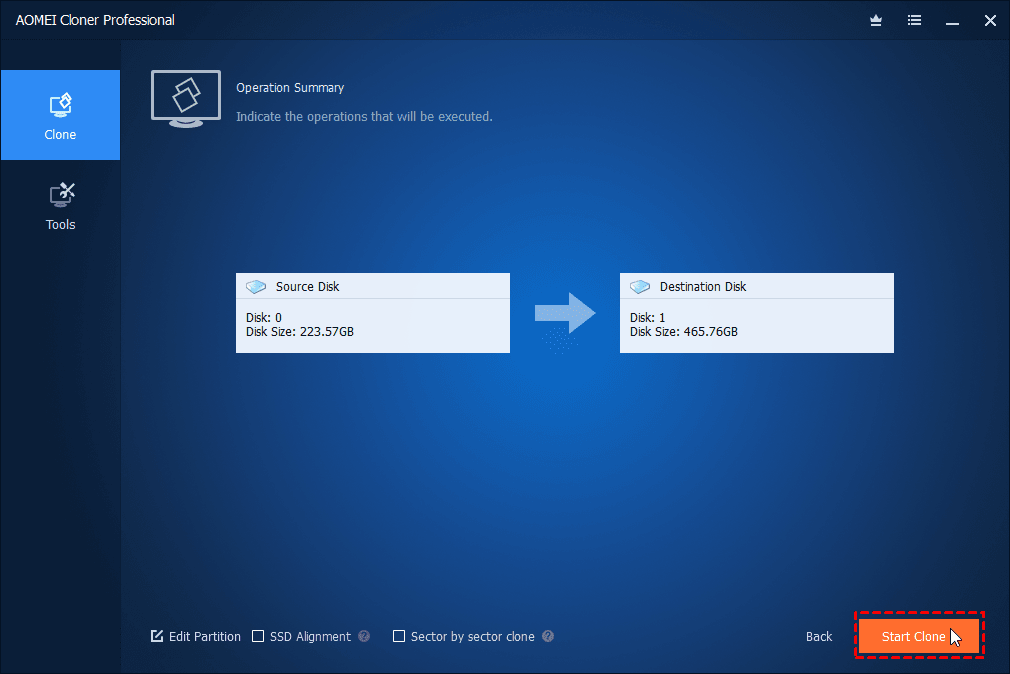
    Indicate the operations that will be executed.

    Confirm the operations and then click "Start Clone" to perform the system clone safely.

  • Step4

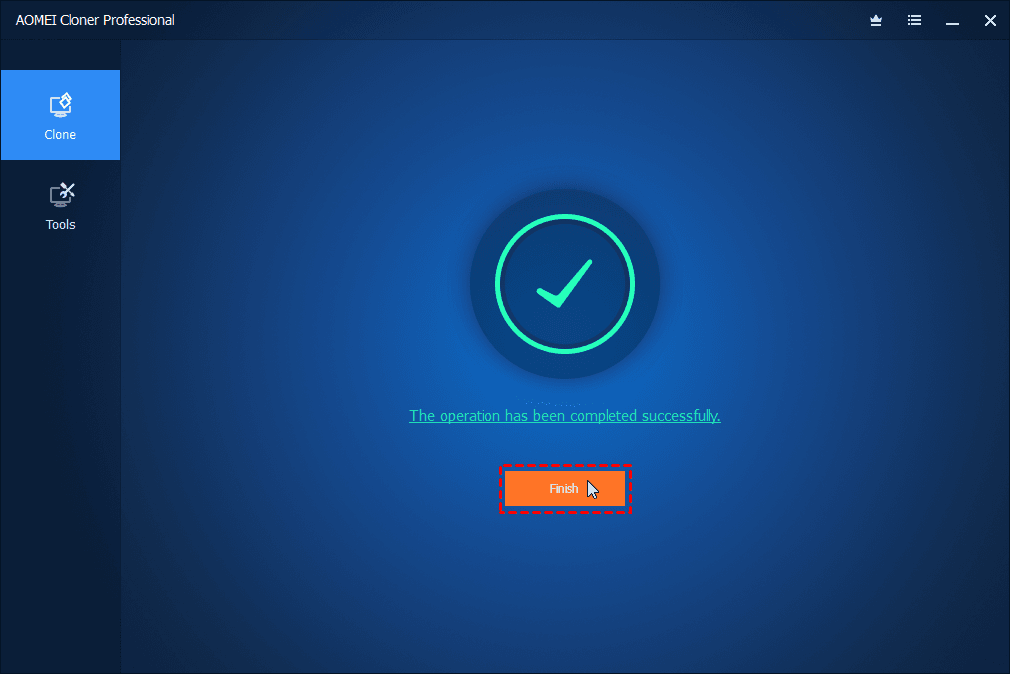
    Finished!

    Wait for the process to complete and then click “Finish” .
How to do Disk Clone?

  • Step1

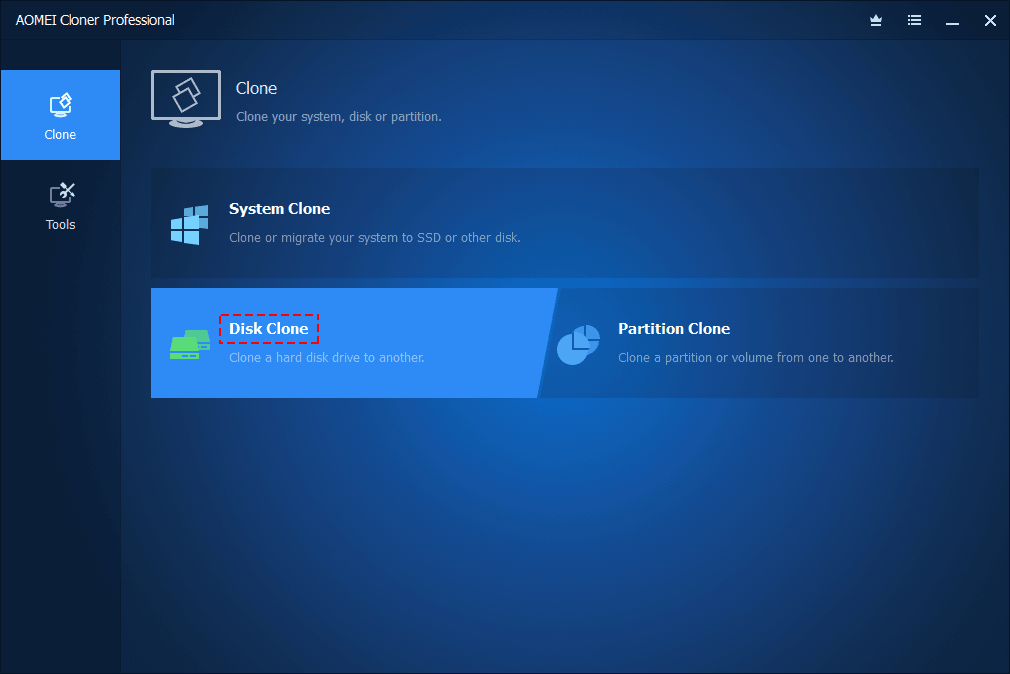
    Activate AOMEI Cloner and click “Disk Clone”.

    Launch and activate AOMEI Cloner with license code, and then select the "Disk Clone" option under the "Clone" tab.

  • Step2

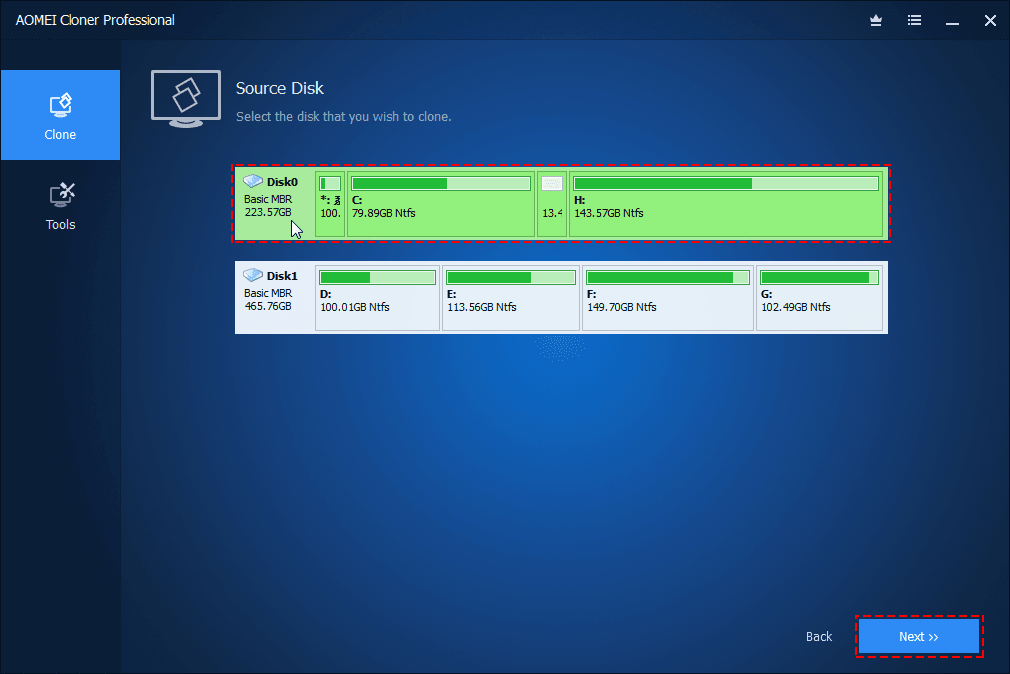
    Select the source disk that you want to clone.

    Select the source disk (Disk0) which you want to clone, and then click "Next".

  • Step3

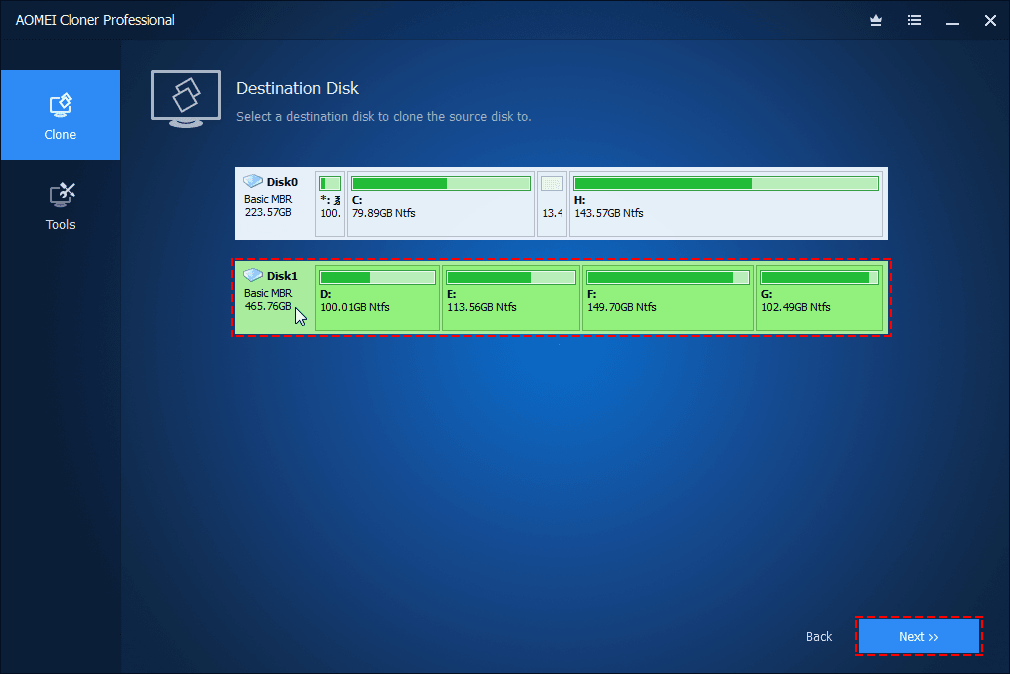
    Select a destination disk to clone the source disk to.

    Select another drive or SSD as destination disk (Disk1) where you want to clone source disk to, and then click "Next" .

  • Step4

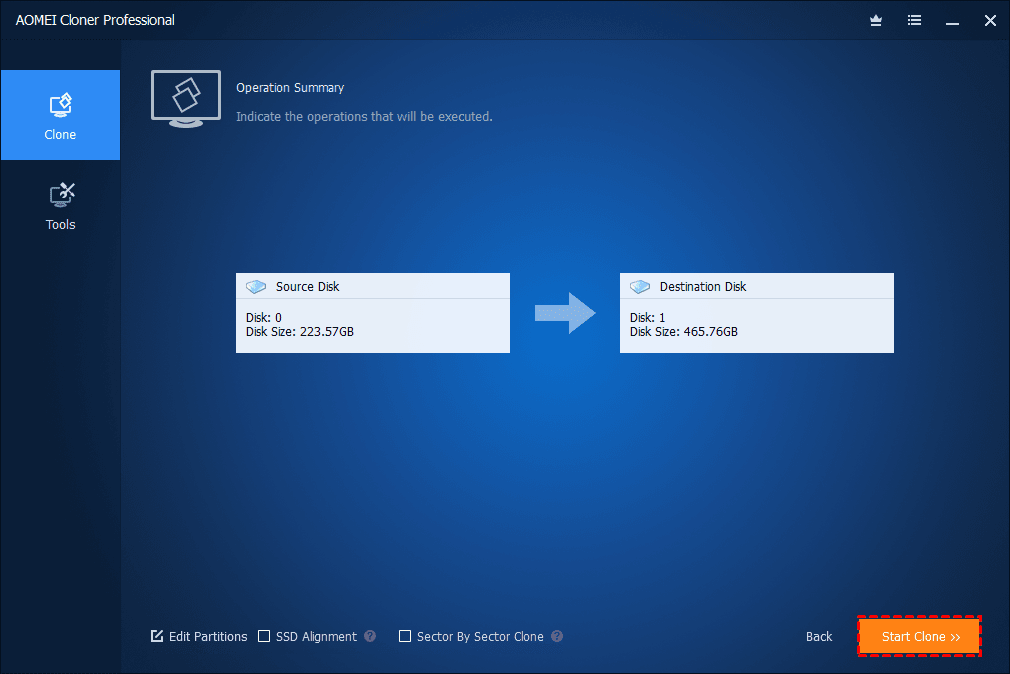
    Indicate the operations that will be executed.

    Confirm the settings, and then click "Start Clone".

  • Step5

    Finished!

    Wait for the process to complete and then click "Finish".

How to do Partition/Volume Clone?

  • Step1

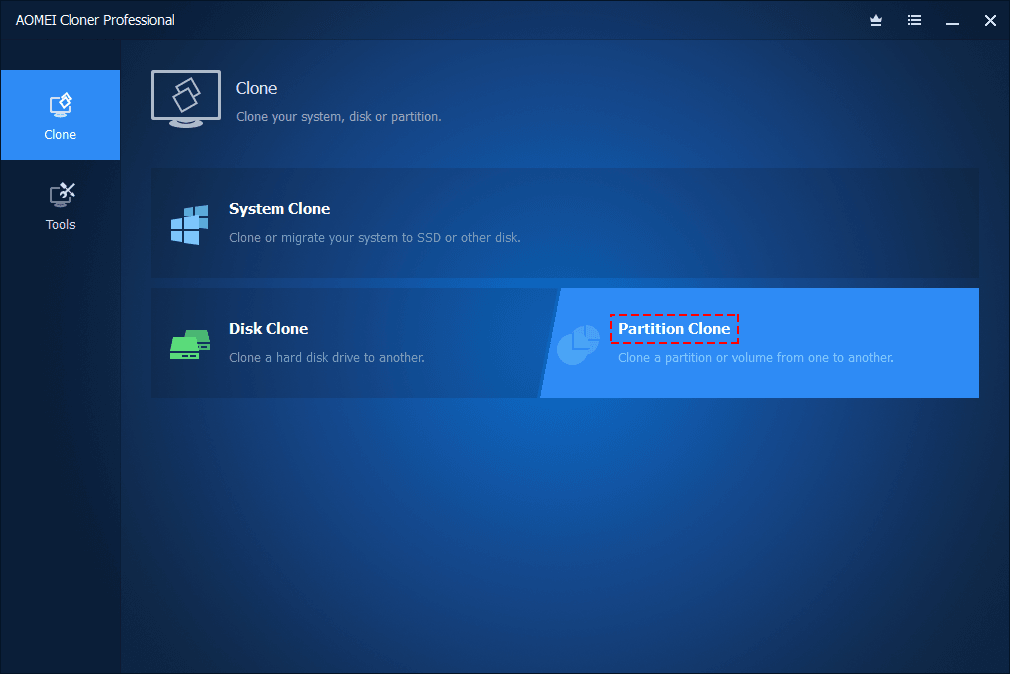
    Launch AOMEI Cloner and click “Partition Clone”.

    Launch AOMEI Cloner, and select the "Partition Clone" option under the "Clone" tab.

  • Step2

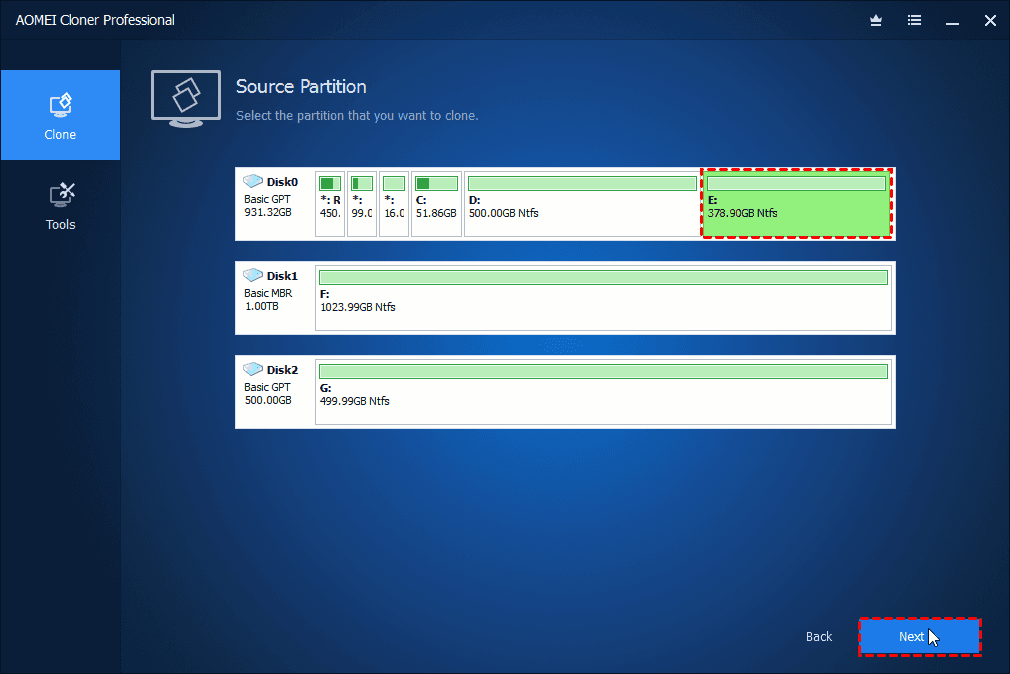
    Select the source partition or volume that you want to clone.

    Select a source partition (Drive E) that you want to clone, and then click "Next".

  • Step3

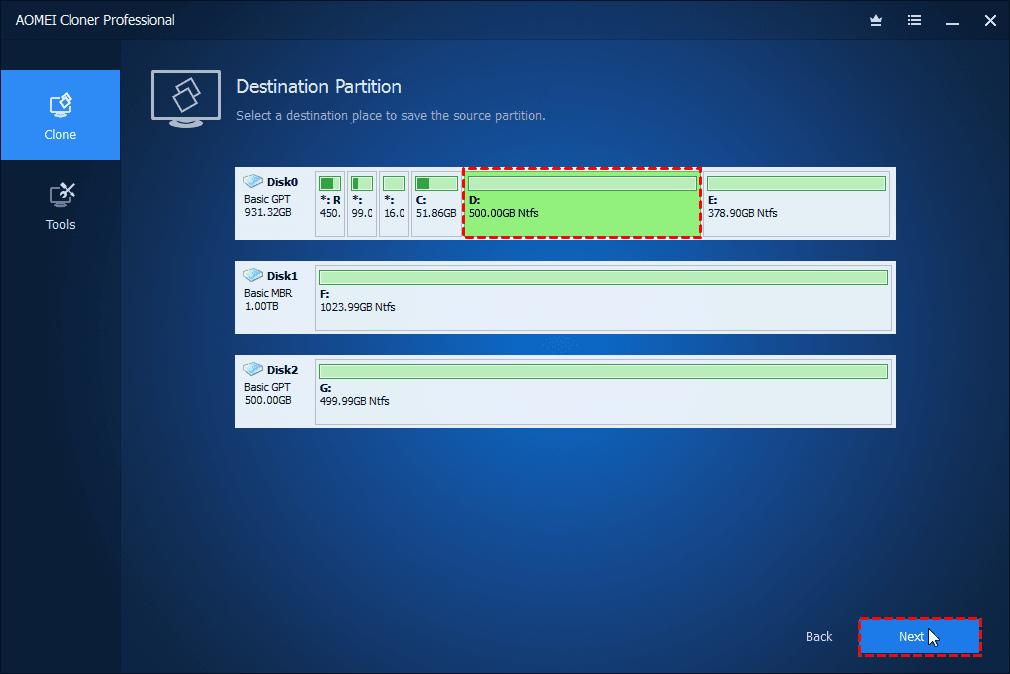
    Select a destination place to save the source partition.

    Select an appropriate unallocated space or an existing partition on the desired disk as the destination partition (Drive D), and click "Next".

  • Step4

    Indicate the operations that will be executed.

    Confirm the settings, and then click "Start Clone".

  • Step5

    Finished!

    Wait for the process to complete and then click "Finish".

Still Need Help?

Forum

Post threads or share your ideas at our forum to get response from mediators and other users.

Enter AOMEI Forum

Contact US

If you still have questions or technical issues when using AOMEI Cloner, please be free to contact us via [email protected]