FastRecovery



The Best Free Video Recovery Software for Windows 10
Are you looking for the best video recovery software for Windows 10? Follow this guide to get it to retrieve your important videos data in Windows 10/11/8/7.

By Lora / Updated on May 8, 2026


What to do when you lose video files?
Video files can take a long time to record, edit, and export, but data loss is pretty common in daily life. Almost everyone has had a bad experience of losing precious videos, photos and files due to accidental deletion, formatting, system crash or other unexpected disasters. So, what if you lose your video data?
Actually, the easiest way to get out of this situation is to stop using the drive or partition immediately, and use the best video file recovery software for Windows 10 to retrieve lost or deleted videos.

Pro-tips:
● If you delete the video by mistake, make sure no applications are writing to the drive or partition, as each new file will overwrite deleted files.
● If you accidentally format video data, do not open or close files and applications on the problematic drive or partition, as many applications create temporary files that can overwrite and corrupt your formatted files.
The best free video recovery app for Windows 10 free download
Speaking of Windows data recovery, FastRecovery is the best free recovery tool. Developed by AOMEI, a benchmark in the data recovery industry, it embeds advanced scanning algorithms that are automatically executed in the optimal order to provide the best data recovery results.
Whether you emptied the recycle bin, formatted the drive, or deleted files accidentally, you can easily recover your data with this software in just a few clicks. In other words, you can even recover permanently deleted videos with the help of this software on your PC.
Software features:
● Recover videos of any file format. You can recover deleted or lost videos of various file formats like MPEG/MPG/MP4, MOV, AVI/NAVI, ASF, WMV, RM/RMX, FLV/F4V, QSV, etc.
● All kinds of file types. It can recover more than 1000 types of files, including videos, photos, images, documents, audios, etc., from external hard drives (HDDs/SSDs), USB flash drives, SD memory cards, and more.
● Advanced search algorithms. The intelligent scanning methods can find all recoverable data and recover them without any omissions.
● Preview and select. You can preview the list of deleted/lost/missing files before recovering them securely.
● All-inclusive data loss situations. Apply to comprehensive data loss scenarios on Windows, such as inadvertent deletion, disk formatting, system crash, and virus attack.
● Easy-to-operate. Recover lost/deleted data from Windows within 3 easy steps.
● Highly compatible. Support NTFS, FAT32, exFAT, and ReFS in Windows 11/10/8/7 and Windows Server.
Download the free deleted video recovery software for Windows 10 to learn how to retrieve deleted or lost video from Windows in three steps.
-
Don't download and install FastRecovery on the drive where you store deleted files, as this may cause data overwriting.
-
Any newly added data or disk formatting can overwrite data. Please avoid these operations after realizing data loss.
How to recover deleted video in Windows 10
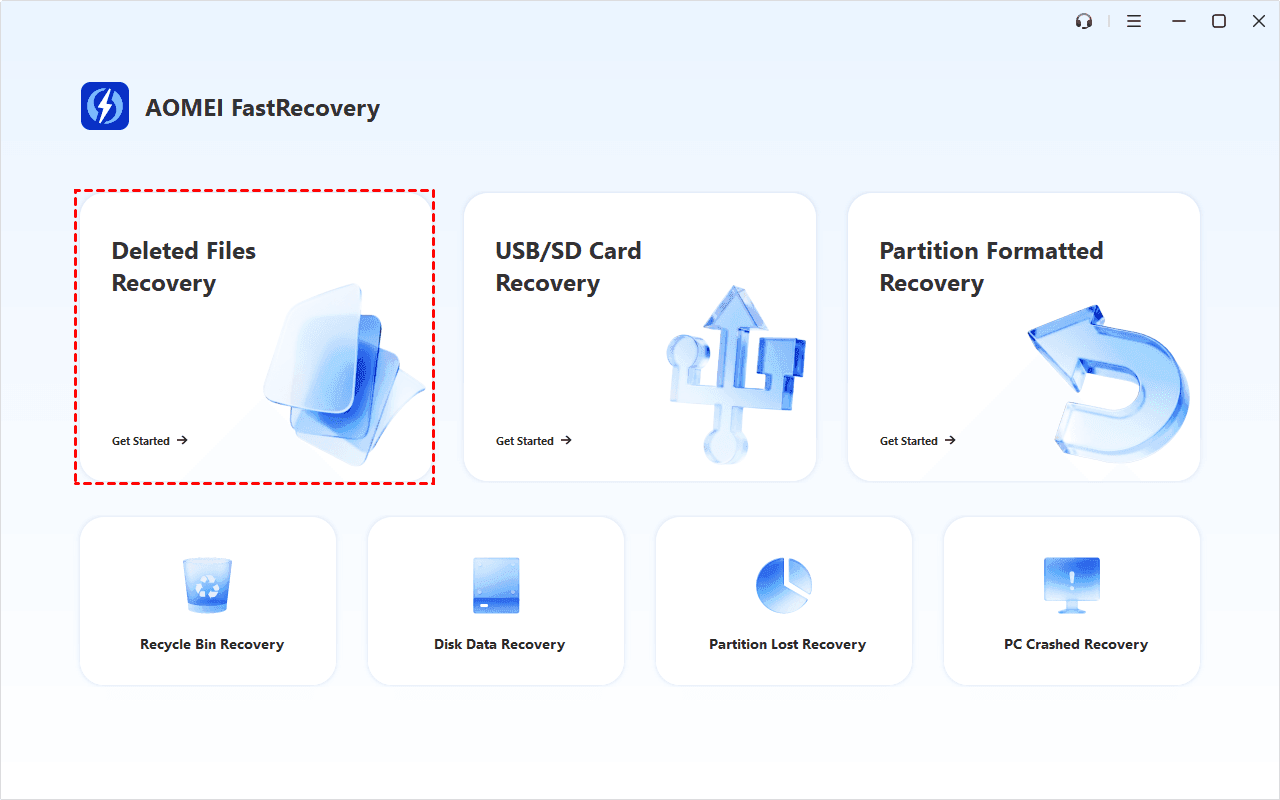
Step 1. Open FastRecovery after installing, then click Deleted Files Recovery for fast recovery. You can also choose a more suitable alternative. All of them can help you retrieve data without causing any damage.
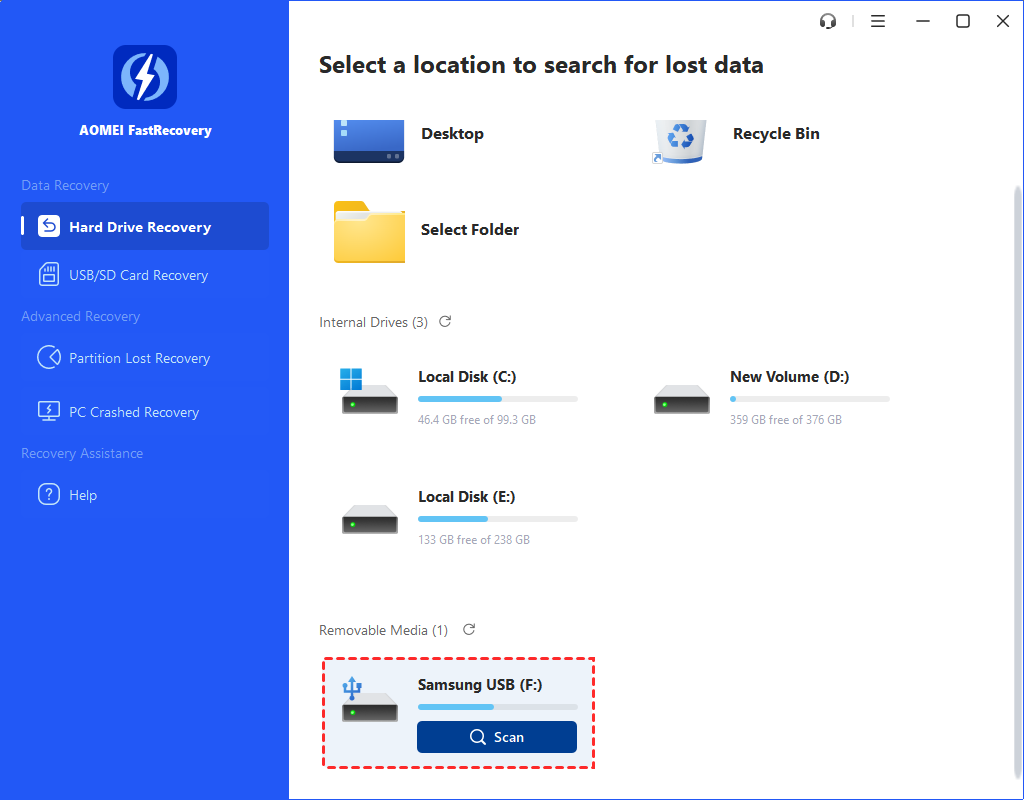
Step 2. Hover the mouse over the drive and click Scan to scan.
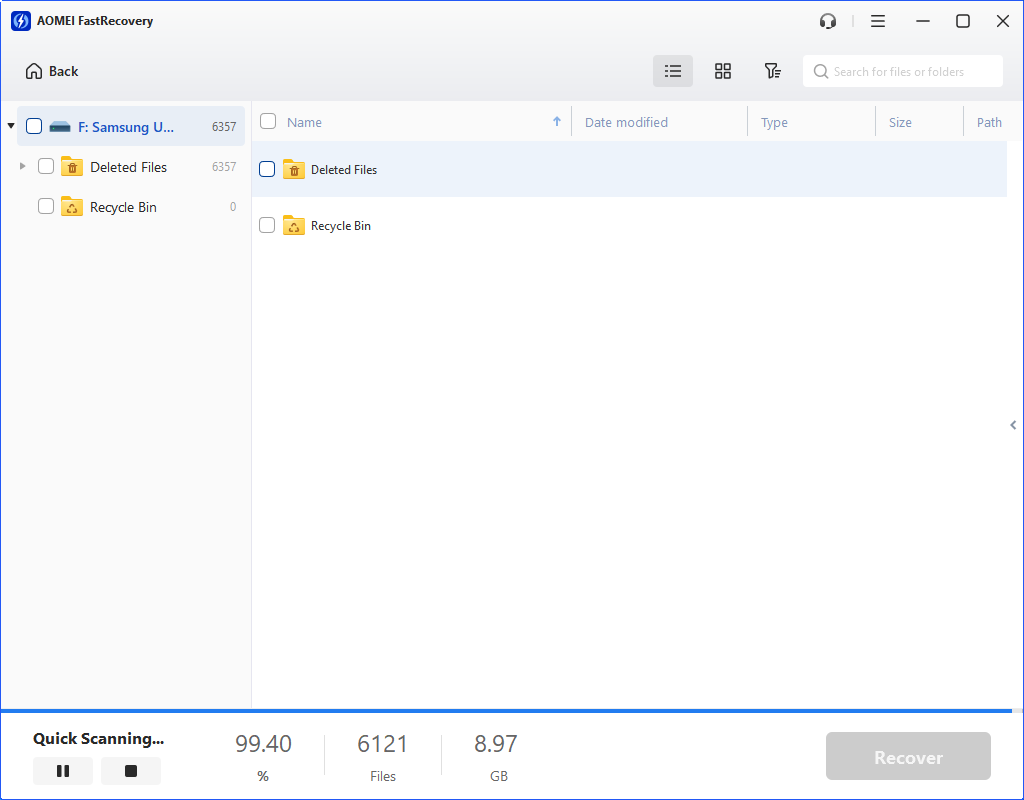
Step 3. It will automatically start Quick Scan to find deleted or lost videos.
-
Scan time mainly depends on disk size and health, especially regarding bad sectors or file system corruption.
-
During scanning, you can click the Stop or Pause button if you select the wrong disk or something goes wrong.
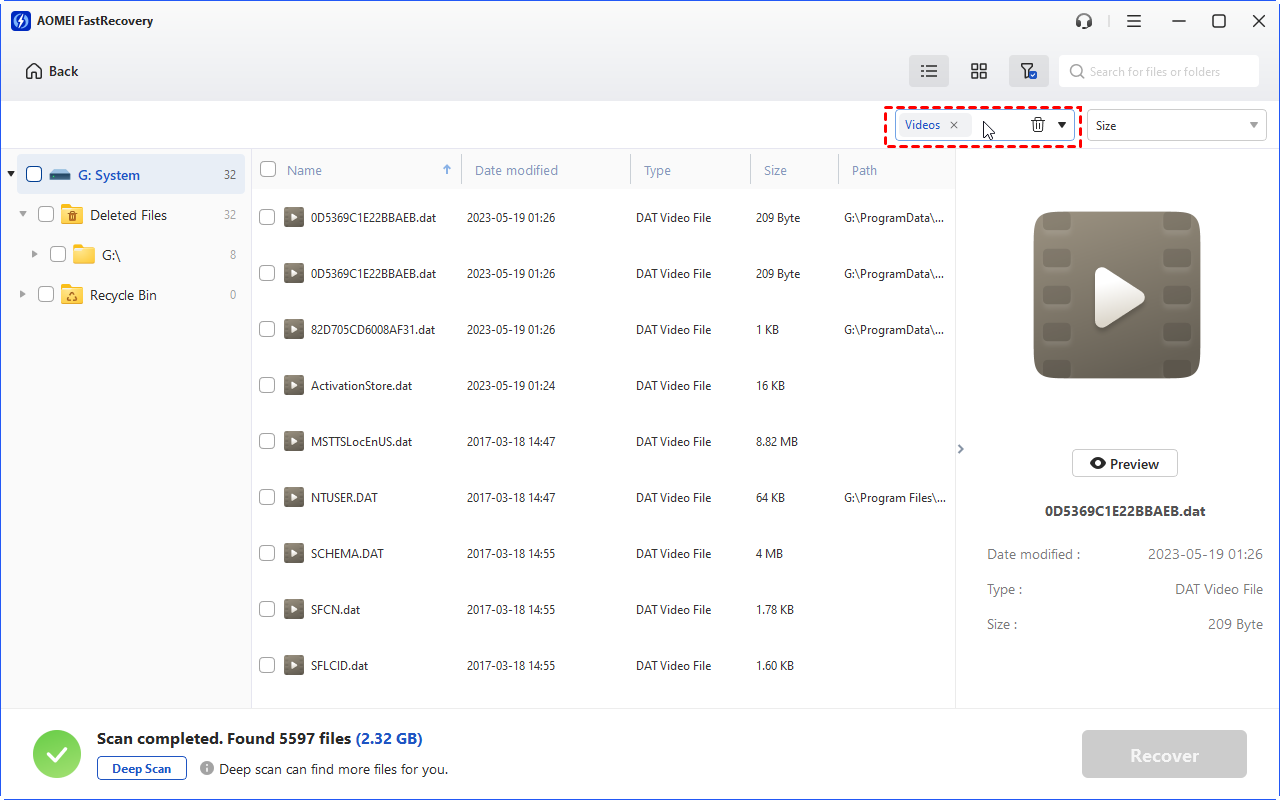
Step 4. Wait for the process to complete, then select files by Type (default) or Path, with options to sort, search, filter, and preview files.
👉Under the Type section:
- Specify the data type and click the arrow next to type, size, date modified, etc., to sort files.
- To locate files quickly, type the file name or extension in the search box.
- Or use the filter feature, similar to the Type category, allowing you to further specify the size of files, from less than 512 KB to 1GB above.
- Once found, double-click the files to preview.
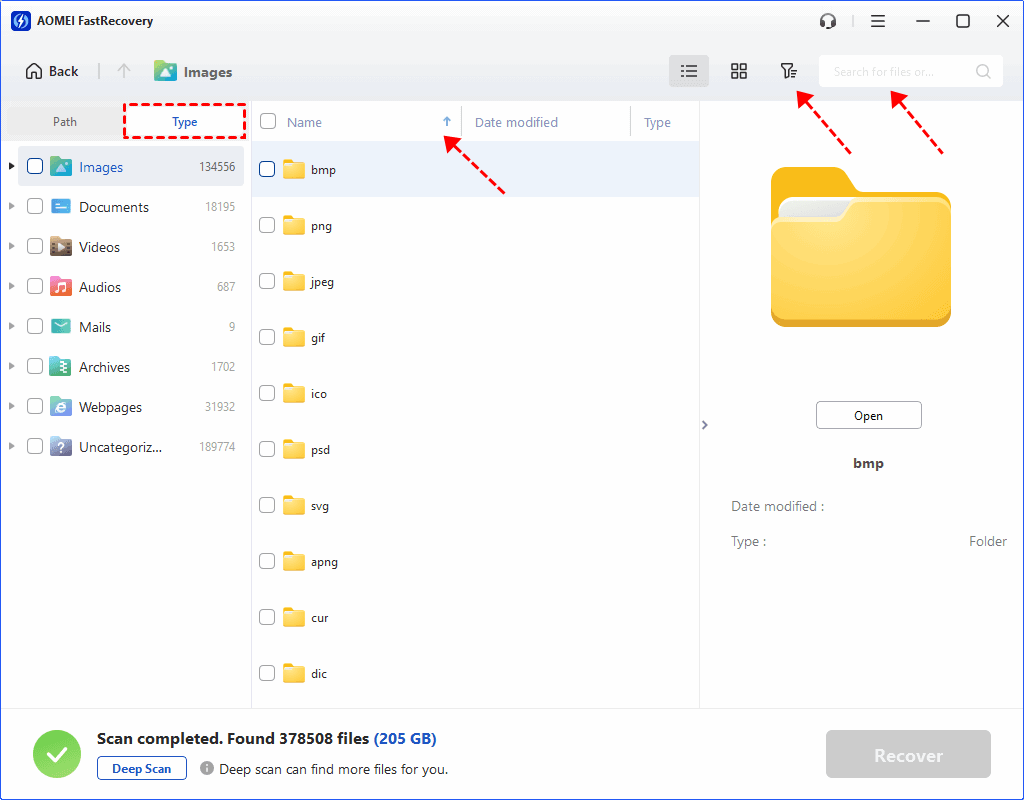
👉 Under the Path section: Directly navigate to the original location where you saved deleted files. Sort files if needed.
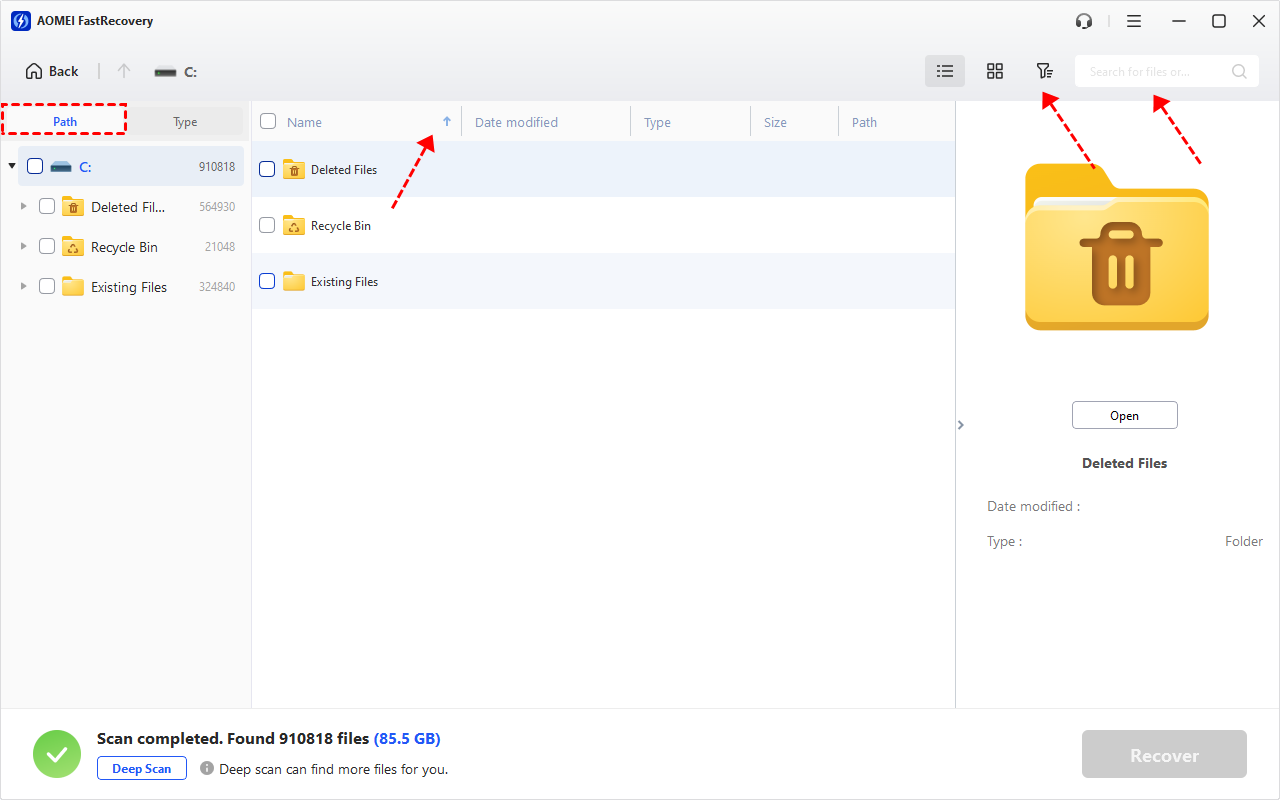
- The Type categories and filter options include all supported data types, such as images, videos, documents, mails, web pages, compressed files, etc.
- Click the Deep Scan to find more data if Quick Scan fails. It will scan every sector of the disk and take longer.
Step 5. If you find the video you want to recover, select it and click Recover to get it back.
-
Don’t save them to the original location, as it may cause data overwriting.
-
The free edition can recover deleted videos on Windows 10 for free, up to 500MB in total. To recover unlimited files, try advanced editions.
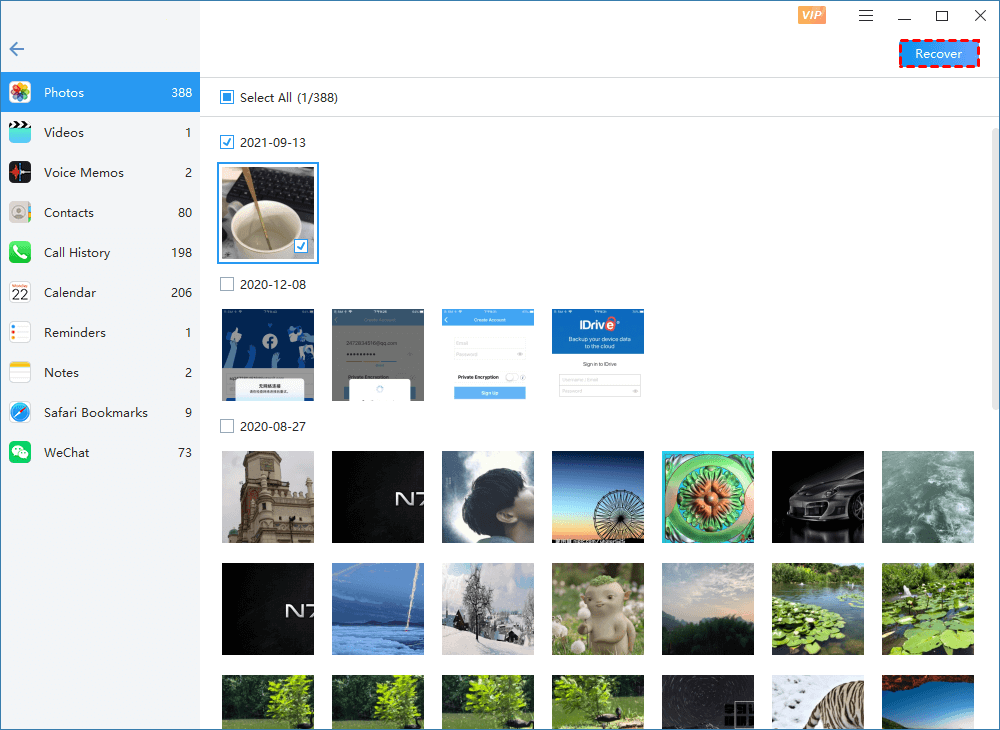
In addition, if you want to know how to recover deleted videos from iPhone, you can also use professional video recovery software - FastRecovery for iOS to restore contacts, messages, photos, videos, notes, call logs, voice memos, Safari bookmarks, WeChat history from iPhone/iPad/iPod even without backup.
Bonus: extra tips for data protection
Data loss is never pleasant, although not always permanent. Even though the amazing software mentioned above works well in video recovery PC, you have to take some precautions to protect your important videos from loss. Therefore, follow the tips given below:
● Make regular backups: Despite efficient and easy-to-use data recovery software is readily available, backups are still the most reliable way to recover lost videos. You can try the best Windows backup tool called AOMEI Backupper Standard to make it.
● Be careful when recording video: A single wrong click can cause a previously recorded video to be deleted or overwritten, so being careful while recording.
● Avoid emptying the Recycle Bin immediately: Be sure to double-check before deleting anything, and avoid emptying the recycle bin immediately after deletion.
● Take care of your computer: If you prefer to use your computer to edit or manage videos, prevent your computer from constantly getting viruses, malware, or crashing.
● Avoid heavy tasks during transferring: When transferring video files, make sure you are not running any RAM-intensive tasks. It may cause system failure and also may result in loss of video files.
● Store your videos to the cloud: You can choose to save your data on the cloud. With the leading cloud storage service, it is a safe place to store your data from loss, and you can access your videos from anywhere and on any device.
Conclusion
This is all about the best video recovery software for Windows 10/11/8/7 PC, which can help you run a thorough scan and retrieve accidentally deleted/corrupted/formatted/lost files. After recovering your video files, please follow the tips above to avoid further data loss.
Especially remember to use AOMEI Backupper for regular backups. Besides, it’s automatic file backup, full/incremental/differential backup features can greatly help you back up your important files without any data loss in Windows 11/10/8.1/8/7/XP/Vista. Have it a try!
 100%
Clean & Secure
100%
Clean & Secure