FastRecovery



Repair RAW Drive or Partition in Windows 10 | 5 Ways
You are in the right place if you want to repair RAW drive or partition in Windows 10. This article will cover 5 effective methods and fix RAW drive without losing data.

By Ivy / Updated on May 8, 2026


Sometimes, when you start your PC, it says “You need to format the disk before you can use it. Do you want to format it?” and ask you to format it. This probably indicates your disk becomes RAW. At this time, it’s inaccessible in File Explorer and marked as RAW in Disk Management.
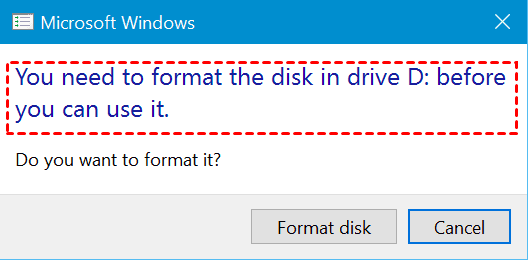
Don’t format it immediately if there are important data, or you are not sure. Because the formatting process will all the data on the drive. Instead, you need to turn off your PC until you find a way to repair RAW drive in Windows 10. This article will tell you the possible reasons and solutions to fix it successfully.
Possible Causes for Your Drive Becoming RAW
You must be curious about the reason why your drive becomes RAW. It may provide you with some clues to repair RAW drive in Windows 10 or prevent this error from happening again. We have collected the following possible reasons for you.
- Sudden power off or shutdown.
- Missing or corrupted file system.
- Viruses or malware infection.
- Bad sectors.
- Corrupted disk.
- ...
For USB flash drive or other external devices, this error can also occur due to damaged USB port or cable, abrupt removal, interruption during file transfer, incompatible file system, etc.
How to Repair RAW Drive in Windows 10 Successfully
With many ways to repair your drive in Windows 10, which one should you use? It depends on whether there is any important data.
- If the disk does not contain any critical data, you can directly format it.
- Conversely, try chkdsk command, update drivers, shrink partition, or recover data from hard drive before formatting it.
Way 1: Directly Format Drive to Repair RAW Drive
Step 1. Press Win + R and type diskpart in the Run window. Then, click OK to open it.
Step 2. Enter the following commands and press Enter after each line.
- list disk
- select X (X is the disk number of the RAW drive.)
- clean (The clean command will delete all the data on the RAW drive.)
- create partition primary
- format fs=ntfs quick (or format fs=fat32 quick)
- exit
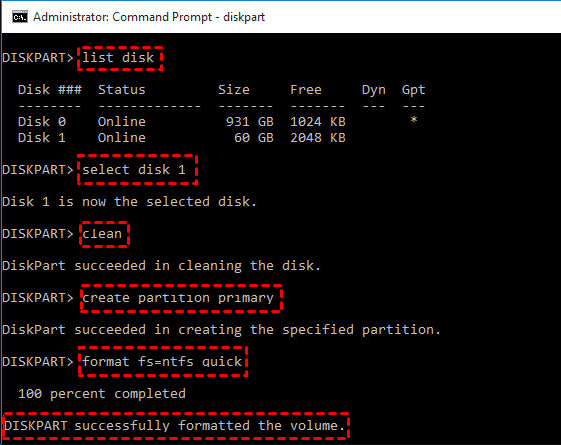
Note: If your RAW disk is write-protected, you could add the “attributes disk clear readonly” command after selecting disk.
Way 2: Recover Data and Format RAW Drive
If there are important data on the RAW drive, directly formatting it will cause data loss. To avoid this, you can choose to recover data from RAW drive with one professional data recovery software - FastRecovery first.
With its two advanced scanning methods, you can easily find out and recover all the data on the RAW drive. It can be an internal or external disk, such as HDD, SSD, USB flash drive, SD card, etc. And it has a high success rate and fast recovery speed. It is able to:
- recover Word documents, Excel files, PPT, pictures, videos, compressed files, etc and more than 1000+ file types.
- keep the recovered files with their original name, format, quality, and path.
- filter and recover specific files on the disk during the scanning process. You don’t need to wait for the scanning result.
- apply to Windows 7, 8, 10, 11, etc and Windows Server. So you can recover deleted files in Windows 11 or other data loss scenarios with this software.
To get started, download Windows data recovery software- FastRecovery and install it on your Windows PC.
-
Don't download and install FastRecovery on the RAW drive where you store deleted files, as this may cause data to be overwritten.
-
Any newly added data or disk formatting can overwrite data. Please avoid these operations after realizing data loss.
Step 1. Launch Windows data recovery software- FastRecovery. Click Partition Lost Recovery. You can also choose a more suitable alternative. All of them can help you retrieve data without causing any damage.
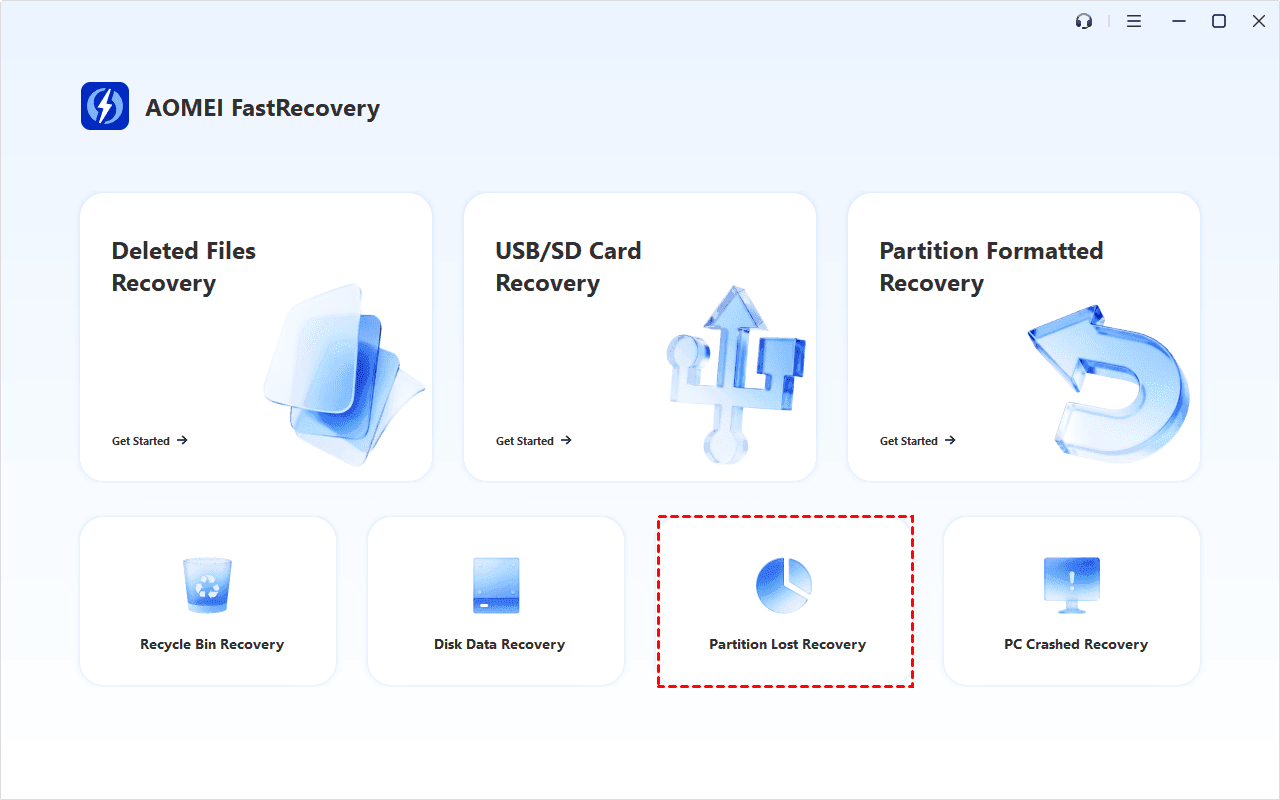
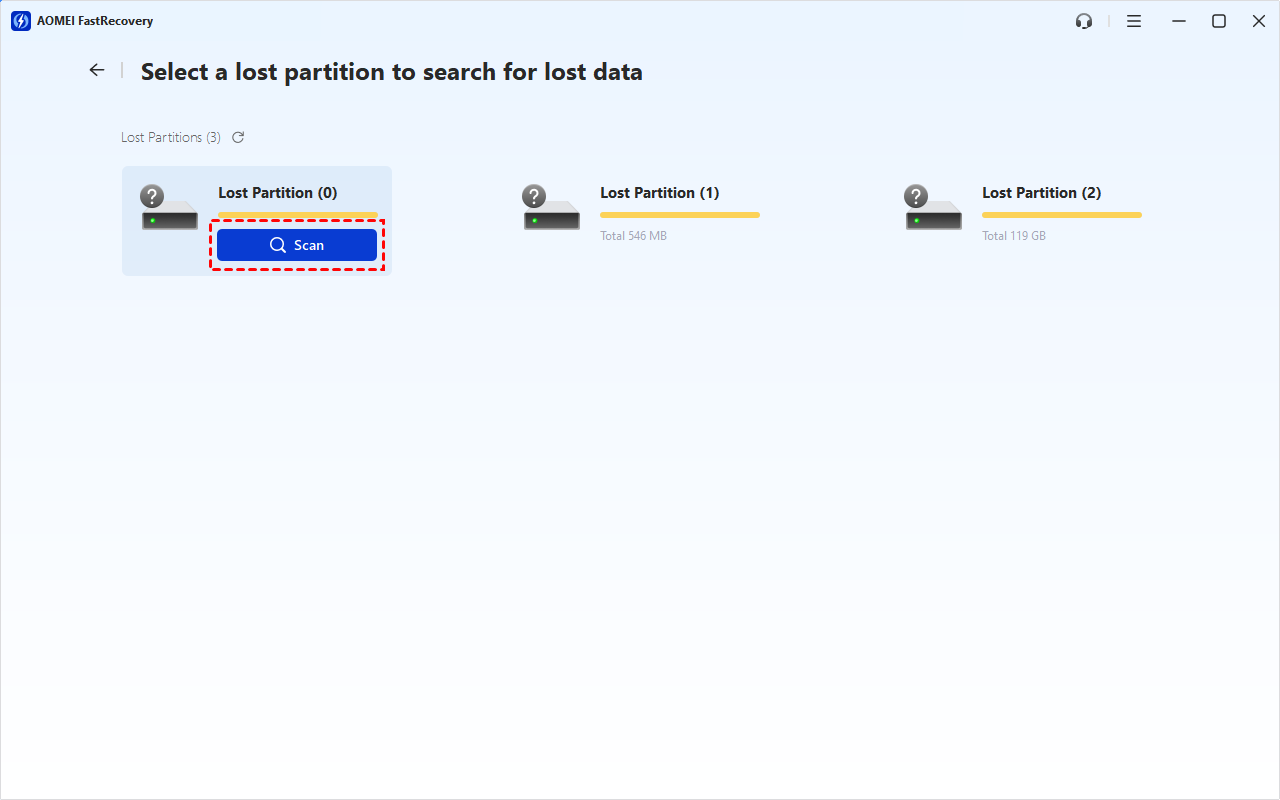
Step 2. Hover the mouse over the RAW drive or partition and click Scan. You can identify it through the drive letter (if it has one) or capacity.
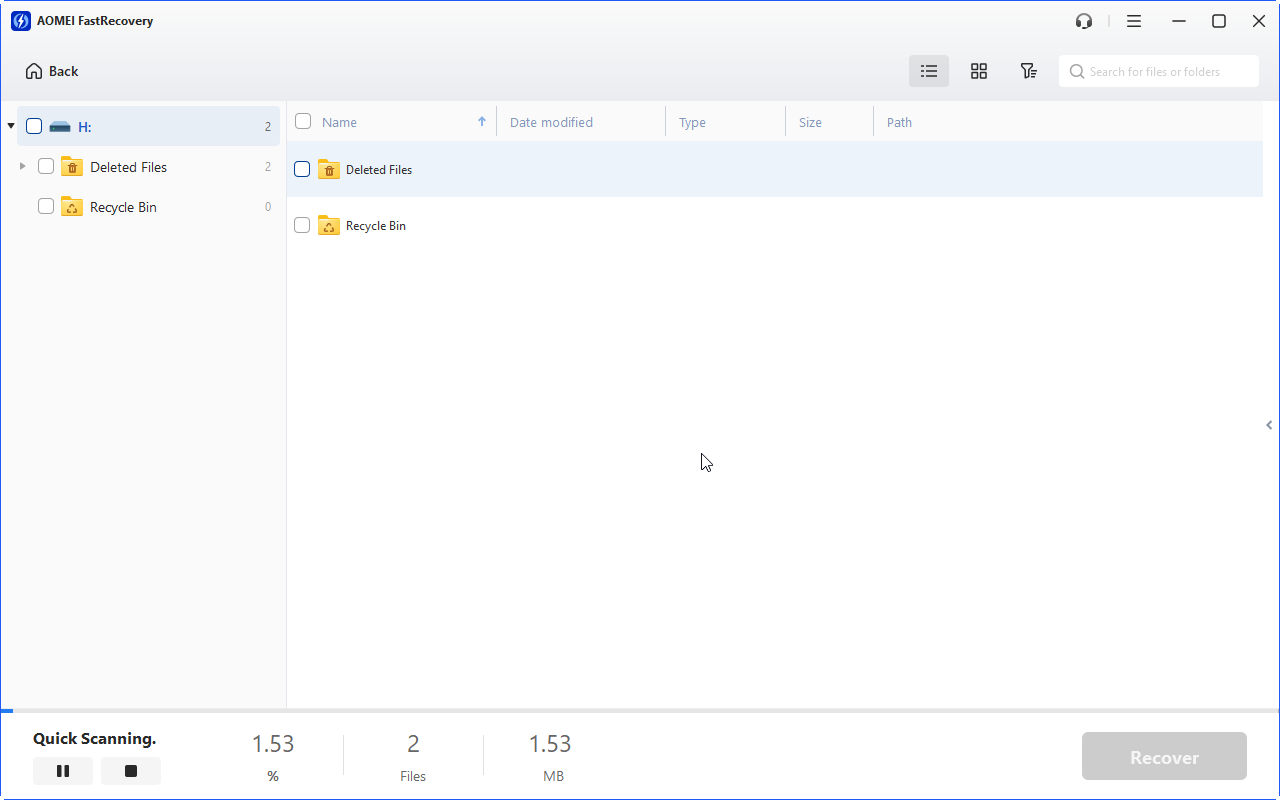
Step 3. It will automatically start Deep Scan to scan every sector of the RAW drive to find files buried deeper in the file system. In contrast, this mode takes a long time, just be patient.
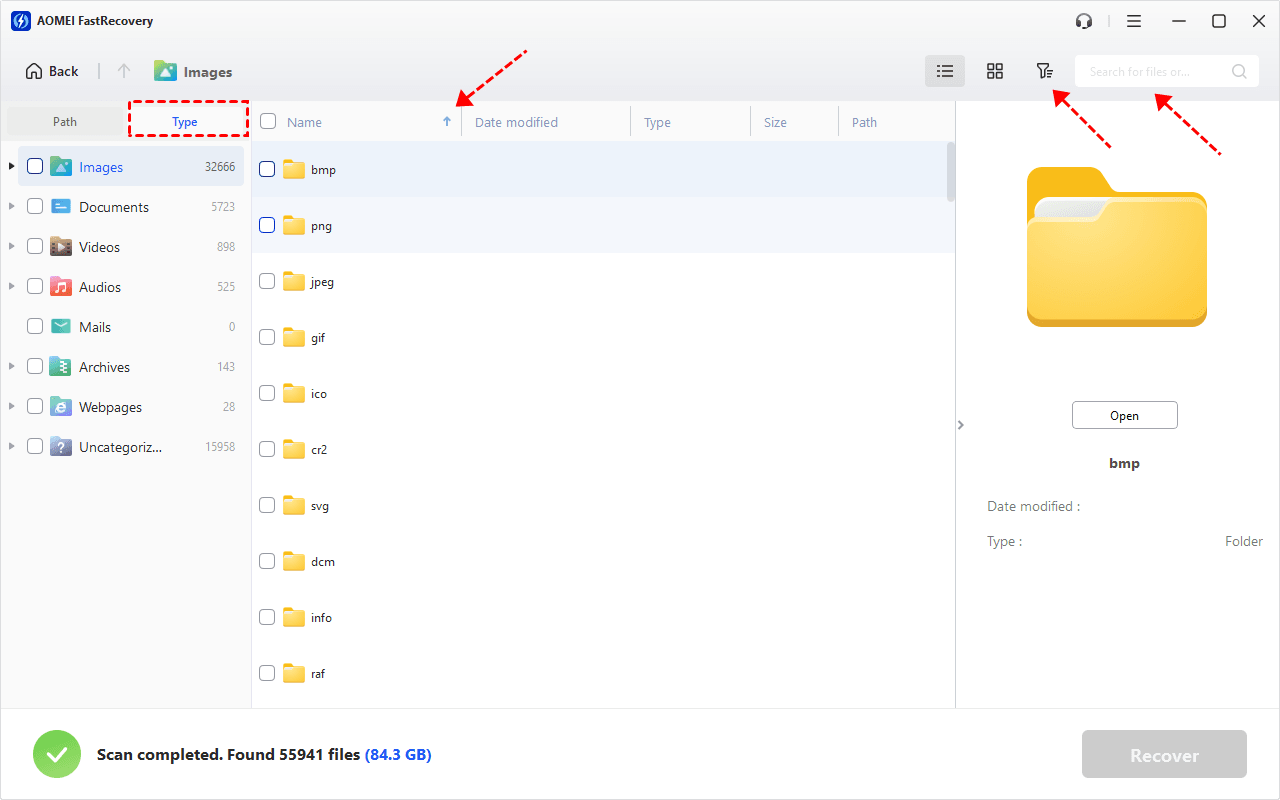
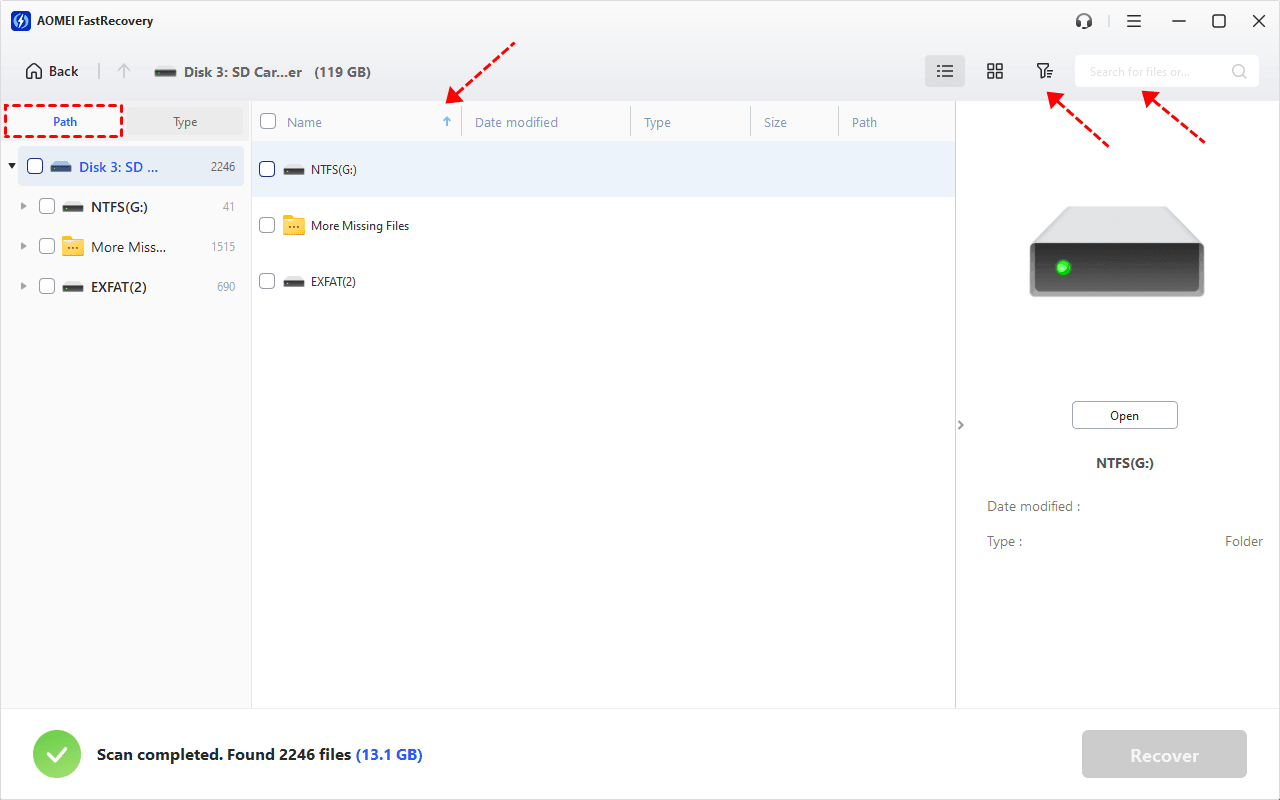
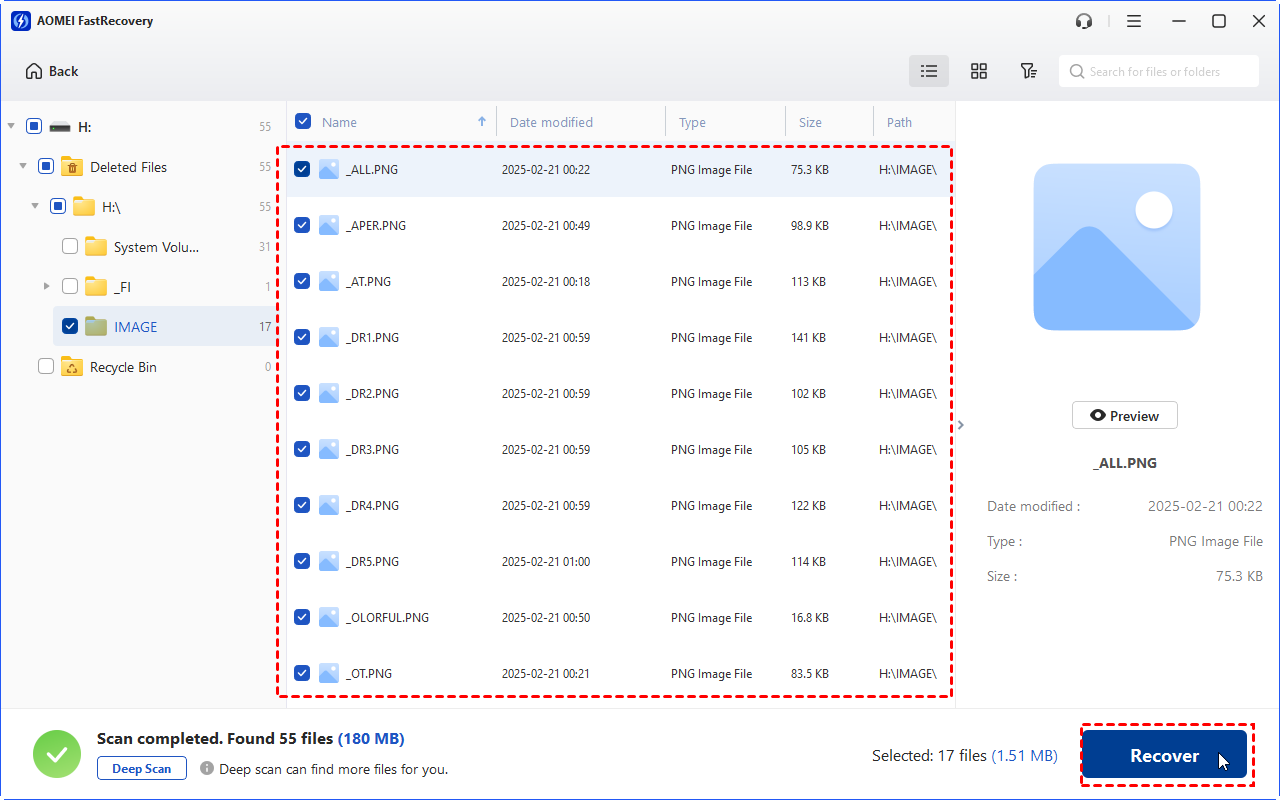
Step 4. Wait for the process to complete. The software is designed to organize and display data by Type (default) or Path, offering options to sort, search, filter, and preview files, thus making it easier to locate files.
👉Under the Type section:
- Specify the data type and click the arrow next to type, size, date modified, etc., to sort files.
- To locate files quickly, type the file name or extension in the search box.
- Or use the filter feature, similar to the Type category, allowing you to further specify the size of files, from less than 512 KB to 1GB above.
- Once found, double-click the files to preview.
👉 Under the Path section: Directly navigate to the original location where you saved deleted files. Sort files if needed.
- The Type category and filter option include all supported data types, such as images, videos, documents, mails, web pages, compressed files, etc.
- You can preview a wide range of data formats, such as wav, ico, jpg, png, bmp, jpeg, tif, svg, gif, mp4, mp3, txt, xlsx, pdf, ini, docx, etc.
Step 5. Select the files you want to recover and click Recover. Please choose a different location to save the recovered file.
-
Don't save the recovered files to the original location, as it may cause data overwriting.
-
The free edition only supports 500MB of data recovery. To recover a large number of deleted or missing files, consider upgrading FastRecovery to the advanced editions.
You still can use it to fix RAW SD drive without formatting, repair RAW USB drive in Windows 10, recover raw data from hard drive without formatting, etc.
Way 3: Repair RAW Disk using CHKDSK Command
Except for data recovery software, you can also try CHKDSK command to repair RAW drive in Windows 10. Its /f and /r parameters helps to find disk errors and fix it. If you think your disk has bad sectors, you can add /x parameter to mark bad sectors and recover readable information.
Step 1. Press Win + R to open the Run window. Then, type cmd and click OK to access the command prompt with administrator priority.
Step 2. Type chkdsk G: /f /r or chkdsk G: /f /r /x and press Enter.
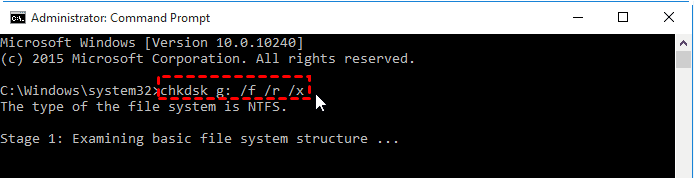
You may be able to access your flash drive and the data in it. But this method is not 100% successful, you may receive an error message like “The type of the file system is RAW. CHKDSK is not available for RAW drives.”, which results into data loss. If you are experiencing this error, try the next method.
Way 4: Update RAW Hard Disk Drivers
If the disk driver is outdated or corrupted, there may be bugs that make it difficult to communicate with your system. You can choose to update disk drivers and see if your disk goes normal.
Step 1. Press Win + X to open the Start menu and select Device Manager.
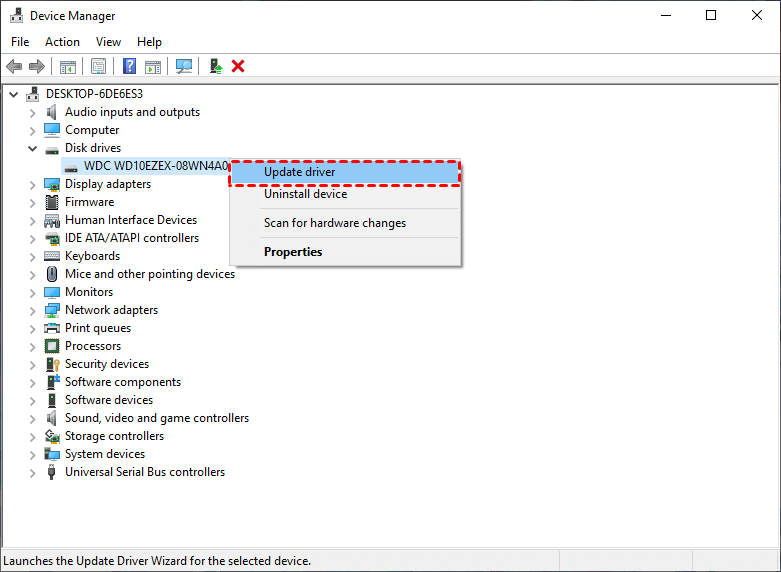
Step 2. Expand Disk drives, right-click the problematic disk and select Update driver.
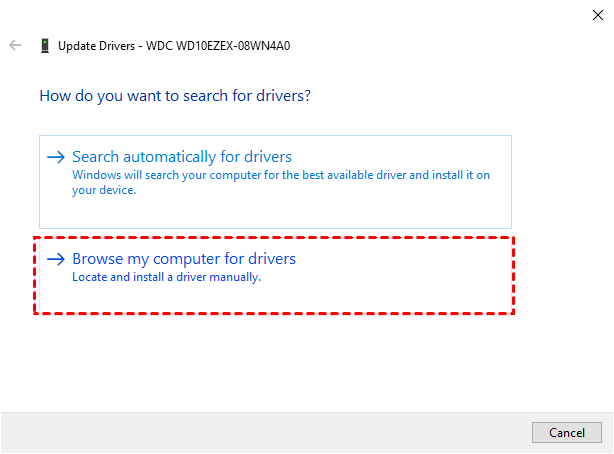
Step 3. Select “Search automatically for drivers” or “Browse my computer for drivers”. Finally, click OK to confirm this operation.
Way 5: Shrink RAW Partition in Disk Management
If you need to repair RAW partition in Windows 10, you can choose to shrink partition, it will rewrite the file system information and correct errors, but not remove files. If you disk only have one RAW partition, try this method.
Step 1. Press Win + X and select Disk Management. Then, find out the RAW partition on the disk.
Step 2. Right-click the RAW partition and click Shrink Volume.

Step 3. Specify the amount of space to shrink and click Shrink.
How to Prevent RAW Drive and Data Loss
You definitely don't want your drive to become RAW, which will prevent you from continuing to use it and could lead to data loss. However, this can sometimes be avoided. Here are some useful suggestions that you can follow:
- Double-check when formatting. Don’t interrupt the formatting process as well.
- Don’t download software from non-official websites as they may contain viruses that can cause your system behave abnormally.
- Scan your computer for viruses or malware. You can built-in antivirus software - Windows Defender or third-party software.
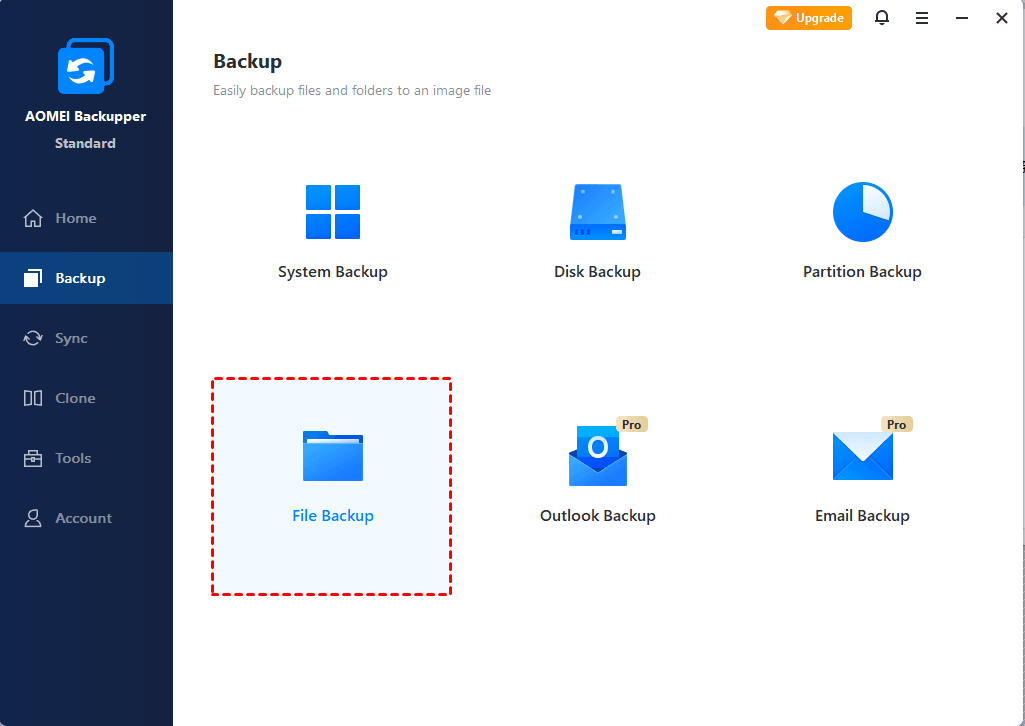
- Backup files to external hard drive automatically with backup software. AOMEI Backupper Standard is a good choice because of its intuitive interface, more flexible schedule options as well as extra features.
FAQs
✍ How to fix RAW drive without format
If you don’t want to lose any data on the RAW drive, you can choose to update disk drivers, try the CHKDSK command, shrink partition, etc. Knowing possible reasons help you to make this decision.
✍ Can I convert a RAW drive to NTFS without losing data?
The convert process requires formatting, but you can keep your data safe as long as you recover data from RAW drive with reliable data recovery software first.
✍ Can CHKDSK fix the RAW drive?
CHKDSK is more than 90% unlikely to solve problems with RAW drives. You may receive “CHKDSK is not available for RAW drives”. Similarly, if you use the Convert command, you may get “Convert is not available for RAW drives”.
✍ How to fix RAW USB drive in Windows 10
Like RAW drive, the ultimate method is to convert RAW to NTFS with the Format command. But if you are worried about your data, you can try another USB port or cable, update drivers, change drive letters, etc.
 100%
Clean & Secure
100%
Clean & Secure