FastRecovery



How to Recover lnk Files on USB [6 Ways]
In this article, you’ll get the most likely cause and how to recover Ink files on USB flash drive in 6 effective methods, along with step-by-step instructions.

By Ivy / Updated on March 9, 2026


Must-Know Info about Ink Files
.Inkfiles, also known as shortcut files, are a special type of file in the Windows operating system that serve as pointers or references to other files or programs on your computer. Think of them as road signs that tell your computer where to find the actual file or application.
Instead of storing the entire file, Ink files (with a ".ink" extension) contain the target file location and make it faster and more convenient to access files or applications, usually on the desktop, taskbar, or in folders. So, you don’t need to search for them manually.
Common Causes of InkFile Loss on USB
Here are the 3 main causes of .ink file loss on USB drive. Let’s break it down.
- Accidental Deletion of Shortcuts: One of the most common causes of Ink file loss is simply deleting the shortcut by mistake. Since Ink files don't contain the actual data, it’s easy to ignore their importance and assume deleting them won’t cause major issues. However, once deleted, the link to your actual files or programs is lost, making recovery necessary.
- File System Corruption: USB drives are susceptible to corruption due to improper ejection, sudden power outages, physical damage, and more. When the file system on the USB drive gets corrupted, it can cause Ink files to become inaccessible or disappear entirely. USB errors often result in broken links or lost references to the actual files.
- Malware or Virus Attacks: Malware and viruses are a common threat to USB drives. When these malicious programs infect a drive, they can delete or corrupt files, including Ink files. Some viruses specifically target shortcut files, turning them into malicious links that lead to dangerous sites or programs.
How to Recover Ink Files on USB Step by Step
Here are 6 simple and effective methods to recover Ink files on USB, whether it's deleted, virus-infected, or hidden.
Way 1: Check the Recycle Bin for Deleted Shortcuts
Checking the Recycle Bin is often the fastest method if you accidentally deleted shortcut files, make sure you check the Ink files here first!
Step 1. Open the Recycle Bin on your desktop.
Step 2. Search for your missing Ink file by browsing through the items.
Step 3. Right-click on the files and select Restore. The selected files will be put back in their original location.

Way 2: Recover Shortcut Files in USB with Software (Deleted, Virus-infected, etc)
If you can’t find the shortcut files in Recycle Bin or Previous Versions, using recovery tools like FastRecovery is the best option. It integrates with powerful algorithms that can scan USB drive for deleted files (e.g., shortcuts) quickly, within 3-5 seconds, and deep scan USB drive if it’s damaged or formatted.

 FastRecovery
- Simple and easy to use, no technical skills required.
- Support a wide range of data types, from documents to images, videos, etc., including shortcut files.
- Preview Ink files before recovery to be sure you select the right ones.
- Filter deleted or lost shortcut files (.ink) quickly and easily, especially useful for recovering specific filesor folders.
- Compatible with different USB brands, such as SanDisk, Samsung, PNY, Corsair, etc.
Step 1. Open the software after installing. Under Hard Drive Recovery, select your USB drive from the list of available devices and click Scan to scan for deleted files.

Step 2. It will start Quick Scan automatically to find deleted files, which takes only 3-5 seconds. You can then filter the file name, extension (.ink), etc., to find and preview the files you want to recover.
Step 3. Once found, click Recover and select a new location to save them safely.
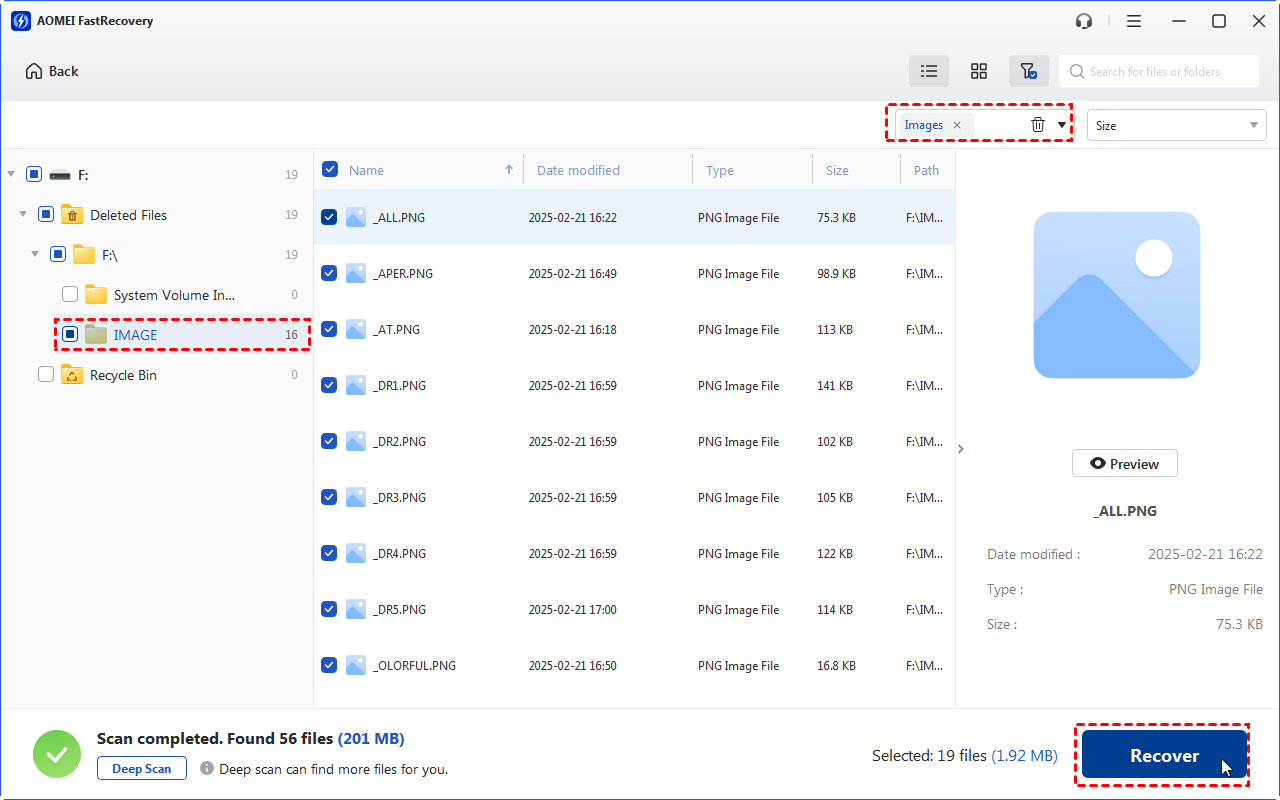
- Always recover files to a different location (not the USB drive) to avoid data overwriting, making recovery more difficult.
- If you can’t find deleted files, click the Deep Scan to scan this drive more thoroughly.
Way 3: Restore Ink Files from Previous Versions
If your USB drive was set up with File History or System Restore, you can restore Ink files from previous versions.
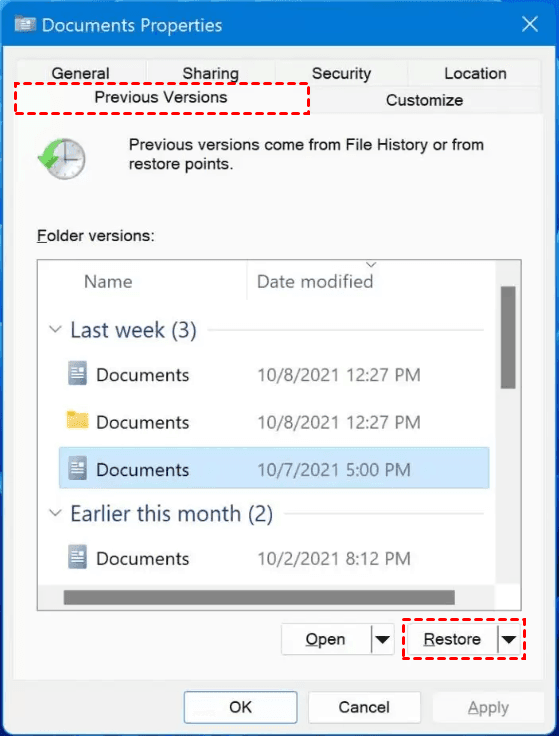
Step 1. Locate and right-click on the folder containing Ink files, then select Properties from the context menu.
Step 2. On the Previous Versions tab, look for a version from before the Ink files were lost and click Restore to recover shortcut files.
Way 4: Recover Files from Shortcut Virus
If you suspect there is a virus, you can choose to delete Ink files and recover files from Shortcut virus.
Step 1. Open Task Manager. Go to the Details tab and look for any suspicious processes, e.g., runtime broker in C:/Windows, NOT C:/Windows/System 32. Then, right-click it and click End Task to stop it.
Step 2. Navigate to the USB drive and manually delete the infected Ink files.
Step 3. Back to Windows desktop, right-click the Recycle Bin, and select Empty Recycle Bin.

Step 4. Search for Windows Defender and select Full Scan to scan your USB drive for viruses.
Alternatively, you can open CMD as an administrator and type X: and del *.Ink to delete shortcuts. Then, type attrib -h - r -s /s /d X:\*.* to recover shortcut files. Replace X: with the drive letter of your USB drive.
Way 5: Fix Shortcut Files in USB using CMD (for Hidden Files)
If you’re comfortable with command line, you can use CMD (Command Prompt) to attempt recovery of Infiles. Here's how:
Step 1. Search for cmd and select Run as Administrator to open Command Prompt with administrative privileges.
Step 2. Type chkdsk X: /f and press Enter. Replace X with your USB drive letter. This command will check and fix any file system errors on the drive.

Step 3. To restore hidden or system files that may include Ink files, type attrib -h -r -s X:\*.Ink and press Enter. This will attempt to make hidden or system Ink files visible again.
Way 6: Format USB Drive with InkFiles
If other recovery methods don’t work, you may need to consider formatting drive to resolve file system issues preventing you from accessing the .ink files. Note that this operation will erase all data on the drive if you don’t back up them beforehand.
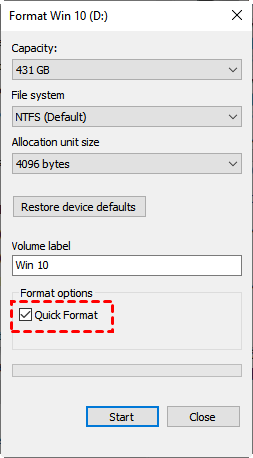
Step 1. In File Explorer, locate and right-click the USB drive, then select Format.
Step 2. Be sure to select a compatible file system (e.g., NTFS, FAT32, etc) and Quick Format option. Then, click Start to format the USB drive.
Conclusion
How to recover Ink files on USB drive? The key step is to find the cause behind Ink file loss, and then select the recovery methods. Always check the Recycle Bin first as it’s the fastest method to find deleted Ink files.
If you can’t find files on the computer, it may be deleted permanently or virus-infected. You can choose to employ a professional data recovery software like FastRecovery, or directly delete shortcuts and remove virus-infected files.
 100%
Clean & Secure
100%
Clean & Secure