FastRecovery



How to Easily Recover Deleted 7 Zip Files (3 Ways)
In this article, you will learn how to recover deleted 7zip files step by step using 3 easy methods, along with pro tips.

By Ivy / Updated on May 8, 2026


7Zip, a free, open-source file compression software, is lightweight, fast, and supports numerous archive formats, including the popular .zip and its own .7z format. It also supports compressing multiple files and folders, splitting big archives, strong AES-256 encryption, etc.
However, just like with any data stored on a computer, 7Zip files can sometimes get deleted, either accidentally, due to system crashes, or for other reasons. Thus, it’s necessary to know how to recover deleted 7Zip files and pro tips to increase the success rate of data recovery.
Pro Tips for Recovering Deleted 7Zip Files
Before we dive into the methods of recovering deleted 7Zip files, let’s start with some pro tips that can increase the chances of data recovery.
- Stop Using the Computer Right Away. This is crucial for recovering deleted 7Zip files as the more you use the computer after data loss, the higher the chances of deleted files being overwritten. Don’t add new files to it or format the drive as well.
- Opt for a reliable method. Usually, there are 3 types of methods to recover deleted files, namely, attempt using file recovery software, restore from backup image, and check the Recycle Bin. The success rate decreases one by one.
- Act quickly. Time matters, too. The longer files are deleted, the greater the chance it will be overwritten, making recovery more difficult. So you need to recover deleted 7Zip files as soon as possible.
- Regular backups: Always backup files to external hard drives, USB drives, cloud storage, etc., allowing you to restore files from backup at any time. It requires you to create backup images before losing data.
You may now be curious to know the exact recovery process and steps, read more about it in the next section.
How to Recover Deleted 7Zip Files Step by Step
As mentioned earlier, there are 3 types of methods to recover deleted 7ZIP files. Below we will show you the scenarios and how to use them.
Method 1: Recover Deleted 7Zip Files using Reliable Software
When choosing a recovery tool, it’s important to know if it’s reliable and what features make it stand out. Here are some key features that make FastRecovery perfect for recovering deleted 7Zip files in Windows 11, 10, 8, 7, etc., and Windows Servers.

 FastRecovery
- It has a free version that can recover data up to 500MB.
- With a clean and easy-to-navigate interface, it's accessible to users of all technical levels.
- Use Quick Scan and Deep Scan in optimal situations to find files quickly, saving time and optimizing results significantly.
- Supports different types of compressed files, such as 7Zip, Zip, RAR, ZAP, AR, CAR, etc., as well as other data types.
- Quickly sort, search or filter files from a large number of scanned files.
- Preview the files and their integrity before recovering.
- Works with all major file systems, NTFS, FAT32, exFAT, and ReFS, ensuring high compatibility across different devices.
 100% Secure
In addition, it can handle almost all types of data loss situations, such as accidental deletion, formatting, virus attack, lost partition, or even system crash.
Now, download FastRecovery to get started. The installation process is straightforward; just follow the on-screen instructions.
-
Don't download and install FastRecovery on the drive where you store deleted files, as this may cause data overwriting.
-
Any newly added data or disk formatting can overwrite data. Please avoid these operations after deletion.
Step 1: Select your loss scenario
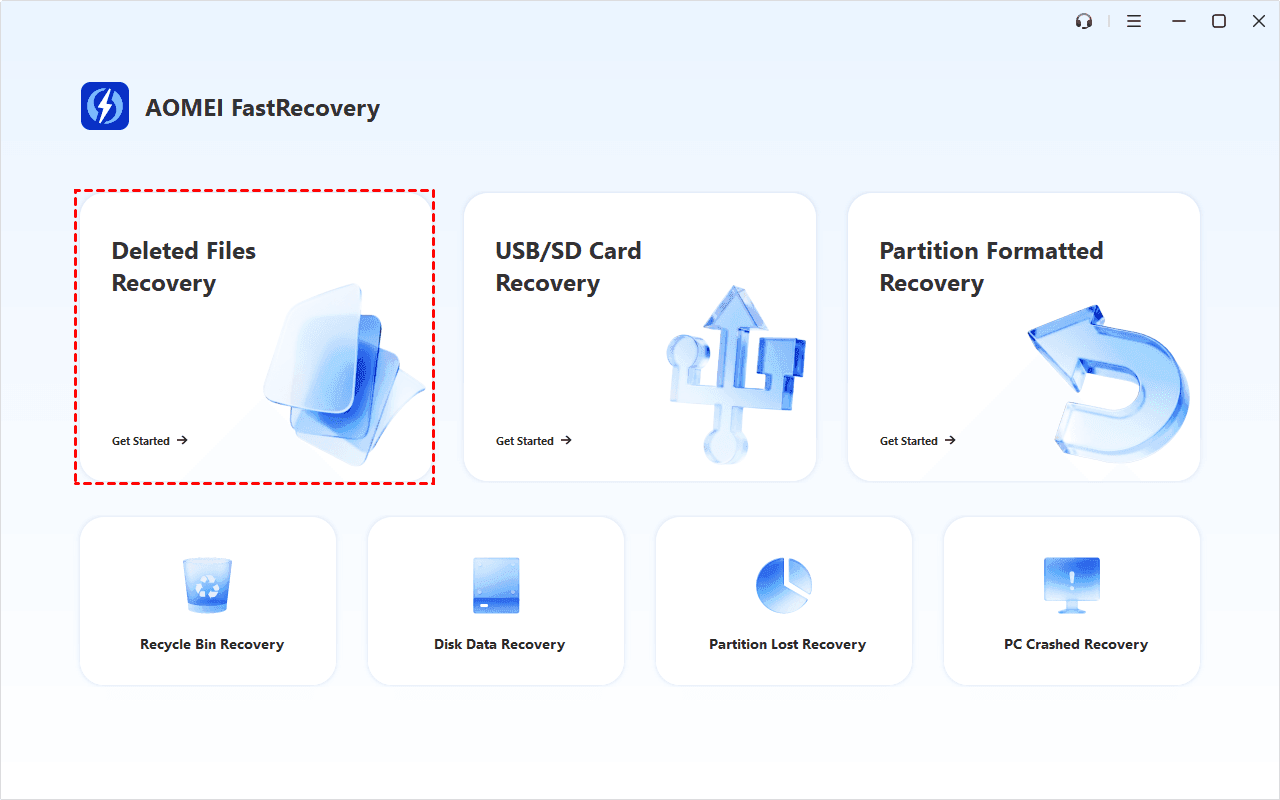
Once FastRecovery is installed, open the program. You will see a range of recovery options tailored to different scenarios.
To recover deleted 7Zip files, click Deleted Files Recovery. You can also choose a more suitable alternative. All of them can help you retrieve data without causing any damage.
Step 2: Select the drive containing deleted 7Zip files
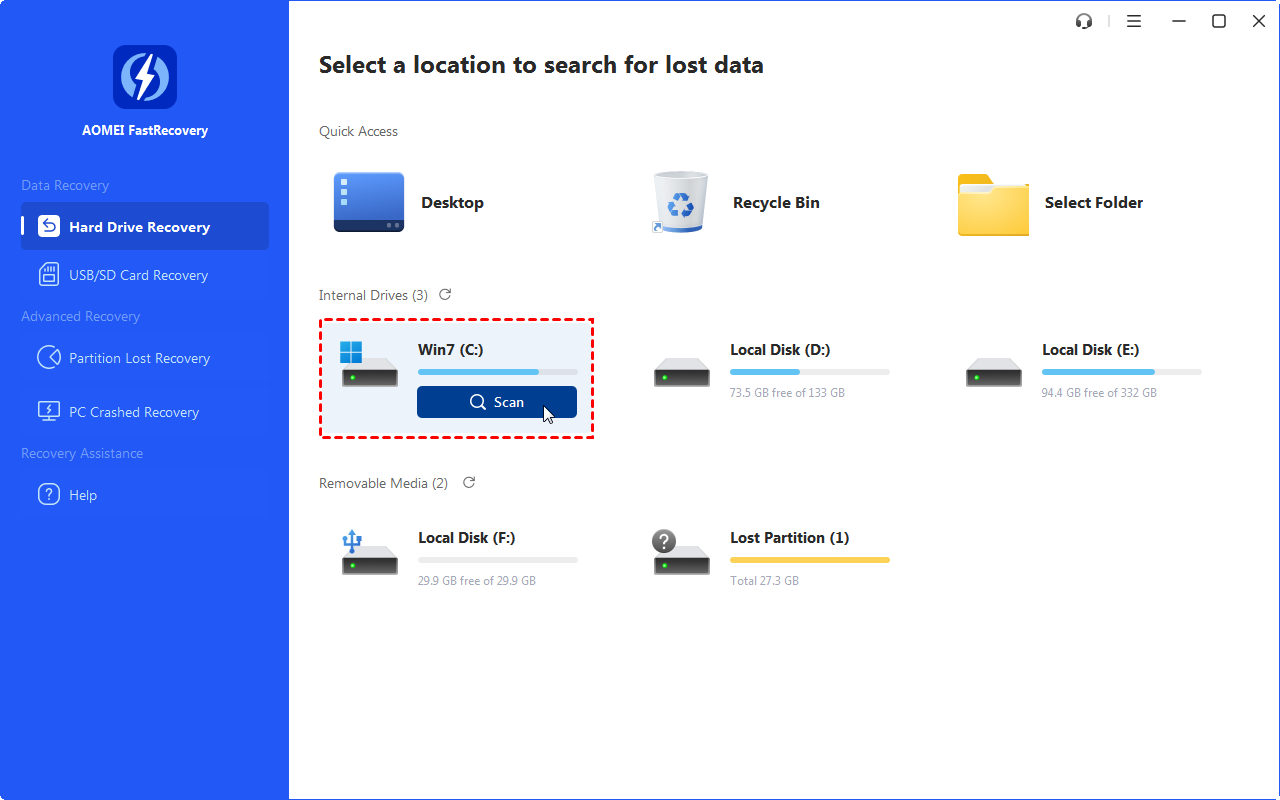
Then, select a location to search for lost data. Just hover your mouse over the drive containing deleted 7Zip files and click the Scan button. It can be a specific location, an internal or external drive.
Step 3: Scan for deleted 7Zip files
It will start Quick Scan to scan the drive for any deleted 7Zip files. It works fast, so you won’t have to wait too long. It can find files even if they are deleted from Recycle Bin.

Step 4: Find deleted 7Zip files quickly
You can select files by Type (default) or Path, and combine them with options to sort, filter, search, and preview files.
- ⬆⬇Sort: Sort files by name, date modified, type, etc., on the right panel.
- 🔽 Filter: Specify the Type (i.e., Archive)/Size (from Less than 512KB to 1GB above) to target your search.
- 🔎 Search: Type the file name or extension in the search box to locate deleted files precisely.
- 👁🗨 Preview: Double-click files to preview formats such as wav, ico, jpg, png, bmp, jpeg, tif, svg, gif, mp4, mp3, txt, xlsx, pdf, ini, docx, etc.
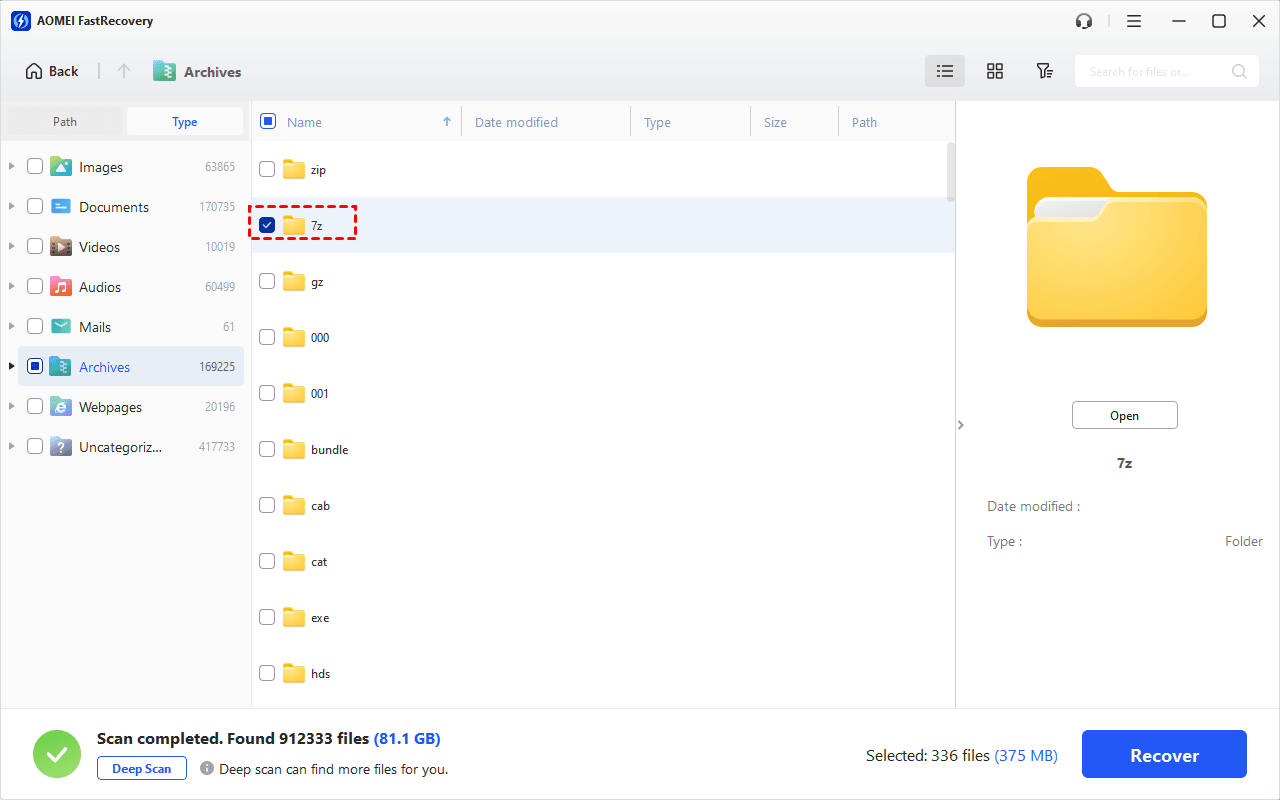
- The Type categories and filter options both include all supported data types, such as images, videos, documents, emails, web pages, and compressed files.
- If you can’t find the desired files, click Deep Scan in the lower left corner. It will scan every sector of the disk to find more missing files.
Step 5: Recover deleted 7Zip files
Select deleted 7Zip files and click “Recover”. Always recover files to a different location (not the original drive) to save the recovered data, which can largely avoid data overwriting.

Method 2: Recover Deleted 7Zip Files from Recycle Bin
Also, if you deleted 7Zip files recently, they might still be in the Recycle Bin. You can try to recover deleted files from Recycle Bin.
Step 1. Open the Recycle Bin on your desktop.
Step 2. Look for the deleted 7Zip file, right-click it, and select the Restore button. It will restore deleted 7Zip documents totheir original location.
Method 3: Recover Deleted 7Zip Files using File History
Windows has a handy feature called File History, which will automatically back up your files and allow you to restore deleted files. You can directly go to File History or use the Restore Previous Versions feature.
Step 1. Right-click the folder where the 7Zip file was located and select Restore previous versions.
Step 2. Browse through the File versions and find the one containing deleted 7Zip files. Then, click Open or Open in File History to check the selected file version.
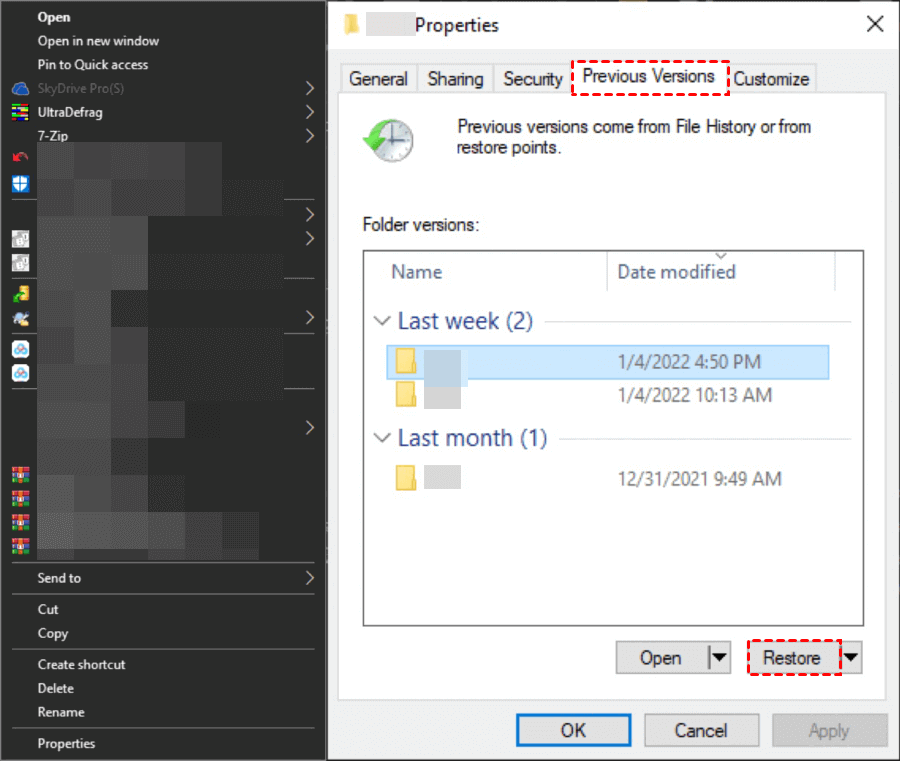
Step 3. After confirming, click the Restore button. To restore previous version of files to a different location, click the Restore To... button.
Conclusion
This article describes how to recover deleted 7Zip files quickly in 3 easy methods and pro tips to increase the success rate of data recovery. Please stop using your computer, opt for a reliable method, and act fast after data loss. Using reliable software like FastRecovery has a high success rate.
In addition, you can take advantage of built-in tools like Recycle Bin, File History, etc., as much as possible. It helps a lot in recovering deleted files as well as preventing future data loss.
 100%
Clean & Secure
100%
Clean & Secure