 AOMEI Backupper


How to Erase a BitLocker Drive Securely | Top 3 Ways
Learn how to safely erase BitLocker drive using specialized disk wipe software, Format or Diskpart. Scroll down for detailed steps.

By Lily Updated on February 28, 2026


User case: How can I erase a BitLocker encrypted disk?
“Hi, I am thinking about turning on BitLocker. My question is how can I erase a BitLocker encrypted partition without a Recovery key if I ever run into this issue? I know that without a recovery key your data is gone, but how can I erase a disk without a recovery key?”
– Microsoft Community
BitLocker is a full-disk encryption technology built into Windows that protects data by encrypting the entire hard drive. If your drive is BitLocker-encrypted, how can you erase it when you encounter severe hard drive failure or when you want to repurpose the drive? Please keep reading.
How to erase a BitLocker drive in Windows 11/10/8/7
In this part, you’ll learn three ways to erase a BitLocker drive. Check them one by one.
🔔 Important Note:
Erasing a drive can cause permanent data loss, so ensure you've backed up all important files before proceeding.
Way 1: Wipe drive with BitLocker using disk wipe tool
AOMEI Backupper Professional is a powerful disk wiping tool that can securely wipe a BitLocker drive, even when it's encrypted. This process goes beyond simple deletion by using advanced algorithms to erase all data, making it impossible to recover.

 AOMEI Backupper
-
Full Disk Wipe: Overwrites the entire drive, including all partitions, by writing zeros or random data to ensure permanent deletion.
-
Partition Wipe: Allows you to wipe individual partitions if you don't want to erase the entire drive.
-
Compatibility: Supports HDDs, SSDs, USB drives, and other storage media, providing a comprehensive solution for all types of drives.
 100% Secure
Download and install AOMEI Backupper on your PC. Then follow the instructions below to wipe drive with BitLocker:
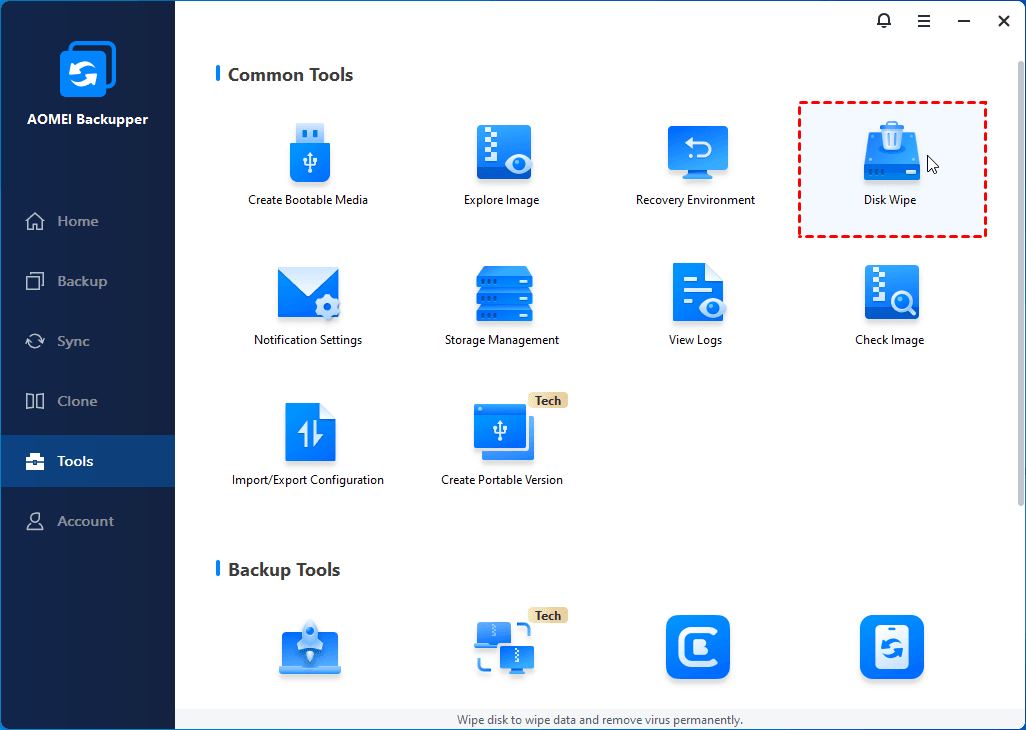
1. Open AOMEI Backupper. In the main window, click on the Tools tab and select Disk Wipe.
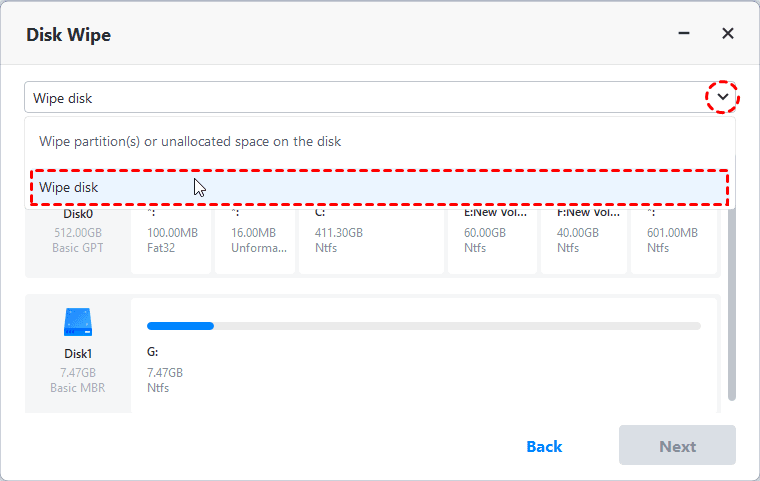
2. In the pop-up window, select Wipe disk from the drop-down menu.
3. Then select the BitLocker drive you wish to wipe and click Next.
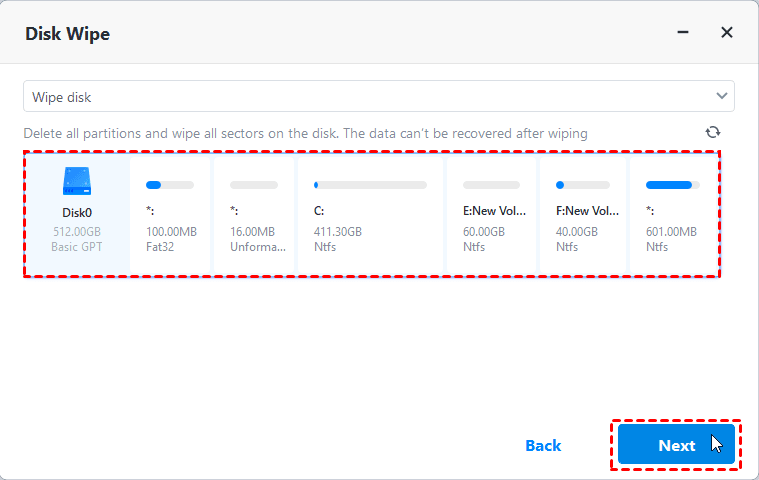
Note: If you select a system disk, the program will prompt you to execute the operation in reboot mode.
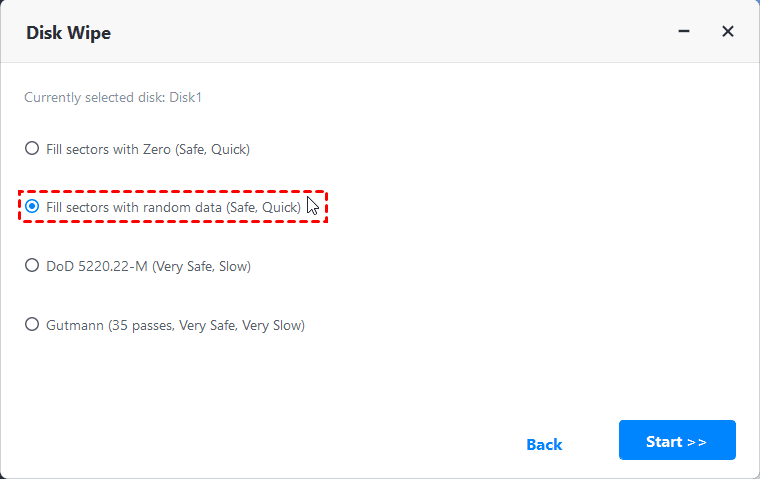
4. Choose a desired wiping method and click Start to begin disk erasing. Balancing data security and wiping speed, Fill sectors with random data and DoD 5220.22-M are recommended.
Way 2: Erase BitLocker drive via Format
The built-in Format feature can also help you erase a BitLocker-encrypted drive. Formatting will delete all data on the drive, including the encryption. Here’s a step-by-step guide:
1. Press Win + E to open File Explorer. Then find the drive you want to format.
2. Right-click on the drive and select Format.
3. In the Format window, choose the following options:
- File system: Choose NTFS (or exFAT if you plan to use the drive on both Windows and macOS).
- Allocation unit size: Leave this as Default unless you have a specific requirement.
- Volume label: You can name the drive here, or leave it blank.
- Quick Format: Check this option to speed up the process. Uncheck it if you want to do a more thorough format.
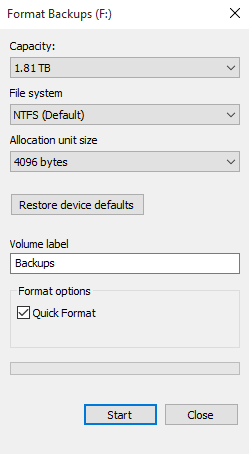
4. Click Start and confirm the prompt to begin the format process.
Way 3: Wipe BitLocker drive with Diskpart
This method is using Diskpart in Command Prompt to completely erase the drive. Follow the steps below:
1. Search for “cmd” on the taskbar and run Command Prompt as administrator.
2. In the Command Prompt window, type the following commands and press Enter after each line.
- diskpart
- list disk
- select disk X (replace "X" with the correct disk number)
- clean all (this command will overwrite every sector of the drive)
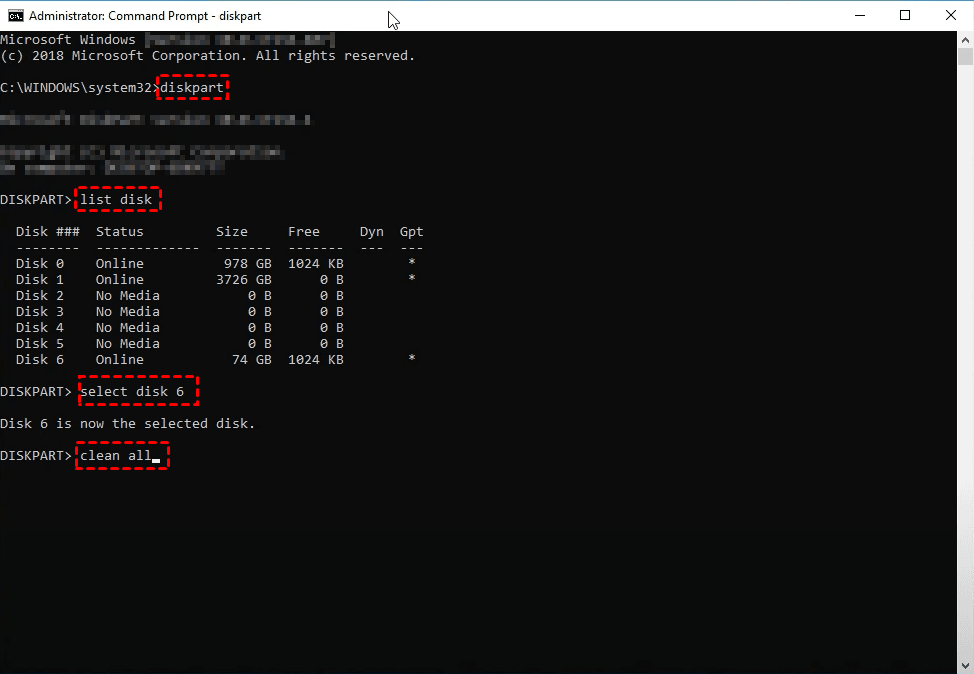
3. After the operation is done, exit Command Prompt.
FAQs about erasing BitLocker drive
1. Does formatting a hard drive remove bitlocker?
Yes, formatting a disk removes BitLocker encryption and erases all data on the disk. For detailed steps, please refer to way 2.
2. How long does it take to wipe a BitLocker drive using Diskpart?
The time it takes to wipe a BitLocker drive depends on the drive's size and the method used. Using the clean all command can take hours, especially for larger drives, as it overwrites each sector.
3. Can I reuse the drive after wiping it?
Yes, once a BitLocker drive is wiped, it can be reused. If you can’t find the drive in File Explorer after wiping, it possibly becomes unallocated space. Use Disk Management to create a new simple volume and then it can be used again.
Verdict
If you need to erase a BitLocker drive, AOMEI Backupper, the Format feature and Diskpart commands can give you a hand. Always back up important files before erasing the drive to avoid losing valuable data. For complete security, ensure to use reliable erasure methods and consider re-encrypting the drive if needed.
What’s more, AOMEI Backupper is not only disk wipe software but also disk clone software. You can use it to replace C drive with SSD. Why not give it a shot?
 100%
Clean & Secure
100%
Clean & Secure
