This article describes how to backup Outlook email files easily with AOMEI Backupper. It is essential for email data security.
Microsoft Outlook is a widely used email management tool, which allows users to send, receive, and organize emails, as well as manage calendars, contacts, and tasks. It is important to ensure data security and have backups of your Outlook Email. So, you hold the capability to promptly reinstate these vital data in the face of email data loss stemming from hardware glitches, accidental deletions, or unexpected circumstances.
AOMEI Backupper is a seamless solution that seamlessly interfaces with Microsoft Outlook. Through its user-friendly interface, you can effortlessly create Outlook Backup, which backs up not only your Outlook email data but also calendars, contacts, tasks, and a host of other essential elements within the Outlook Client. These backups are consolidated into a coherent image file, all accomplished within a few uncomplicated steps.
It is a paid feature to back up Outlook data, so please upgrade to AOMEI Backupper Professional or other editions based on your use environment.
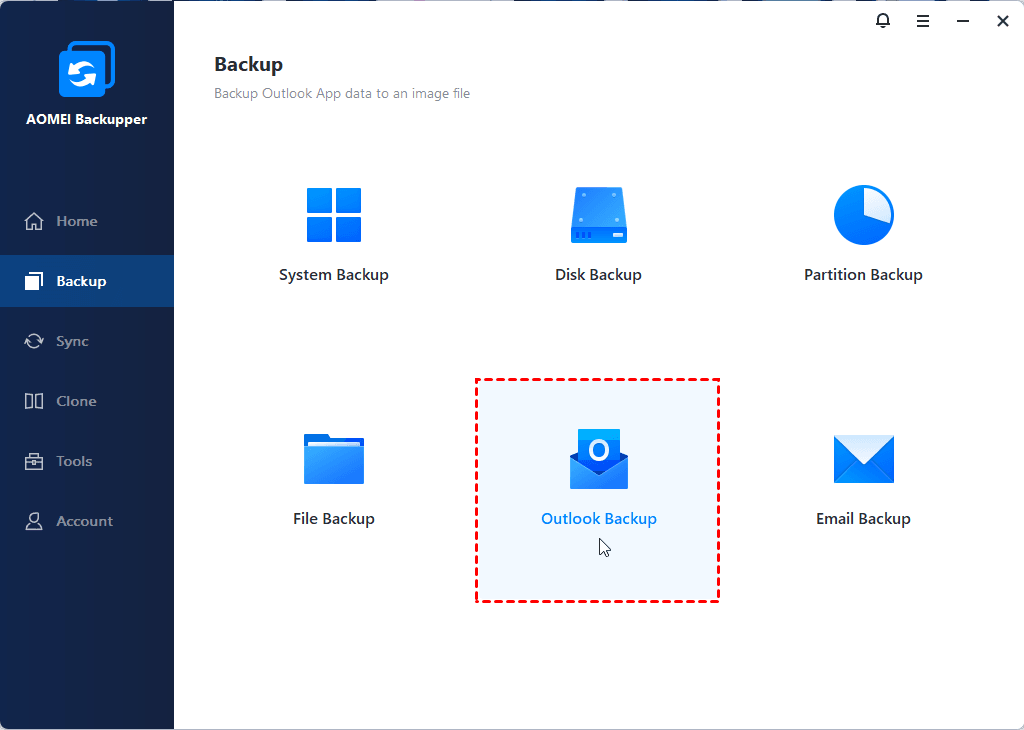
In the left tab page, select "Backup" followed by "Outlook Backup".
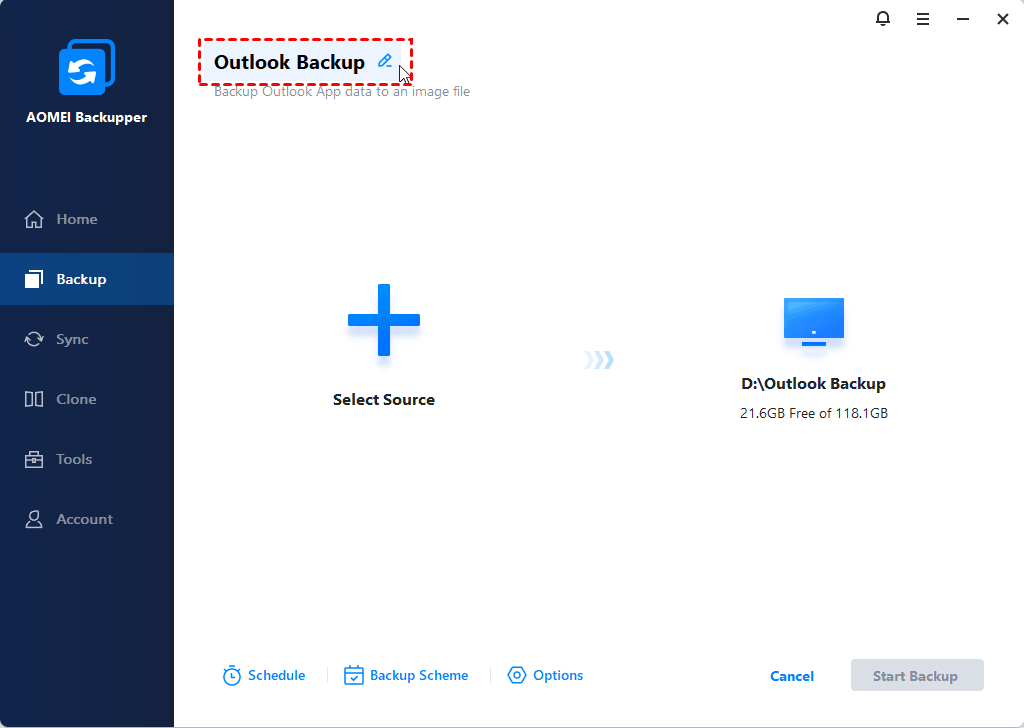
You can name it in the "Task Name" box to help you distinguish it from other backups.
In addition to the aforementioned options, there are additional features to further enhance functionality and convenience:
Schedule: Since systems and data are constantly changing, you can set up scheduled backups to automatically back up the system at specified intervals. You have the flexibility to choose from daily, weekly, or monthly backups. In the paid version, you can also utilize event triggers or initiate backups upon USB plug-in.
Backup Scheme: With backup schemes, you have the option to choose between incremental and differential backup methods. Incremental backup captures only the changes made since the last backup, while differential backup captures the changes since the last full backup. This flexibility allows you to efficiently manage backup storage. Additionally, the paid edition can automatically delete older backup images to free up disk space, ensuring optimal utilization.
Options: There are various settings to enhance functionality and customization. These options include:
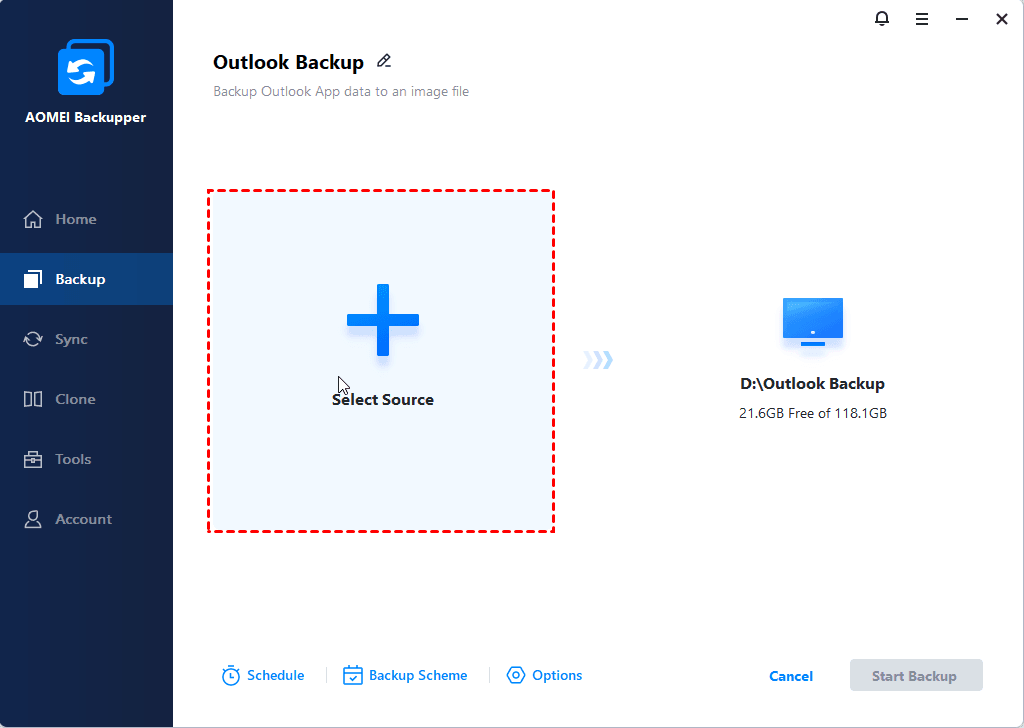
Click "Select Source" to add the Outlook data you want to back up.
Within the displayed popup window, you will see all Outlook Accounts seamlessly integrated with the Outlook Client. At this juncture, you can exercise your preference by choosing the whole Outlook account or specific Outlook data that warrants backing up. You can also select multiple Outlook accounts to back up.
By default, the largest drive on the PC will be selected as the destination.
Please click the destination box to select a destination path.
Supported destinations include: local drives (internal/external), network-attached storage (NAS), and network share.
Click the "Start Backup" button to begin the backup process.
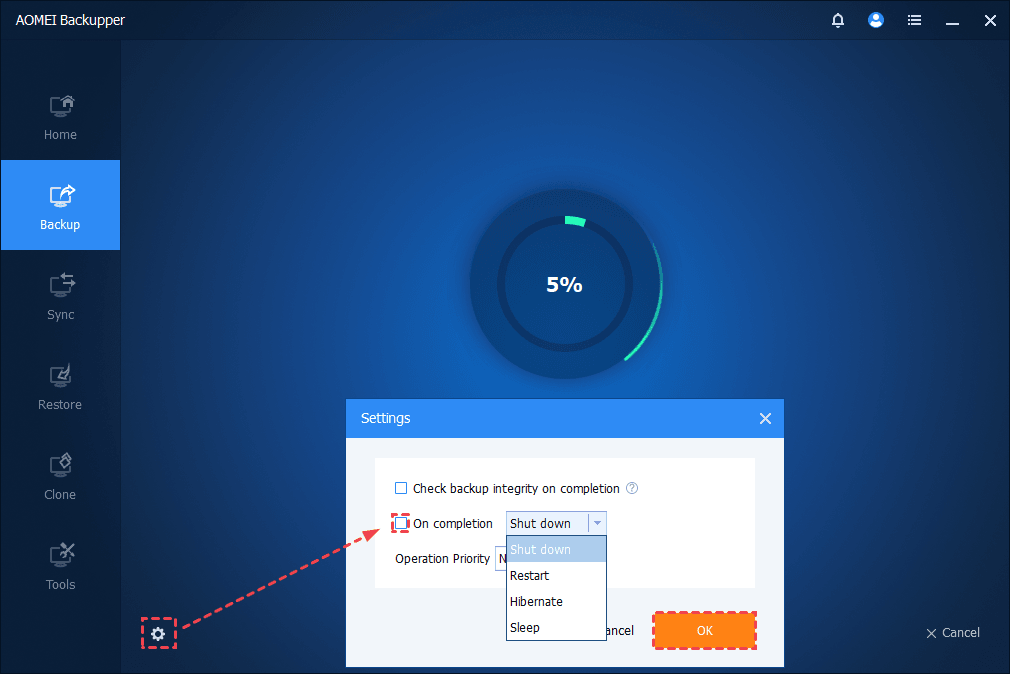
While a backup is running, you can click an icon in the lower-left corner to set to Shut down/Restart/Hibernate/Sleep PC after backup completion. Please tick the box and then click "OK".
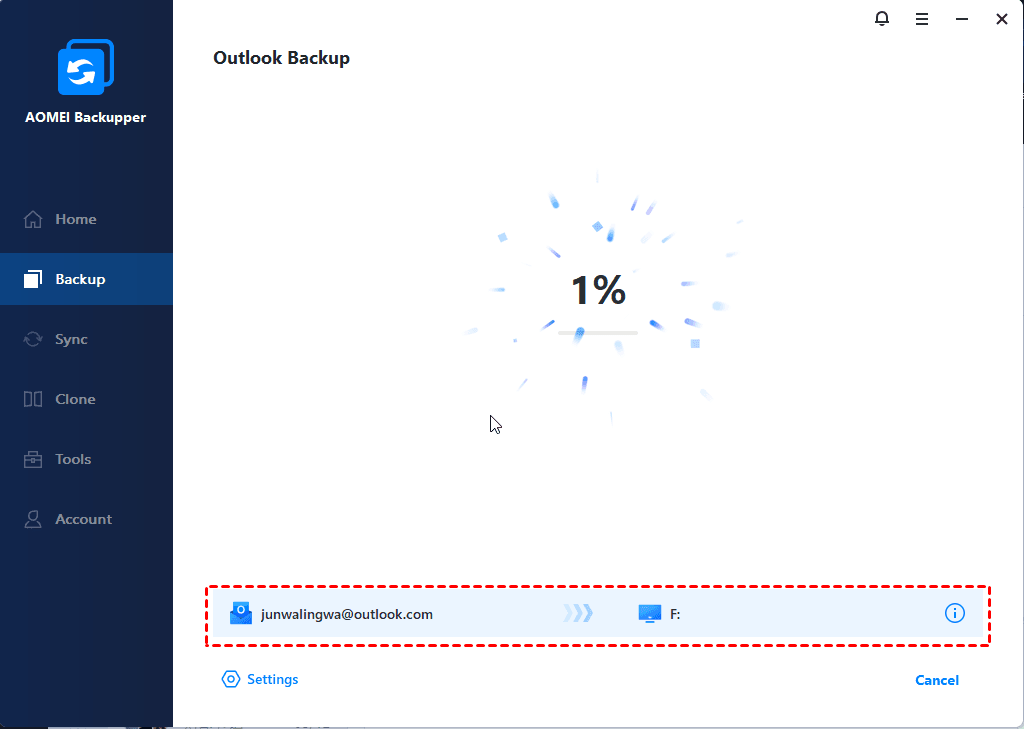
When the backup is running, you can also view the backup process.
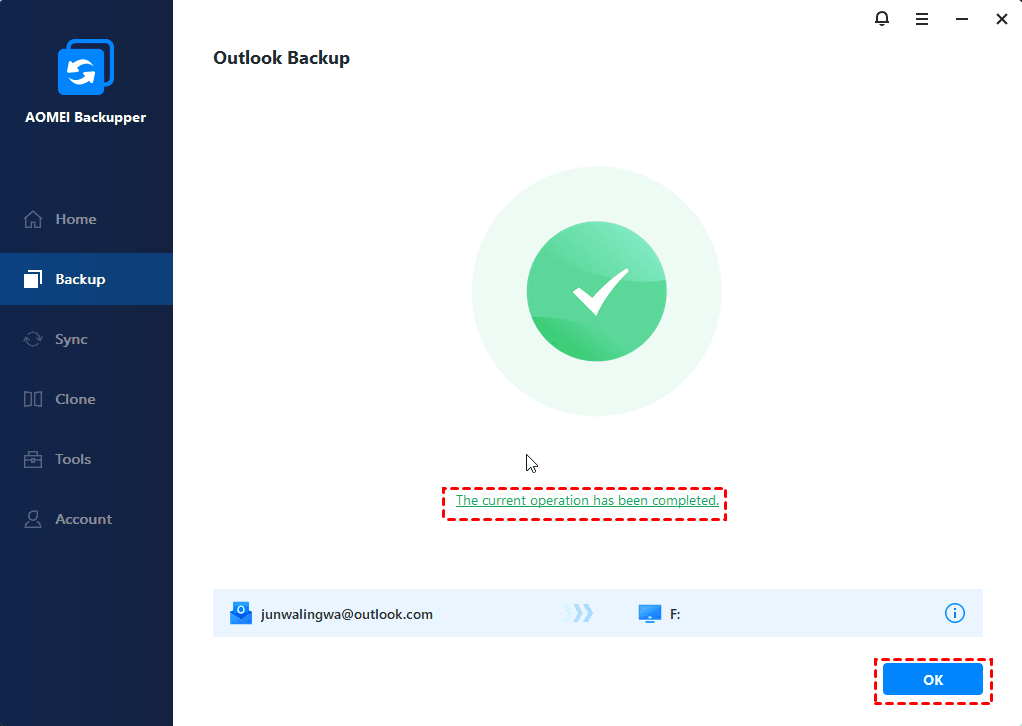
After it is finished, you can click the underlined sentence to check the backup process details.
Please kindly wait for the backup process to complete and then click the "OK" button.
As a result, you can check that there is a backup image (.afi) generated in the destination location.
In adherence to the aforementioned instructions, the Outlook backup process has been executed successfully. Subsequently, you can effortlessly restore your email data, calendars, contacts, and tasks should the need arise due to potential loss.
In addition, AOMEI Backupper also offers an Email Backup and Email Restore feature, which can help you back up email files from the Outlook Server. It also supports Gmail, Yahoo, iCloud Mail, AOL Mail, Mail.ru, and multiple mainstream mailboxes.
Notes:
Q: Why does the window keep spinning when adding Outlook Data?
A: The program is loading the Outlook data. Please restart Outlook and keep Outlook open. It is also recommended to add the AOMEI folder to the whitelist of the anti-virus program and firewall.
Q: Can I back up Outlook when I log in User account?
A: Yes, it is able to back up if the user account can access Outlook data. But it is recommended to run Outlook as an administrator and then do the backup.
Q: Why does it fail to back up Outlook?
A: Generally, it is recommended to add the AOMEI folder to the whitelist of the anti-virus program and firewall. And, please also close the VPN if you enable VPN on your PC. If it still fails, please contact the support team to check and analyze the details error message.
Click here to learn more FAQs.