How to Erase Computer in Windows 10/11 - 3 Solutions
How to completely erase a computer in Windows 10? Here are 3 options for you - using a professional disk wiping tool, Windows factory reset function, or via Command Prompt. Scroll down to learn detailed guides on deleting everything off your computer easily.
Last Updated July 7, 2025
Scenario: How to Wipe a Windows 10 Computer before Selling
Since Windows 10 is going to end of support and my laptop does not meet the requirements for upgrading to Windows 11, I have decided to sell it and get a new one. The question is - how to wipe my computer before selling? How do you erase everything on a laptop completely? Thank you.
After years of use, your computer may contain a lot of important personal data such as photos, emails, saved passwords, application history, and more. A simple delete or uninstall won't remove it completely. This guide walks you through 3 reliable methods to erase a computer on Windows 10, protect your privacy, and ensure your PC is ready for secure selling or recycling.
How to Erase Computer on Windows 10/11 in 3 Methods
Securely erasing all data before recycling, donating, or selling your computer is crucial. This protects your privacy and prevents sensitive information from being compromised. Now, let’s explore 3 solid ways on how to erase a Windows 10 computer easily, ranging from Windows 10 built-in options to using professional wiping software.
|
Erasing Method |
Security Level |
Ease of Use |
Speed |
Best For |
|
Professional Wiping Software |
High |
Easy |
Moderate to Slow |
Selling or recycling devices |
|
Factory Reset |
Low |
Easy |
Moderate |
Reusing the device or handing it to family |
|
Command Prompt |
Moderate |
Difficult |
Moderate |
Tech-savvy users |
Way 1. Completely Erase Windows 10/11 Computer Data with Disk Wiping Tool
For truly secure, irreversible data erasing, using professional wiping software is the best solution. These tools go beyond standard deletion, writing over your data multiple times to prevent any chance of recovery.AOMEI Backupper is a robust disk wiping tool designed with multiple wiping methods for different needs.

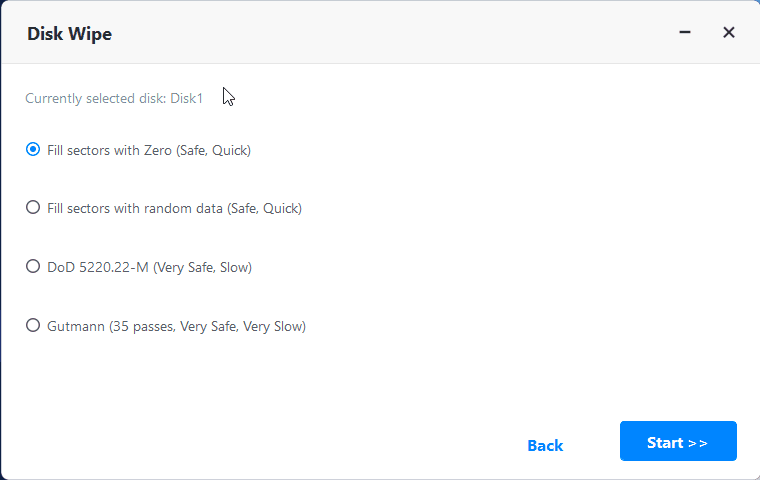
- It provides basic zero-filling and random-data filling data erasure methods, as well as more secure wiping methods like DoD 5220.22-M or Gutmann for erasing sensitive information.
- Except for wiping local hard drives like C drive, this tool supports wiping external hard drive, SSDs, SD cards, and various storage devices.
- You can use it to securely erase an entire hard drive or specific partitions or unallocated space on a disk.
- It also offers to create bootable media, which helps you wipe a disk without booting into Windows.
 100% Secure
With a clean, intuitive interface ideal for both beginners and experts, AOMEI Backupper makes it simple to erase a PC hard drive. Free download this software now, and learn how to completely wipe a hard drive including OS on Windows 10 with the following guidelines.
Step 1. Download and install AOMEI Backupper on your computer. This tool works seamlessly on Windows 11/10/8/7/XP/Vista.
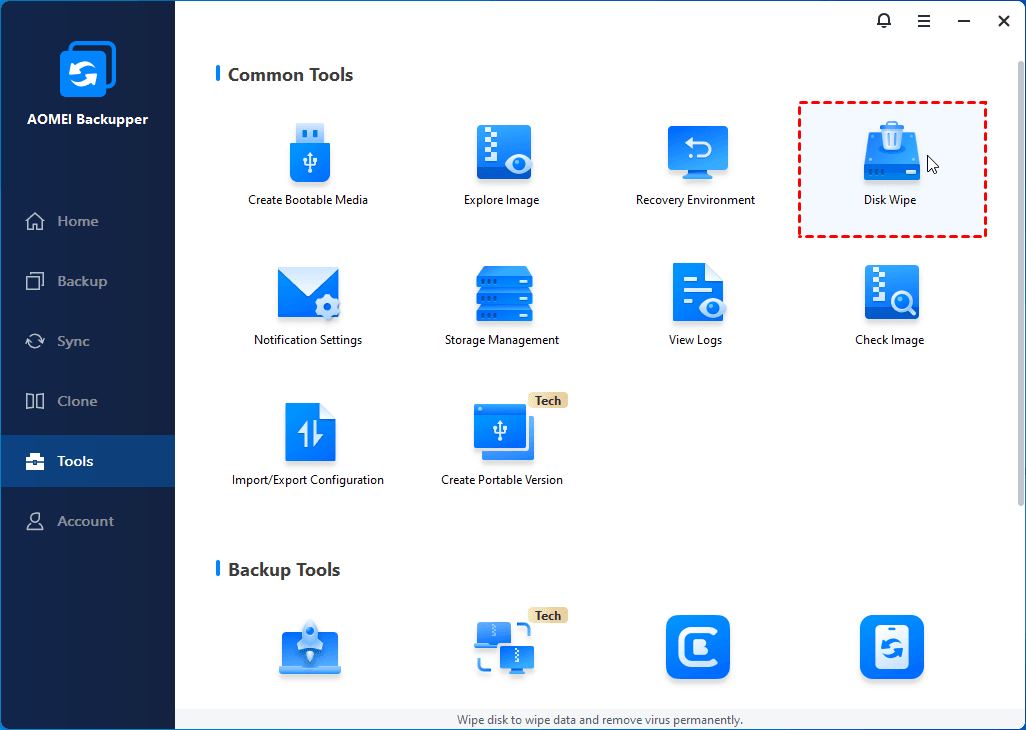
Step 2. Navigate to the Tools tab, and select Disk Wipe.
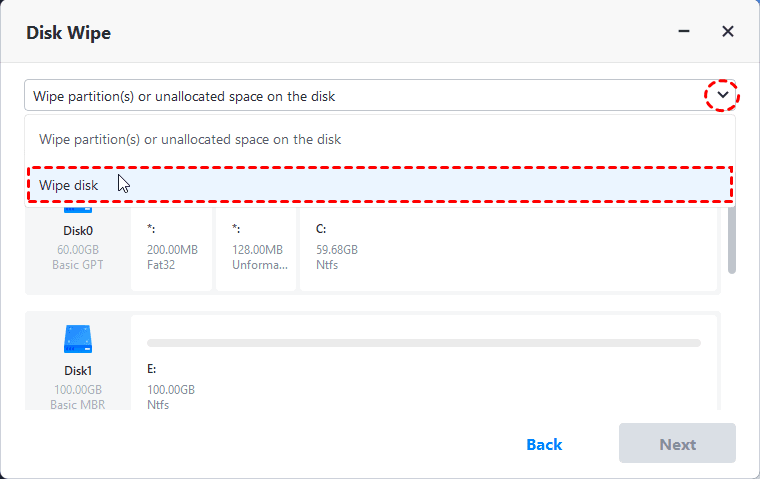
Step 3. On the Wiping Type screen, choose Wipe disk, and click Next.
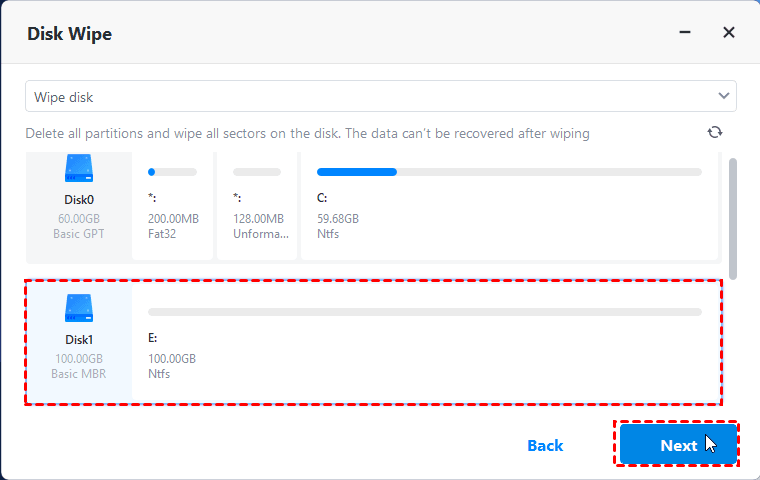
Step 4. Select the disk you want to erase, then click Next. Note that if you choose the system boot drive here, you may no longer boot into Windows after the disk wiping process.
Step 5. Pick the preferred wiping method, then click Start to wipe a hard drive on Windows 10.
- ★Notes:
- Safer wiping methods typically include more wipes and lower wiping speeds.To completely wipe computer in Windows 10, you can repeat the disk wiping process to wipe all hard drives.
- If you want to wipe USB drive and other external drives, please connect them to the computer in advance.
- Apart from disk wiping, this all-in-one software is also embedded with cloning features for data migration from one disk to another, backup and restore functions for systems, disks, partitions, and individual files and folders.
Way 2. Use Windows 10 Factory Reset
You could also rely on the Windows factory reset feature to quickly restore your computer to its original state. This actually clears the device to factory default settings. This process not only removes your files but also reinstalls Windows.
However, it is worth noting that this method may not be 100% secure, as data might be recoverable with advanced recovery tools. Also, more than one users have encountered problems like Windows 10 reset stuck, factory reset not working, and so on. Here is how to factory reset a Windows 10 computer:
Step 1. Press Win + I keys to access the Windows settings, then click on Update & Security.
Step 2. Select Recovery from the left menu, then click Get started under Reset this PC.

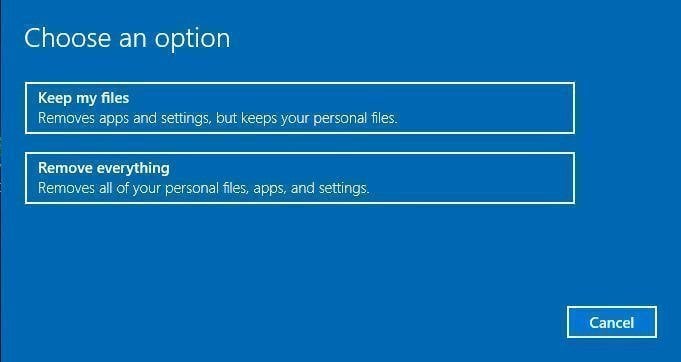
Step 3. Choose Remove everything to delete everything off your computer, including personal files, apps, and settings.
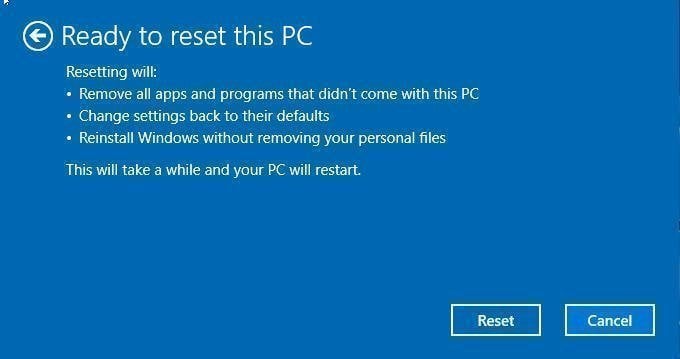
Step 4. Then, confirm your selection and click on Reset to delete everything from PC and reset the computer to factory settings.
Way 3. Wipe Hard Drive using Command Prompt
For those comfortable with command-line interfaces, resetting Windows from Command Prompt is a fast and efficient way to clean a hard drive, especially if Windows isn’t booting properly. It relies on commands like diskpart for disk data erasing. But since there is no GUI, it may be complicated for beginners. The steps on how to wipe a hard drive on Windows 10 with Command Prompt are as follows:
Step 1. Type CMD in the Windows search box, and select Run as administrator under the Command Prompt result.
- Note: If you are unable to boot into Windows, you can boot from a Windows installation media(USB or DVD), and select Repair your computer > Troubleshoot > Advanced Options to access Command Prompt.
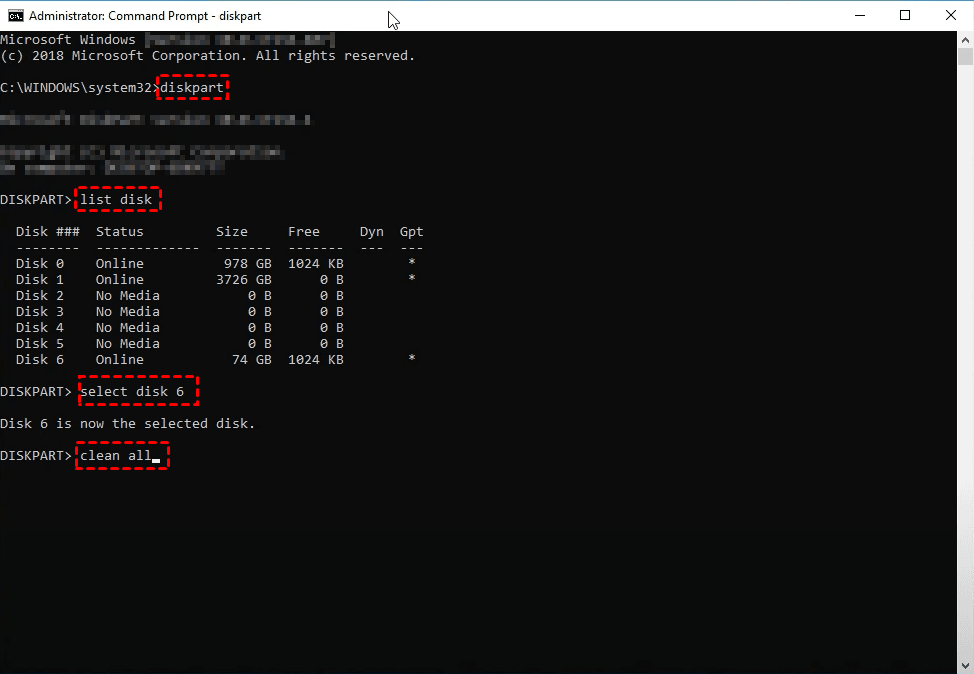
Step 2. In the command window, type diskpart and press Enter.
Step 3. Type list disk to display available drives.
Step 4. Identify the disk you want to erase (e.g., Disk 0) and type select disk 0.
Step 5. Type clean all and press Enter. This will zero out the entire disk. Then, wait for the process to complete and exit the program.
Why Need to Erase Windows 10 Computer?
That's all about how to completely wipe a PC in Windows 10 using the professional disk wiping utility AOMEI Backupper, Windows factory restet option, and the diskpart command. Erasing a Windows 10 or 11 computer isn’t just about data deletion. There are serious reasons why securely wiping your computer is vital:
- Protect Sensitive Data: Old files, passwords, banking info, and business documents can still be recovered if not properly erased.
- Prevent Identity Theft: Hackers and cybercriminals use recovery software to pull data off second-hand machines.
- Fix System Corruption: Sometimes, a clean wipe is the best way to fix malware infections, crashes, or system lag.
- Prepare for Repurposing or Resale: Whether you’re selling, donating, or recycling, the new user should get a clean device.
Conclusion
Knowing how to erase a computer in Windows 10/11 is crucial for protecting your personal information, whether you are selling your device, recycling it, or simply want a fresh start. You can choose to:
- Use a professional wiping tool like AOMEI Backupper for secure, multi-pass erasure.
- Reset Windows using the built-in factory reset for simplicity and OS reinstallation.
- Execute a command-line wipe using DiskPart for a deep and direct data erasing.
If you don't know how to choose, go with AOMEI Backupper to completely wipe HDD or SSD on Windows 10 with confidence.Also, you can use this software to clone old computer to new computer for seamless data migration.