Data Insurance Leader
Money Back Guarantee
Instant Delivery
Technical Support
Secure Order
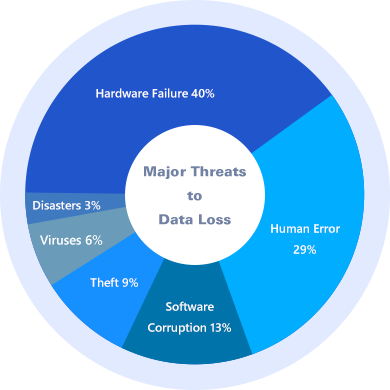
Why backup? Because data loss can occur at any time and for any reason. However, most importantly, the majority of people cannot afford to lose data, personal or business. Here are the top reasons for backup and the severe situation of data loss.
How often someone in the world is attacked by ransomware
Source: ComputerWorld
Hard drives crash each week in the U.S. alone
Source: SmallBizTrends
Of businesses fail within six months of losing their data because of a disaster
Source: 3rd Eye Advisory
Global losses from cybercrimes
each year
Source: Center for Strategic & International Studies
Clone your system from the old HDD to a solid state drive (SSD) or a new larger HDD for faster and optimized disk performance.
By cloning the full OS and all programs to your new computer, you can easily use your old system and all registered software on the new PC like before.
As time goes, there will be a large amount of data occupying your disk space that slows your PC down. In this case, cloning system to a larger SSD will get you a smoother OS.
Cloning a disk with Windows installation enables to transfer OS to another hard drive or much faster SSD without reinstalling.
Disk clone can help to upgrade hard disk from old small disk to a new larger one without reinstallations of operating system and the applications, like clone HDD to SSD, and vice versa, etc.
It can help to quickly transfer all the data on a disk to others, such as the Windows operating system, installed programs, system settings, personal files, videos, etc.
If all the data on the current system disk are important, it is necessary to do a full backup of the source disk by cloning hard drive.
In order to avoid secondary damage to the hard disk during data recovery, it is necessary to clone the disk and then restore what you want from the cloned disk.
Quickly and easily clone a partition from its original location to a new place to improve computer performance, especially to insure important data.
If you just want to move one or two partitions on a disk to the other, there is no need to perform an entirely disk clone which may take up a lot of time and effort.
You can simply use partition clone to create a volume snapshot working environment for better storage for your data.
By system restore, you can restore system files and programs to an earlier state when everything was working properly.
Disk restore helps upgrade hard disk from old small disk to new larger ones without OS & program reinstallation, like clone HDD to SSD, and vice versa, etc.
Restore a backup image created on one computer to another/new computer with dissimilar hardware, or migrate system from physical to virtual (P2V) machine.
Restore selective partitions or dynamic disk volumes to the point you ever backed up to save time and disk space.
Restore backed-up versions of files & folders that are lost, damaged, or changed accidentally, like office files, emails, music, movies, etc.
Perform system restore, disk restore, partition restore and dissimilar hardware restore from command prompt.
Wipe disks completely clean without recovery to avoid privacy leak when you decide to sell a computer or give it away to others.
By wiping partitions, unallocated space or an entire disk, you can easily remove all infected viruses to the ground permanently.
When you need to use a partition or disk for other purposes, it’s best to wipe it clean to thoroughly remove hidden files and registries (back it up first when necessary).
Features
View only differences
|
Workstation
|
Server
|
Technician
|
Technician Plus
|
|---|---|---|---|---|
|
Priority technical support
Receive faster response to your questions from more skilled engineers.
|
||||
|
For Windows PC
Supports Windows 11, 10, 8.1/8, 7, Vista and XP.
|
||||
|
For Windows Server
Supports Windows Server 2025/2022/2019/2016/2012/2011/2008/2003, SBS 2011/2008/2003.
|
||||
|
Complete backup, restore, and clone
System, disk, partition, file and cloud backup & restore; schedule, incremental backups; disk and partition clone.
|
||||
|
Disk clone
Clone system disk with secure boot to speed up computers or increase disk space.
|
||||
|
System clone
Migrate OS from HDD to SSD without reinstalling Windows and applications.
|
||||
|
Microsoft Outlook Backup
Backup all emails, contacts, notes, calendars, and tasks in Outlook to a local, external, or network drive. Support Gmail, Hotmail, and any other email accounts added into Outlook.
|
||||
|
Differential backup
Only backup the changed or new-added data since the last full backup.
|
||||
|
Backup scheme
Automatically delete old backup images based on custom values to save backup disk space.
|
||||
|
Universal restore
Restore a backup image to another computer with dissimilar hardware.
|
||||
|
Real-time sync
Synchronize newly added or modified files from source to target path as soon as the change has occurred.
|
||||
|
Two-way sync
Any changed files or new created folders as well as deletions that happened in the source or destination directory will be done the same on the other side.
|
||||
|
Mirror sync
Always keep the files in the destination exactly the same as the source directory. Any extra files in destination will be removed.
|
||||
|
Command line utility
Perform backup, restore, and clone operations from the command prompt.
|
||||
|
Merge images
Merge full backup and its chained incremental backups into a single backup.
|
||||
|
Split images
Divide a large backup image into multiple smaller files with specific size.
|
||||
|
Event triggers
Automatically run backup tasks based on system shutdowns/ startups and user logins/logoffs.
|
||||
|
Filter settings
Exclude certain file extensions from folder backup or sync.
|
||||
|
Adjust partition size
Manually extend or shrink partitions on the destination disk during clone or restore.
|
||||
|
Add unused space to all partitions
Add unused space to all partitions while cloning small disk to larger hard drive.
|
||||
| More mail servers
Supports AOMEI and custom SMTP servers for email notifications.
|
||||
|
Dynamic disk backup and restore
Backup/Restore dynamic disk volume, including simple, spanned, striped and mirrored volumes.
|
||||
|
Business use
Use AOMEI Backupper to backup, restore, sync or clone business data.
|
||||
|
PXE boot tool
Initiate unlimited client-side computers within LAN through network booting for system maintenance.
|
||||
|
Profitable toolkit
One license code can be used by a single technician to provide billable technical support as a service to unlimited clients.
|
||||
|
Image deploy tool
Deploy image to multiple computers within LAN over network.
|
||||
|
Create portable version
Copy AOMEI Backupper to a removable device so that directly run it on target computers without installing, which is convenient for IT maintenance and support engineers.
|
For Windows Server users who run Windows Server 2025, 2022, 2019, 2016, 2012 (R2), 2008 (R2), 2003 (R2), Windows Home Server 2011, Windows Small Business Server 2011/2008/2003, please choose AOMEI Backupper Server. For service providers who provide billable technical support as a service to your clients, please choose AOMEI Backupper Technician Plus Edition.
With simple and intuitive interface, whether backing up data or restoring data from disaster, just a few clicks will have you on your way. The entire process is as easy as pie.
Winning awards from professional reviews on fast speed and high stability when you backup and recover. Everything goes smoothly rather than the backups finishing successfully with no errors.
Backup your important data whenever you want or wherever you are. It can be run from the command line to make some actions.
Our skilled engineering team listen to the customer needs and answer any technical queries for free within 24 hours.
We offer a 90-Day Unconditional Money Back Guarantee. If you are not satisfied, we promise to refund your money.
AOMEI Backupper is now trusted by over 100,000,000 loyal users in more than 180 countries .
Don’t just take our word for it. See why AOMEI Backupper is highly recommended by 100 M+ happy users worldwide.
Can’t find any better backup tool for our photography workshop. It has professional backup and restore features, and the PXE tool is perfect for us to boot any computers when there is on one on shift. We now work at the highest efficiency and best timeliness ever. Thank you AOMEI!
AOMEI Backupper is the best functioning and most reasonably priced backup program after we dug twenty thousand leagues in the market! There are either too many limits or too expensive. It fully covers our needs to back up our customer reservations and service logs. Great tool for small business!
AOMEI Backupper helped us to batch install and migrate systems, copy disks and partitions. It has all the necessary tools for granular backup and restore, as well as smart schedule backup for operating system and hard drives. Complete backup and clone software. We love it and will stick to it all the time.
Very easy-to-use backup and recovery software even for computer novices. We absolutely can’t afford to lose all our customer and order information, and with AOMEI Backupper, every one of us can do the backup and recovery work in seconds with the intuitive interfaces. Highly recommended for every shop like us.
AOMEI Backupper did a fabulous job and went beyond all our expectations to back up our clients information automatically without us taking manual work or attention. And when we needed to add computers, or recover lost data, it finished the work in minutes. Marvelous program!