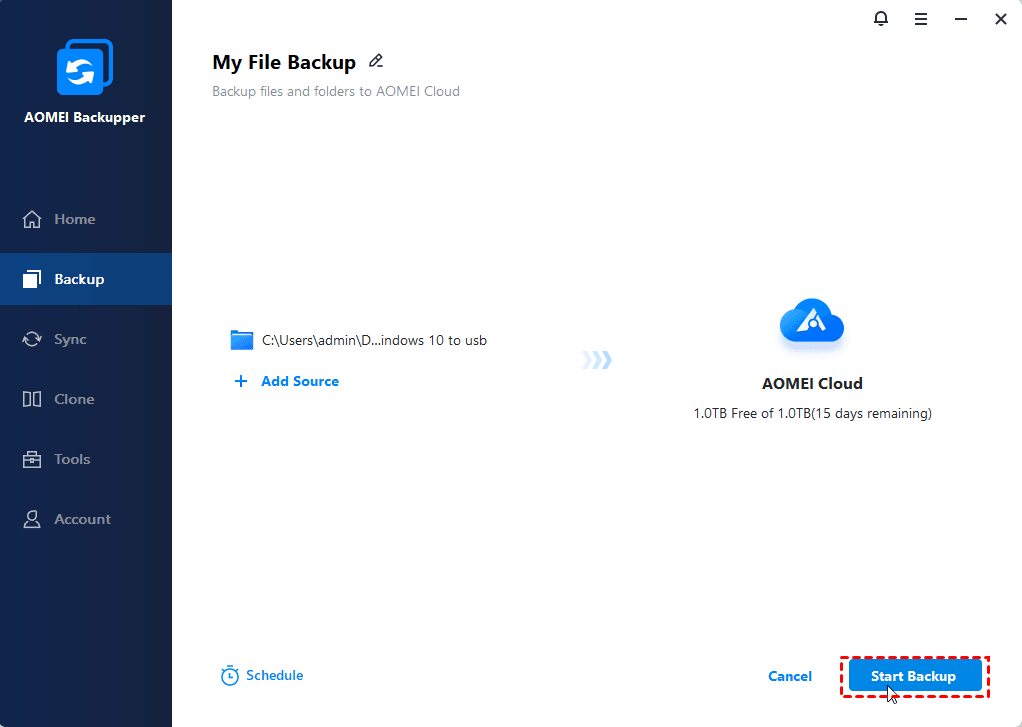
With AOMEI Backupper, you can easily backup your personal files, work files and other important data to AOMEI Cloud after you log into your AOMEI account in the program. Backing up to a cloud disk is more secure and not easy to leak. It offers a better way to protect important data.
AOMEI Cloud is a cloud drive developed by AOMEI Tech. With AOMEI Backupper, you can easily back up your personal files, work file,s and other important data to AOMEI Cloud after you log into your AOMEI account in the program. Backing up to a cloud disk is more secure and less likely to leak. Currently, only files or folders can be backed up to AOMEI Cloud.
Before creating a cloud backup task, it is highly recommended to first click the "Account" tab on the program to log in your AOMEI Account. Once logged in, there is no need to log in again when you create a cloud backup task.
In the left tab page, select "Home" followed by "File Backup".
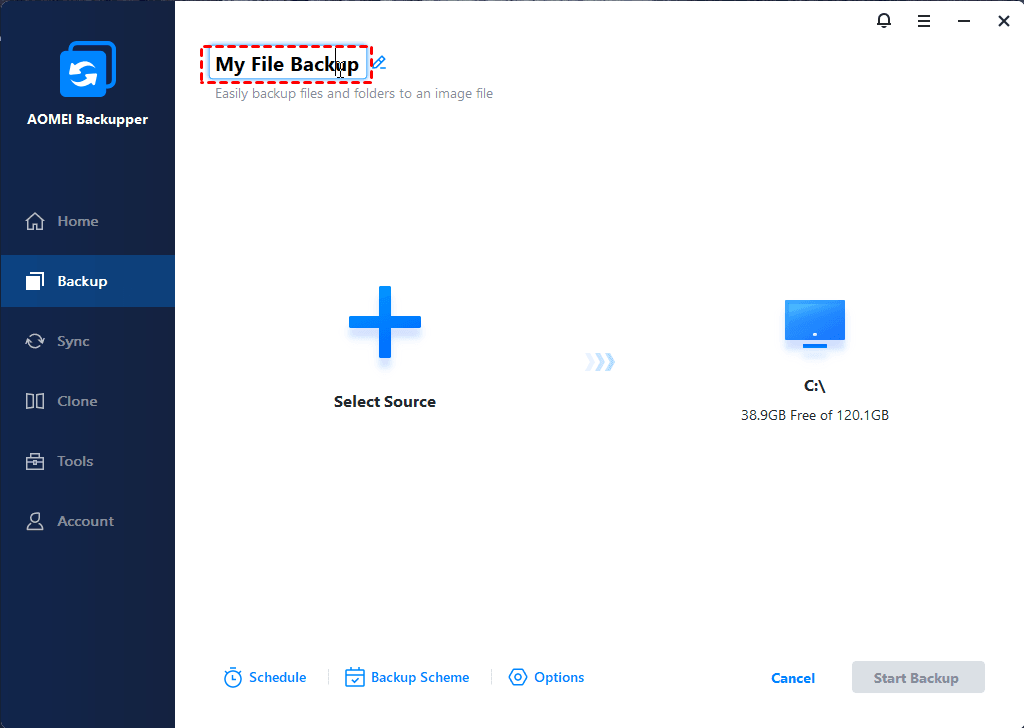
You can name it for the "Task Name" box to help you distinguish it from other backups.
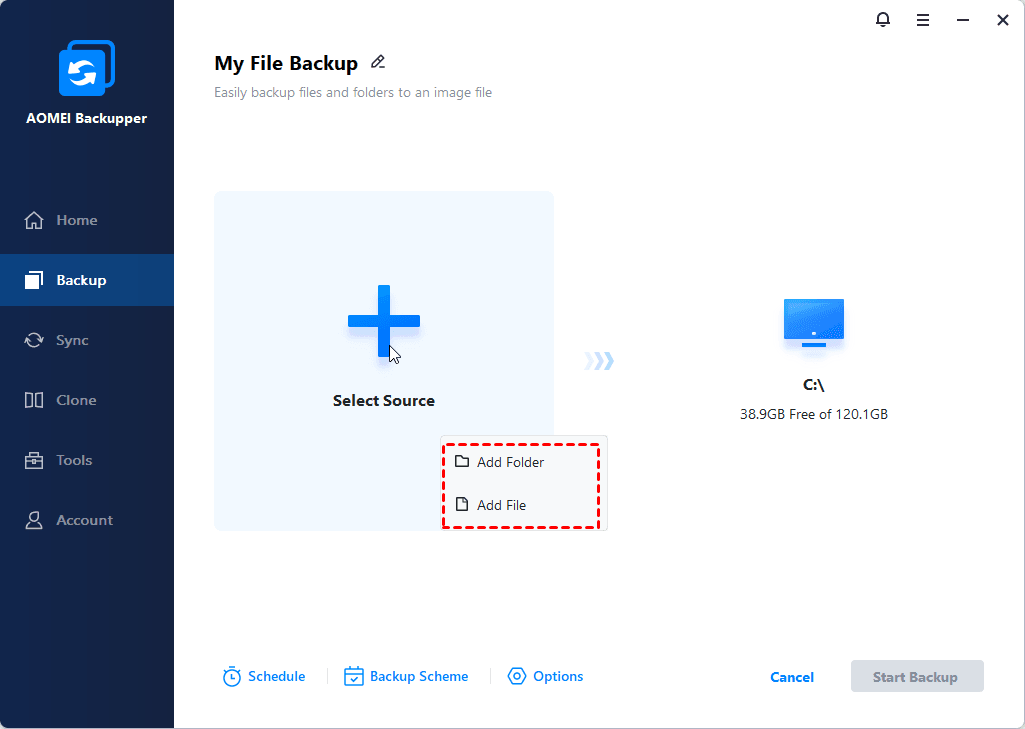
Click "Select Source" and select either "Add Folder" or "Add File", and then select the files/folders to be backed up.
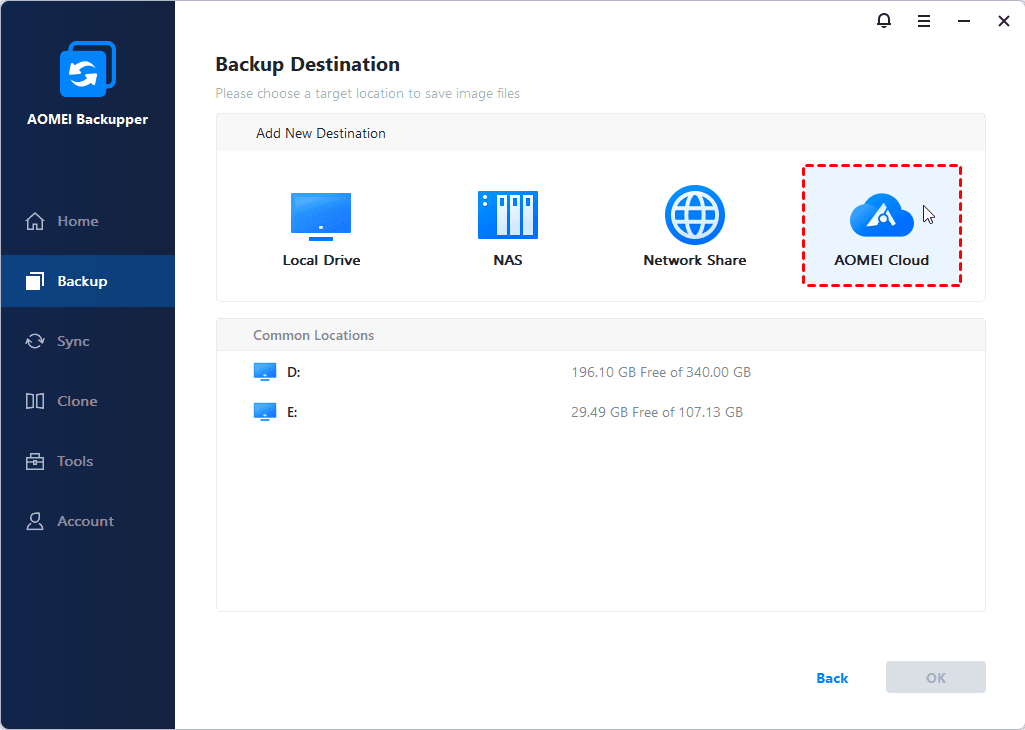
Please click the destination box and select AOMEI Cloud as the destination.
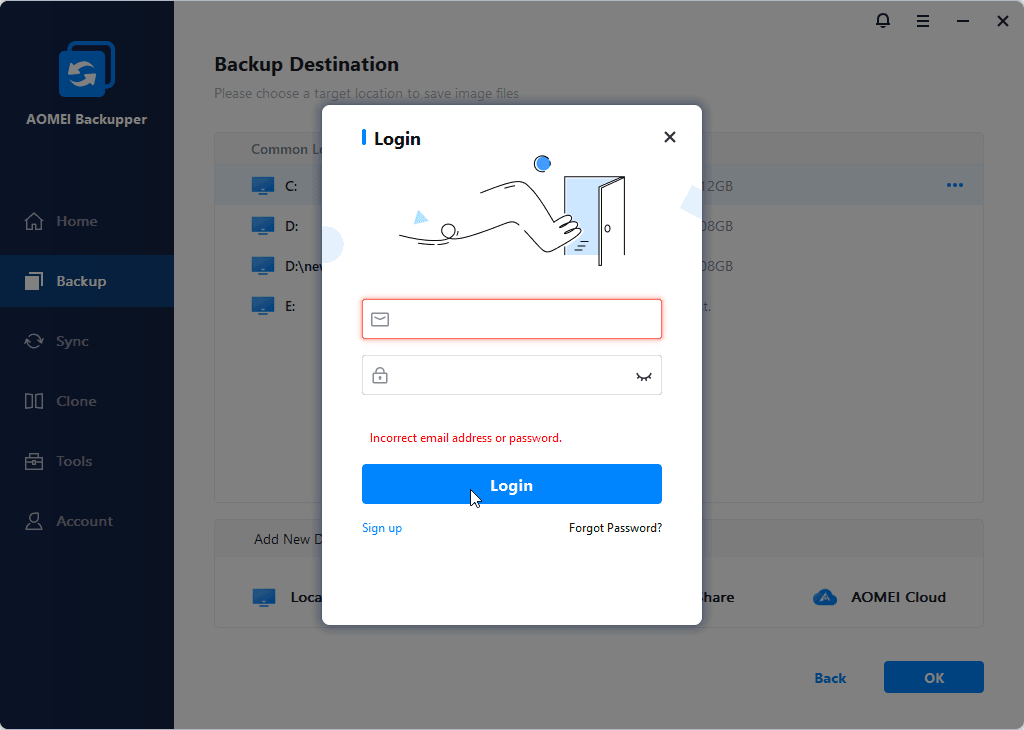
Case 1: If you do not have an AOMEI account, you can first click the "Sign up" button and sign up an AOMEI account. Once it is signed up, you can click the "Login" button to log in your AOMEI account. After a successful login, the used space and total space will be displayed.
Case 2: If you already have an AOMEI account but still not logged in, you can directly click the "Login" button to log in your account. After a successful login, the used space and total space will be displayed.
For a Cloud Backup task, you can also click the Schedule Backup button to enable a scheduled backup to automatically run backups. Currently, five schedule modes are available for cloud backup: Daily (By Interval), Daily, Weekly, Monthly, Monthly (By Date), and One-Time. And, incremental backup is the default backup method.
Click the "Start Backup" button to begin the backup process. And, click "OK" once the process has completed.
Notes: