FastRecovery



How to Recover Deleted JPG/JPEG Files: 4 Easy Ways
Wanna learn how to recover deleted JPG files? This tutorial will show you 4 solutions to get deleted and lost JPG/JPEG files back. Please keep reading to learn.

By Kelsey / Updated on June 9, 2026


Can deleted JPG/JPEG files be recovered?
Yes, in many cases, deleted JPG/JPEG photos can still be recovered, even after they disappear from your computer, USB drive, SD card, or camera. Since JPG/JPEG is one of the most widely used image formats, accidental deletion happens more often than you might think.
Whether the photos were deleted by mistake, after formatting, or disappeared from an external drive, the good news is that they are not always gone permanently. As long as the deleted data has not been overwritten, there is still a strong chance of recovery.
This is especially important because deleted JPG/JPEG files often include:
-
Family photos and personal memories
-
Travel and event pictures
-
Work screenshots and project images
-
Important downloaded graphics or documents
If you’re wondering how to recover deleted JPG files on Windows 10 or 11, this guide walks you through 4 proven recovery methods step by step, from simple built-in fixes to advanced photo recovery solutions.
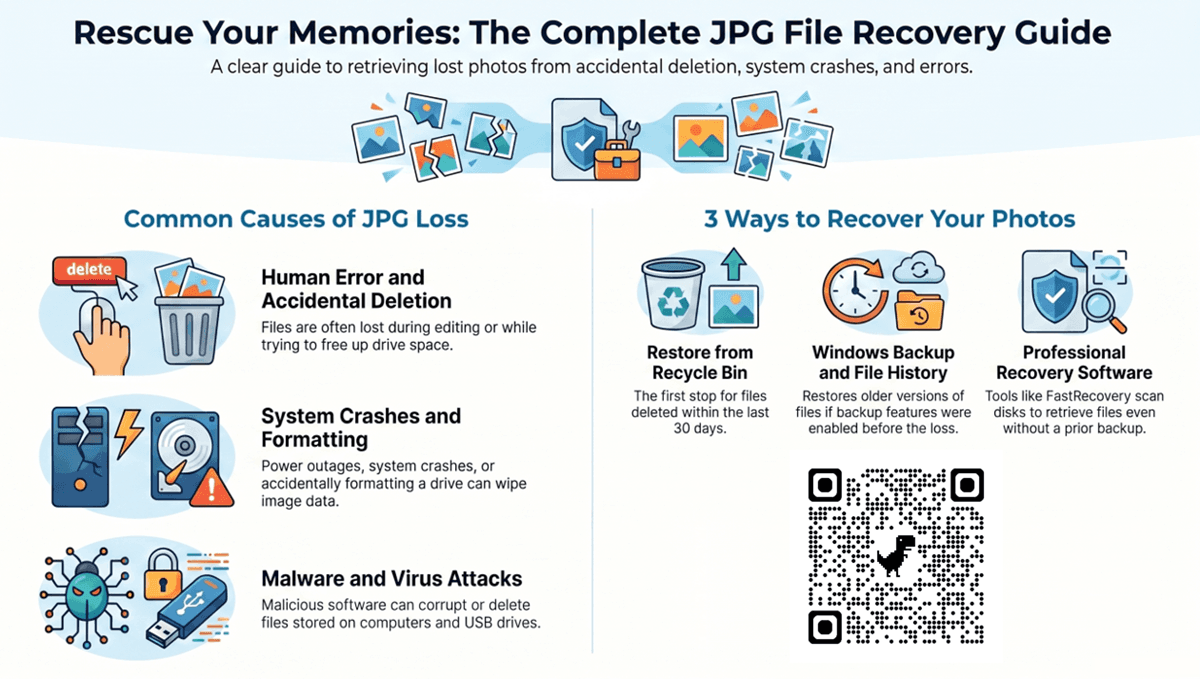
Major scenarios of deleted JPG/JPEG files
Users may delete pictures when freeing up hard drive space, but there are still users who do not know how their stored JPG files disappear, here are the common reasons for losing JPG or JPEG files:
▶ Accidental deletion of JPG files during file editing.
▶ The storage media or hard drive is formatted.
▶ Malware infection and virus attack.
▶ Other accidents, such as system crashes, power outages, etc.
No matter what reason you have lost your image files, our mission is to provide you with a way to get them back smoothly. Read on to learn how to restore deleted photos from my files.
How to recover deleted JPG/JPEG files with ease
We've sorted out 4 ways to deal with lost files in various situations, read on to learn how to recover deleted JPG/JPEG files.
Solution 1. Recover deleted JPG/JPEG files with FastRecovery
How to recover JPG files? If your JPG/JPEG files are not in the Recycle Bin, they are indeed permanently deleted. This situation may be worse if you don't create a backup for them. How to recover JPG files?
Luckily, you still can consider using a professional data recovery software - FastRecovery, developed by AOME, the industry benchmark for data recovery. It provides users with a simple and intuitive wizard guide, advanced scanning algorithms, excellent compatibility, etc., which allows you to get back lost JPG/JPEG files easily and quickly in any situation.

 FastRecovery
- Integrate Quick Scan and Deep Scan to find all deleted or missing files, ensuring a high recovery rate.
- Recover deleted PNG files, JPG/JPEG, TIF, GIF, PSD, X3F, SVG, ARW, and a wide range of image files, without losing quality.
- Display all recoverable data by Type or Path, allowing you to sort, search, filter, and preview files, making it easier and faster to find files.
- Recover data lost in various scenarios, such as accidental deletion, disk formatting, virus attack, etc.
- Compatible with Windows 11, 10, 8, 7, and Windows Server
- It has a free edition that can recover data for free over 500 MB.
 100% Secure
Now, download the tool and keep reading to learn how to recover deleted photos easily.
- Don't download and install FastRecovery on the drive where you store deleted files, as this may cause data to be overwritten.
- Any newly added data or disk formatting can overwrite data. Please avoid these operations after deletion.
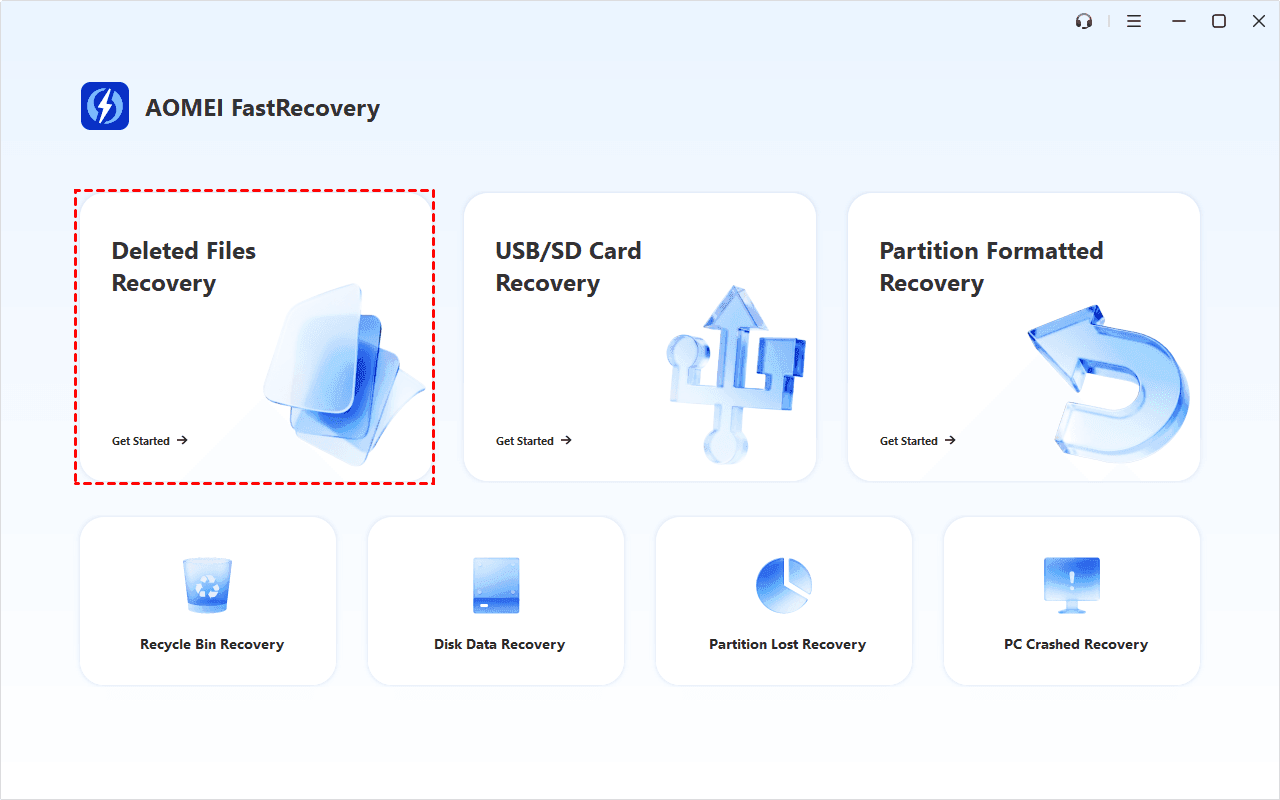
Step 1. Open FastRecovery, then click Deleted Files Recovery, specifically designed for quick recovery. You can also select a more suitable alternative. All of them can help you retrieve your data without causing any damage.
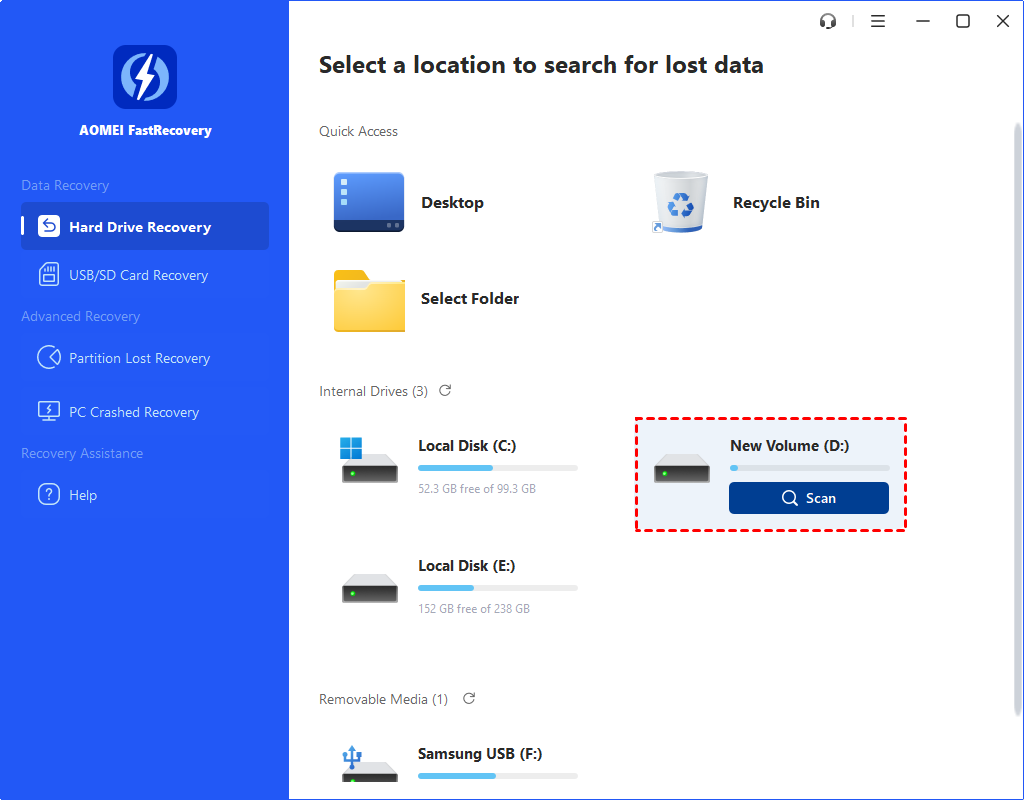
Step 2. Select the drive or partition where you store deleted JPG files. Then, click Scan to scan it.
Step 3. It will automatically look for deleted or lost JPG files with Quick Scan. You won't have to wait long. During scanning, you can click the Stop or Pause button if you select the wrong disk or something goes wrong.
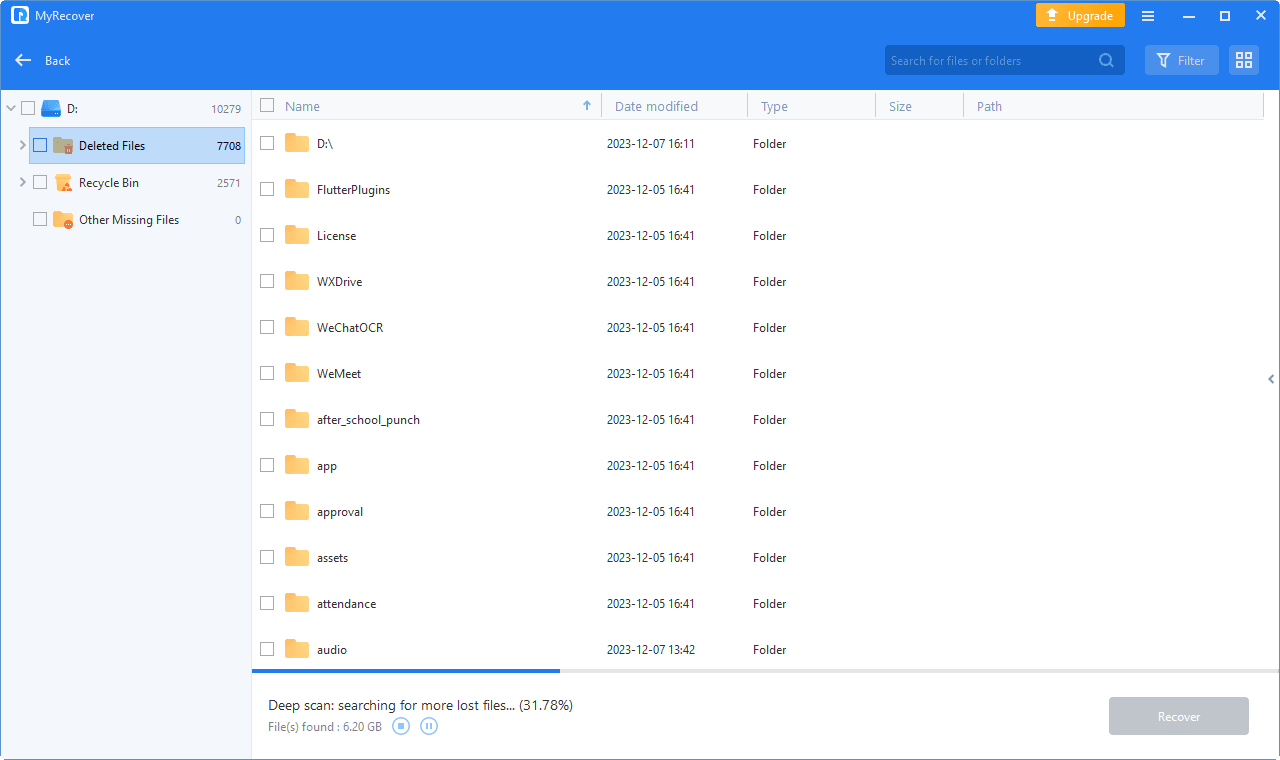
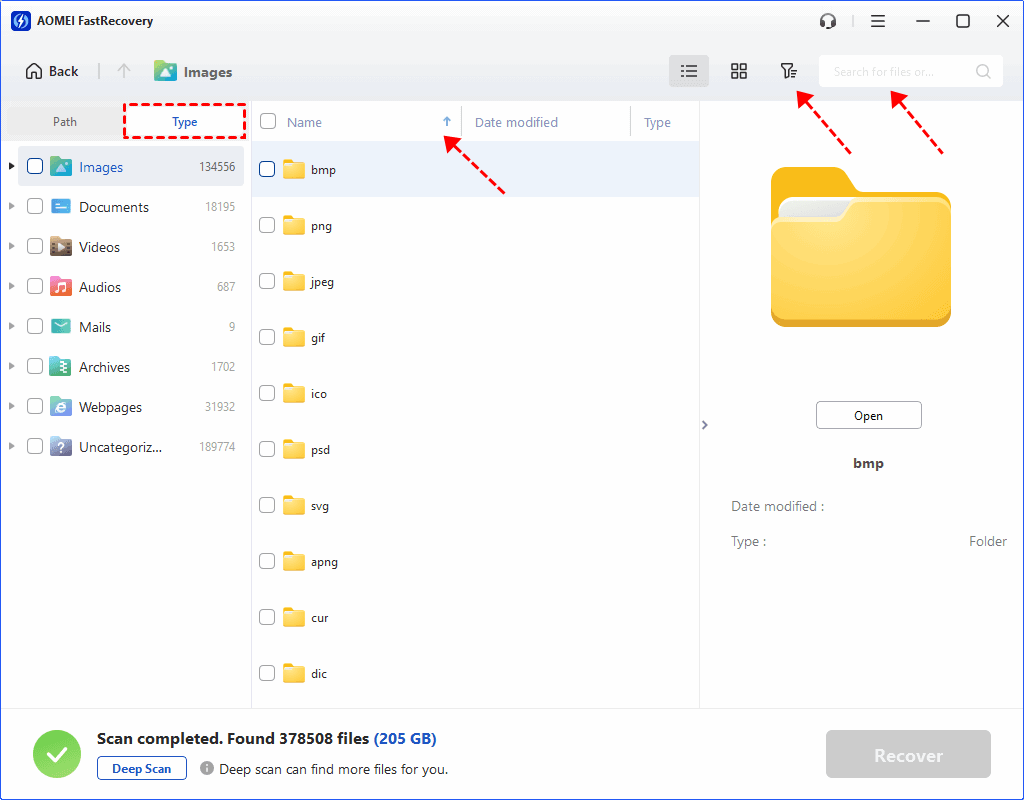
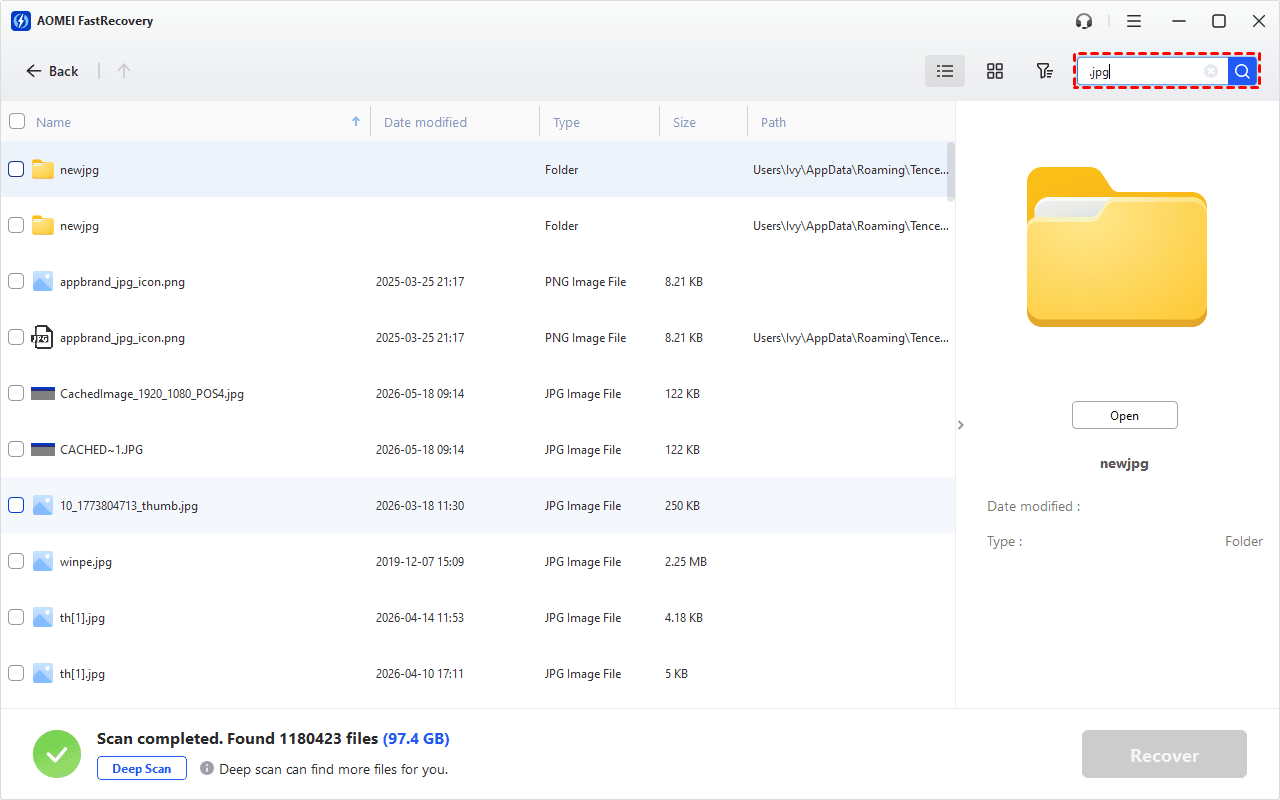
Step 4. Wait until the process completes. To recover deleted JPG/JPEG files, check the data type (e.g., Images) and specific formats (e.g., .jpg/.jpeg). If you can't find JPG/JPEG files, directly type the extension to search for it. Then, click the arrow next to type, size, date modified, etc., to sort files.
-
Or use the filter feature, similar to the Type category, allowing you to further specify the size of files, from less than 512 KB to 1GB above.
- Click the Deep Scan to find more data if Quick Scan fails. It will scan every sector of the disk and take longer.
Step 5. Once found, double-click the files to preview. Check the pictures you want to recover and click on the Recover button to make sure you get them back.
Solution 2. Recover JPG/JPEG files from Recycle Bin
Windows provides a “Recycle Bin” to temporarily store deleted files, thereby preventing users from making serious mistakes. This means that users can recover deleted files from Recycle Bin within 30 days.
Step 1. Double-click the Recycle Bin icon on your desktop to access it.
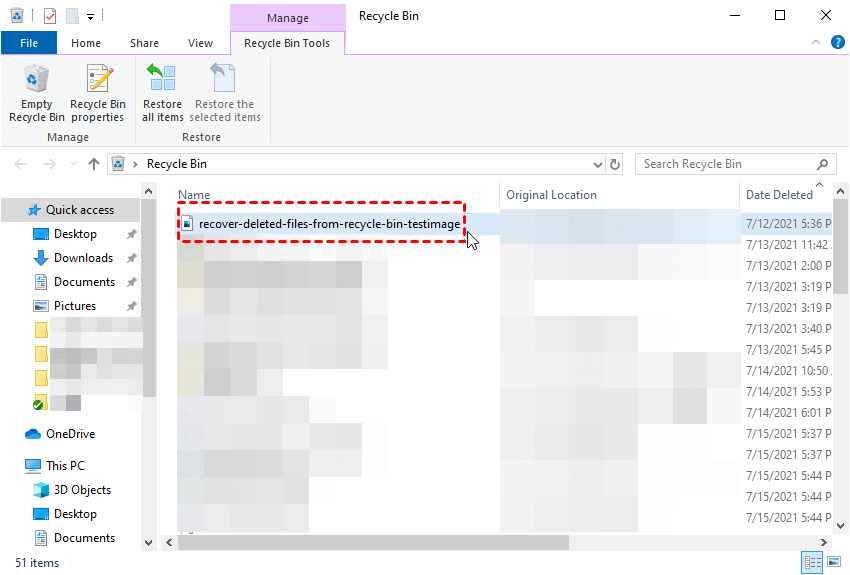
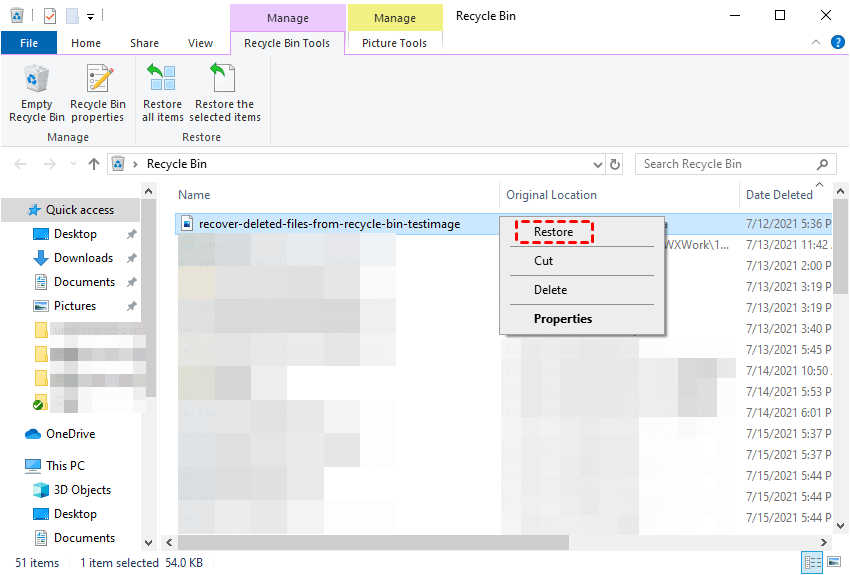
Step 2. Find and check the JPG/JPEG file you need, right-click on it and select the Restore option.
If you delete files by pressing Shift+ DEL, or if the deleted images are larger than 8998MB, then they will bypass the Recycle Bin and be permanently deleted, you can go ahead and recover the files through the next methods.
Solution 3. Recover JPG/JPEG files with Backup and Restore (Windows 7)
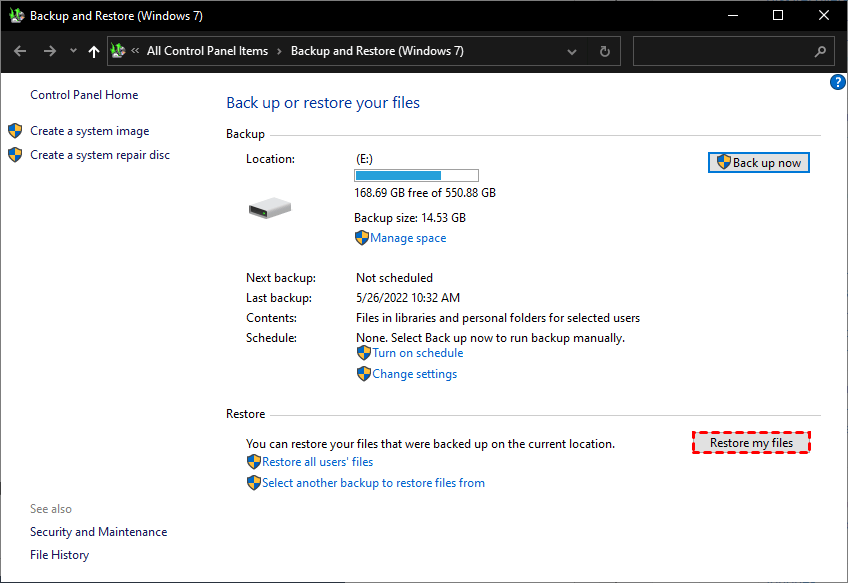
Using Windows Backup and Restore (Windows 7) could recover permanently deleted files easily. The tool allows users to restore JPG/JPEG files through accessible backups. Be sure you enable this tool before losing pictures. Otherwise, this method does not work.
Step 1. Open Control Panel and click System and Security > Backup and Restore (Windows 7).
Step 2. Navigate to the Restore section, click the Restore my files button.
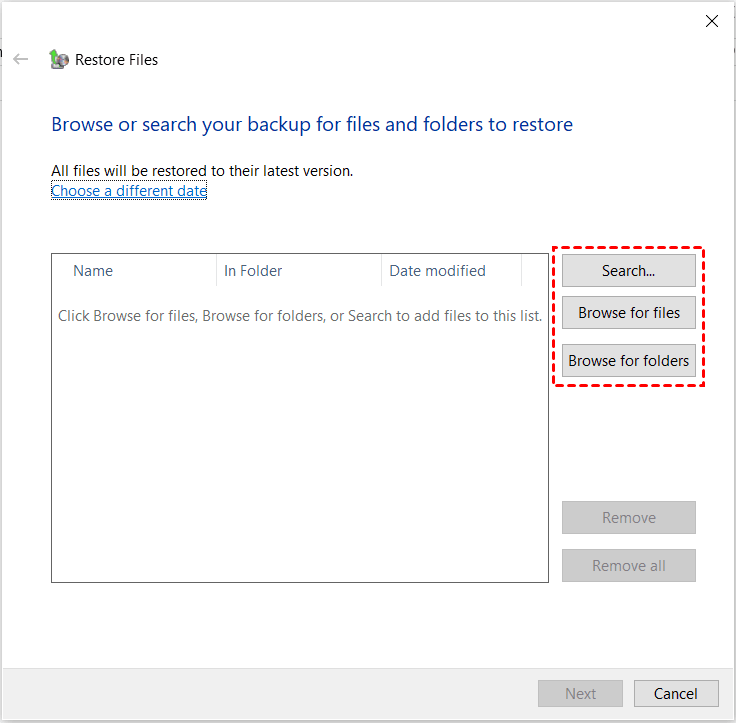
Step 3. Click on Browse for files or Browse for folders in the pop-up window to locate lost JPG/JPEG files and select to restore them.
Solution 4. Recover JPG/JPEG files with File History
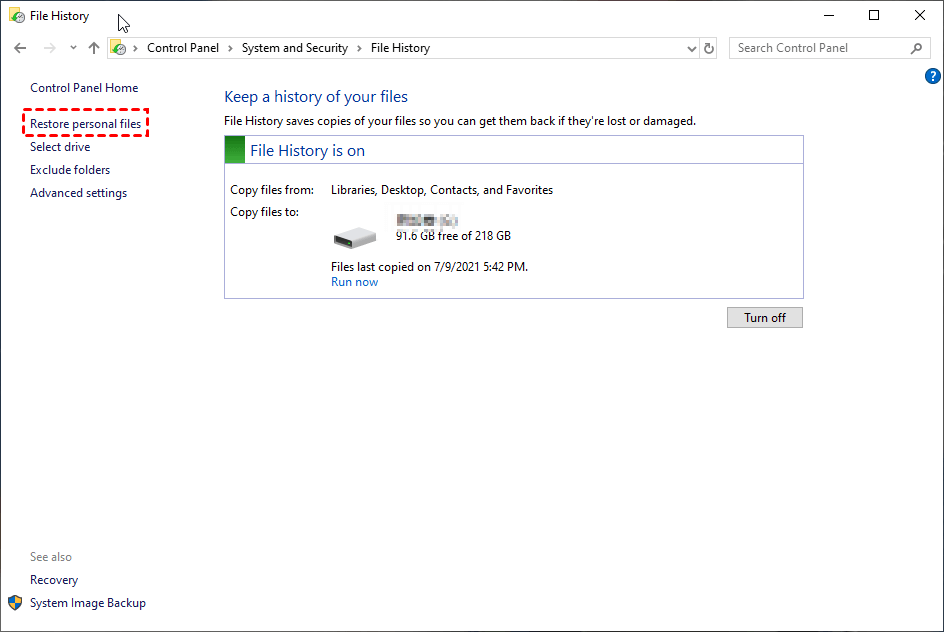
You can also use File History to recover deleted JPG/JPEG files. It will backup user's folder automatically and save copies of files. Be sure to enable this tool ( go to Control Panel > System and Security > File History and Turn it on) before you lose any picture.
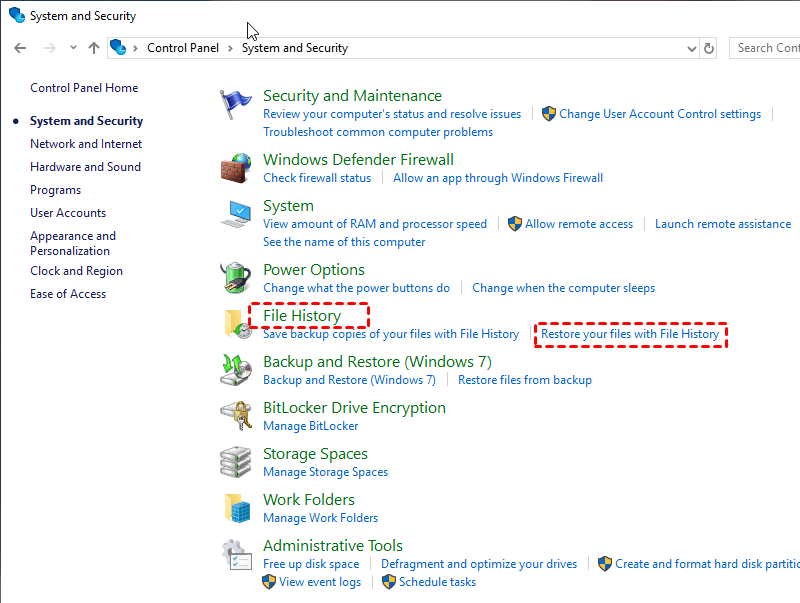
Step 1. Open the Control Panel, click System and Security. Then, navigate to File History and click Restore your files with File History.
Step 2. Click Restore personal files on the taskbar.
Step 3. You can type the file name in the search box and select your JPG file. Once confirm, click the green Recycle button to start photo recovery.
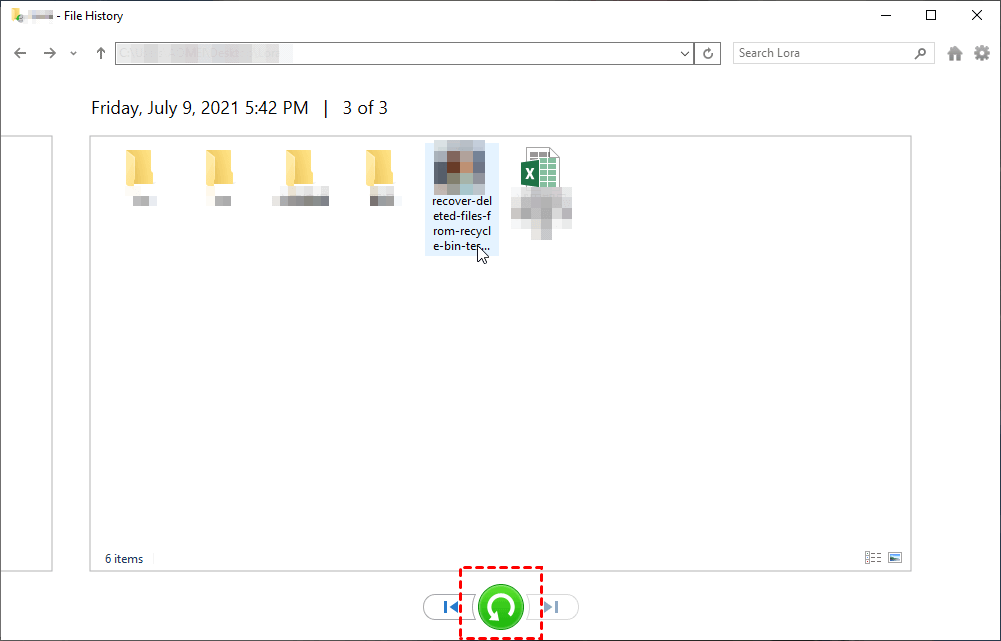
To restore the file to another location, click the gear settings and click Restore to.
FAQs
1. How to restore deleted JPG photos from hard drive?
To restore deleted JPG photos from the hard drive, check whether there is a backup. Microsoft provides users with built-in backup tools - Backup and Restore (Windows 7), File History, and Previous Versions.
2. What is professional JPG file recovery software for lost photos?
FastRecovery is a professional JPG file recovery software for lost photos. It integrates Quick Scan or Deep Scan to find all recoverable data, ensuring a high recovery rate. Meanwhile, it also supports a wide range of recovery features, such as filter, preview, crashed PC recovery, etc., making the process easier and faster.
3. How to recover deleted JPG images after formatting?
To recover deleted JPG images after formatting, be sure you use the quick format method instead of full format. In this case, your data are still recoverable with the help of a relaibel photo recovery software - FastRecovery.
- Download and install FastRecovery. Then, open it and click Partition Formatted Recovery.
- Select the drive containing the deleted JPG files, then click Scan.
- Wait for the scanning result. Select the JPG files you want to recover and click the Recover button.
- Select a new location (not the original drive) to save the recovered photos.
4. How to recover deleted JPG pictures from SD card?
To recover deleted JPG pictures from SD card, you need to connect the SD card to your computer and be sure it's showing up in File Explorer. Then, try a reliable photo recovery software to recover JPG files.
5. How to recover deleted JPG files from empty recycle bin?
To recover deleted JPG files from empty recycle bin, consider restoring files from backup (created by File History, Previous Versions, etc.) or relying on a data recovery tool. Note that the Recycle Bin is empty because your JPG files are permanently deleted.
Conclusion
How to recover deleted JPG files on hard drive? This article provides 4 effective methods for your reference. The Recycle Bin can save files you accidentally deleted for a limited time, and once your Recycle Bin is emptied, you can also use Windows Backup and Restore as well as File History to restore a copy of your JPG files.
If you've never had a file backup, using the simpler FastRecovery can help you recover all your lost data easily and quickly.
 100%
Clean & Secure
100%
Clean & Secure