 AOMEI Backupper
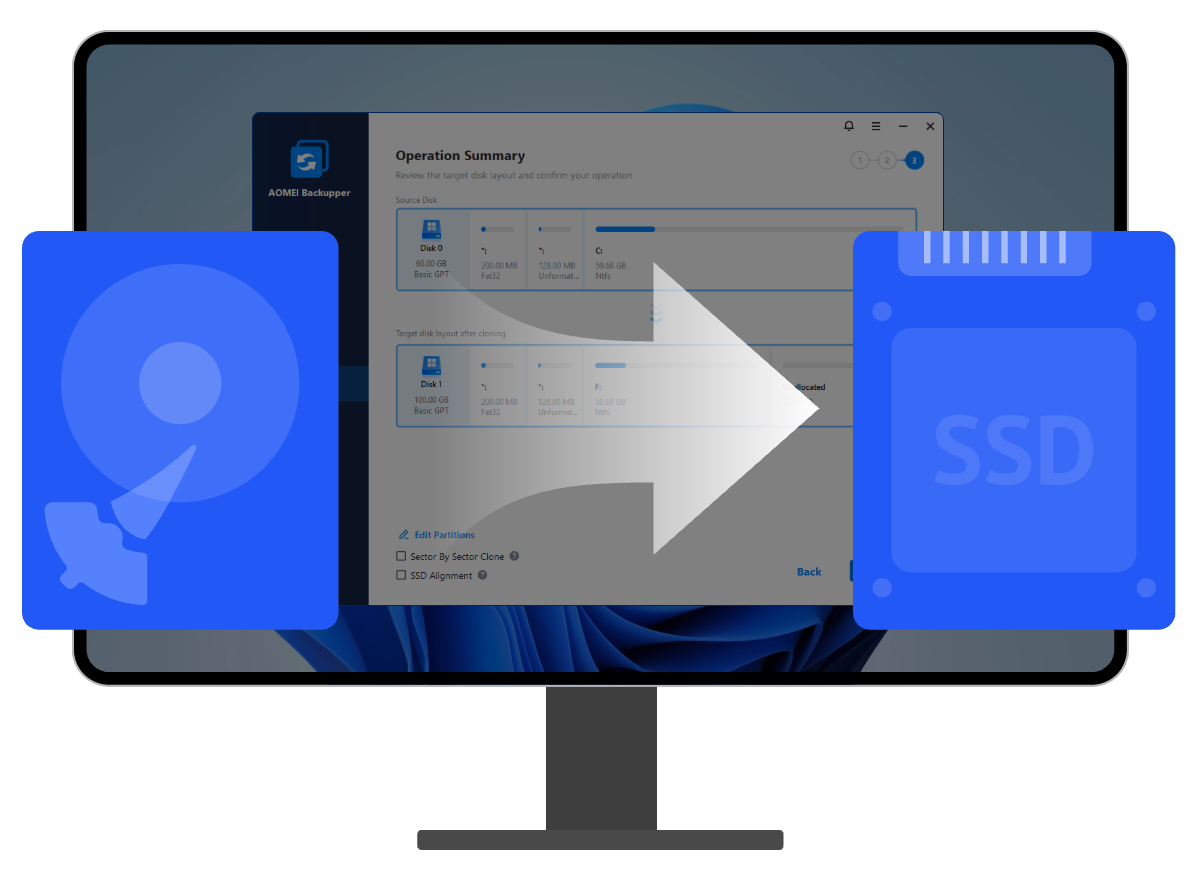
For better PC performance, it's wise to upgrade HDD to SSD. AOMEI Backupper can clone C drive and system-related partition(s) only to SSD without boot failure.

Need to switch to a larger SSD but don't want to reinstall system? Use teh system migration software AOMEI Backupper to complete system clone effortlessly.

If your disk in use is is showing signs of failure, it's time to upgrade. Use AOMEI Backupper to complete safe and quick system migration without reinstalling.

Clone the system partition (usually the C: drive) and related partition(s), such as EFI system partition and recovery partition, so that OS can boot from the new drive smoothly.

Clone an entire hard drive. System, partitions, files, user settings and configurations will all be cloned over to the new disk.

Clone a specific partition or dynamic volume. More flexible than disk clone, partition clone is specially designed to copy content of one certain partition or dynamic volume.

Add unused space to all partitions or manually adjust partition size on the destination disk, thus eliminating the cloned hard drive show wrong size issue.

Clone only used sectors while skip bad sectors on a hard drive from one to another, thus you can clone larger drive to smaller drive with high success rate.
Clone all sectors of a hard drive, whether it’s used or not, without worrying about boot failure due to missing system reserved partition or other system files.
Align 4k physical sectors for SSD, thus making it run faster (eg: faster reading and writing speed) after cloning.
Here are detailed steps on how to transfer/migrate OS to SSD in Windows 11/10 with the best OS clone software.
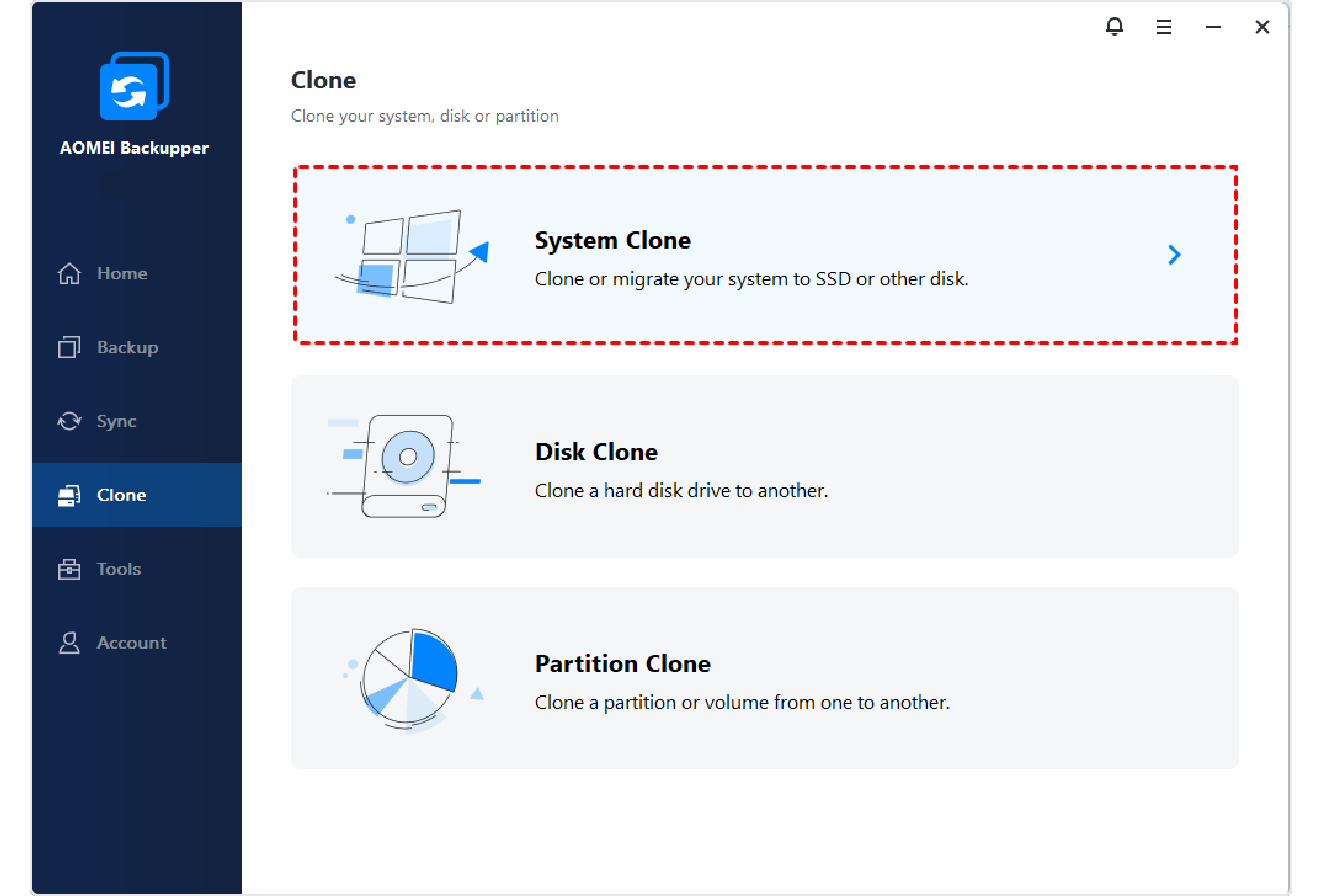
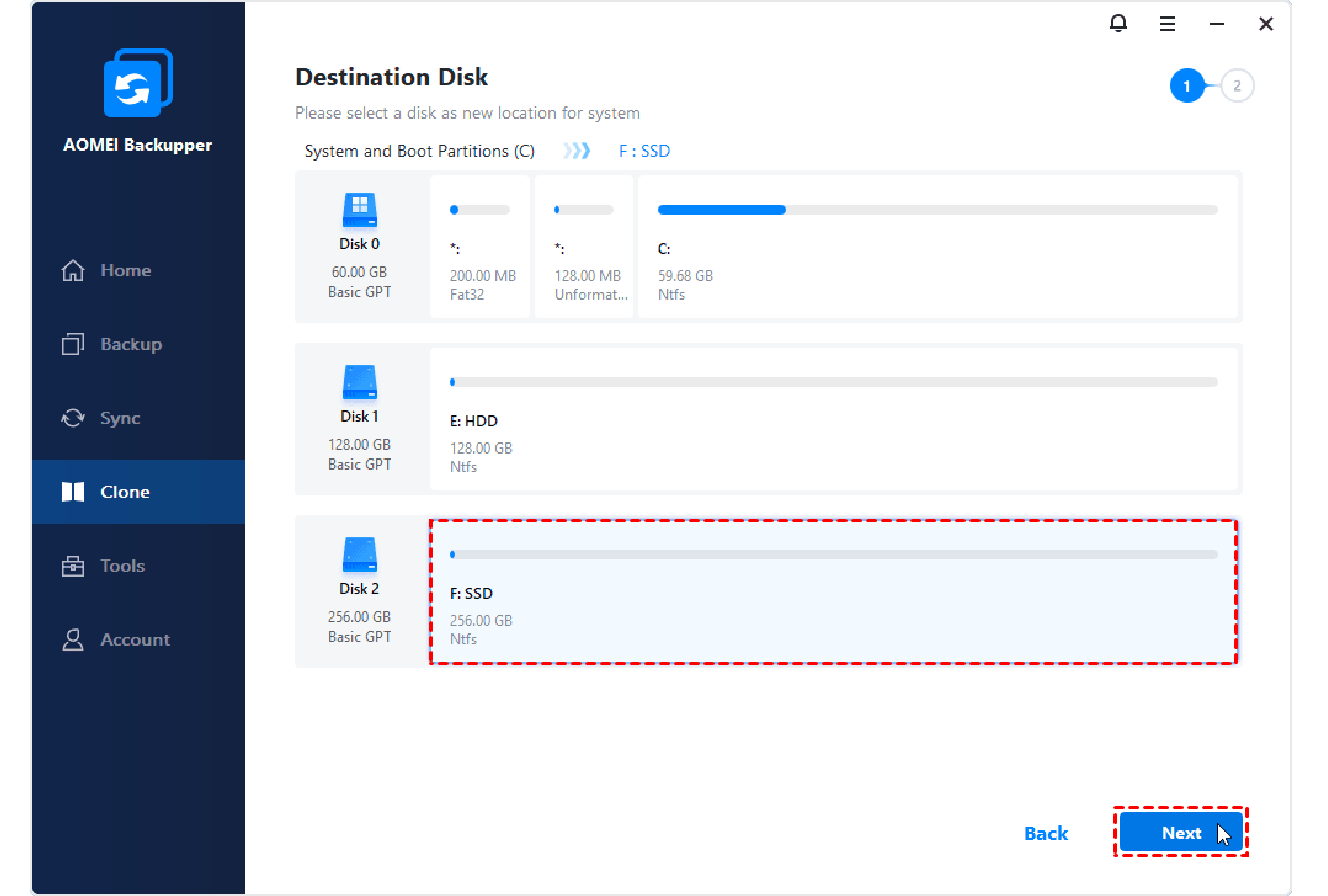
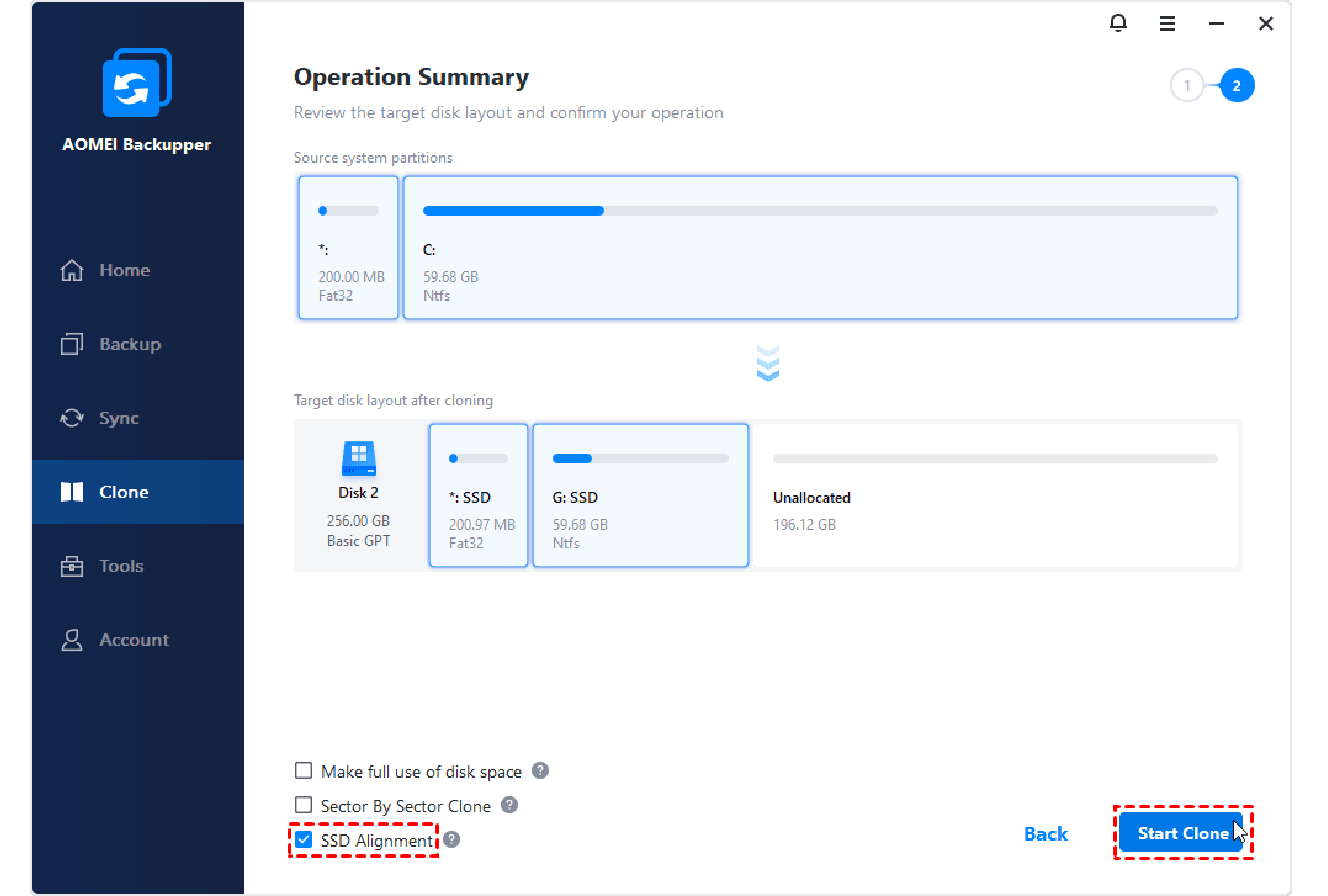
You can easily migrate OS to new SSD with this user-friendly software. Grab it and have a try if needed.
AOMEI Backupper is a great helper to clone larger HDD to smaller SSD without boot failure. It saves the life of my computer before it crashes.
This excellent disk cloning software helped me a lot in cloning Windows 11 hard drive to smaller SSD. And it boots successfully after cloning.
 AOMEI Backupper Professional
 AOMEI Backupper