FastRecovery



How to Recover Data from a crashed Hard Drive | 4 Ways
Read this article, it will tell you how to recover data from a crashed hard drive quickly in an easy way.

By Zoey / Updated on June 4, 2026


Living a digital lifestyle exposes many individuals to the distressing ordeal of data loss. In the course of this modern existence, scenarios may unfold where data loss becomes an unfortunate reality. A crashed hard drive is one of the troublesome issues.
In the event of a hard drive crash, the initial response is often one of panic, especially when crucial data and files are at stake. The loss of data can stem from either physical or logical damage inflicted upon the hard drive. Nevertheless, hope is not lost, as there exists crashed hard drive data recovery software designed to recover data from crashed hard drive due to logical issues.
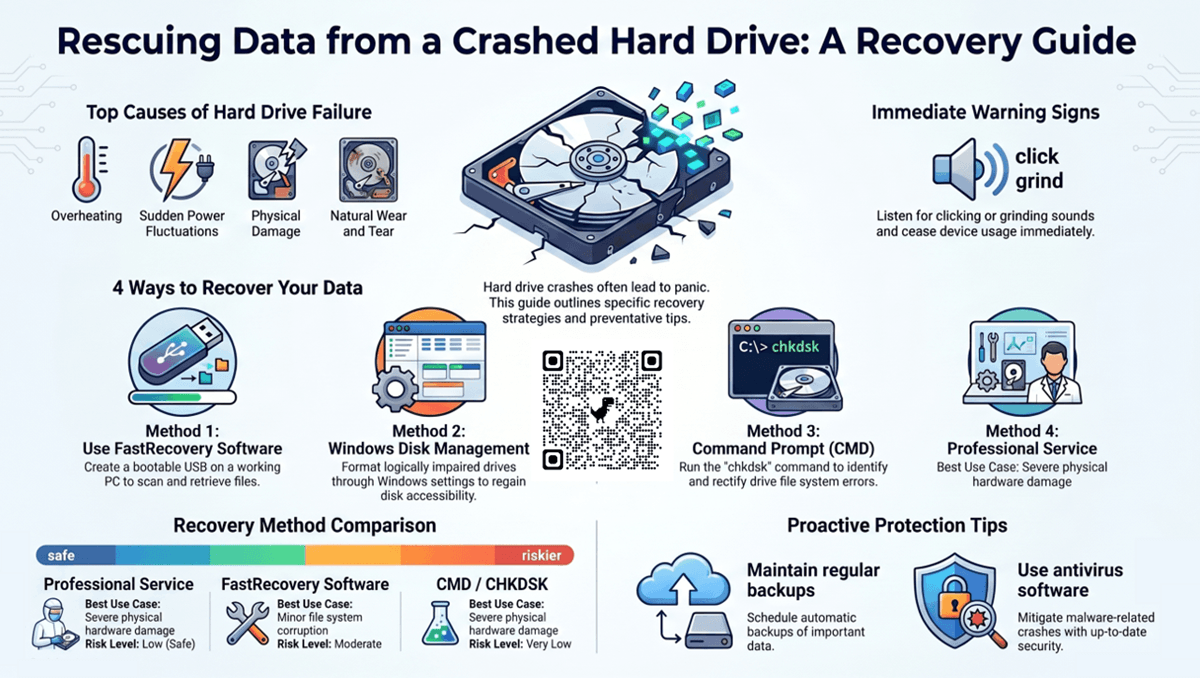
What Causes a Crashed Hard Drive?
Various factors contribute to hard drive crashes, and it's essential to grasp the causes and take prompt action.
- Device Overheating: Intensive multitasking, resource-heavy software, and prolonged usage can lead laptops and PCs to overheat, instigating potential crashes.
- Power Fluctuations: Abrupt power surges or outages pose a substantial risk, potentially resulting in hard drive corruption or crashes.
- Hardware Damage: Physical mishandling or unforeseen accidents can inflict irreversible harm on hard drives.
- Wear and Tear: Despite conscientious care, devices possess a finite lifespan. Ongoing usage may manifest in system slowdowns, signs of deterioration, or even hard disk crashes.
Beyond these factors, hard drive crashes may also stem from manufacturing defects, system errors, or malware assaults. Recognizable indicators include humming sounds, persistent error messages, or erratic computer behavior, signifying an ailing hard drive.
In the event of such a predicament, it's imperative to cease using the device immediately. Avoid the common error of emptying the recycle bin, as this will permanently delete the reference path to deleted files. Instead, start the data recovery process quickly through one of the following methods.
How to Recover Data from a Crashed Hard Drive
How to perform crashed hard drive recovery? Delve a bit deeper to discover the process of recovering data from a crashed hard drive using trustworthy hard drive recovery software and other methods below.
|
Way 1. Recover Data from a Crashed Hard Drive with FastRecovery |
|
Way 4. Ask for Help from the Hard Drive Data Recovery Service |
Way 1. Recover Data from a Crashed Hard Drive with FastRecovery
Enter FastRecovery, a data recovery tool designed to simplify the crashed hard drive recovery. It provides users with a PC Crashed recovery feature that helps you access a failed hard drive and scan for lost data, just as you would during a standard data recovery process on a working computer.
 FastRecovery
- Restore lost and deleted data from internal/external hard drives, USB drives, SD cards, etc., with a high success rate and fast speed.
- Compatible with over 1000 types of recoverable photos, videos, office files, zip files, and beyond.
- Automatically start a Quick Scan or Deep Scan to find deleted or lost files.
- Organize and display data by Type or Path, allowing you to sort, search, filter, and preview files.
- Comprehensive solutions for data recovery, addressing system crashes, deletions, disk formatting, Recycle Bin purges, and more.
- Seamless integration with Windows 7/8/10/11 & Windows Server, ensuring universal compatibility across a wide range of user environments.
Create a bootable disk to access the crashed drive
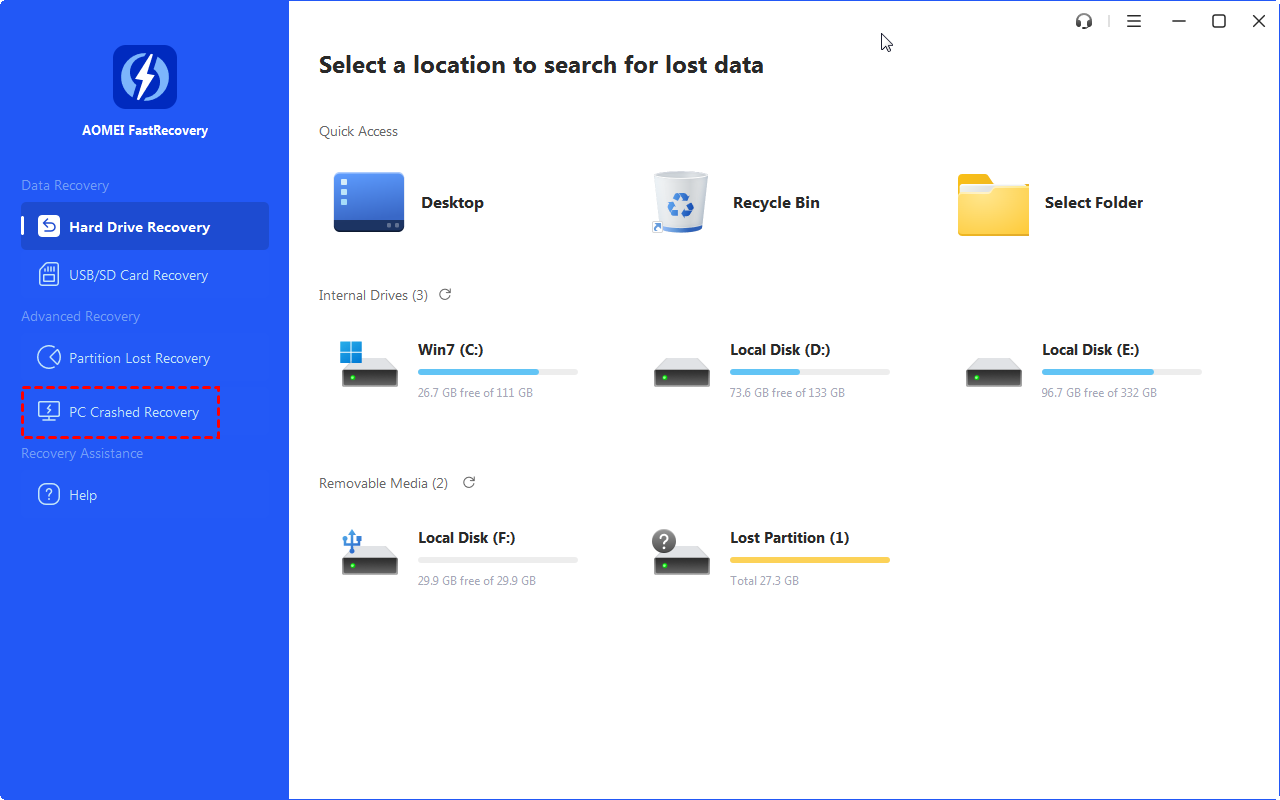
1. Plug a USB into it. Download and install FastRecovery on another working PC. Then, choose PC Crashed recovery.
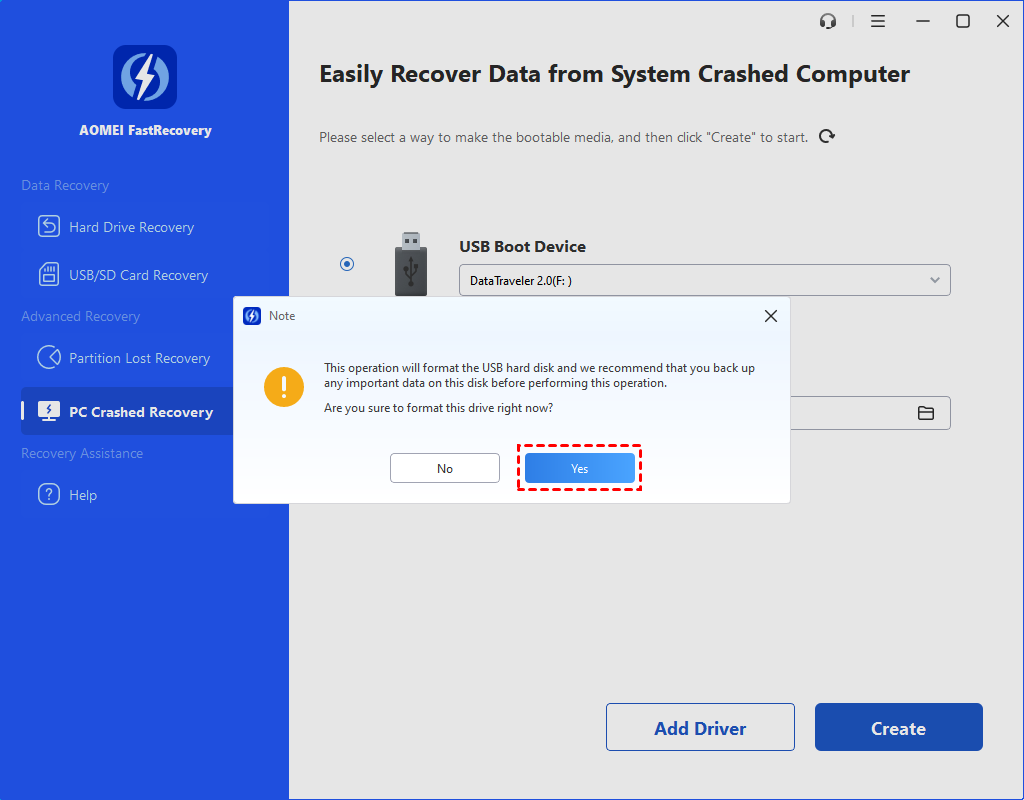
2. Here, check USB Boot Devices and choose your USB drive.
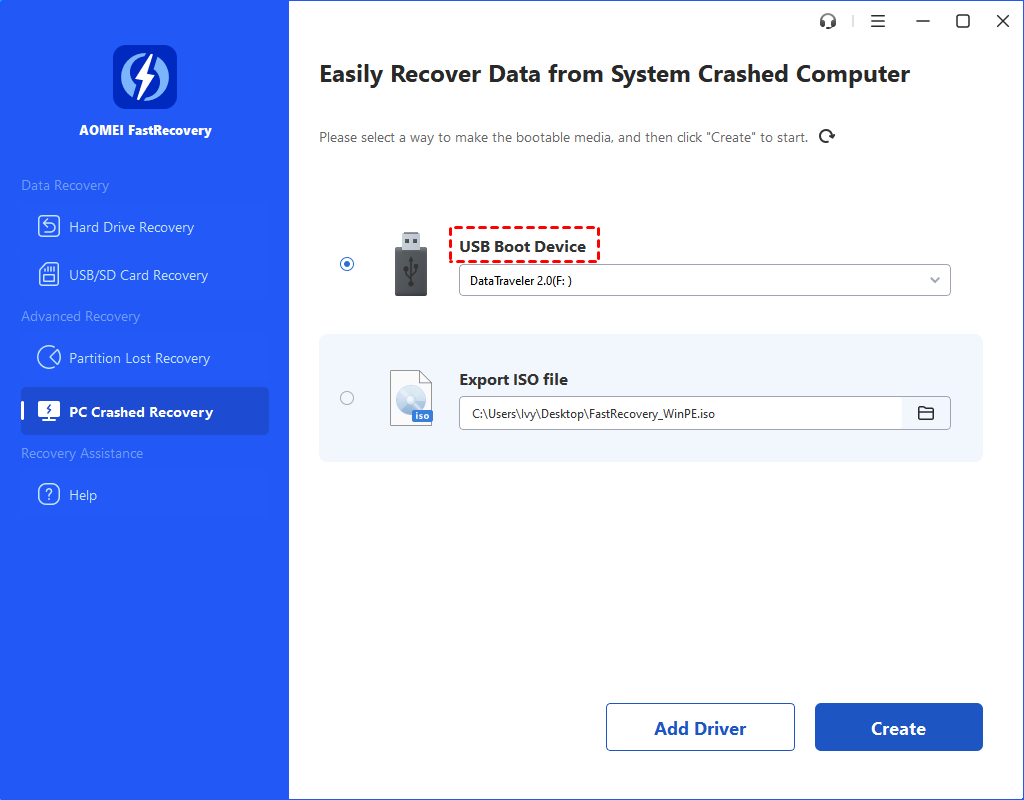
3. This operation will format your USB drive. Please back up data, if there is any, on the USB drive. If not, click Yes to continue.
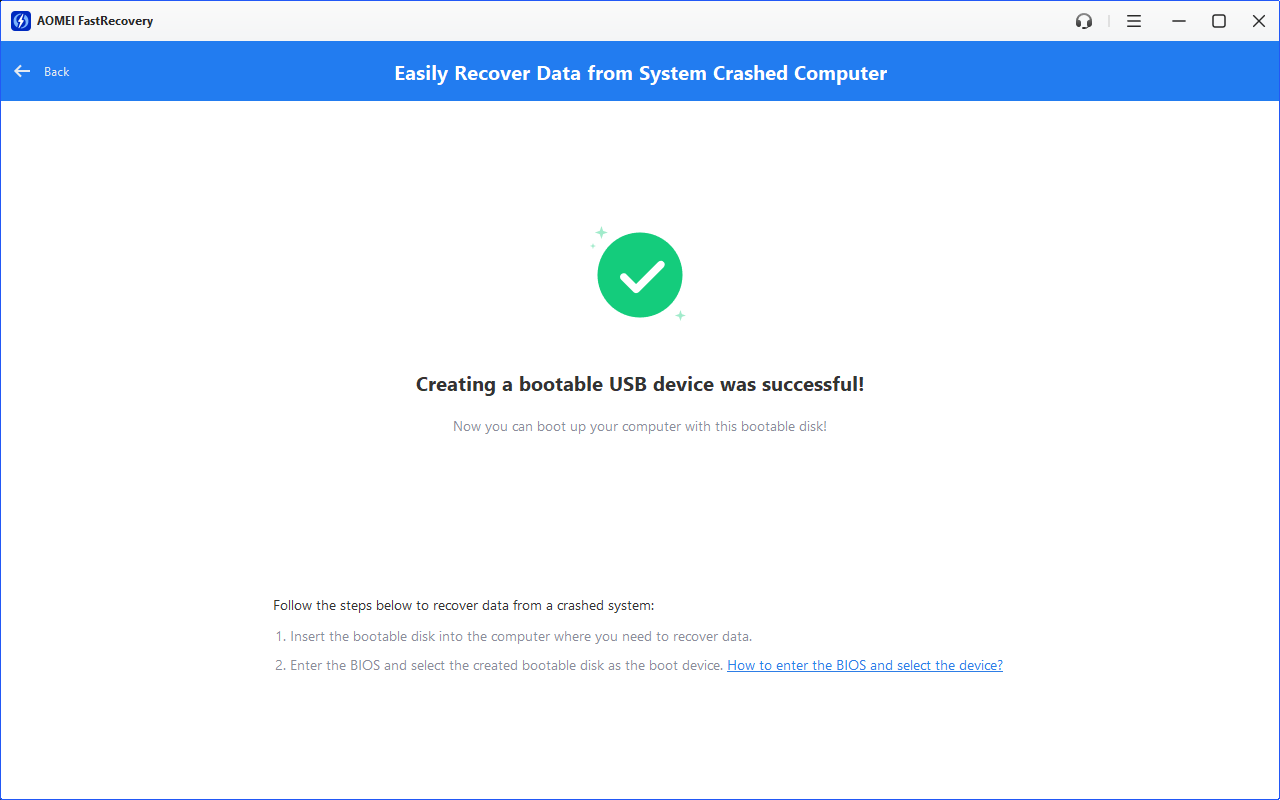
4. After the creation process is finished, you will receive a message indicating the operation is successful, as well as how to access a crashed drive.
Recover data from crashed hard drive
1. Insert the bootable disk into your computer. Start it in the UEFI/BIOS window and choose it as the boot device.
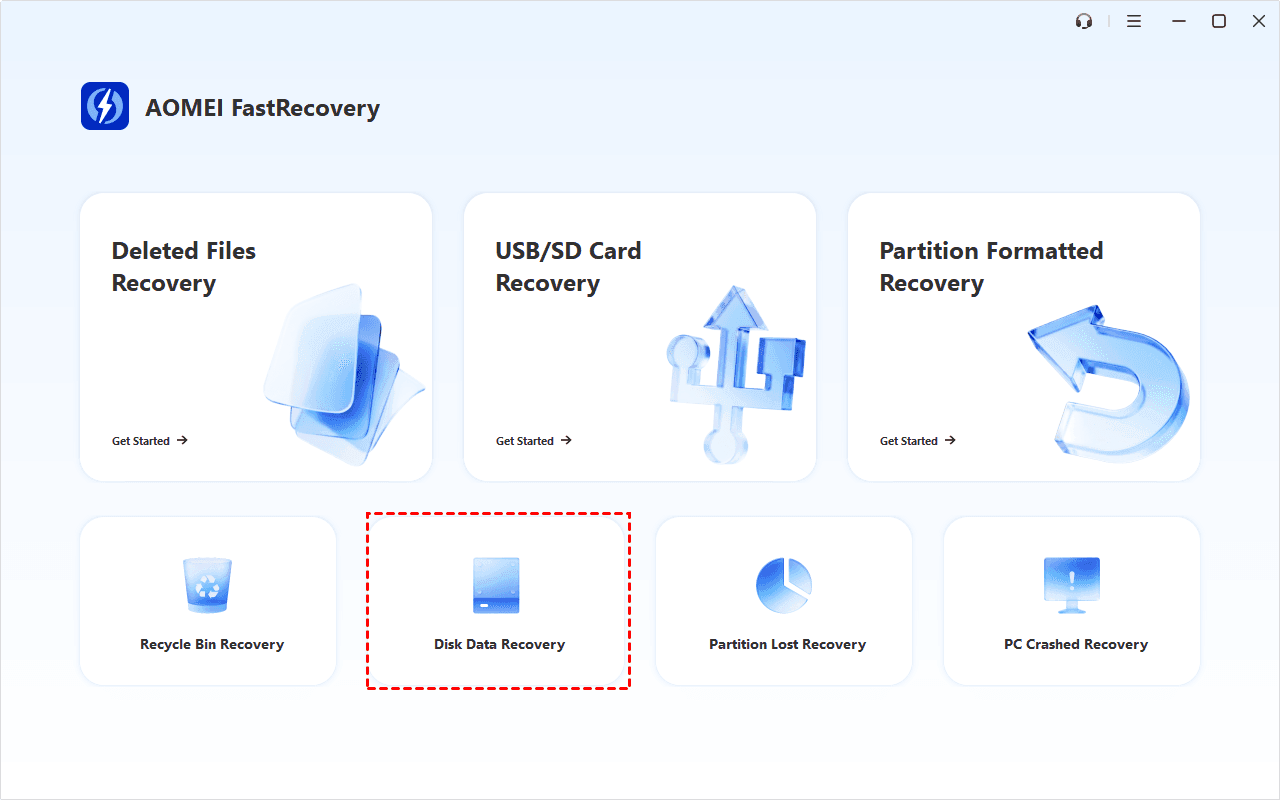
2. After loading FastRecovery, click Disk Data Recovery. You can also choose a more suitable alternative. All of them can help you retrieve data without causing any damage.
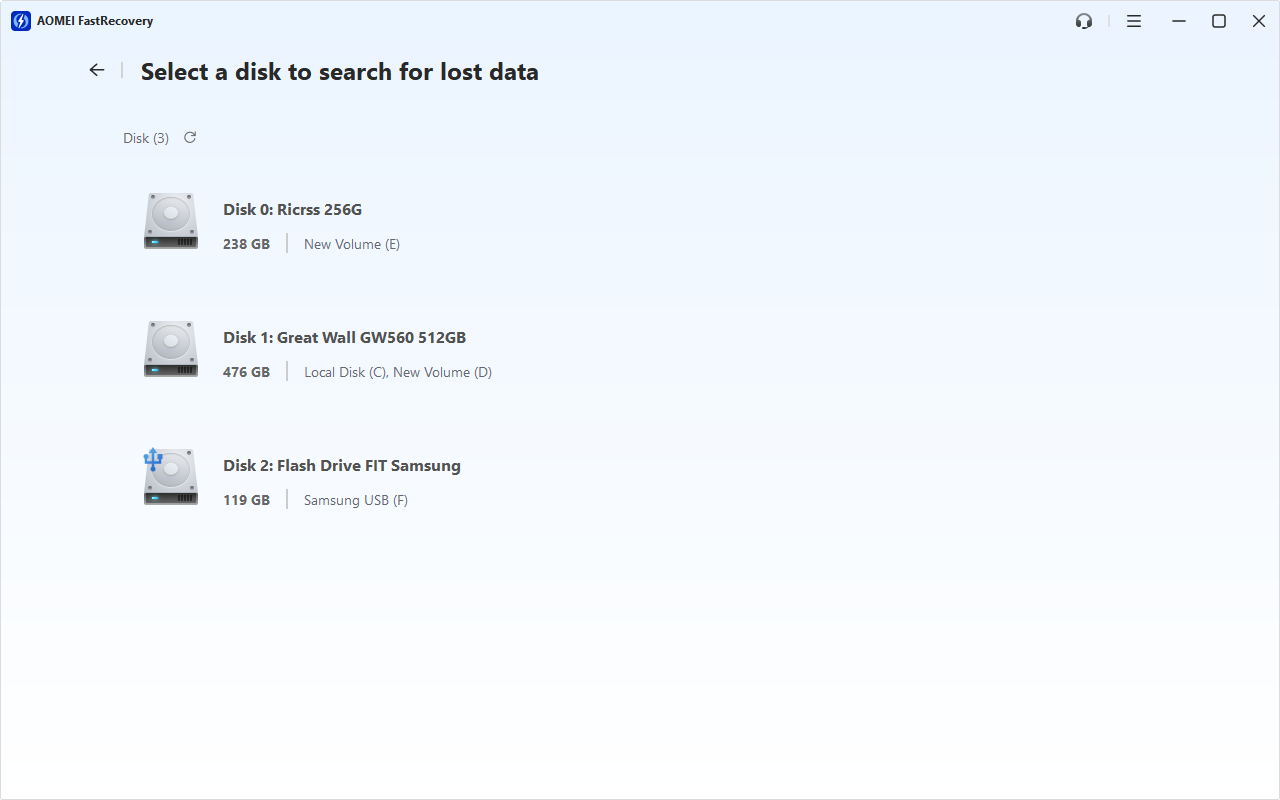
3. Hover the mouse over the drive, and click Scan.
4. It will scan your hard drive with Deep Scan. You don't need to wait too long. Scan time mainly depends on disk size and health, especially regarding bad sectors or file system corruption.
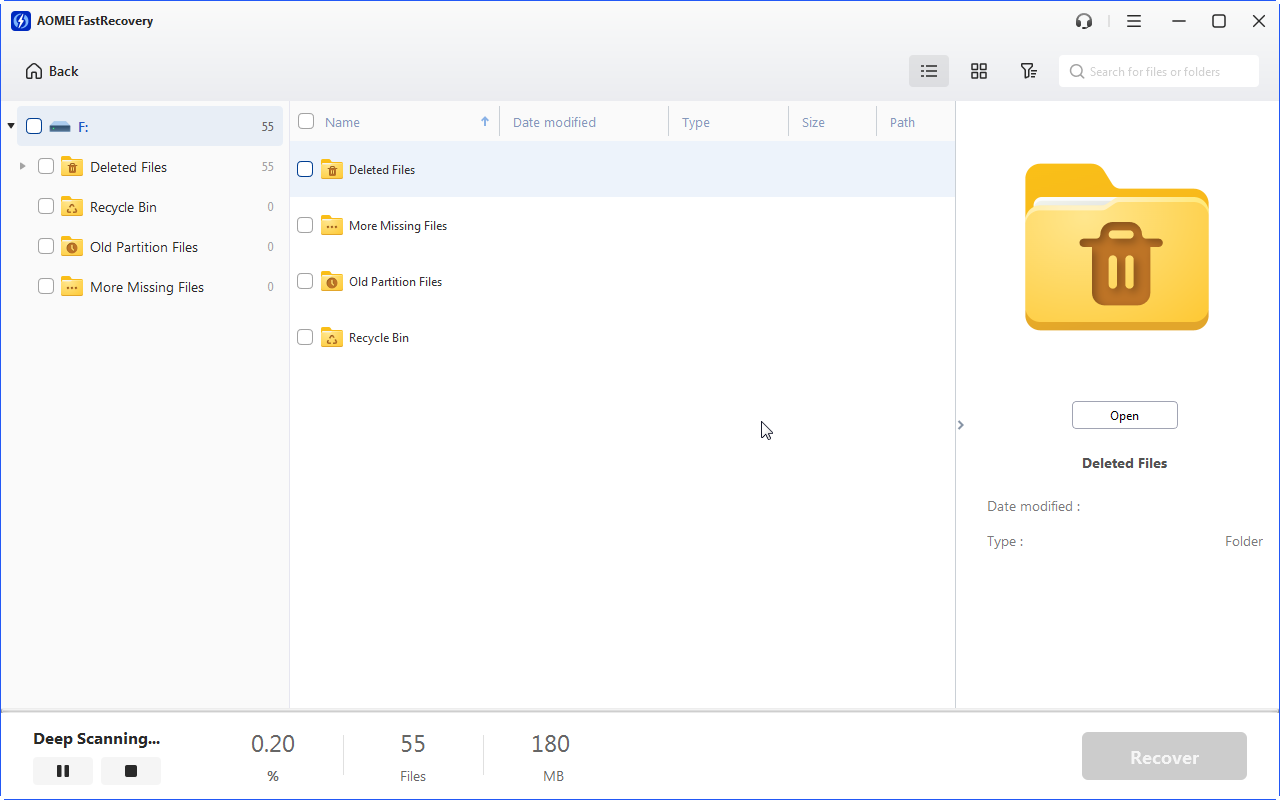
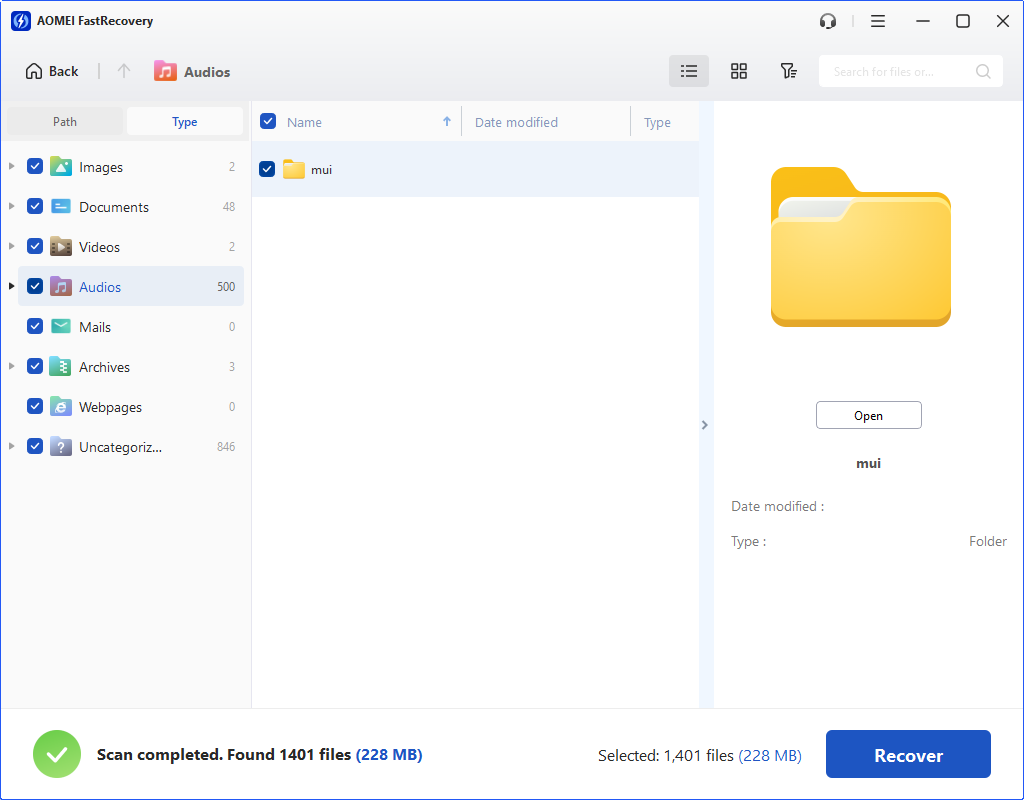
5. Wait for the process to complete. Under the Type section, check all the data types and click Recover. Please select a new location to keep recoverable data, ensuring you don't overwrite data.
Way 2. Utilize Disk Management for Data Recovery
In situations where your hard drive faces logical damage, there exists a potential avenue for data recovery through in-computer methodologies. In cases of a crashed or corrupted drive leading to data inaccessibility, employing the Disk Management utility on Windows can serve as a remedy.
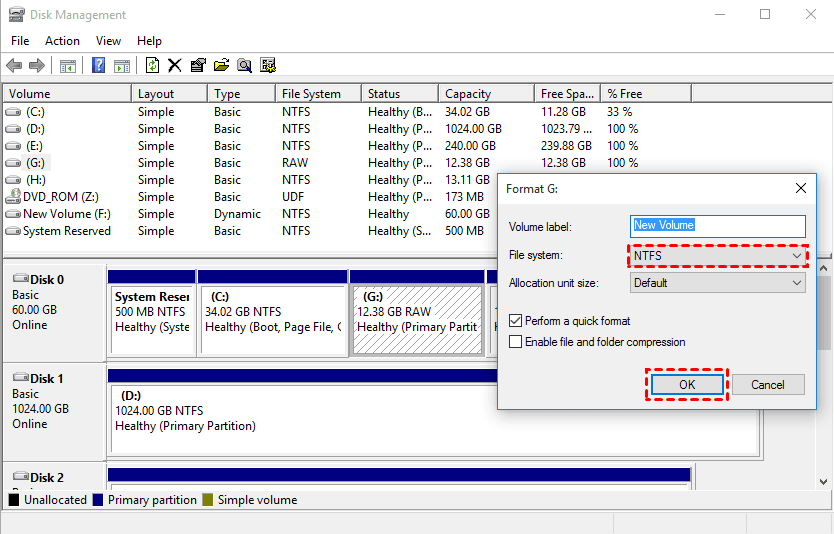
1. Press Windows + X and opt for the Disk Management feature. Identify the affected hard drive in it.
2. If the hard drive is detected, consider formatting it to fix the error and recover files from formatted hard drive.
- Right-click the Disk and select Format.
-
In the pop-up window, confirm that the "Perform a quick format" option is checked. Then, click “OK” to format the drive.
-
To perform a full format, just uncheck this option and click“OK”.

- After formatting, follow the steps in Way 1 to recover data.
Way 3. Recover Data from Crashed Hard Drive with CMD
An alternative method to address problems with a corrupted or crashed hard drive involves utilizing the CMD utility. Despite its seemingly technical nature, executing CMD to recover files can be useful.
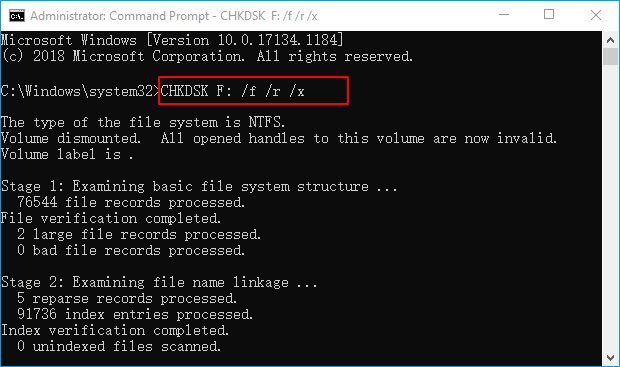
1. Press Win + X and choose the Command Prompt (Admin) option.
2. Input chkdsk and hit Enter to check for errors on the damaged hard drive.
3. Input chkdsk F: /f /r /x to fix problems on the drive. Here, F represents the letter of your hard drive.
Way 4. Ask for Help from the Hard Drive Data Recovery Service
In scenarios where your hard drive surpasses the capabilities of standard data recovery software, a viable solution lies in the adept hands of a professional data recovery service. Their technical proficiency extends to recovering files from crashed or corrupted hard drive, bringing back files you thought were lost forever.
How to Protect Hard Drive and Data Better
To fortify your defenses against data loss on a hard drive, adhere to these practical tips:
- Immediate Action on Strange Noises: If you detect unusual sounds like clicking or grinding, cease device usage promptly. Create a backup for your hard drive at once.
- Antivirus Vigilance: Safeguard your machine against malware by employing reliable antivirus software. The proactive defense against viruses and malware infections can mitigate the risk of potential data loss.
- Regular Data Backups: Establish a routine for frequent data backups to protect your information. This proactive measure provides a safe way for you to recover files from backup.
- Optimal Storage Conditions: Shield your storage device from extreme heat or excessive humidity, both of which can inflict damage. Maintaining optimal environmental conditions is paramount in preserving the integrity of your hard drive.
FAQs
1. How to recover important photos and documents from crashed hard drive?
To recover important photos and documents from crashed hard drive, you could consider using professional Windows data recovery software - FastRecovery. It integrates Quick or Deep Scan to help you find deleted photos and documents and display them by Type, allowing you to sort, search, filter, and preview files. All of them make it easier to recover data.
2. How to safely recover data from crashed hard drive?
To safely recover data from crashed hard drive, you need to stop using the crashed hard drive, which significantly avoids overwriting data. Connect it to another working computer and use a reliable data recovery software to recover important files safely.
3. What to do immediately after hard drive crash failure?
After a hard drive crash failure, you must immediately power off the computer and stop writing new data to the drive. Check for unusual noises or connection issues, then back up accessible files. Afterward, start data recovery as soon as possible.
Final Words
In instances of data loss on a crashed hard drive, the optimal recourse is the utilization of FastRecovery data recovery software. This user-friendly and dependable solution stands out as the primary choice, seamlessly restoring your data with just a few clicks. When the prospect of data recovery through software is viable, FastRecovery emerges as an efficient and effective solution to retrieve your valuable information.
 100%
Clean & Secure
100%
Clean & Secure