FastRecovery



4 Ways| How to Get Data from Hard Disk without Formatting
This post covers four solutions to how to get data from hard disk without formatting. Read it and get back your data easily.

By Kelsey / Updated on April 30, 2026


How do I access my hard drive without formatting?
When you insert your hard drive and get the message - "You need to format the disk in drive x: before you can use it. Do you want to format it?", do you have to format the hard drive? Actually, no. In this article, we provide four methods on how to get data from hard disk without formatting. Additionally, we present a free and easy way to recover data from formatted hard drive.
When you are prompted to format your hard drive, the hard drive may be damaged. Common causes of hard drive damage are:
- Virus attack
- File system corruption
- Bad sectors on hard drive
- Physical damage to hard drive
How to recover data from hard disk asking to format? Follow the guide below to recover corrupted hard drives without format.
How to get data from hard disk without formatting in 4 easy amethods
As this problem may be caused by different reasons, the solution may also vary. In this section, we will describe all possible solutions on how to get data from hard drive without formatting. It is important to remember that to ensure the safety of your data, we recommend you first use anti-virus software to conduct a comprehensive anti-virus on your computer.
Way 1. Recover hard disk without formatting with SFC
When your hard drive is asked to format, it is possible that there are missing or damaged Windows system files. In this case, SFC (System File Checker) in Windows that is capable of scanning and repairing corrupted system files can help you.
The following is how to get files off hard drive without formatting by scanning and recovering via SFC scan.
Step 1. Search for “Command Prompt” in the Windows search bar and click on Run as administrator.
Step 2. Type “sfc /scannow” command and press Enter.
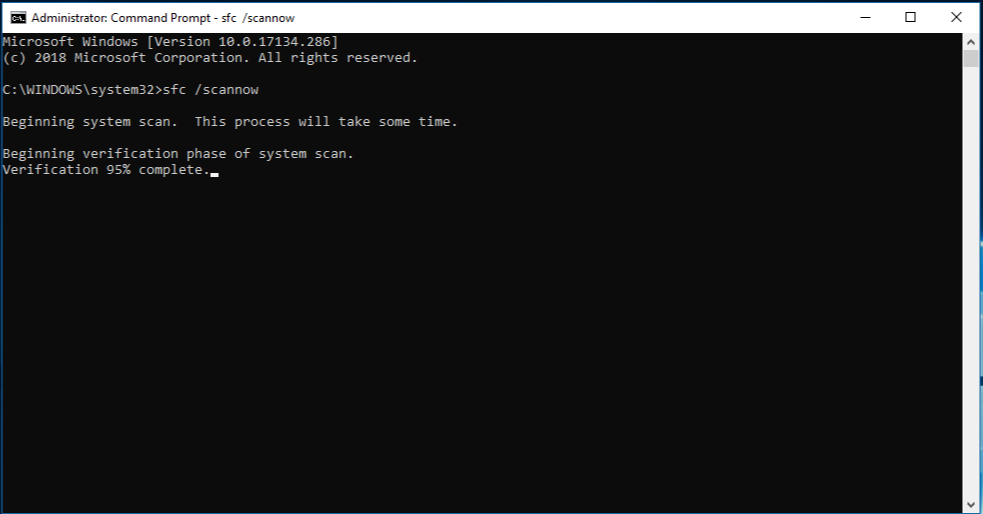
Step 3. It will take some time to finish the scanning. When the scanning is completed, reboot your computer and check if you can open your hard drive correctly.
Way 2. Recover hard disk without formatting using CHKDSK
CHKDSK (Check Disk) is a system utility that you can use to verify the file system integrity of a volume on hard drive and fix logical file system errors and bad sectors automatically. With this tool, enabling damaged partition recovery is an easy task.
How to get data from external hard drive without formatting, as well as local disks using CHKDSK? Follow these steps:
Step 1. Open Command Prompt and run as an administrator in the same steps.
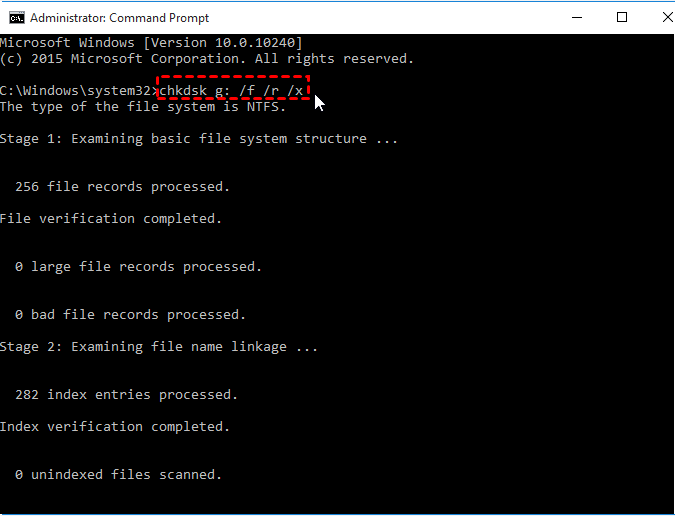
Step 2. Input the chkdsk G: /f/x/r command to tap on Enter. Then, it will start to scan and fix found errors.
- G: Refers to the drive letter of the hard drive. You can change it to the specific drive letter of your corrupted hard drive.
- /f Instructs CHKDSK to fix any errors it finds.
- /x Locates the bad sectors on the drive and recovers readable information.
- /r Forces the drive to dismount before the process starts.
Way 3. Update or reinstall hard drive drivers for recovery
Drivers are software that various devices on a Windows computer rely on to function properly. An error in the driver can cause the communication between the hard drive and the computer to be interrupted, resulting in an unreadable hard drive.
Luckily, you can reinstall the drivers or update them to the latest version to solve “how to recover data from inaccessible hard disk”.
Step 1. Right-click the Windows Start icon and choose Device Manager from the list.
Step 2. Click the > position beside Disk Drives, right-click on the hard drive that is asked to format, and tap on Update Driver.
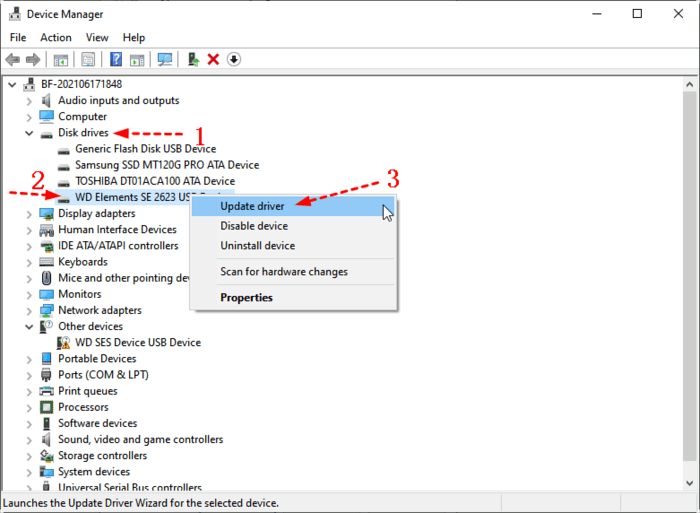
Step 3. You will be asked whether you want Windows to search your computer and the internet for the latest drivers software. Select Search automatically for drivers.
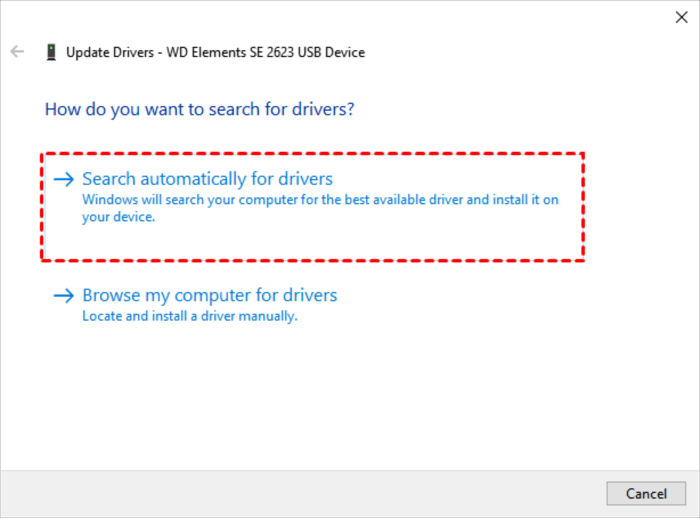
Step 4. Then, if there is an updated driver, Windows will find and install it. After installation, you can check if the “how to get data from hard disk without formatting” question is fixed.
Way 4. Check hard disk in Disk Management
To make your Windows PC access your hard drive correctly, you can check the hard drive in Disk Management and assign the drive letter to have a try. This can also help you recover a missing computer drive or partition.
Step 1. Select Disk Management from the Windows Start menu.
Step 2. Right-click the hard drive and pick Change Drive Letter and Paths.
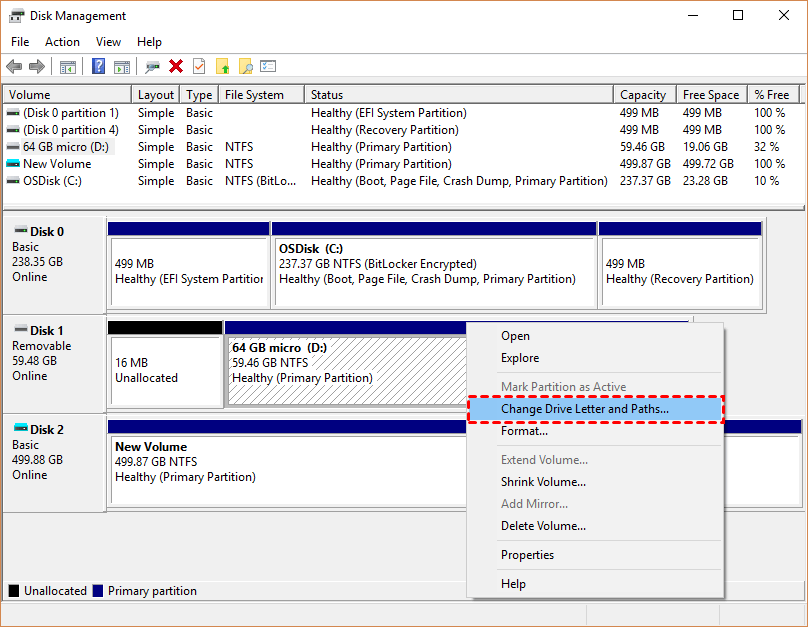
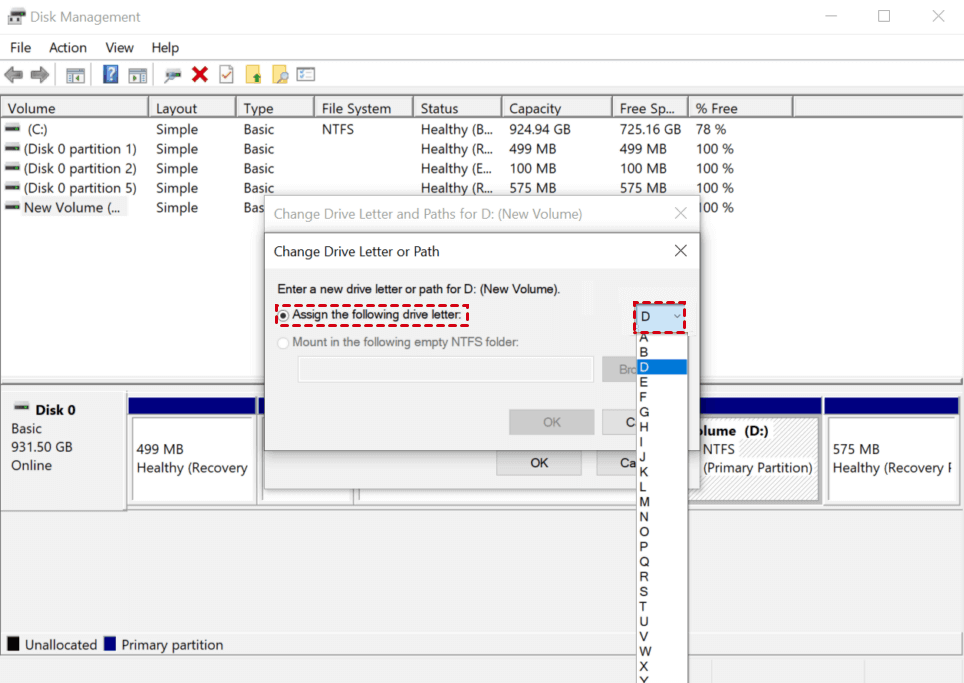
Step 3. Click the Add button > Assign the following drive letter, select a new drive letter, and then click OK to resolve “how to recover files from external hard drive without formatting”.
How to get data from hard disk after formatting for free
What if the foregoing methods cannot help you retrieve data from hard drive without formatting? If so, you can format your hard drive and use a reliable data recovery tool to get back formatted data easily. FastRecovery is the top option for you.
- With a high recovery rate and quick recovery speed, this tool allows you to recover data from formatted hard drives within 3 steps with ease.
- It offers Quick Scan and Deep Scan to locate the missing or lost files comprehensively and quickly.
- It supports recovery of pictures, Word documents, Excel files, texts, videos, emails, compressed files, and other commonly used files.
- Aside from formatted hard disk, it provides to recover data from lost partition, accidental deletion, virus attack, system crash, etc.
Install and run FastRecovery. Next, you can proceed with the given steps below to retrieve formatted hard drive data effortlessly.
-
Don't download and install FastRecovery to the hard disk containing lost data, which may result in data overwriting.
-
Meanwhile, stop using the disk immediately. Don't add new data to it or format it after realizing data loss.
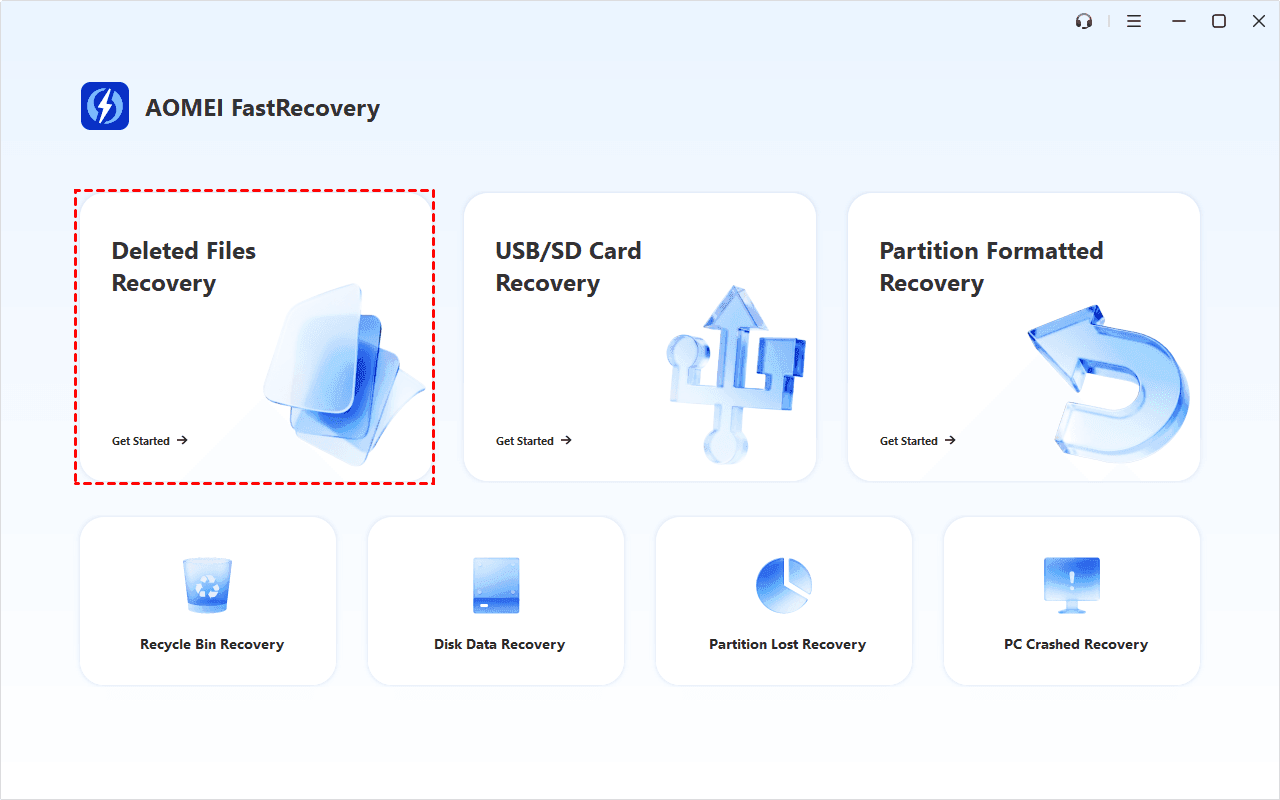
Step 1. On the main screen of this recovery software, click Deleted Files Recovery.
-
You can also click Recycle Bin Recovery, Disk Data Recovery, Partition Formatted Recovery, etc., based on your specific needs. All of them can help you retrieve data without causing any damage.
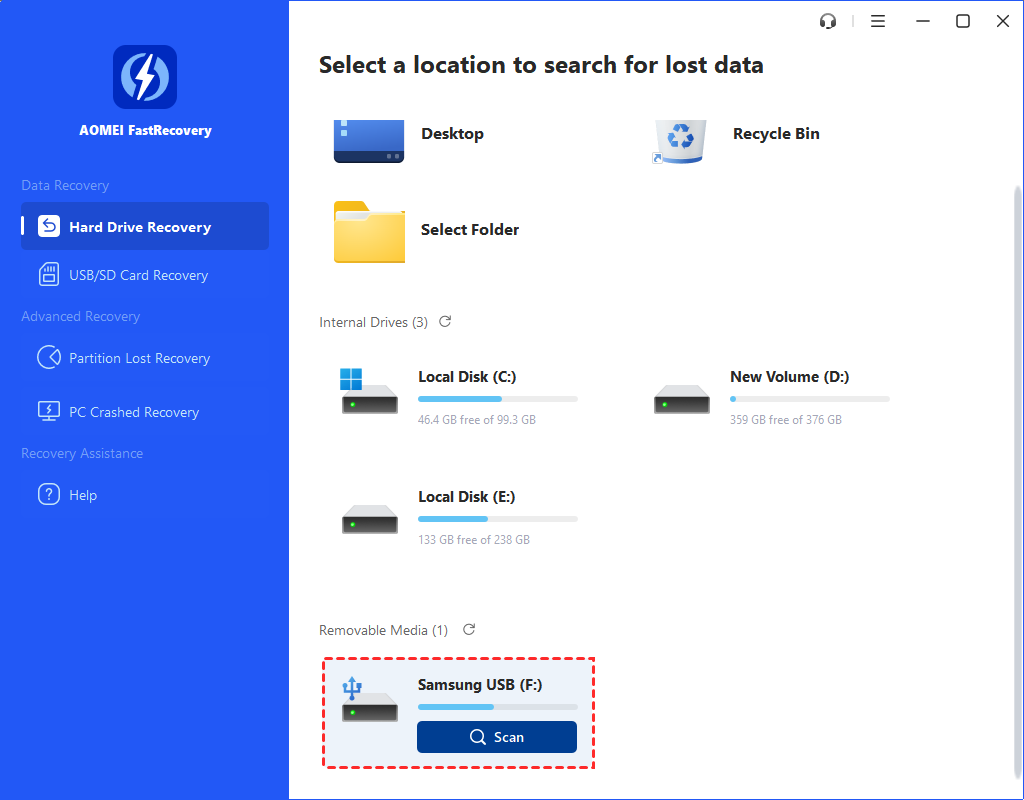
Step 2. Hover the mouse over the drive, and click Scan.
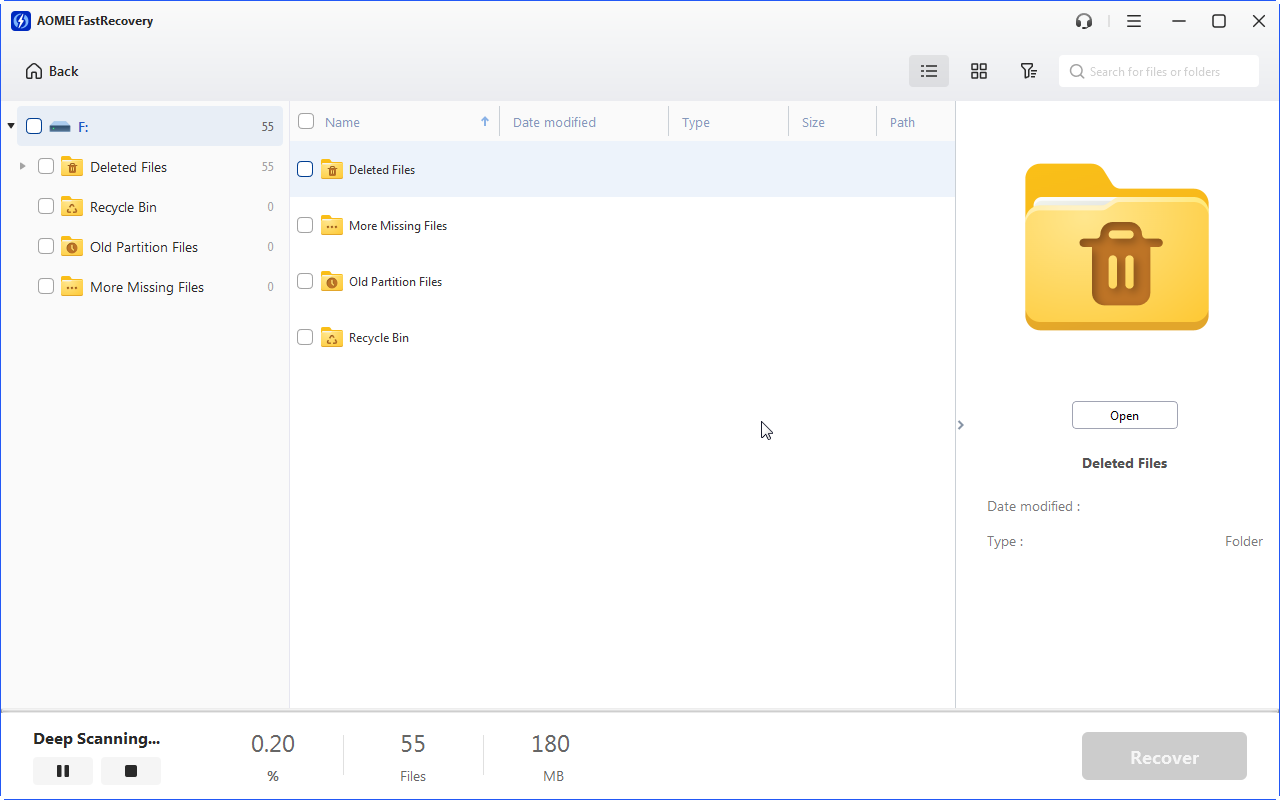
Step 3. It will begin to scan all deleted and other missing files and display all recoverable data by Path or Type (default). It allows you to sort, filter, search, and preview files to locate them quickly.
- Sort: Sort files by name, date modified, type, etc., on the right panel.
- Filter: Specify the data type and size (i.e., from Less than 512 KB to 1GB above) to target your search.
- Search: Type the file name or extension in the search box to locate deleted files precisely.
- Preview: Preview files in a clear thumbnail, such as wav,ico, jpg, png, bmp, jpeg, tif, svg, gif, mp4, mp3, txt, xlsx, pdf, ini, docx, etc.
-
Click the Deep Scan button if the Quick Scan fails to locate lost files. Deep Scan will search every sector of the disk and take longer.
-
The Type section lists all supported data types, including Images, Videos, Audios, Documents, etc., up to 1000+ formats.
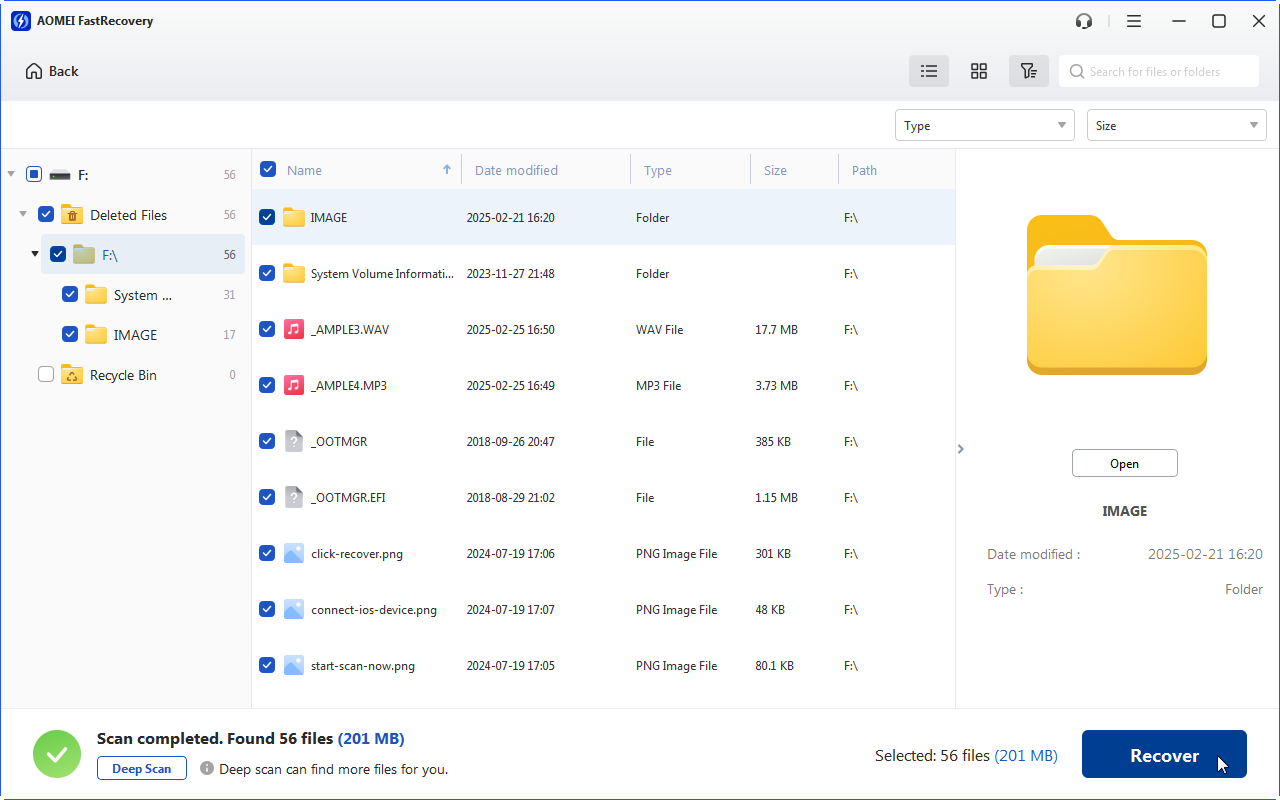
Step 4. Choose the data you want to restore and click Recover. Please select a new location to save the recovered data, which may create data overwriting.
Related suggestion
Although there are several ways on how to get data from hard disk without formatting, not every method will work due to different causes of problems.
In addition to formatting the hard drive and then using data recovery software to get back your formatted data, it is also crucial to back up your important data regularly, which will help you avoid the risk of data loss as much as possible.
Professional data backup software - AOMEI Backupper provides powerful backup functions, including flexible auto backup modes, file backup, disk backup, system backup, etc., to make your data backup task easier.
 100%
Clean & Secure
100%
Clean & Secure