 AOMEI Backupper Professional
Migrate Windows system to SSD/HDD safely and quickly
Secure Download
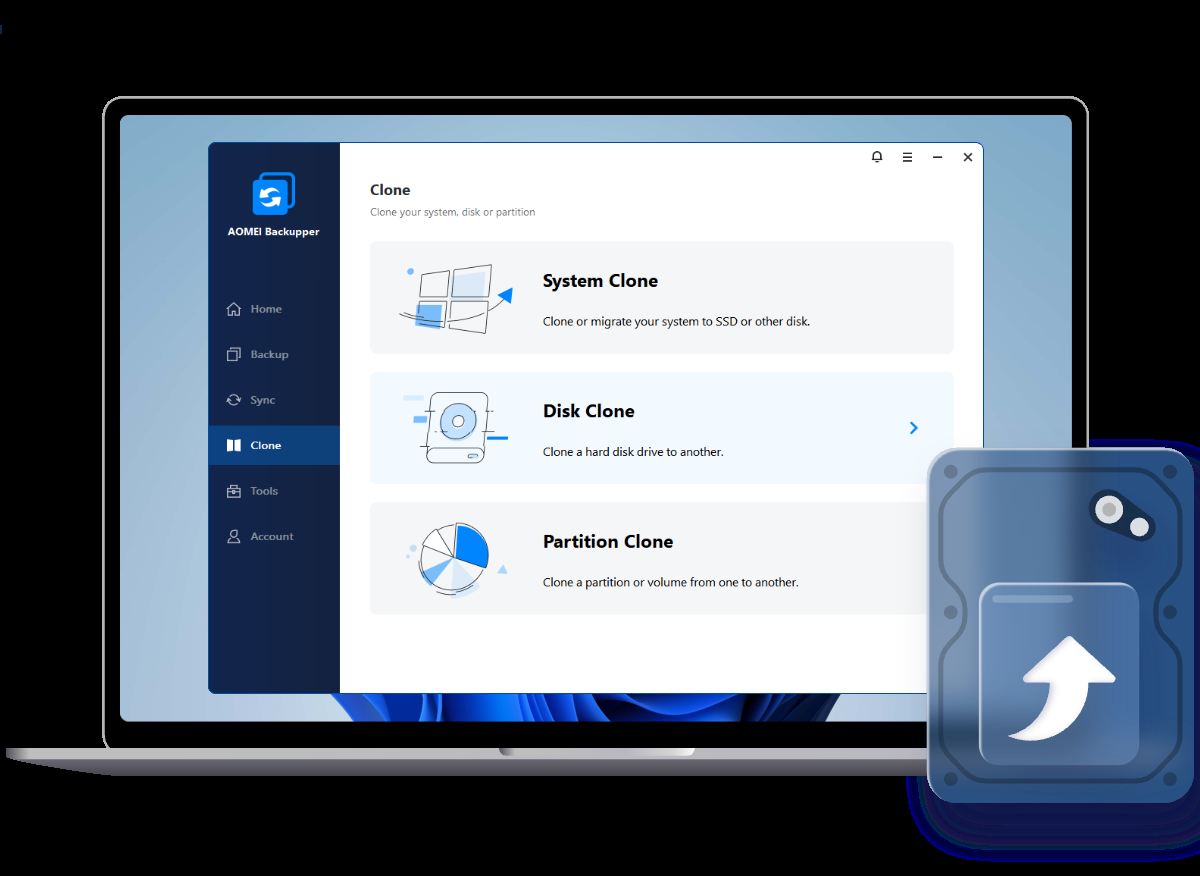

With powerful features, AOMEI Backupper assists you to complete OS, apps and files migration easily when you are in different cases.

Upgrade from HDD to SSD for better OS performance
Replace a small drive with larger one for more capacity
Switch from a falling hard drive to a new drive or HDD

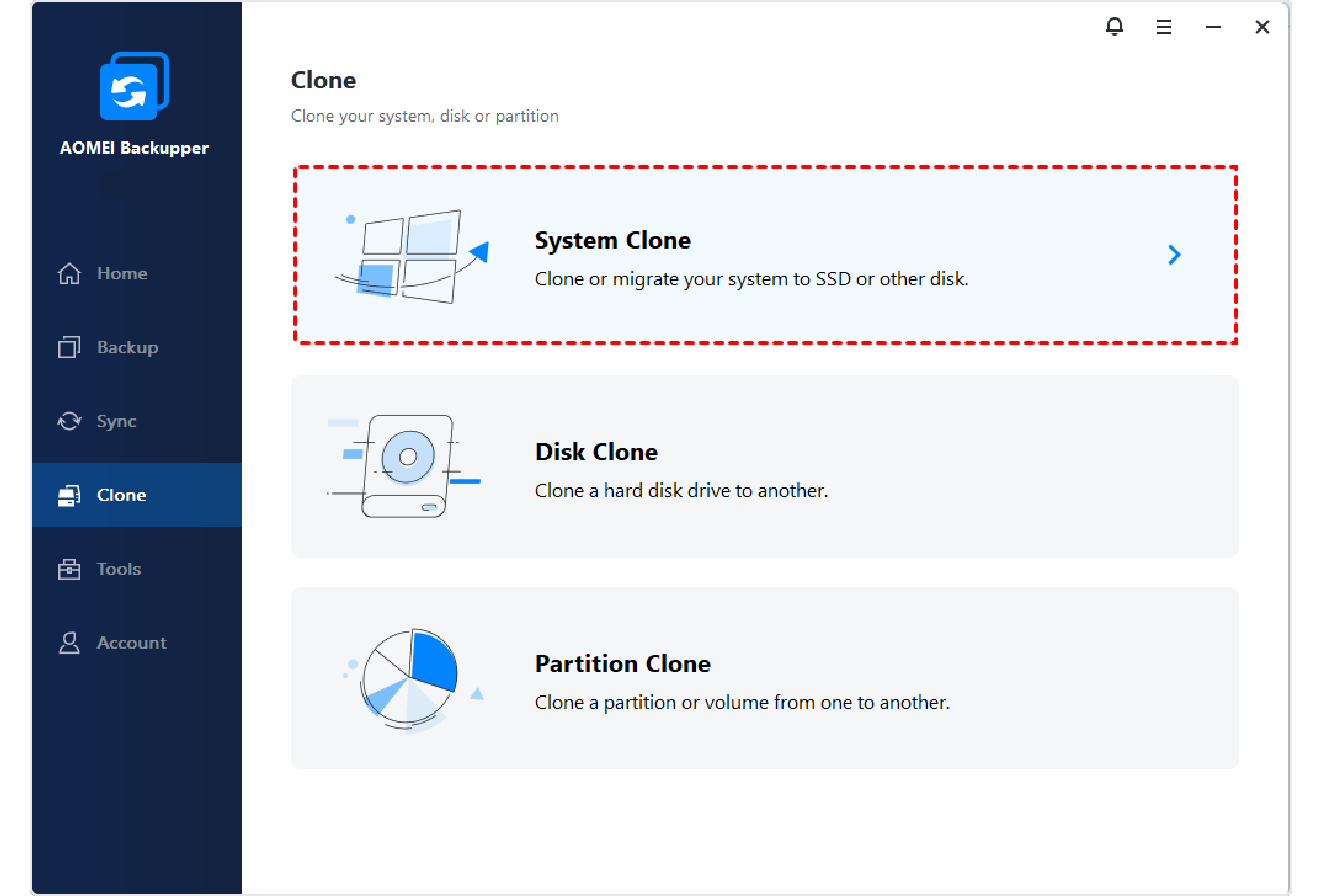
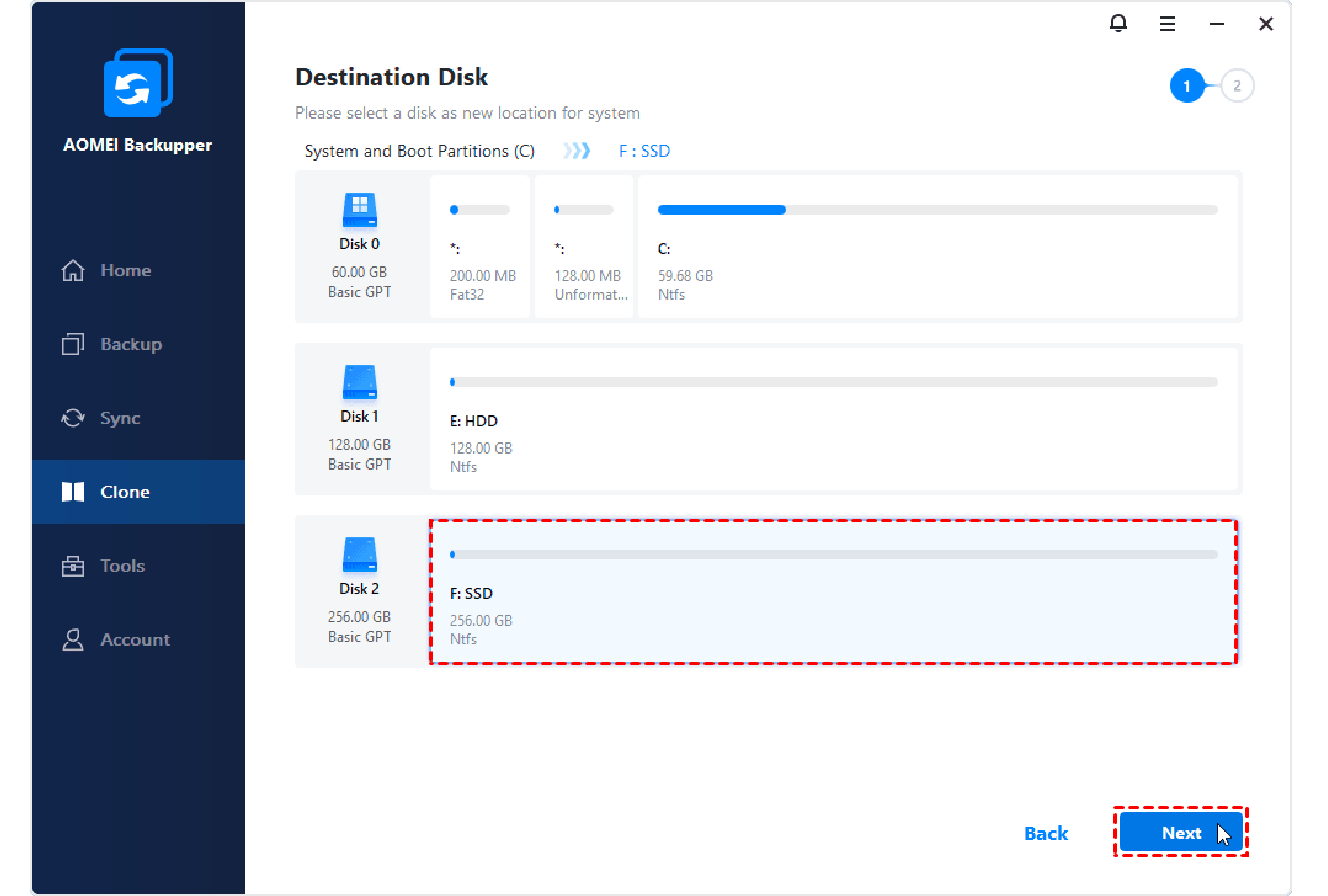
Only clone Windows 11/10/8.1/8/7 and all other data in OS-related partitions to another drive, even a smaller SSD without boot failure.

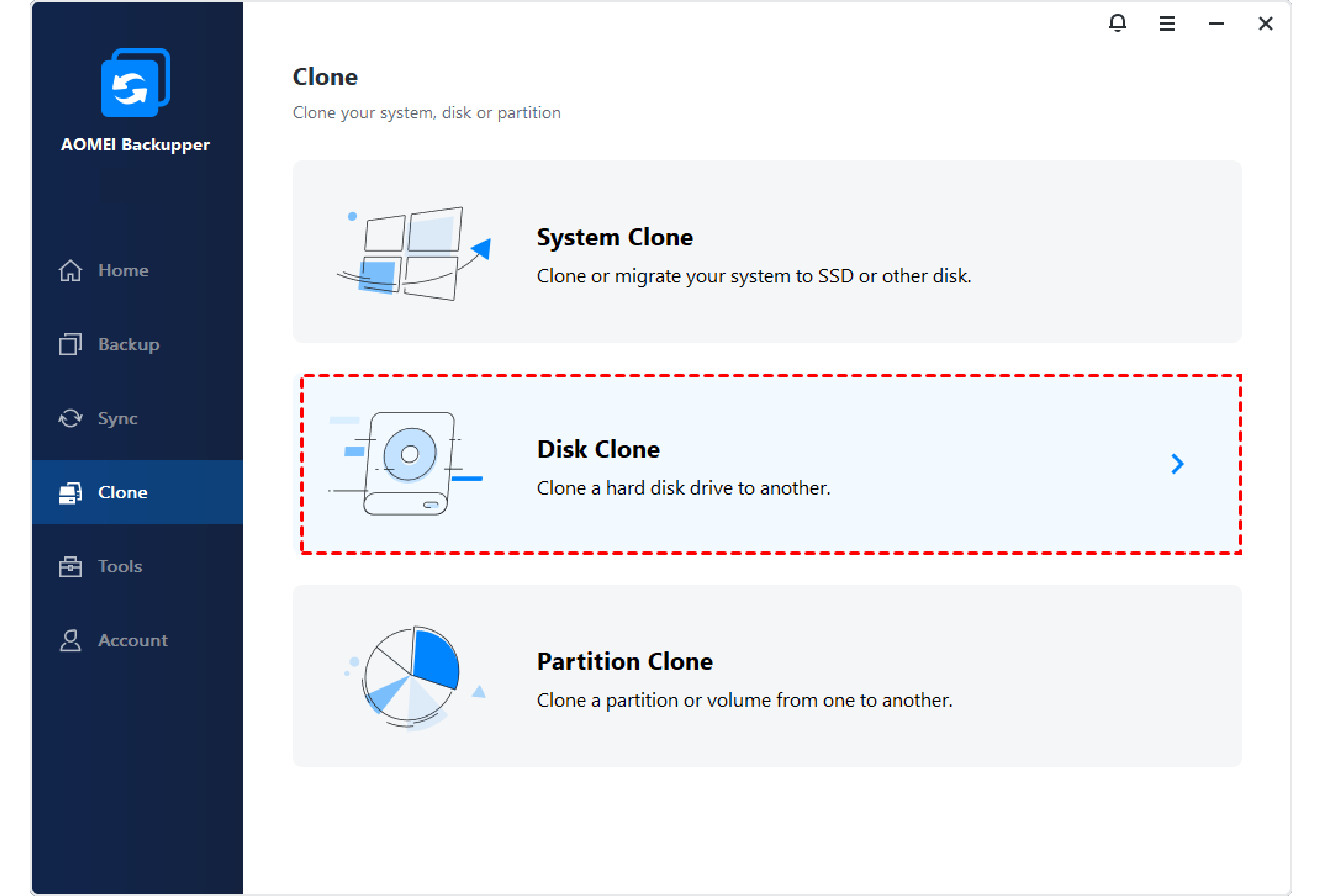
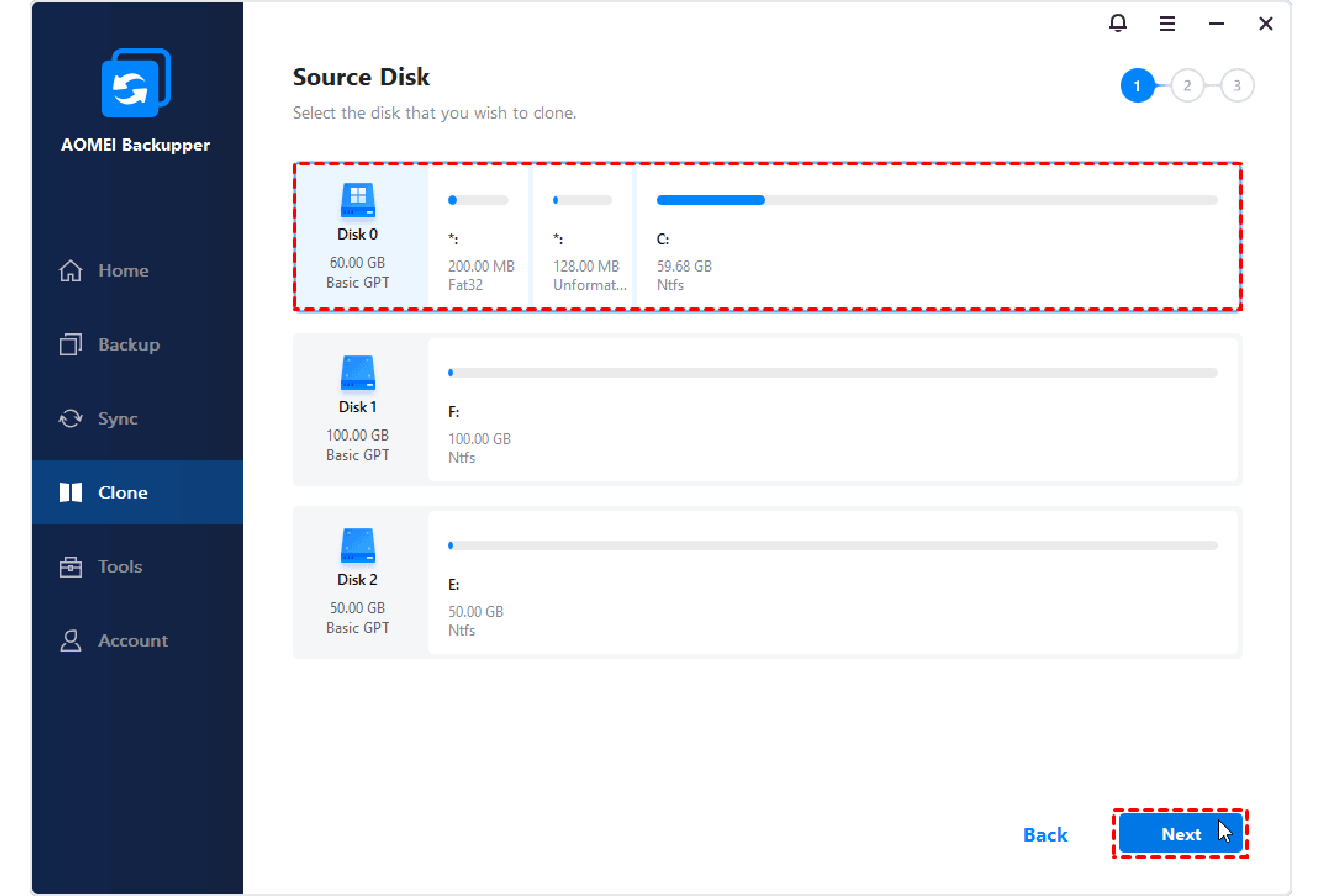
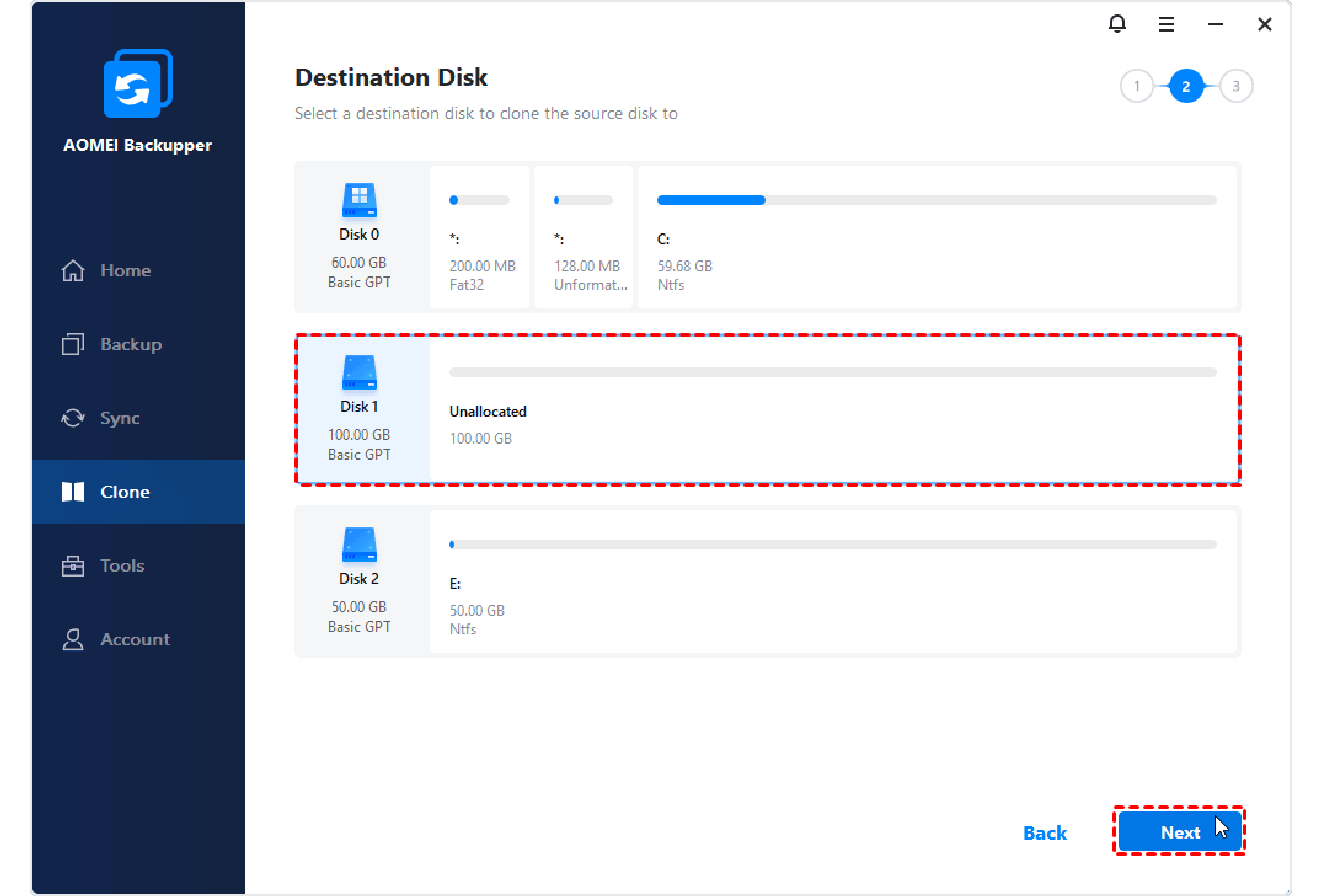
Duplicate all data, including operating system files on the entire old disk to another hard drive without reinstalling apps.

Clone only a specified partition of your disk to another partition or hard drive if you need to keep data on the partition rather than the whole disk.

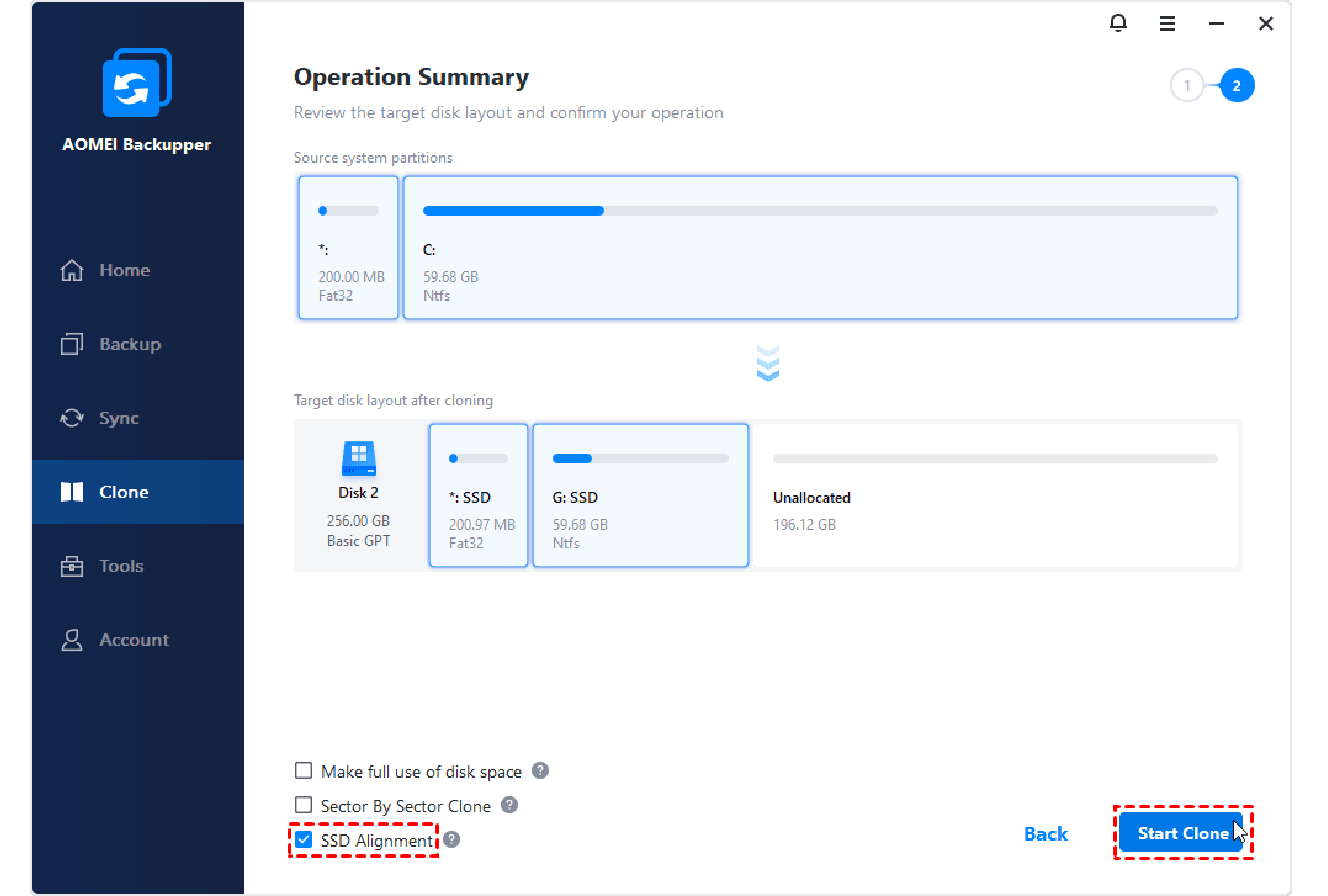
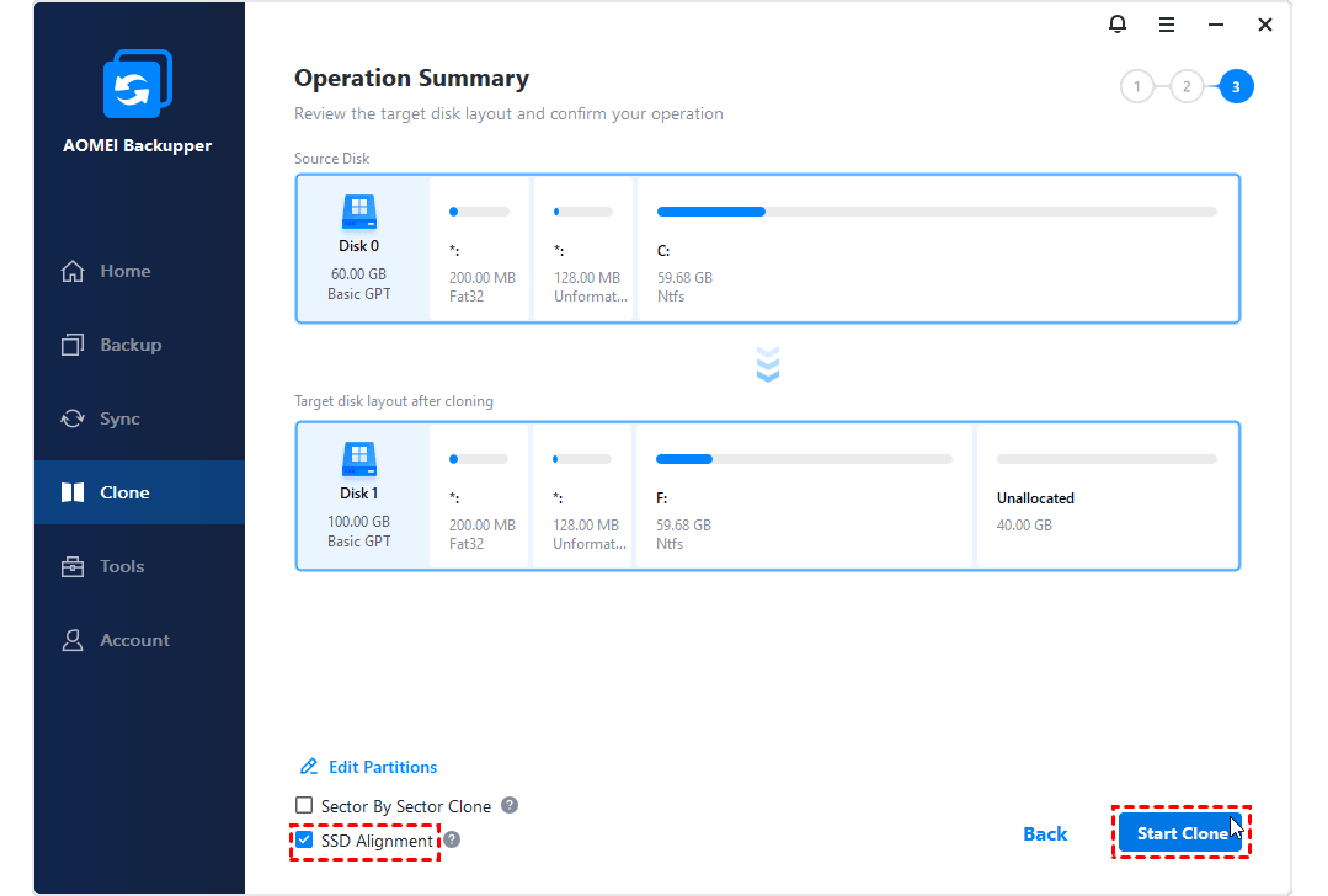
Align partitions correctly to improve disk performance especially when cloning to SSD and enhance lifespan.

Add unused space to all partitions automatically or manually adjust partition size when cloning to a larger disk.

It is featured with more functions, including disk/system backup, file sync, and so on for data protection.
 Supported Storage Devices:
 Supported System and File System:
 File Systems:
" Great software and clone my drive in no time, highly recommended with 5 thank you AOMEI! "
" Fantastic, I just cloned my disk from a HP i7 elitebook with 300gb ssd to a remote 240gb ssd, and then did the reverse into another HP elitebook with 250gb ssd. It was easy and just followed what they said, but was worried doing the last bit, but just went ahead and did it, and its all working exactly as the other. This was using the Free version, and I had tried a few others, but run into problems with different size drives, whereas in the intro what caught my eye, it said no problems with larger size and vice versa. Thanks AOMEI. "
" As a result of an article in Computer Active I have installed and completed a clone of the Windows disk on my computer. I have to say that it was easy to install, many sites now trick you into installing other software that is not wanted, yours was absolutely clear about what to do. It was equally easy to use and I had completed the clone within half an hour of starting to read the article in CA. I will use it for backups to evaluate it for a week or so and then if satisfied I will purchase the pro version. "
" I notice most people in the faq & forums have difficulty with their computer loading the cloned ssd, where it goes straight to their eMMC instead; if this helps, I solved this by making ssd drive as the first bootable choice, placing windows boot loader below it (I'm assuming having the boot loader as first choice causes the device to go straight to emmc drive, regardless of order other drives' placements). Your product & service made cloning both drives smooth and effortless, I would recommend to others who don't have sata equipment, etc. "
" I have been using this AOMEI Backupper software not only to do backups, but to do Upgrades to my older PC's to SSD's. The Clone function makes it so easy to clone your existing disk drive to a new one. Then you remove your old disk drive, replace it with the new one that you just cloned too, and it boots right up. The size of your target can be smaller or larger, as long as it fits. Thank You! "
 AOMEI Backupper Professional