 AOMEI Backupper
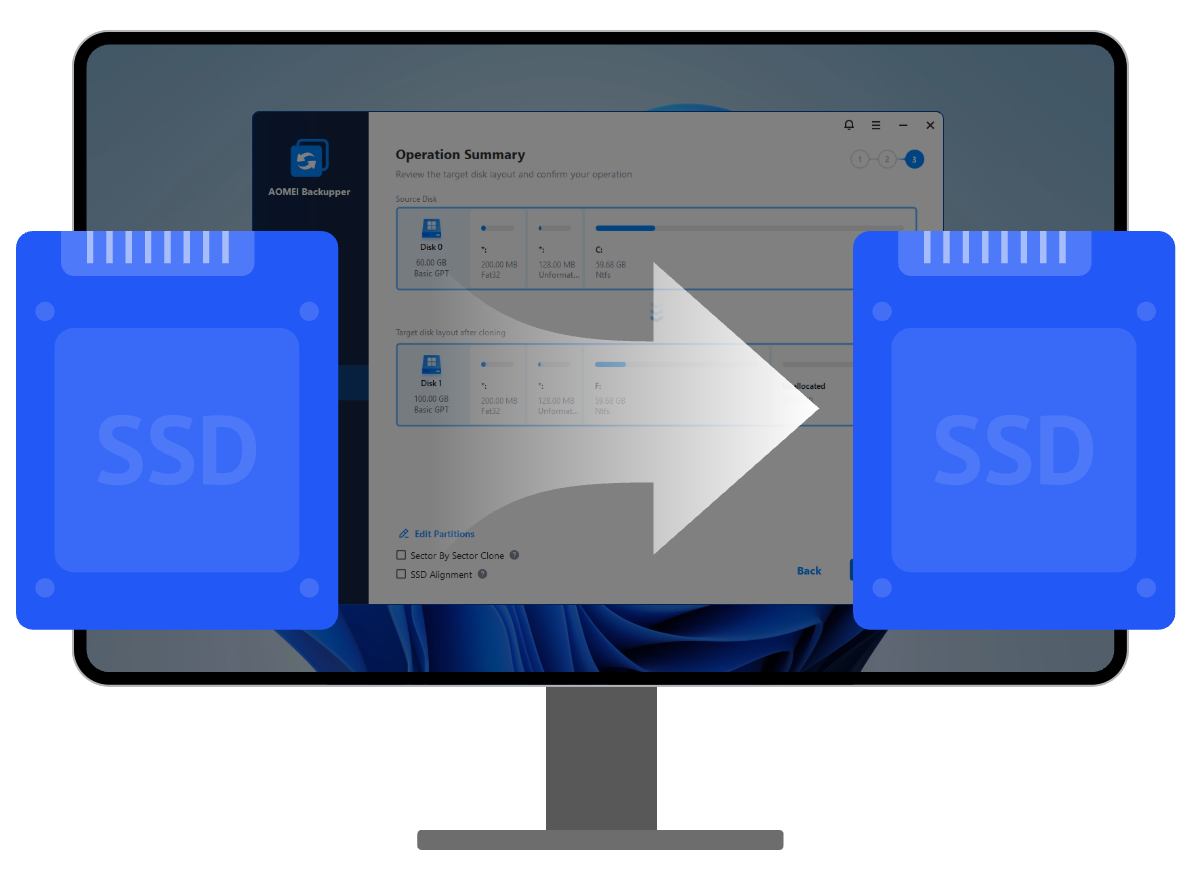
AOMEI Bakcupper effectively addresses all your SSD cloning needs in Windows 11/10/8/7 and Windows Server. It’s a smart choice to use it for creating an exact copy of an SSD when upgrading to a larger one or migrating the OS without reinstalling apps or OS.
All data, including hidden files and partitions can be correctly copied from old SSD to new SSD, which ensure the target SSD boots successfully after cloning.

It support Intelligent Clone, which only copies used space and then you can clone SSD to smaller SSD. It also supports you to adjust partition size when cloning SSD to a larger SSD.

SSD performance and lifespan is extended can be enhanced via 4K partition alignment when performing SSD clone.

It can perform SSD clone between different types of interface, like cloning NVMe SSD to SATA SSD, and various brands, including Samsung SSD, Seagate SSD, and more.

Apart from SSD to SSD clone, AOMEI Backupper can easily and effectively perform non-SSD disk clone. You can use it to clone HDD to HDD, SSD to HDD, SD card to SD card, USB flash drive to USB flash drive, and more.

AOMEI Backupper enables you to automatically backup system, disk, partition and files with full, incremental and differential methods. And it can backup to different locations, including internal/external storage, CD/DVD, NAS/network share, cloud as you want.

AOMEI Backupper offers basic, mirror, and real-time sync modes to personalize sync needs. And it can perform sync tasks automatically to keep a copy of frequently changed data without any efforts.

Cloned disk may not work well in computers with different hardware. In such case, you can create a system backup image and then restore system to dissimilar hardware with Universal Restore function.
Here are detailed steps on how to copy SSD to SSD on Windows 11/10/8/7.
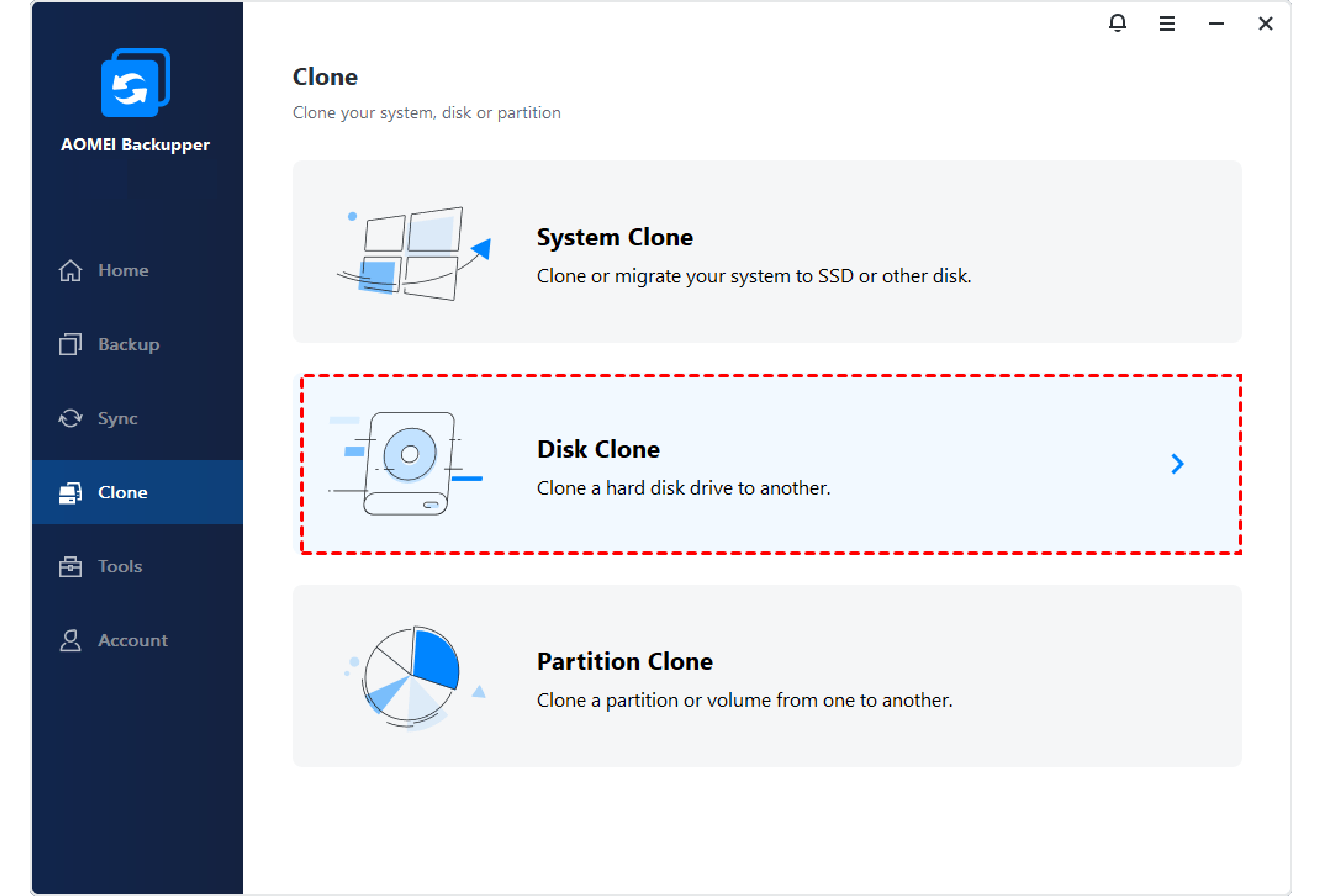
Run AOMEI Backupper. Click "Clone" on the left pane and select "Disk Clone".
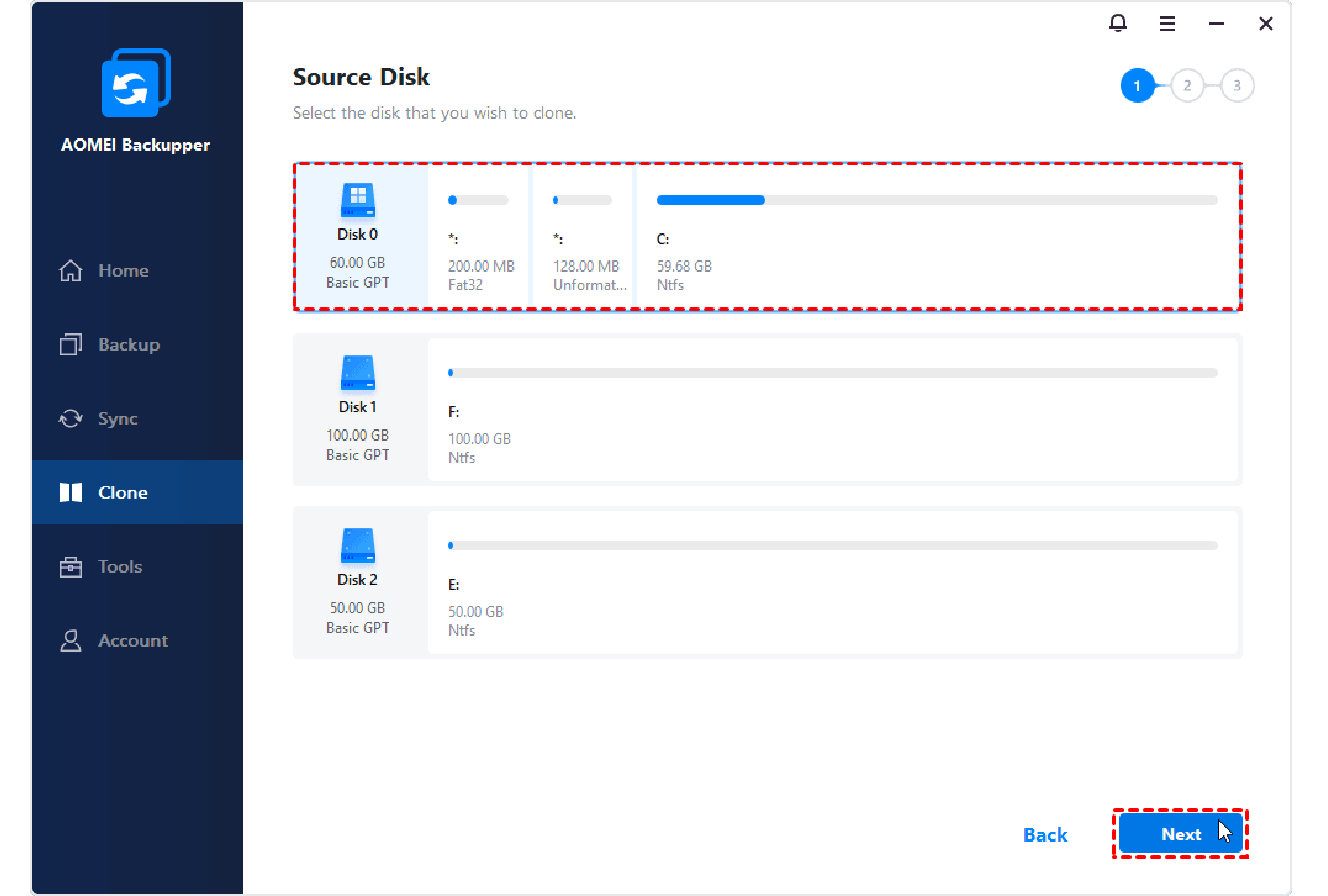
Select the source SSD that need to be cloned.
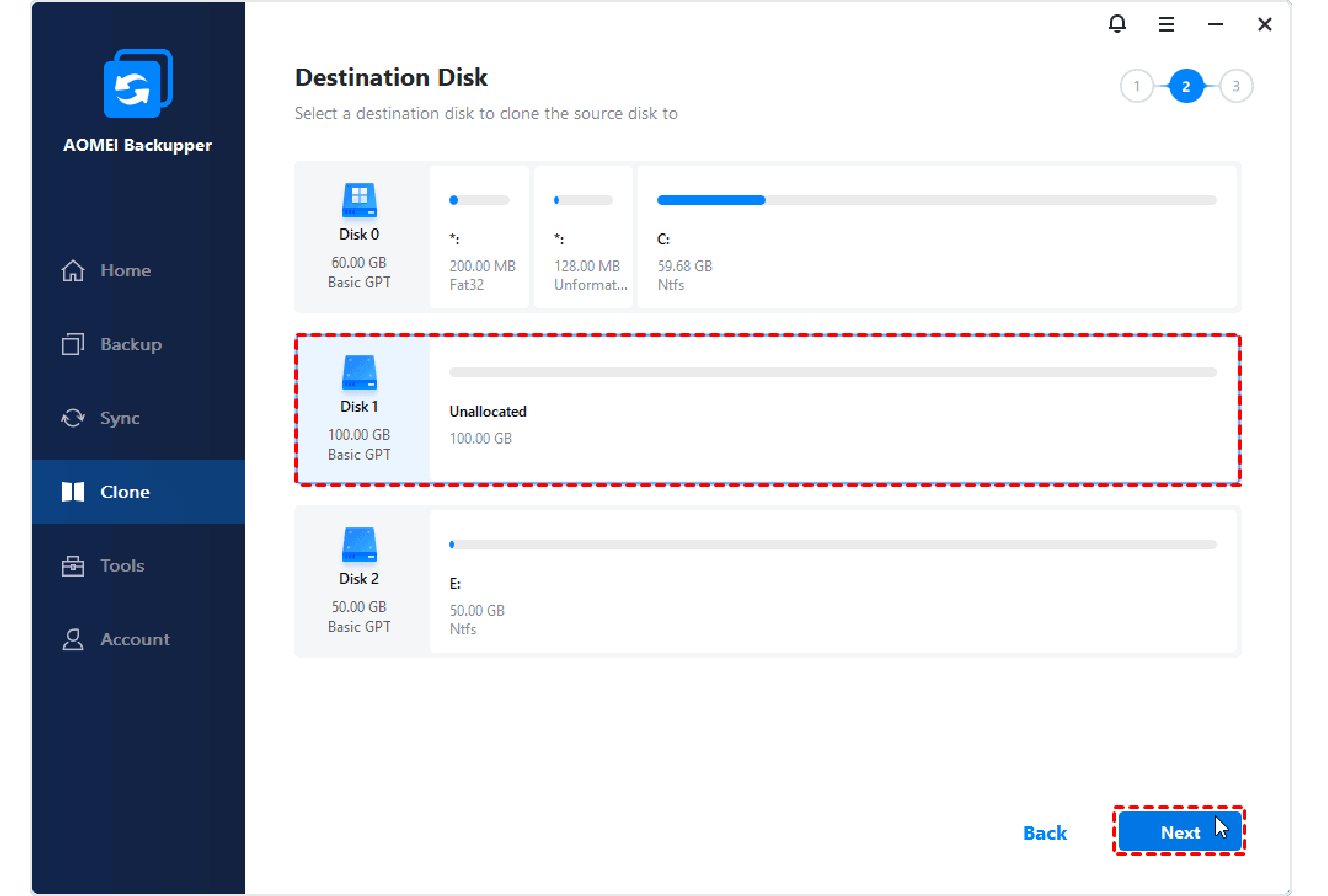
Select the destination SSD to clone to.
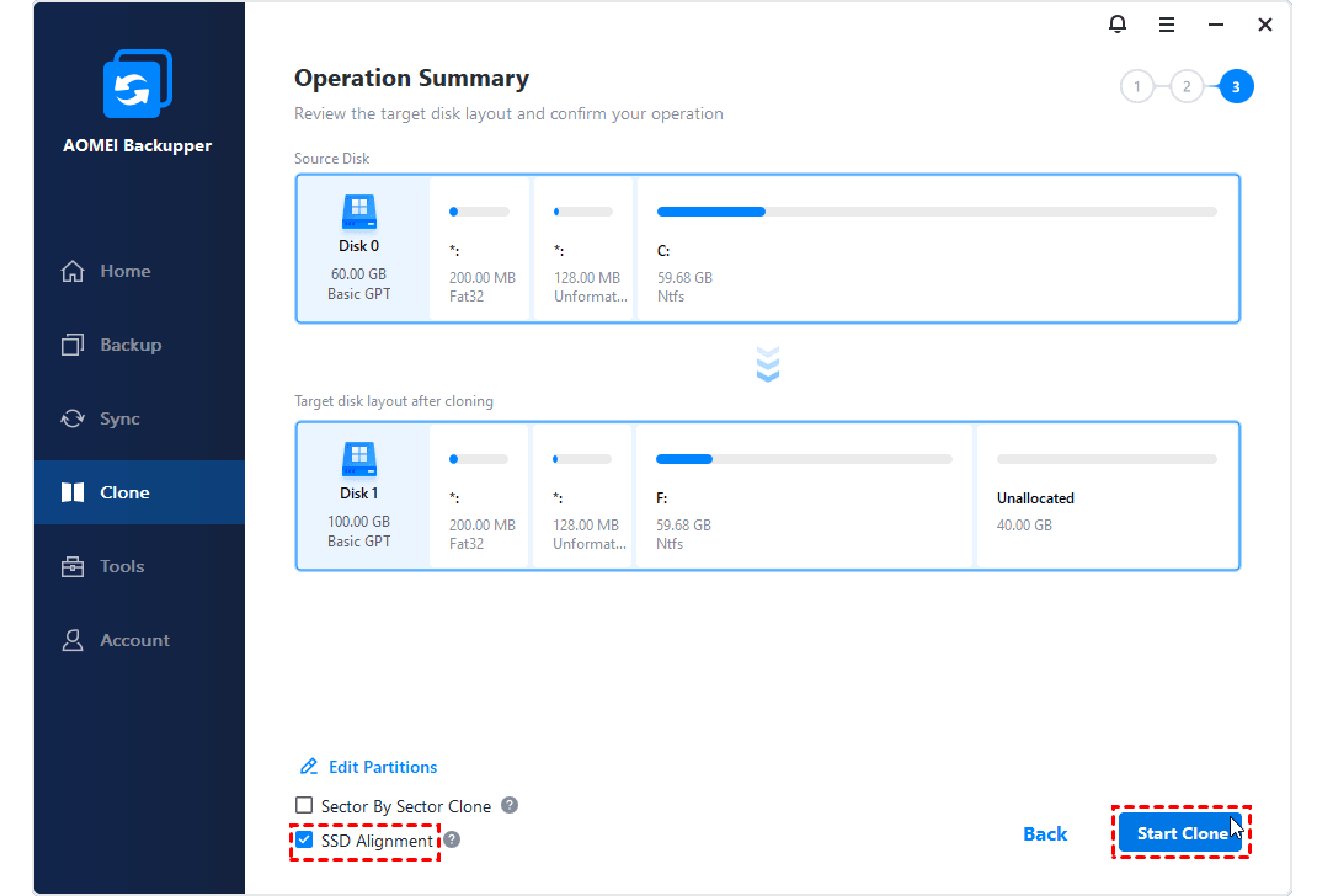
Tick "SSD Alignment". Click "Start Clone" to execute the task. All data, including OS is moved to your new SSD.








Partners
Countries
Users
Years of Experience
Adwards
Patents
AOMEI Backupper
 No Data Loss
No Reinstallion
No Boot Failure
No Data Loss
No Reinstallion
No Boot Failure

 AOMEI Backupper